Gemini API Key Invalid Error: Complete Fix Guide with Working Code Examples 2026
Complete guide to fixing Gemini API key invalid errors. Covers all error codes (400, 401, 403), environment variable issues, regional restrictions, and working Python/JavaScript validation code.
Nano Banana Pro
4K-80%Google Gemini 3 Pro · AI Inpainting
谷歌原生模型 · AI智能修图

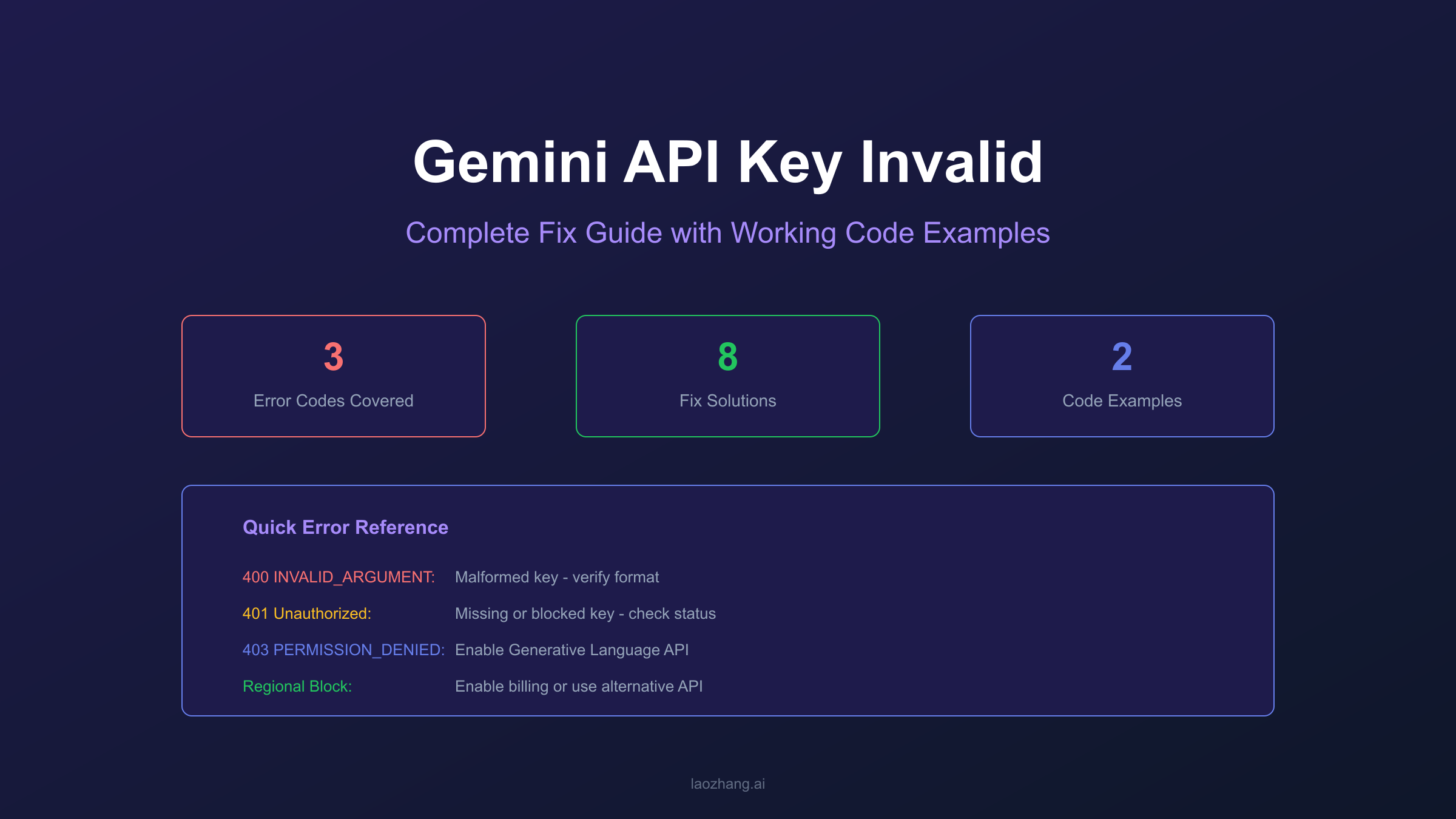
The "API key not valid" error is one of the most common issues developers encounter when working with the Gemini API. This error can appear in several forms—400 INVALID_ARGUMENT, 401 Unauthorized, or 403 PERMISSION_DENIED—each pointing to different underlying causes that require specific solutions.
This guide provides a complete reference for diagnosing and fixing Gemini API key errors. You'll find detailed explanations of each error type, step-by-step troubleshooting for environment variable issues, regional restriction workarounds, and working code examples that validate your API key configuration before making actual requests. The information here reflects the January 2026 API specifications and covers both Google AI Studio keys and Google Cloud project configurations.
Understanding why your key is being rejected is the first step to fixing it. Whether the issue stems from a typo in your environment variable, a leaked key that Google automatically blocked, or regional restrictions affecting your location, this guide walks you through the diagnosis and solution process.
Understanding Gemini API Key Errors
Gemini API key errors occur when authentication fails during API requests. The error indicates that Google's servers could not verify your identity, but the specific cause varies based on the error code returned.
The Gemini API uses API keys as the primary authentication method for Google AI Studio access. When you create a key through Google AI Studio, it's associated with a Google Cloud project and must be properly configured to work. Several factors can cause a valid-looking key to fail authentication.
The most fundamental cause is using an incorrect key. This happens when developers copy only part of the key string, include extra whitespace, or accidentally use an old key that was regenerated. API keys are long alphanumeric strings, and even a single character difference makes the key invalid. Google's error messages don't specify which character is wrong—they simply reject the entire key.
Environment variable misconfiguration represents another common cause. The Gemini API libraries automatically detect GEMINI_API_KEY or GOOGLE_API_KEY environment variables, but the detection process can fail in specific scenarios. For example, if you have a directory named .env in your project (rather than a file), some tools misinterpret this and fail to read your actual environment variables.
Leaked keys present a particularly frustrating scenario because they initially worked. Google monitors for API keys exposed in public repositories and automatically blocks them to prevent unauthorized usage. If your key suddenly stops working without any changes on your part, this is often the cause. You won't receive a notification—the key simply starts returning invalid errors.
Complete Error Code Reference
Different HTTP status codes indicate different problems with your API key authentication. Understanding these distinctions helps you apply the correct solution.
The Gemini API returns three primary error codes for authentication issues, each requiring a different troubleshooting approach. This reference table summarizes what each code means and what typically causes it.
| Error Code | Message | Primary Cause | Solution |
|---|---|---|---|
| 400 INVALID_ARGUMENT | "API key not valid" | Malformed key or request | Verify key format, check for typos |
| 401 Unauthorized | "Request had invalid authentication credentials" | Missing or rejected key | Check environment variable, regenerate if blocked |
| 403 PERMISSION_DENIED | "Your API key doesn't have the required permissions" | Key exists but lacks access | Enable Generative Language API, check project settings |
The 400 error specifically indicates that something is wrong with how the key is formatted or transmitted. This includes scenarios where the key string is incomplete, contains invisible characters from copy-paste operations, or uses the wrong format in the request header. According to Google's troubleshooting guide, you should verify "the key is correctly copied (no extra spaces), check if the Generative Language API is enabled in your project, and ensure your key hasn't been deleted or regenerated."
The 401 error suggests the key was either not received by the server or was explicitly rejected. This commonly occurs when environment variables aren't set correctly, when using a leaked key that Google blocked, or when attempting to use an API key with Vertex AI endpoints (which require OAuth2 authentication instead).
The 403 error means Google recognized your key but determined it lacks the necessary permissions. This typically happens when the Generative Language API isn't enabled in the Google Cloud project associated with your key, or when attempting to access tuned models without proper authentication configured.

Environment Variable Troubleshooting
Environment variable issues cause a significant portion of "API key not valid" errors. The Gemini API libraries automatically detect two environment variables: GEMINI_API_KEY (preferred) and GOOGLE_API_KEY (takes precedence if both are set).
Proper environment variable configuration varies by operating system and shell. On Linux and macOS, you set the variable using the export command in your shell profile. On Windows, you access System Properties to add environment variables through the graphical interface. The key point is ensuring the variable persists across terminal sessions and is accessible to your application.
A common issue occurs when developers set the environment variable in one terminal session but run their application from a different session or IDE that doesn't inherit those variables. Each terminal session has its own environment, and variables set with export only persist for that session unless added to a profile file like .bashrc or .zshrc.
The .env directory conflict deserves special attention. According to GitHub issue reports, if a directory named .env exists in your project (instead of a .env file), some tools attempt to read it as a file and fail silently. The tool then doesn't fall back to checking actual environment variables, causing false "key not found" errors even when your GEMINI_API_KEY is correctly set in your shell profile.
To verify your environment variable is correctly set, run this command in your terminal:
hljs bash# On Linux/macOS
echo $GEMINI_API_KEY
# On Windows PowerShell
echo $env:GEMINI_API_KEY
If the command returns your key, the environment variable is set for that session. If it returns empty, check your profile file and ensure you've reloaded it with source ~/.bashrc or opened a new terminal window.
For some tools and frameworks, using GOOGLE_API_KEY instead of GEMINI_API_KEY resolves detection issues. According to community reports, certain integrations specifically require GOOGLE_API_KEY. When both variables are set, GOOGLE_API_KEY takes precedence, so avoid setting both to different values.
Regional Restrictions and Solutions
Gemini API availability varies by geographic location, and users in unsupported regions receive 401 or 403 errors even with valid, properly configured API keys.
Google determines your location through your IP address. According to Google's documentation on available regions, the Gemini API is available in over 230 countries, but notable restrictions apply to specific regions. The free tier is completely unavailable in the European Economic Area (EEA), Switzerland, and the United Kingdom due to regulatory requirements. Users in these regions can access the API only with paid tier accounts that have billing enabled.
Countries under international sanctions—including Iran, Russia, and North Korea—have complete restrictions that apply regardless of tier. China presents a unique situation where Google services face government-imposed blocks, making direct API access impossible without network configuration changes.
The error message "User location is not supported for the API use" explicitly indicates regional restrictions. However, some regional blocks manifest as generic 401 or 403 errors, making diagnosis less obvious. If your key works from one location but fails from another, regional restrictions are likely the cause.
For free tier users in the EEA, Switzerland, or UK, enabling billing on your Google Cloud project can restore access. Navigate to the Google Cloud Console, select your project, and enable billing. This moves your account to the paid tier, which operates under different regional rules. Note that you'll only be charged for actual API usage beyond the free tier limits—enabling billing doesn't automatically incur costs.
For users in regions with complete restrictions, third-party API services offer an alternative. Services like laozhang.ai provide OpenAI-compatible endpoints that route requests through supported regions, maintaining the same API interface while avoiding regional blocks. This approach is particularly useful for development and testing when relocating isn't practical.
Handling Blocked or Leaked Keys
Google automatically blocks API keys identified as leaked to prevent unauthorized usage. This proactive security measure protects both developers and Google's infrastructure, but it can cause confusion when keys suddenly stop working.
A key becomes blocked when Google's systems detect it exposed in public repositories, forum posts, or other publicly accessible locations. This commonly happens when developers accidentally commit .env files or hardcoded keys to GitHub repositories. Even briefly exposed keys get flagged—the detection happens quickly, and there's no grace period or warning before blocking takes effect.
According to Google's security documentation, when a blocked key is used, you'll see the error: "Your API key was reported as leaked. Please use another API key." However, some users report seeing generic "API key not valid" errors instead, making it harder to identify the cause.
To check if your key is blocked, visit the Google AI Studio API Keys page. Blocked keys are marked with a warning indicator. If your key shows as blocked, you cannot unblock it—you must generate a new one and update all applications using the old key.
When generating a new key, take immediate steps to prevent future leaks. Add .env to your .gitignore file before creating the environment file. Use environment variables or secret management services instead of hardcoding keys. Consider adding API key restrictions through the Google Cloud Console to limit the key's scope—this minimizes damage if a future key is exposed.
Some users report keys being incorrectly flagged as leaked. According to GitHub issue discussions, certain API usage patterns can trigger false positives. If you believe your key was incorrectly blocked, generating a new key is still the fastest solution, but you can report the issue through Google Cloud support for investigation.
Step-by-Step Fix Guide
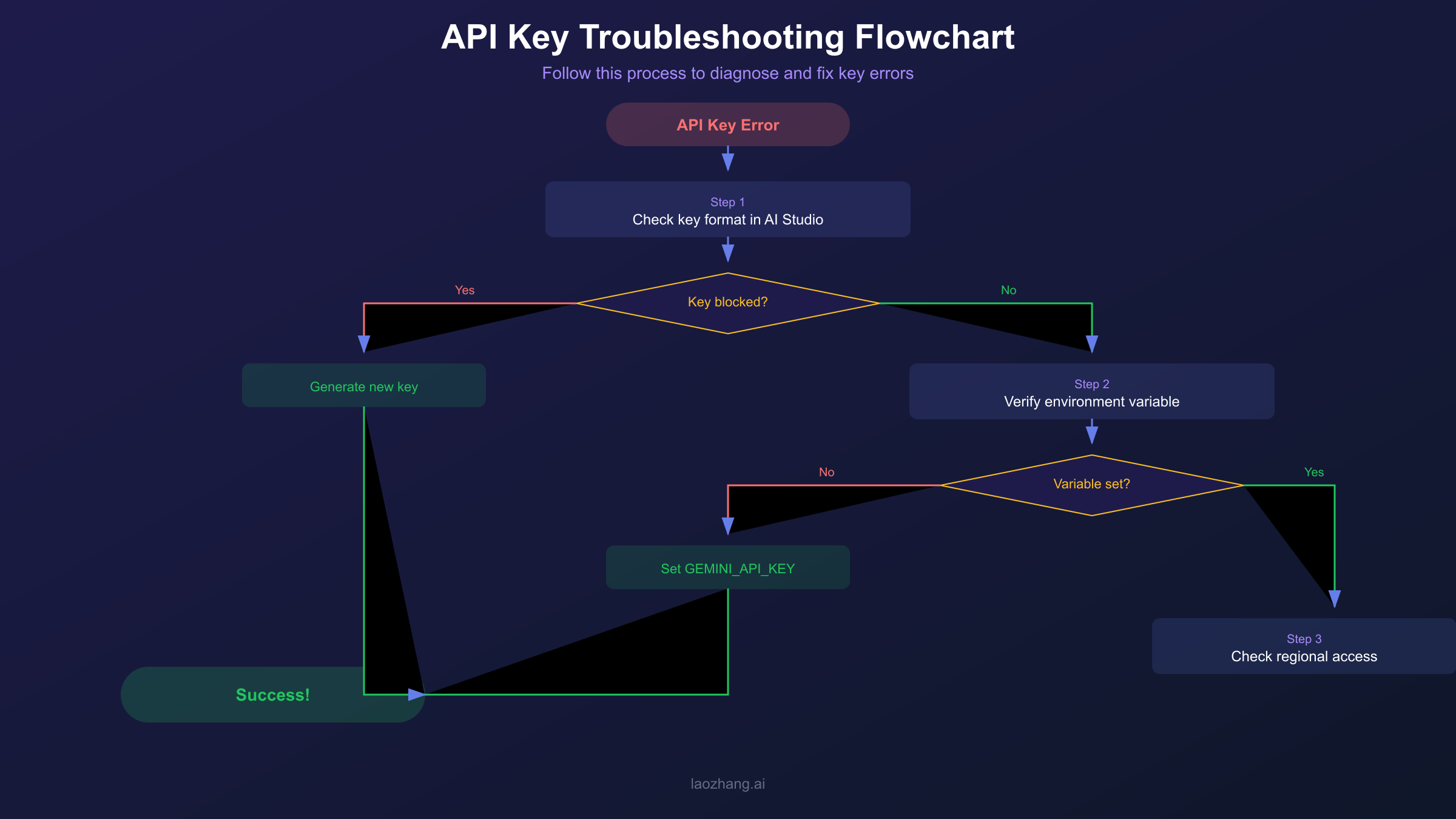
Follow this systematic approach to diagnose and fix Gemini API key invalid errors. Each step eliminates one potential cause, helping you identify the specific issue affecting your setup.
The first step involves verifying your key format. Open Google AI Studio, navigate to the API Keys section, and compare the displayed key character-by-character with the key in your code or environment variable. Pay attention to the beginning and end of the string—common copy-paste errors include missing the first or last few characters, or including extra whitespace.
Check if your key is blocked by looking for warning indicators in Google AI Studio. If the key shows any blocked or leaked status, stop troubleshooting and generate a new key immediately. No amount of configuration changes will make a blocked key work.
Verify the Generative Language API is enabled in your Google Cloud project. Go to the Google Cloud Console, select the project associated with your API key, navigate to APIs & Services, and search for "Generative Language API." If it's not enabled, enable it and wait a few minutes before retrying your request.
Test your key with a direct REST call to isolate whether the issue is with your key or your code. Use this curl command:
hljs bashcurl "https://generativelanguage.googleapis.com/v1beta/models/gemini-2.0-flash:generateContent?key=YOUR_API_KEY" \
-H 'Content-Type: application/json' \
-d '{"contents":[{"parts":[{"text":"Hello"}]}]}'
If this command succeeds but your application fails, the issue lies in how your application handles the key—check environment variable loading, header construction, or library configuration. If the curl command also fails, the problem is with the key itself or regional restrictions.
For regional access issues, check your IP location and compare it against the available regions list. If you're in a restricted region, consider enabling billing on your project (for EEA/UK free tier restrictions) or using a third-party API service that routes through supported regions.
If official API access continues to fail after these steps, services like laozhang.ai offer stable alternatives with OpenAI-compatible endpoints that work consistently across regions.
Working Code Examples
These code examples include validation logic that checks your API key configuration before making actual requests. Use them to diagnose issues and as templates for production implementations.
Python: Key Validation and Error Handling
hljs pythonimport os
import requests
# Configuration
API_KEY = os.environ.get('GEMINI_API_KEY') or os.environ.get('GOOGLE_API_KEY')
BASE_URL = "https://generativelanguage.googleapis.com/v1beta"
def validate_api_key():
"""
Validate the API key before making actual requests.
Returns detailed error information for troubleshooting.
"""
if not API_KEY:
return {
"valid": False,
"error": "No API key found",
"suggestion": "Set GEMINI_API_KEY or GOOGLE_API_KEY environment variable"
}
# Check key format (basic validation)
if len(API_KEY) < 30:
return {
"valid": False,
"error": "API key appears incomplete",
"suggestion": "Verify you copied the complete key from Google AI Studio"
}
if ' ' in API_KEY or '\n' in API_KEY:
return {
"valid": False,
"error": "API key contains whitespace",
"suggestion": "Remove extra spaces or newlines from the key"
}
# Test with minimal API call
try:
response = requests.get(
f"{BASE_URL}/models?key={API_KEY}",
timeout=10
)
if response.status_code == 200:
return {"valid": True, "models": len(response.json().get('models', []))}
error_data = response.json().get('error', {})
status = error_data.get('status', 'UNKNOWN')
message = error_data.get('message', 'Unknown error')
# Provide specific guidance based on error type
if status == 'INVALID_ARGUMENT':
suggestion = "Key format is incorrect. Regenerate from Google AI Studio."
elif status == 'PERMISSION_DENIED':
suggestion = "Enable Generative Language API in your Google Cloud project."
elif 'leaked' in message.lower():
suggestion = "Key was blocked due to exposure. Generate a new key immediately."
elif 'location' in message.lower() or 'region' in message.lower():
suggestion = "Your region may be restricted. Try enabling billing or use alternative API."
else:
suggestion = "Check Google AI Studio for key status and project configuration."
return {
"valid": False,
"error": f"{status}: {message}",
"suggestion": suggestion,
"status_code": response.status_code
}
except requests.exceptions.Timeout:
return {
"valid": False,
"error": "Request timed out",
"suggestion": "Check your network connection and try again"
}
except requests.exceptions.RequestException as e:
return {
"valid": False,
"error": str(e),
"suggestion": "Network error - verify internet connectivity"
}
def generate_content(prompt, model="gemini-2.0-flash"):
"""
Generate content with proper error handling.
"""
# Validate key first
validation = validate_api_key()
if not validation["valid"]:
raise ValueError(f"API Key Error: {validation['error']}\nSuggestion: {validation['suggestion']}")
response = requests.post(
f"{BASE_URL}/models/{model}:generateContent?key={API_KEY}",
headers={"Content-Type": "application/json"},
json={"contents": [{"parts": [{"text": prompt}]}]},
timeout=60
)
if response.status_code != 200:
error = response.json().get('error', {})
raise Exception(f"API Error: {error.get('message', 'Unknown error')}")
return response.json()
# Usage example
if __name__ == '__main__':
print("Validating API key...")
result = validate_api_key()
if result["valid"]:
print(f"✅ API key is valid. {result['models']} models available.")
else:
print(f"❌ {result['error']}")
print(f"💡 {result['suggestion']}")
JavaScript/Node.js: Environment Check and Validation
hljs javascriptconst https = require('https');
// Check both possible environment variables
const API_KEY = process.env.GEMINI_API_KEY || process.env.GOOGLE_API_KEY;
const BASE_URL = 'generativelanguage.googleapis.com';
function validateApiKey() {
return new Promise((resolve) => {
// Check if key exists
if (!API_KEY) {
resolve({
valid: false,
error: 'No API key found in environment variables',
suggestion: 'Set GEMINI_API_KEY or GOOGLE_API_KEY'
});
return;
}
// Check for common format issues
if (API_KEY.length < 30) {
resolve({
valid: false,
error: 'API key appears incomplete',
suggestion: 'Copy the complete key from Google AI Studio'
});
return;
}
if (API_KEY.includes(' ') || API_KEY.includes('\n')) {
resolve({
valid: false,
error: 'API key contains whitespace characters',
suggestion: 'Remove extra spaces or newlines'
});
return;
}
// Test with API call
const options = {
hostname: BASE_URL,
path: `/v1beta/models?key=${API_KEY}`,
method: 'GET',
timeout: 10000
};
const req = https.request(options, (res) => {
let data = '';
res.on('data', chunk => data += chunk);
res.on('end', () => {
if (res.statusCode === 200) {
const parsed = JSON.parse(data);
resolve({
valid: true,
models: parsed.models?.length || 0
});
} else {
const error = JSON.parse(data).error || {};
let suggestion = 'Check Google AI Studio for key status.';
if (error.status === 'INVALID_ARGUMENT') {
suggestion = 'Regenerate key from Google AI Studio.';
} else if (error.status === 'PERMISSION_DENIED') {
suggestion = 'Enable Generative Language API in Cloud Console.';
} else if (error.message?.toLowerCase().includes('leaked')) {
suggestion = 'Key was blocked. Generate a new one immediately.';
} else if (error.message?.toLowerCase().includes('region')) {
suggestion = 'Regional restriction. Enable billing or use alternative API.';
}
resolve({
valid: false,
error: `${error.status}: ${error.message}`,
suggestion,
statusCode: res.statusCode
});
}
});
});
req.on('error', (e) => {
resolve({
valid: false,
error: e.message,
suggestion: 'Check network connection'
});
});
req.on('timeout', () => {
req.destroy();
resolve({
valid: false,
error: 'Request timed out',
suggestion: 'Check network connectivity'
});
});
req.end();
});
}
// Usage
(async () => {
console.log('Validating API key...');
const result = await validateApiKey();
if (result.valid) {
console.log(`✅ API key is valid. ${result.models} models available.`);
} else {
console.log(`❌ ${result.error}`);
console.log(`💡 ${result.suggestion}`);
}
})();
For environments where direct Google API access is problematic, you can adapt these examples to use alternative endpoints. Third-party services often provide OpenAI-compatible APIs with the same validation patterns but different base URLs.
Prevention Best Practices
Preventing API key issues is more efficient than troubleshooting them after they occur. These practices help maintain stable API access and protect your keys from compromise.
Never commit API keys to source control. This is the single most important rule for API key security. Add .env to your .gitignore file before creating it, and verify the file isn't tracked by running git status. According to Google's API key documentation, developers should "treat your Gemini API key like a password" and "never commit API keys to source control."
Use environment variables or secret management services instead of hardcoding keys. Hardcoded keys in source files are vulnerable to accidental exposure through repository sharing, screenshots, or code reviews. Environment variables keep secrets separate from code, making them easier to rotate without code changes.
Apply API key restrictions when possible. Through the Google Cloud Console, you can limit which APIs a key can access, restrict usage to specific IP addresses or HTTP referrers, and set usage quotas. These restrictions minimize potential damage if a key is compromised—an attacker can only use the key for the specific, limited purposes you've configured.
Rotate keys periodically as a proactive security measure. Even without evidence of compromise, regular rotation limits the window of opportunity for any undetected exposure. When rotating, update all applications using the old key before deleting it to avoid service interruptions.
Monitor your API usage through the Google Cloud Console to detect anomalies that might indicate key compromise. Unusual spikes in usage, requests from unexpected regions, or access patterns that don't match your application's behavior warrant immediate investigation. Set up billing alerts to catch unexpected usage before it results in significant charges.
Keep your development and production keys separate. This isolation means a compromised development key doesn't affect production, and you can rotate or restrict development keys more aggressively without impacting live services. Each environment should have its own API key with appropriate restrictions.
Frequently Asked Questions
Why did my Gemini API key suddenly stop working?
The most common cause is Google blocking the key after detecting it exposed in a public repository or other accessible location. Visit Google AI Studio to check your key status—blocked keys show a warning indicator. If blocked, generate a new key and update your applications. Less commonly, Google may have made API changes that require configuration updates, or your Google Cloud project billing status may have changed affecting access.
Can I use the same API key for Vertex AI and Google AI Studio?
No. Vertex AI requires OAuth2 or service account authentication—API keys don't work with Vertex AI endpoints. If you send a request to a Vertex AI endpoint with an API key, you'll receive a 401 error indicating OAuth2 was expected. Use the appropriate authentication method for each platform: API keys for Google AI Studio, service accounts or OAuth2 for Vertex AI.
How do I fix the "API key not valid" error when my key looks correct?
First, verify there's no whitespace or hidden characters in your key by recopying it from Google AI Studio. Check that the Generative Language API is enabled in your Google Cloud project. Test with a direct curl command to isolate whether the issue is with your key or your application code. If the key is blocked (check AI Studio), generate a new one. For regional restrictions, try enabling billing on your project.
Why does my API key work in some applications but not others?
Different applications may use different environment variable names. Some tools expect GEMINI_API_KEY while others require GOOGLE_API_KEY. Check your application's documentation for the expected variable name. Also verify that the application has access to the environment where the variable is set—IDEs and Docker containers often have isolated environments that don't inherit shell variables.
How can I access the Gemini API from a restricted region?
For EEA, Switzerland, and UK users on the free tier, enabling billing on your Google Cloud project often restores access without actual charges (you're only billed for usage beyond free limits). For regions with complete restrictions, third-party API services that route requests through supported regions provide an alternative. Google also suggests trying the Gemini API in Vertex AI for some restricted scenarios.