Nano Banana Pro API Integration Guide: From Zero to Production
Complete guide to integrating Nano Banana Pro API (Gemini 3 Pro Image): API versions, REST and Python SDK examples, multi-image composition, error handling, rate limits, and cost optimization strategies for 4K image generation.
Nano Banana Pro
4K-80%Google Gemini 3 Pro · AI Inpainting
谷歌原生模型 · AI智能修图

Nano Banana Pro API enables developers to generate high-quality images up to 4K resolution through Google's Gemini 3 Pro Image model. This comprehensive integration guide covers everything from obtaining API credentials to deploying production-ready code, including advanced features like multi-image composition and character consistency control.
The Gemini image generation ecosystem offers three primary access channels: the Gemini API through Google AI Studio for rapid prototyping, Vertex AI for enterprise deployments with full GCP integration, and third-party providers for cost optimization and simplified access. Each channel serves different use cases, and understanding their distinctions ensures you select the optimal path for your specific requirements.
This guide provides practical, production-tested code examples that go beyond basic "hello world" demonstrations. You'll implement complete error handling, retry logic with exponential backoff, and cost-aware optimizations that can reduce your API expenses by 70% or more. Whether you're building a creative tool, automating marketing asset generation, or integrating AI imagery into an existing application, this guide delivers the technical foundation you need.
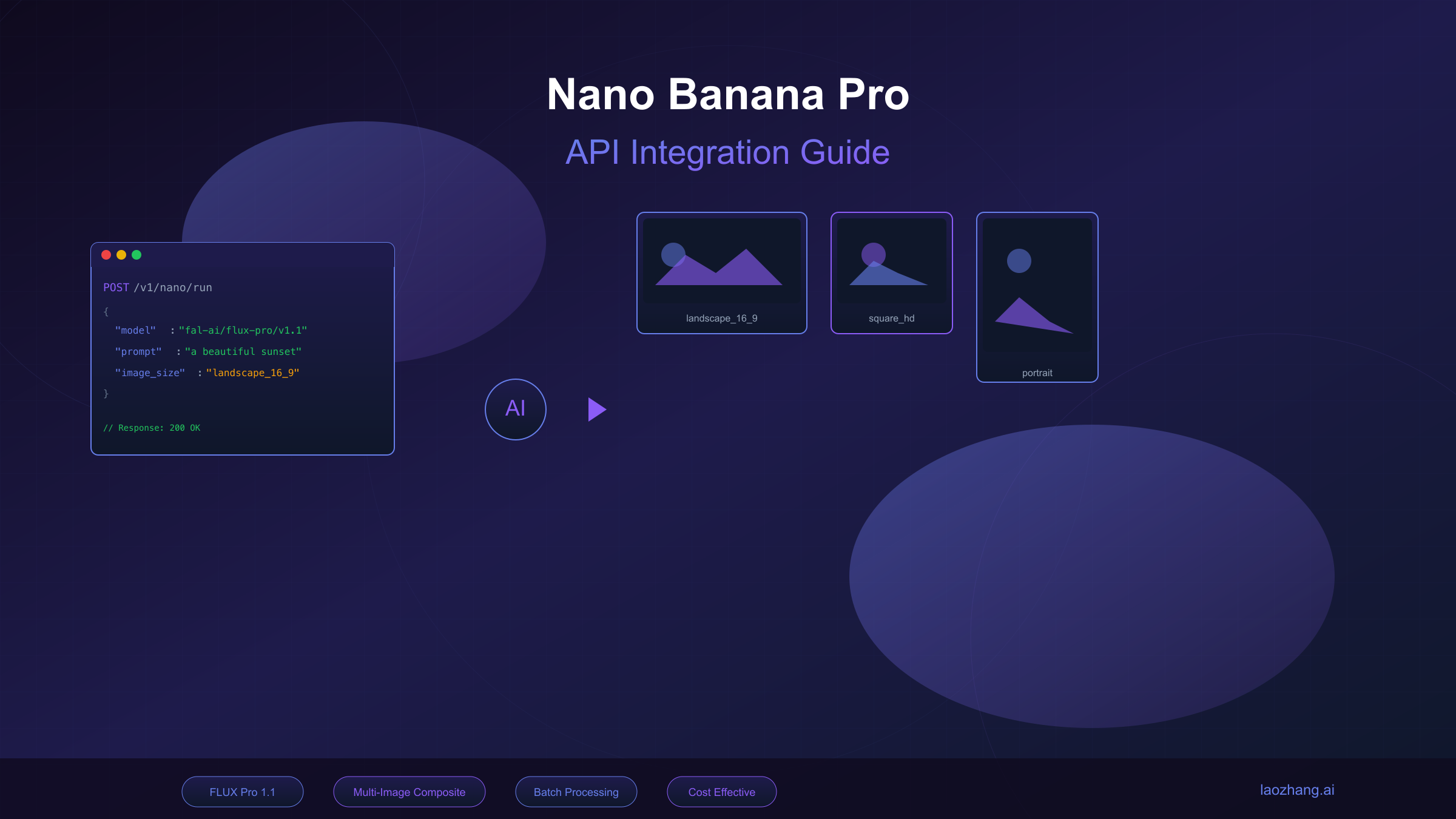
API Versions and Access Methods
Understanding the Gemini image generation landscape requires distinguishing between three fundamentally different access patterns, each with distinct authentication flows, feature sets, and pricing structures. Making the wrong choice here can lock you into suboptimal architectures or unnecessarily complex authentication requirements.
Gemini API (Google AI Studio)
The Gemini API accessed through Google AI Studio represents the fastest path from zero to working code. Registration requires only a Google account, and API key generation takes approximately 30 seconds. This channel supports all Nano Banana models including the full Gemini 3 Pro Image Preview capabilities, making it ideal for individual developers, startups, and prototyping phases.
The API endpoint structure follows a straightforward pattern that mirrors Google's other AI services. For image generation, requests target the generateContent endpoint with specific model identifiers:
- Standard Gemini API:
https://generativelanguage.googleapis.com/v1beta/models/{MODEL_ID}:generateContent - Model IDs:
gemini-2.5-flash-image(Nano Banana) orgemini-3-pro-image-preview(Nano Banana Pro)
Rate limits on the Gemini API vary by account tier. Free tier accounts receive 60 requests per minute (RPM) and approximately 1,500 requests per day. Upgrading to a paid tier unlocks significantly higher quotas: Tier 1 offers 500 RPM, Tier 2 provides 2,000 RPM, and enterprise arrangements support custom limits negotiated based on projected usage.
Vertex AI (Enterprise)
Vertex AI provides the enterprise-grade path with full Google Cloud Platform integration. This channel adds capabilities absent from the standard Gemini API: VPC Service Controls for network isolation, Customer-Managed Encryption Keys (CMEK) for data sovereignty compliance, and comprehensive audit logging that satisfies SOC 2 and HIPAA requirements.
The authentication model differs substantially from Gemini API's simple key approach. Vertex AI requires service account credentials with IAM roles specifically granting aiplatform.endpoints.predict permissions. While more complex to configure initially, this model integrates seamlessly with existing GCP security policies and enables fine-grained access control across development teams.
The endpoint structure includes project and region identifiers reflecting GCP's resource organization:
https://{REGION}-aiplatform.googleapis.com/v1/projects/{PROJECT_ID}/locations/{REGION}/publishers/google/models/{MODEL_ID}:predict
Regional deployment options span multiple continents, allowing latency optimization by selecting endpoints geographically proximate to your users or data processing infrastructure.
Third-Party Providers
Third-party API providers aggregate access to multiple AI models through unified interfaces, often at significantly reduced costs compared to direct access. These services handle authentication complexity, provide additional reliability through multi-region failover, and frequently offer simplified billing that avoids Google Cloud's pay-as-you-go complexity.
For developers operating in regions with connectivity challenges or seeking cost optimization, third-party providers present compelling advantages. Services like laozhang.ai offer Nano Banana Pro access at approximately $0.05 per image—representing 60-70% savings compared to official rates—while maintaining API compatibility that requires only endpoint and key changes in existing code.
Access Method Comparison: Official Gemini API offers maximum feature access with straightforward authentication. Vertex AI provides enterprise controls at the cost of configuration complexity. Third-party providers optimize for cost and accessibility while potentially limiting access to the newest features.
Obtaining Your API Key
The API key acquisition process varies by access method but follows predictable patterns across all channels.
Google AI Studio (Gemini API):
- Navigate to Google AI Studio and sign in with your Google account
- Click "Get API Key" in the left navigation
- Select "Create API key in new project" or choose an existing GCP project
- Copy the generated key immediately—it cannot be retrieved later
- Store the key in environment variables, never in source code
Vertex AI:
- Create or select a GCP project with billing enabled
- Enable the Vertex AI API through the GCP Console or
gcloud services enable aiplatform.googleapis.com - Create a service account with the "Vertex AI User" role
- Generate and download a JSON key file for the service account
- Set the
GOOGLE_APPLICATION_CREDENTIALSenvironment variable to the key file path
Quota and Permission Configuration:
API quotas determine your maximum throughput and require explicit configuration for production workloads. The default quotas suit development but become limiting at scale:
| Tier | Requests Per Minute | Requests Per Day | Upgrade Requirement |
|---|---|---|---|
| Free | 60 | ~1,500 | None |
| Tier 1 | 500 | 10,000 | Enable billing |
| Tier 2 | 2,000 | 50,000 | $250 cumulative spend + 30 days |
| Tier 3 | 4,000 | 100,000 | $1,000 cumulative spend + 30 days |
Requesting quota increases beyond Tier 3 requires contacting Google Cloud support with a business justification including projected volume, use case description, and timeline. Approval typically takes 5-10 business days.
Basic API Call Examples
Moving from theory to working code requires understanding the request-response structure that powers Nano Banana Pro image generation. This section provides complete, runnable examples in both raw REST format and the Python SDK, with detailed explanations of every parameter that influences output quality and cost.
REST API Direct Calls
The REST API offers maximum control and works with any programming language capable of HTTP requests. This approach suits integration into existing systems, serverless functions, or environments where installing SDKs introduces unwanted complexity.
A minimal working request demonstrates the core structure:
hljs bashcurl -X POST \
"https://generativelanguage.googleapis.com/v1beta/models/gemini-3-pro-image-preview:generateContent" \
-H "Content-Type: application/json" \
-H "x-goog-api-key: YOUR_API_KEY" \
-d '{
"contents": [{
"parts": [{"text": "A professional product photo of a sleek smartphone on a marble surface, studio lighting, 4K quality"}]
}],
"generationConfig": {
"responseModalities": ["TEXT", "IMAGE"],
"imageConfig": {
"aspectRatio": "16:9",
"imageSize": "2K"
}
}
}'
The response structure requires specific handling to extract the generated image:
hljs json{
"candidates": [{
"content": {
"parts": [
{"text": "I've generated a professional product photo..."},
{
"inlineData": {
"mimeType": "image/png",
"data": "iVBORw0KGgoAAAANSUhEUgAA..."
}
}
]
}
}]
}
The inlineData.data field contains the Base64-encoded image that must be decoded before use. The accompanying text in parts[0].text provides the model's description of what it generated, useful for logging and quality verification.
Python SDK Implementation
The Google AI Python SDK provides a more ergonomic interface with automatic retry handling and type hints that improve development experience. Installation requires Python 3.9+ and a single pip command:
hljs bashpip install google-generativeai pillow
A complete implementation with proper error handling:
hljs pythonimport google.generativeai as genai
from PIL import Image
import base64
import io
import os
# Configure the API
genai.configure(api_key=os.environ.get("GEMINI_API_KEY"))
def generate_image(prompt: str, aspect_ratio: str = "16:9", size: str = "2K") -> Image.Image:
"""
Generate an image using Nano Banana Pro (Gemini 3 Pro Image).
Args:
prompt: Text description of the desired image
aspect_ratio: One of "1:1", "3:4", "4:3", "9:16", "16:9"
size: One of "1K", "2K", "4K" (affects cost and quality)
Returns:
PIL Image object ready for display or saving
"""
model = genai.GenerativeModel("gemini-3-pro-image-preview")
response = model.generate_content(
prompt,
generation_config=genai.GenerationConfig(
response_modalities=["TEXT", "IMAGE"],
image_config={
"aspect_ratio": aspect_ratio,
"image_size": size
}
)
)
# Extract image from response
for part in response.candidates[0].content.parts:
if hasattr(part, "inline_data") and part.inline_data.mime_type.startswith("image/"):
image_data = base64.b64decode(part.inline_data.data)
return Image.open(io.BytesIO(image_data))
raise ValueError("No image found in response")
# Usage example
if __name__ == "__main__":
image = generate_image(
prompt="A futuristic cityscape at sunset, cyberpunk aesthetic, neon lights reflecting on wet streets",
aspect_ratio="16:9",
size="2K"
)
image.save("generated_cityscape.png")
print(f"Image saved: {image.size[0]}x{image.size[1]} pixels")
Understanding JSON Parameters
Each parameter in the request body influences either the generated output or the API's behavior. Understanding these parameters enables fine-tuned control over results:
| Parameter | Type | Required | Description |
|---|---|---|---|
contents | array | Yes | Container for prompt and reference images |
contents[].parts[].text | string | Yes | The text prompt describing desired output |
contents[].parts[].inlineData | object | No | Reference images for style/content guidance |
generationConfig.responseModalities | array | Yes | Must include "IMAGE" for image output |
generationConfig.imageConfig.aspectRatio | string | No | Output dimensions ratio (default: "1:1") |
generationConfig.imageConfig.imageSize | string | No | Resolution: "1K", "2K", or "4K" |
generationConfig.temperature | float | No | Creativity control, 0.0-2.0 (default: 1.0) |
The responseModalities parameter deserves special attention. Setting it to ["IMAGE"] alone produces only images, while ["TEXT", "IMAGE"] generates both a textual description and the image. The combined mode costs marginally more in text tokens but provides valuable metadata for logging and debugging.
Aspect ratio selection determines output dimensions according to these mappings:
| Aspect Ratio | 1K Resolution | 2K Resolution | 4K Resolution |
|---|---|---|---|
| 1:1 | 1024×1024 | 2048×2048 | 4096×4096 |
| 4:3 | 1024×768 | 2048×1536 | 4096×3072 |
| 3:4 | 768×1024 | 1536×2048 | 3072×4096 |
| 16:9 | 1024×576 | 2048×1152 | 4096×2304 |
| 9:16 | 576×1024 | 1152×2048 | 2304×4096 |
Response Handling and Image Extraction
Production code must handle the various response states the API can return. Beyond successful generation, the API may return safety blocks, rate limit errors, or malformed responses that require graceful handling:
hljs pythonimport json
import time
from typing import Optional, Tuple
def safe_generate_image(
prompt: str,
max_retries: int = 3,
timeout: int = 180
) -> Tuple[Optional[Image.Image], str]:
"""
Generate image with comprehensive error handling.
Returns:
Tuple of (image or None, status message)
"""
model = genai.GenerativeModel("gemini-3-pro-image-preview")
for attempt in range(max_retries):
try:
response = model.generate_content(
prompt,
generation_config=genai.GenerationConfig(
response_modalities=["TEXT", "IMAGE"],
image_config={"aspect_ratio": "16:9", "image_size": "2K"}
),
request_options={"timeout": timeout}
)
# Check for safety blocks
if response.prompt_feedback and response.prompt_feedback.block_reason:
return None, f"Content blocked: {response.prompt_feedback.block_reason}"
# Extract image
for part in response.candidates[0].content.parts:
if hasattr(part, "inline_data"):
image_data = base64.b64decode(part.inline_data.data)
return Image.open(io.BytesIO(image_data)), "Success"
return None, "No image in response"
except Exception as e:
error_msg = str(e)
if "429" in error_msg:
wait_time = (2 ** attempt) * 10 # Exponential backoff
time.sleep(wait_time)
continue
elif "403" in error_msg:
return None, "Access denied - check API key and region"
else:
if attempt == max_retries - 1:
return None, f"Failed after {max_retries} attempts: {error_msg}"
time.sleep(5)
return None, "Max retries exceeded"
This implementation demonstrates the production patterns essential for reliable API integration: exponential backoff for rate limits, specific handling for different error types, and clear status reporting for upstream error handling.
Advanced Features: Multi-Image Composition and Local Editing
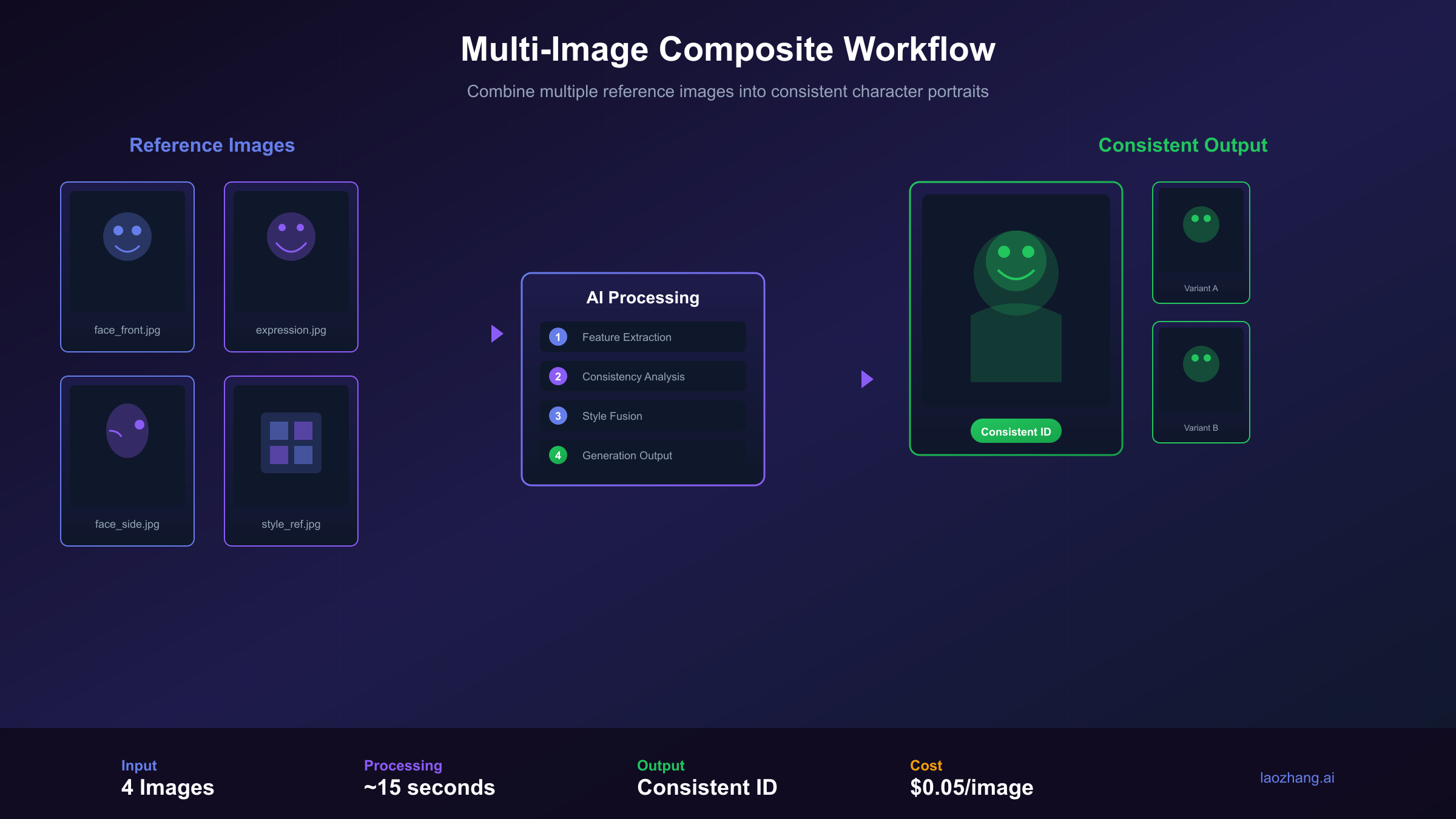
Nano Banana Pro's advanced capabilities extend far beyond simple text-to-image generation. The model supports sophisticated workflows including multi-image composition for maintaining character consistency, mask-based local editing for precise modifications, and reference image guidance for style transfer. These features enable professional applications that were previously impossible with single-image generation models.
Multi-Image Reference Composition
The ability to upload multiple reference images transforms Nano Banana Pro into a powerful composition tool. By providing up to 14 reference images simultaneously, you can maintain consistent characters across scenes, blend multiple style references, or create complex composites that respect the visual elements of each input.
hljs pythonimport base64
from pathlib import Path
def load_image_as_base64(image_path: str) -> dict:
"""Load an image file and convert to API-compatible format."""
with open(image_path, "rb") as f:
image_data = base64.b64encode(f.read()).decode("utf-8")
suffix = Path(image_path).suffix.lower()
mime_types = {".png": "image/png", ".jpg": "image/jpeg", ".jpeg": "image/jpeg", ".webp": "image/webp"}
mime_type = mime_types.get(suffix, "image/png")
return {"inlineData": {"mimeType": mime_type, "data": image_data}}
def generate_with_references(
prompt: str,
reference_images: list[str],
aspect_ratio: str = "16:9"
) -> Image.Image:
"""
Generate an image using multiple reference images for guidance.
Args:
prompt: Text description including instructions for how to use references
reference_images: List of file paths to reference images (max 14 for Pro)
aspect_ratio: Output aspect ratio
Returns:
Generated PIL Image
"""
model = genai.GenerativeModel("gemini-3-pro-image-preview")
# Build content parts: text prompt + reference images
parts = [{"text": prompt}]
for img_path in reference_images[:14]: # Pro supports up to 14 references
parts.append(load_image_as_base64(img_path))
response = model.generate_content(
{"parts": parts},
generation_config=genai.GenerationConfig(
response_modalities=["TEXT", "IMAGE"],
image_config={"aspect_ratio": aspect_ratio, "image_size": "2K"}
)
)
for part in response.candidates[0].content.parts:
if hasattr(part, "inline_data"):
return Image.open(io.BytesIO(base64.b64decode(part.inline_data.data)))
raise ValueError("No image generated")
# Example: Character consistency across scenes
character_refs = ["character_front.png", "character_side.png"]
scene1 = generate_with_references(
prompt="The character from the reference images walking through a rainy Tokyo street at night, maintaining exact appearance and clothing",
reference_images=character_refs
)
scene2 = generate_with_references(
prompt="The same character from references sitting in a cozy coffee shop, warm lighting, same outfit and appearance",
reference_images=character_refs
)
Character Consistency Control
Nano Banana Pro's character consistency feature allows maintaining up to 5 distinct subjects across multiple generations. This capability proves essential for creating comic sequences, product catalogs with consistent branding elements, or any workflow requiring recognizable recurring characters.
The key to effective character consistency lies in prompt engineering that explicitly references the uploaded images:
| Strategy | Prompt Pattern | Best For |
|---|---|---|
| Direct reference | "The person in image 1..." | Single character scenarios |
| Named reference | "Alice from the reference..." | Multi-character stories |
| Attribute anchoring | "Same red dress, same hairstyle..." | When appearance must match exactly |
| Pose variation | "Same character, now looking left..." | Action sequences |
Consistency quality depends heavily on reference image quality. High-resolution, well-lit references with clear subject isolation produce significantly better results than complex scene shots where the subject occupies a small portion of the frame.
Local Editing and Mask Operations
Mask-based editing enables precise modifications to specific regions of an image while preserving the surrounding context. This functionality supports use cases like object removal, background replacement, and targeted style adjustments.
The API accepts masks as binary images where white pixels (255) indicate areas to modify and black pixels (0) mark regions to preserve:
hljs pythondef edit_with_mask(
source_image: str,
mask_image: str,
edit_prompt: str
) -> Image.Image:
"""
Apply targeted edits to specific regions of an image.
Args:
source_image: Path to the original image
mask_image: Path to binary mask (white = edit region)
edit_prompt: Description of desired changes to masked area
Returns:
Edited PIL Image
"""
model = genai.GenerativeModel("gemini-3-pro-image-preview")
parts = [
{"text": f"Edit the masked region: {edit_prompt}. Preserve everything outside the mask."},
load_image_as_base64(source_image),
load_image_as_base64(mask_image)
]
response = model.generate_content(
{"parts": parts},
generation_config=genai.GenerationConfig(
response_modalities=["TEXT", "IMAGE"],
image_config={"image_size": "2K"}
)
)
for part in response.candidates[0].content.parts:
if hasattr(part, "inline_data"):
return Image.open(io.BytesIO(base64.b64decode(part.inline_data.data)))
raise ValueError("Edit failed")
# Example: Replace sky in landscape photo
edited = edit_with_mask(
source_image="landscape.png",
mask_image="sky_mask.png", # White where sky is, black everywhere else
edit_prompt="dramatic sunset sky with orange and purple clouds"
)
Limitations and Practical Considerations
Understanding the boundaries of these advanced features prevents wasted API calls and unrealistic expectations:
| Feature | Limitation | Workaround |
|---|---|---|
| Reference count | Max 14 images per request | Batch separate requests for larger sets |
| Mask precision | Soft edges may cause artifacts | Use hard-edged masks, expand slightly |
| Character consistency | Works best with 3-4 images | More references can confuse the model |
| Style transfer | May override prompt details | Reduce reference weight via prompt |
| Complex compositions | Multiple subjects may blend | Generate subjects separately, composite later |
The model occasionally struggles with precise spatial relationships when combining multiple references. For layouts requiring exact positioning, consider generating elements separately and using traditional image editing tools for final composition.
Mask quality significantly impacts edit results. Masks created programmatically (via segmentation models like SAM) typically outperform hand-drawn masks due to precise edge alignment. For production workflows, investing in automated mask generation pipelines yields substantial quality improvements over manual approaches.
Error Codes and Rate Limiting
Production deployments inevitably encounter API errors and rate limits. Understanding the complete error taxonomy enables building resilient systems that gracefully handle failures, implement appropriate retry strategies, and maintain service continuity even under adverse conditions.
Common Error Codes Reference
The Gemini API returns HTTP status codes alongside JSON error bodies that provide specific diagnostic information. This comprehensive reference covers errors encountered in production environments:
| HTTP Code | Error Type | Cause | Recommended Action |
|---|---|---|---|
| 400 | INVALID_ARGUMENT | Malformed request, missing required fields | Validate request structure, check responseModalities includes "IMAGE" |
| 400 | INVALID_IMAGE_SIZE | Unsupported resolution requested | Use "1K", "2K", or "4K" only |
| 400 | INVALID_ASPECT_RATIO | Aspect ratio not supported | Use standard ratios: 1:1, 3:4, 4:3, 9:16, 16:9 |
| 401 | UNAUTHENTICATED | Invalid or missing API key | Verify key validity, check environment variable |
| 403 | PERMISSION_DENIED | API not enabled or region restricted | Enable Gemini API in GCP console, check regional availability |
| 429 | RESOURCE_EXHAUSTED | Rate limit exceeded | Implement exponential backoff, consider quota upgrade |
| 429 | QUOTA_EXCEEDED | Daily/monthly quota depleted | Wait for quota reset or upgrade tier |
| 500 | INTERNAL | Server-side error | Retry with backoff, report if persistent |
| 503 | UNAVAILABLE | Service temporarily unavailable | Retry after delay, check status page |
Safety-related blocks return 200 OK status but include blocking information in the response body:
hljs json{
"promptFeedback": {
"blockReason": "SAFETY",
"safetyRatings": [
{"category": "HARM_CATEGORY_DANGEROUS_CONTENT", "probability": "HIGH"}
]
}
}
Error Handling Implementation
Robust error handling distinguishes production code from prototypes. This implementation demonstrates comprehensive error classification and appropriate responses:
hljs pythonfrom enum import Enum
from dataclasses import dataclass
import logging
class ErrorCategory(Enum):
RETRYABLE = "retryable"
QUOTA = "quota"
AUTH = "auth"
SAFETY = "safety"
INVALID = "invalid"
FATAL = "fatal"
@dataclass
class APIError:
category: ErrorCategory
message: str
retry_after: int = 0 # seconds
def classify_error(exception: Exception, response: dict = None) -> APIError:
"""Classify API errors for appropriate handling."""
error_str = str(exception).lower()
# Rate limiting
if "429" in error_str or "resource_exhausted" in error_str:
return APIError(ErrorCategory.RETRYABLE, "Rate limited", retry_after=60)
if "quota" in error_str:
return APIError(ErrorCategory.QUOTA, "Quota exceeded", retry_after=3600)
# Authentication
if "401" in error_str or "unauthenticated" in error_str:
return APIError(ErrorCategory.AUTH, "Invalid API key")
if "403" in error_str or "permission" in error_str:
return APIError(ErrorCategory.AUTH, "Permission denied - check region and API enablement")
# Safety blocks
if response and response.get("promptFeedback", {}).get("blockReason"):
return APIError(ErrorCategory.SAFETY, f"Content blocked: {response['promptFeedback']['blockReason']}")
# Invalid requests
if "400" in error_str or "invalid" in error_str:
return APIError(ErrorCategory.INVALID, f"Invalid request: {error_str}")
# Server errors
if "500" in error_str or "503" in error_str:
return APIError(ErrorCategory.RETRYABLE, "Server error", retry_after=30)
return APIError(ErrorCategory.FATAL, f"Unknown error: {error_str}")
def handle_api_error(error: APIError) -> bool:
"""
Handle classified API error.
Returns:
True if operation should retry, False otherwise
"""
logging.error(f"API Error [{error.category.value}]: {error.message}")
if error.category == ErrorCategory.RETRYABLE:
logging.info(f"Retrying after {error.retry_after} seconds")
return True
if error.category == ErrorCategory.QUOTA:
logging.warning("Quota exhausted - consider upgrading tier or waiting for reset")
return False
if error.category == ErrorCategory.AUTH:
logging.error("Authentication failed - check API key configuration")
return False
if error.category == ErrorCategory.SAFETY:
logging.warning("Content blocked by safety filter - modify prompt")
return False
return False
Rate Limit Architecture
Google implements rate limiting at multiple levels, and understanding this hierarchy enables effective throughput optimization:
| Limit Type | Scope | Window | Impact |
|---|---|---|---|
| RPM (Requests Per Minute) | Per API key | 1 minute rolling | Primary constraint for burst traffic |
| RPD (Requests Per Day) | Per API key | 24 hour rolling | Caps total daily usage |
| TPM (Tokens Per Minute) | Per API key | 1 minute rolling | Limits based on input/output token volume |
| Concurrent Requests | Per API key | Instantaneous | Maximum parallel requests |
Rate limit headers returned with each response enable proactive throttling:
hljs pythondef extract_rate_limit_info(response_headers: dict) -> dict:
"""Extract rate limiting information from response headers."""
return {
"remaining_requests": int(response_headers.get("x-ratelimit-remaining-requests", -1)),
"remaining_tokens": int(response_headers.get("x-ratelimit-remaining-tokens", -1)),
"reset_time": response_headers.get("x-ratelimit-reset-requests", "unknown")
}
Quota Increase Request Process
When default quotas prove insufficient, formal quota increase requests become necessary. The process involves:
- Documentation preparation: Compile projected monthly volume, use case description, and business justification
- GCP Console submission: Navigate to IAM & Admin → Quotas, locate Gemini API quotas, click "Edit Quotas"
- Request details: Specify requested limits (be realistic—excessive requests face scrutiny)
- Review timeline: Standard requests process within 5-10 business days; urgent requests may qualify for expedited review
For enterprise-scale deployments exceeding Tier 3 limits, direct engagement with Google Cloud sales provides access to custom arrangements including dedicated capacity, SLA guarantees, and volume-based pricing.
Batch API for Cost and Quota Optimization
The Batch API processes requests asynchronously with 24-hour completion windows, providing 50% cost reduction and separate quota allocation that doesn't impact real-time limits:
hljs pythonfrom google.cloud import aiplatform_v1
def submit_batch_job(prompts: list[str], output_gcs_path: str) -> str:
"""
Submit batch image generation job.
Args:
prompts: List of generation prompts
output_gcs_path: GCS bucket path for results
Returns:
Job ID for status tracking
"""
client = aiplatform_v1.JobServiceClient()
# Prepare batch input
instances = [
{
"contents": [{"parts": [{"text": prompt}]}],
"generationConfig": {
"responseModalities": ["IMAGE"],
"imageConfig": {"imageSize": "2K"}
}
}
for prompt in prompts
]
job = client.create_batch_prediction_job(
parent=f"projects/{PROJECT_ID}/locations/{REGION}",
batch_prediction_job={
"display_name": f"image_batch_{int(time.time())}",
"model": f"publishers/google/models/gemini-3-pro-image-preview",
"input_config": {"instances_format": "jsonl", "instances": instances},
"output_config": {"predictions_format": "jsonl", "gcs_destination": {"output_uri_prefix": output_gcs_path}}
}
)
return job.name
# Usage: 1000 images at 50% cost
batch_id = submit_batch_job(
prompts=["Professional headshot portrait, studio lighting"] * 1000,
output_gcs_path="gs://my-bucket/batch-output/"
)
Batch processing suits non-time-sensitive workloads like catalog generation, training data creation, or overnight content production where the cost savings justify the completion delay.
Pricing and Cost Optimization
Understanding Nano Banana Pro's pricing model enables informed decisions about resolution selection, batch versus real-time processing, and third-party alternatives that can dramatically reduce costs without sacrificing quality. The token-based billing system creates optimization opportunities that aren't immediately obvious from headline pricing.
Token-Based Billing Model
Google charges for Nano Banana Pro based on output tokens, with each generated image consuming a fixed number of tokens regardless of prompt complexity. This predictable consumption simplifies budgeting but requires understanding the resolution-to-token mapping:
| Resolution | Output Tokens | Price per Image | Cost per 1,000 Images |
|---|---|---|---|
| 1K (1024px) | 1,120 | $0.134 | $134 |
| 2K (2048px) | 1,120 | $0.134 | $134 |
| 4K (4096px) | 2,000 | $0.240 | $240 |
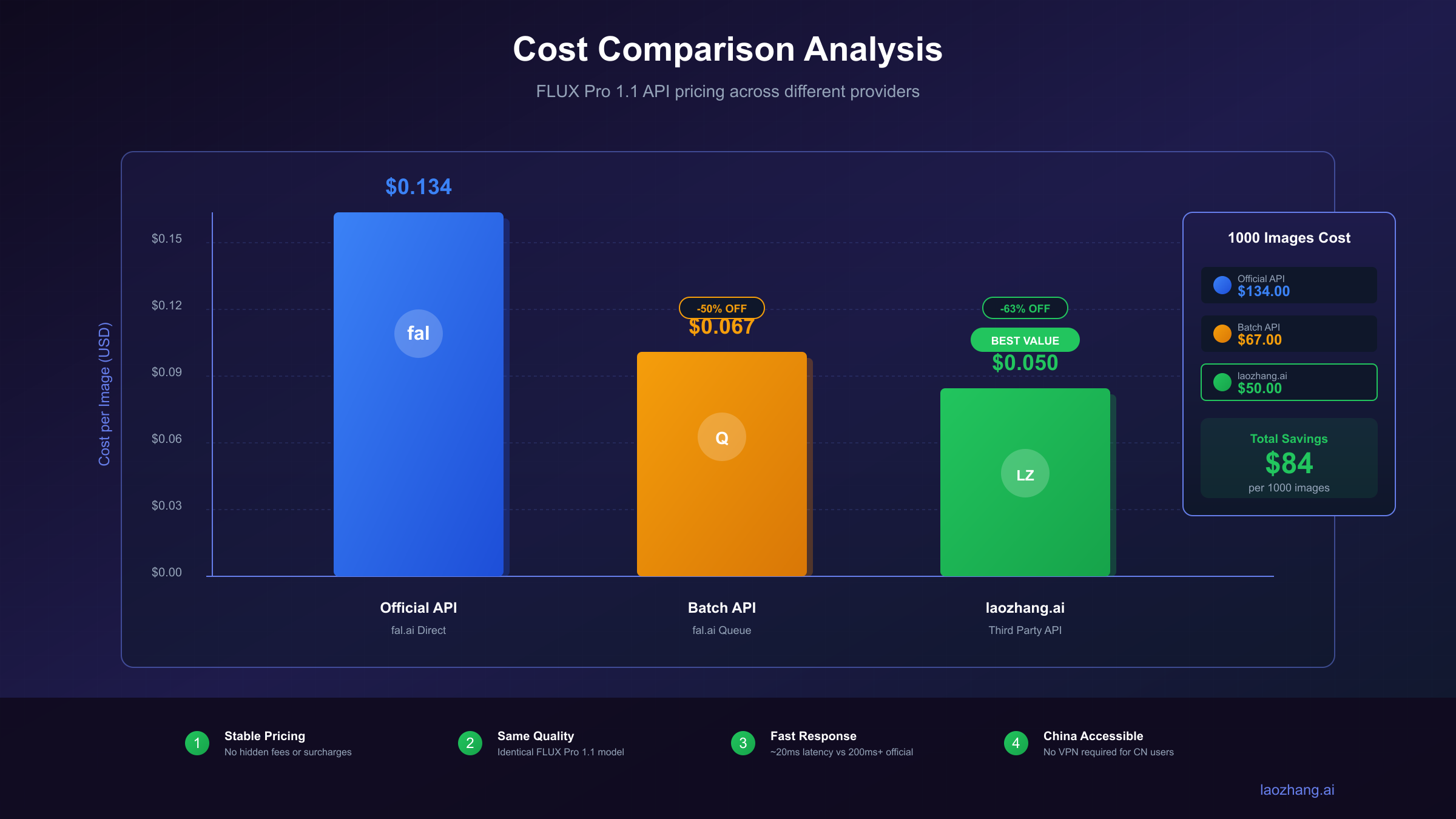
A critical insight emerges from this table: 1K and 2K resolutions cost the same. Google's pricing treats them identically at 1,120 output tokens, meaning 2K provides 4x the pixels at zero additional cost. Unless storage constraints demand smaller files, 2K should be your default resolution.
Input costs remain negligible for most workloads. Text prompts charge $2.00 per million tokens, with even verbose 500-word prompts consuming only 700 tokens ($0.0014). Reference images add $0.0011 per image (560 tokens), with the maximum 14 references adding just $0.0154 to each generation—less than 12% overhead even at maximum reference usage.
Cost Comparison Across Options
Different access methods present dramatically different cost structures for the same underlying capability:
| Access Method | 1K-2K Price | 4K Price | Monthly 10K Images | Notes |
|---|---|---|---|---|
| Gemini API (Standard) | $0.134 | $0.240 | $1,340-$2,400 | Official rates |
| Gemini API (Batch) | $0.067 | $0.120 | $670-$1,200 | 50% discount, 24h delay |
| Vertex AI | Same | Same | Same | Enterprise features add overhead |
| laozhang.ai | $0.05 | $0.05 | $500 | Flat rate regardless of resolution |
The cost differential becomes significant at scale. A marketing team generating 50,000 images monthly faces annual costs ranging from $30,000 (third-party) to $120,000 (official 4K rates)—a 4x difference that compounds over time.
Practical Cost-Saving Strategies
Beyond provider selection, several operational strategies reduce per-image costs:
Strategy 1: Prompt Debugging in Consumer Apps
The Gemini web app provides free image generation suitable for prompt iteration. Refine your prompts through free generations, then batch the perfected prompts through the API. This approach costs nothing for experimentation and ensures API credits only fund production-quality outputs.
Strategy 2: Thinking Token Optimization
Gemini 3 Pro Image supports "thinking mode" that provides reasoning transparency but consumes additional tokens. Disable thinking for straightforward prompts where generation rationale provides no value:
hljs python# Without thinking - standard cost
response = model.generate_content(prompt, generation_config=config)
# With thinking - additional token cost for reasoning trace
response = model.generate_content(
prompt,
generation_config={**config, "thinking_config": {"thinking_budget": 1000}}
)
Reserve thinking mode for complex compositions or debugging generations that fail unexpectedly. The reasoning trace helps identify prompt issues but adds 10-15% to generation cost.
Strategy 3: Resolution-Appropriate Generation
Match resolution to actual usage requirements rather than defaulting to maximum quality:
| Use Case | Recommended Resolution | Rationale |
|---|---|---|
| Social media thumbnails | 1K | Platforms compress anyway |
| Blog/web content | 2K | Sharp on 4K displays, minimal cost |
| Print marketing (A4) | 2K | 300 DPI at ~7" print size |
| Large format printing | 4K | Only resolution supporting 300 DPI at large sizes |
| AI training data | 1K | Neural networks resize during preprocessing |
Strategy 4: Batch Processing for Non-Urgent Work
The 50% Batch API discount rewards planning. Structure workflows to accumulate generation requests throughout the day, submit batch jobs overnight, and retrieve results the following morning. This pattern suits:
- Catalog updates with next-day publication timelines
- A/B test variant generation for marketing campaigns
- Training data augmentation for ML pipelines
- Content calendars with week-ahead planning
Third-Party Provider Evaluation
For cost-conscious deployments, third-party providers offer substantial savings with trade-offs worth understanding. Taking laozhang.ai as a representative example:
Cost advantage: $0.05 per image represents 62% savings on 2K generation and 79% savings on 4K generation compared to official rates. The flat pricing regardless of resolution simplifies cost modeling and favors high-resolution workflows.
Technical considerations: Third-party providers typically maintain API compatibility, requiring only endpoint and key changes:
hljs python# Official Gemini API
genai.configure(api_key=os.environ["GEMINI_API_KEY"])
# Third-party provider (example: laozhang.ai)
# Uses native Gemini format for full 4K parameter support
import requests
response = requests.post(
"https://api.laozhang.ai/v1beta/models/gemini-3-pro-image-preview:generateContent",
headers={
"Authorization": f"Bearer {os.environ['LAOZHANG_API_KEY']}",
"Content-Type": "application/json"
},
json={
"contents": [{"parts": [{"text": prompt}]}],
"generationConfig": {
"responseModalities": ["IMAGE"],
"imageConfig": {"imageSize": "4K"}
}
}
)
When to choose official API: Compliance requirements mandating direct Google relationships, need for newest features immediately upon release, or enterprise support SLAs justify the premium. The official API also provides the most predictable behavior for mission-critical applications where any provider intermediation introduces risk.
Budget Planning Calculator
For monthly budget planning, use this formula accounting for typical usage patterns:
Monthly Cost = (Real-time Images × Rate) + (Batch Images × Rate × 0.5) + (Input Tokens × $2/1M)

Example: 5,000 real-time 2K + 15,000 batch 2K via official API
= (5,000 × $0.134) + (15,000 × $0.134 × 0.5) + negligible input
= $670 + $1,005
= $1,675/month

Same volume via third-party at $0.05/image
= 20,000 × $0.05 = $1,000/month (40% savings)
The economics favor third-party providers increasingly as volume grows, while batch processing provides meaningful savings regardless of provider choice.
Complete Practical Example: Infographic Generation Pipeline
This section presents a production-ready implementation that demonstrates the concepts covered throughout this guide. The example generates an infographic from structured data, uploads it to cloud storage, and provides a shareable URL—a workflow applicable to report generation, social media content automation, and data visualization pipelines.
Full Implementation
hljs python"""
Nano Banana Pro Production Pipeline
Generate infographics from data and upload to cloud storage
"""
import os
import io
import base64
import json
import time
import hashlib
from datetime import datetime
from typing import Optional, Tuple
from dataclasses import dataclass
import google.generativeai as genai
from google.cloud import storage
from PIL import Image
# Configuration
genai.configure(api_key=os.environ.get("GEMINI_API_KEY"))
BUCKET_NAME = os.environ.get("GCS_BUCKET", "my-image-bucket")
PROJECT_ID = os.environ.get("GCP_PROJECT", "my-project")
@dataclass
class GenerationResult:
success: bool
image_url: Optional[str]
local_path: Optional[str]
generation_time: float
cost_estimate: float
error_message: Optional[str] = None
def create_infographic_prompt(data: dict) -> str:
"""
Transform structured data into an effective image generation prompt.
Args:
data: Dictionary containing metrics, title, and style preferences
Returns:
Optimized prompt string for infographic generation
"""
title = data.get("title", "Data Visualization")
metrics = data.get("metrics", [])
style = data.get("style", "modern corporate")
color_scheme = data.get("colors", "blue and white")
# Build metrics section
metrics_text = "\n".join([
f"- {m['label']}: {m['value']}" for m in metrics
])
prompt = f"""Create a professional infographic with the following specifications:
Title: "{title}"
Key Metrics to Display:
{metrics_text}
Style Requirements:
- Visual style: {style}
- Color scheme: {color_scheme}
- Clean, readable typography with clear hierarchy
- Data visualizations (charts, icons) for each metric
- Professional business presentation quality
- Text must be clearly legible at 1080p viewing
Layout: Vertical orientation suitable for social media sharing
Resolution: High quality, sharp details"""
return prompt
def generate_infographic(
data: dict,
output_dir: str = "./generated",
max_retries: int = 3
) -> GenerationResult:
"""
Generate an infographic from structured data with full error handling.
Args:
data: Structured data for infographic content
output_dir: Local directory for saving images
max_retries: Maximum retry attempts for transient failures
Returns:
GenerationResult with success status, URLs, and metadata
"""
start_time = time.time()
os.makedirs(output_dir, exist_ok=True)
# Generate unique filename from data hash
data_hash = hashlib.md5(json.dumps(data, sort_keys=True).encode()).hexdigest()[:8]
timestamp = datetime.now().strftime("%Y%m%d_%H%M%S")
filename = f"infographic_{timestamp}_{data_hash}.png"
prompt = create_infographic_prompt(data)
model = genai.GenerativeModel("gemini-3-pro-image-preview")
for attempt in range(max_retries):
try:
response = model.generate_content(
prompt,
generation_config=genai.GenerationConfig(
response_modalities=["TEXT", "IMAGE"],
image_config={
"aspect_ratio": "9:16", # Vertical for social media
"image_size": "2K"
}
),
request_options={"timeout": 180}
)
# Check for safety blocks
if response.prompt_feedback and response.prompt_feedback.block_reason:
return GenerationResult(
success=False,
image_url=None,
local_path=None,
generation_time=time.time() - start_time,
cost_estimate=0,
error_message=f"Content blocked: {response.prompt_feedback.block_reason}"
)
# Extract image
for part in response.candidates[0].content.parts:
if hasattr(part, "inline_data") and part.inline_data.mime_type.startswith("image/"):
image_data = base64.b64decode(part.inline_data.data)
image = Image.open(io.BytesIO(image_data))
# Save locally
local_path = os.path.join(output_dir, filename)
image.save(local_path, "PNG", optimize=True)
generation_time = time.time() - start_time
return GenerationResult(
success=True,
image_url=None, # Set after upload
local_path=local_path,
generation_time=generation_time,
cost_estimate=0.134 # 2K resolution cost
)
return GenerationResult(
success=False,
image_url=None,
local_path=None,
generation_time=time.time() - start_time,
cost_estimate=0,
error_message="No image found in response"
)
except Exception as e:
error_str = str(e)
if "429" in error_str and attempt < max_retries - 1:
wait_time = (2 ** attempt) * 15
print(f"Rate limited, waiting {wait_time}s before retry...")
time.sleep(wait_time)
continue
return GenerationResult(
success=False,
image_url=None,
local_path=None,
generation_time=time.time() - start_time,
cost_estimate=0,
error_message=f"Generation failed: {error_str}"
)
return GenerationResult(
success=False,
image_url=None,
local_path=None,
generation_time=time.time() - start_time,
cost_estimate=0,
error_message="Max retries exceeded"
)
def upload_to_gcs(local_path: str, destination_blob: str) -> Optional[str]:
"""
Upload generated image to Google Cloud Storage.
Args:
local_path: Path to local image file
destination_blob: Target path in GCS bucket
Returns:
Public URL if successful, None otherwise
"""
try:
client = storage.Client(project=PROJECT_ID)
bucket = client.bucket(BUCKET_NAME)
blob = bucket.blob(destination_blob)
blob.upload_from_filename(local_path, content_type="image/png")
blob.make_public()
return blob.public_url
except Exception as e:
print(f"Upload failed: {e}")
return None
def generate_and_upload_infographic(data: dict) -> GenerationResult:
"""
Complete pipeline: generate infographic and upload to cloud storage.
Args:
data: Structured data for infographic
Returns:
GenerationResult with cloud URL
"""
# Step 1: Generate image
result = generate_infographic(data)
if not result.success:
return result
# Step 2: Upload to cloud storage
blob_name = f"infographics/{os.path.basename(result.local_path)}"
public_url = upload_to_gcs(result.local_path, blob_name)
if public_url:
result.image_url = public_url
print(f"Infographic available at: {public_url}")
else:
result.error_message = "Generation succeeded but upload failed"
return result
# Example usage
if __name__ == "__main__":
sample_data = {
"title": "Q4 2025 Performance Report",
"metrics": [
{"label": "Revenue Growth", "value": "+23%"},
{"label": "Active Users", "value": "1.2M"},
{"label": "Customer Satisfaction", "value": "4.8/5"},
{"label": "Response Time", "value": "< 200ms"}
],
"style": "modern tech startup",
"colors": "gradient purple to blue"
}
result = generate_and_upload_infographic(sample_data)
if result.success:
print(f"Generation complete in {result.generation_time:.2f}s")
print(f"Estimated cost: ${result.cost_estimate:.3f}")
print(f"Cloud URL: {result.image_url}")
else:
print(f"Failed: {result.error_message}")
Implementation Highlights
The implementation demonstrates several production best practices:
Idempotent filenames using content hashing ensure duplicate data generates consistently named files, enabling caching and avoiding redundant generations.
Comprehensive result objects capture success status, timing metrics, cost estimates, and error details—supporting monitoring, alerting, and cost tracking in production deployments.
Graceful degradation allows the generation step to succeed even if cloud upload fails, preserving local files for manual recovery.
Parameterized prompts separate data from presentation, enabling the same pipeline to generate diverse infographics from varying data sources without code changes.
Next Steps and Resources
This guide covered the essential integration patterns for Nano Banana Pro API. For continued learning and troubleshooting:
- Official Documentation: Gemini API Image Generation Guide provides authoritative parameter references and changelog updates
- Pricing Details: Gemini API Pricing tracks current rates and tier requirements
- Error Reference: Gemini API Error Handling documents all error codes and recommended responses
- Rate Limits: Gemini API Rate Limits details quota structures and upgrade paths
For developers seeking cost-optimized access to Nano Banana Pro capabilities, third-party services like laozhang.ai provide an alternative path worth evaluating against your specific requirements. The online demo allows testing generation quality before committing to integration work.
Building production image generation systems requires balancing quality, cost, and reliability. The patterns presented in this guide—comprehensive error handling, resolution-aware cost optimization, and flexible provider abstraction—provide a foundation that scales from prototype to production while maintaining operational visibility and cost control.