- 首页
- /
- 博客
- /
- Troubleshooting
- /
- Nano Banana Pro Not Working? Complete Fix Guide 2025: All Error Codes & Solutions
Nano Banana Pro Not Working? Complete Fix Guide 2025: All Error Codes & Solutions
Fix Nano Banana Pro issues with this comprehensive troubleshooting guide. Solutions for Error 429, 500, 503, content blocked, and more. Includes API debugging, quick fixes, and alternatives when Google services fail.
Nano Banana Pro
4K-80%Google Gemini 3 Pro · AI Inpainting
谷歌原生模型 · AI智能修图
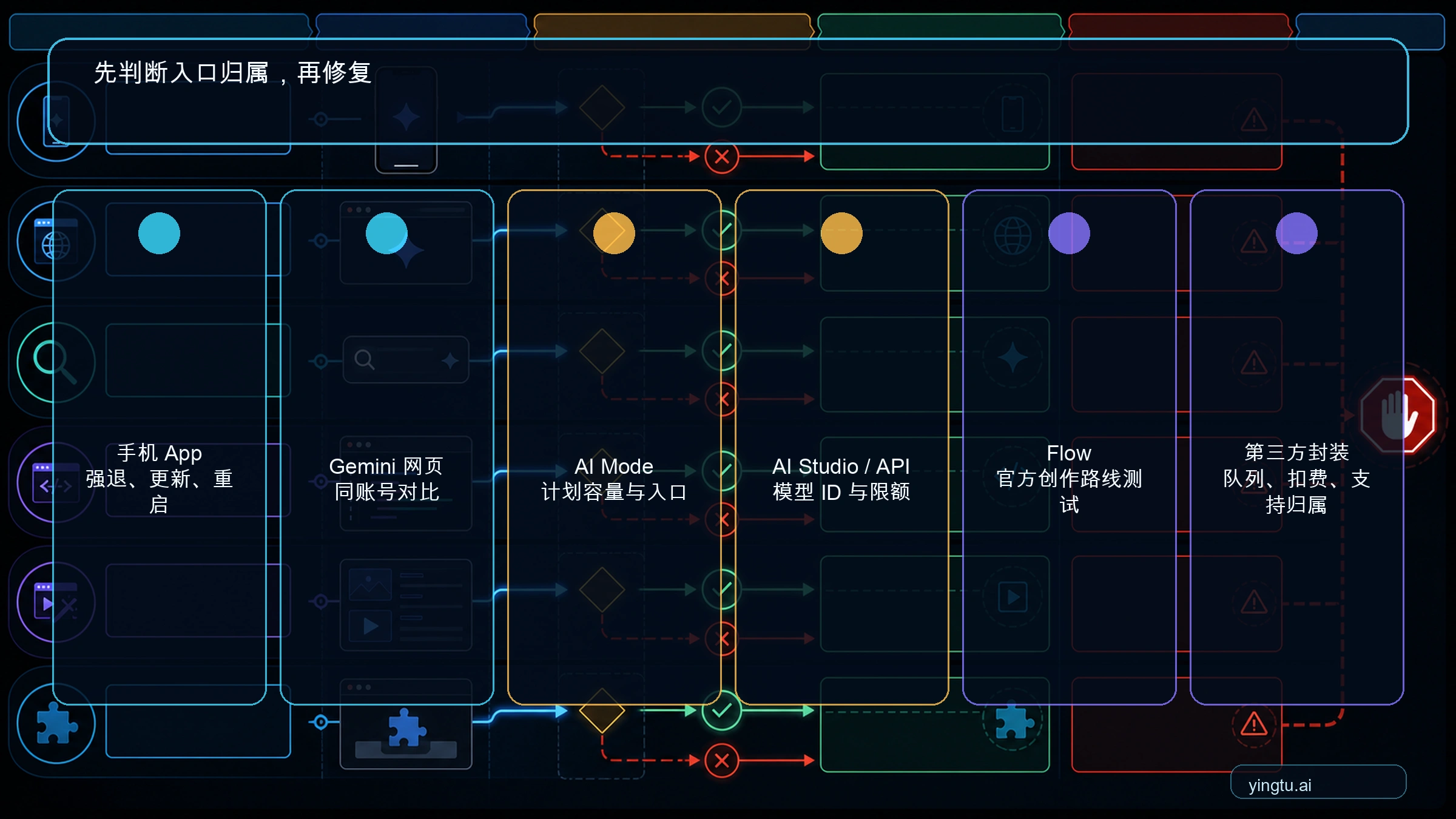
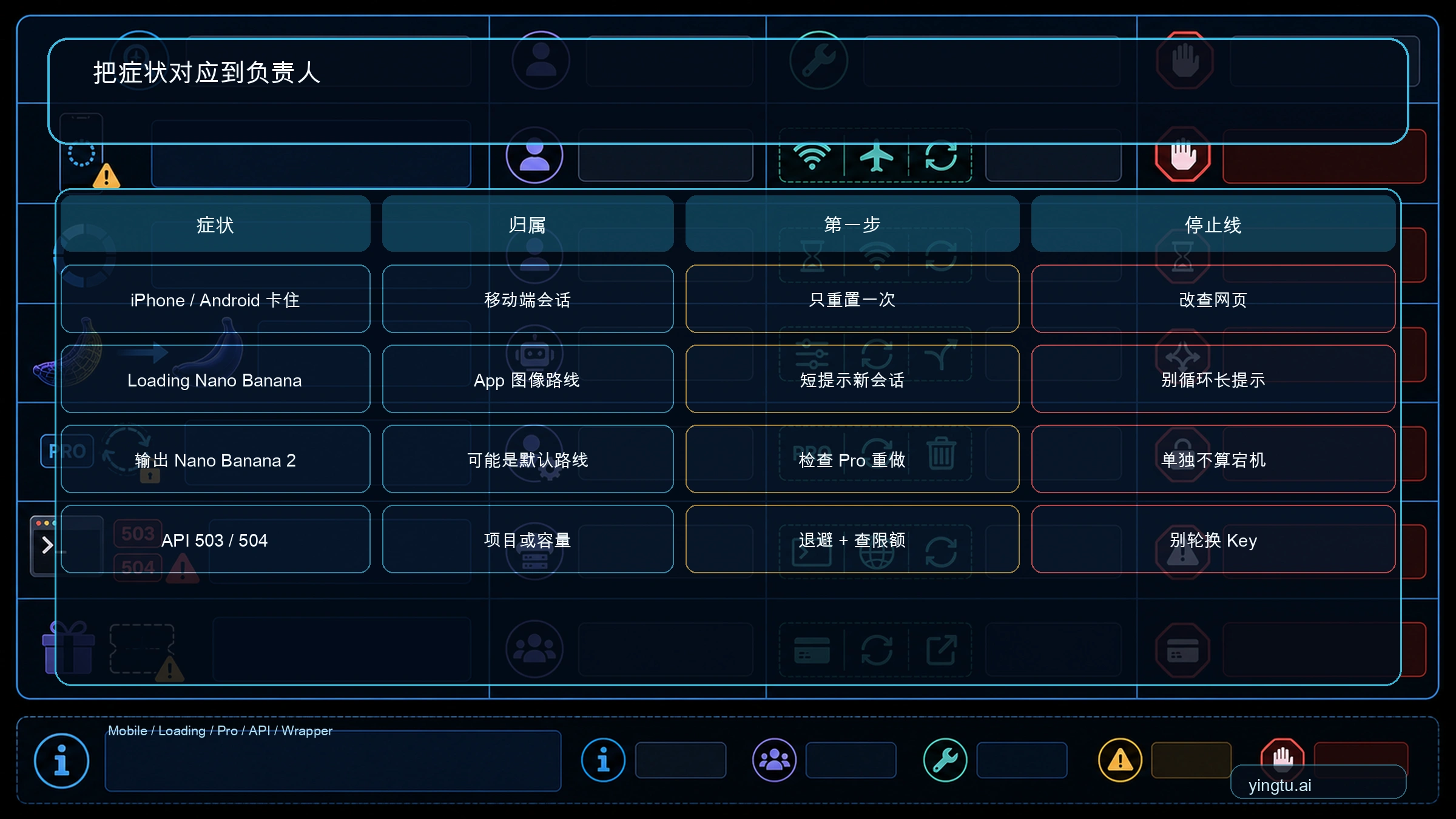
Quick Fix Summary: If Nano Banana Pro isn't working, first identify your error type: Error 429 means rate limits (wait or upgrade tier), Error 500/502/503 means server issues (retry later), Error 403 means permission problems (check billing and API key), and "Content Blocked" means safety filter triggered (rephrase your prompt). This guide provides step-by-step solutions for each issue.
Nano Banana Pro (Google's Gemini 3 Pro Image model) delivers exceptional AI image generation when it works—but encountering errors can bring your workflow to a halt. Whether you're seeing "An internal error has occurred," hitting rate limits with Error 429, or facing mysterious content blocks, this guide covers every common issue and its solution.
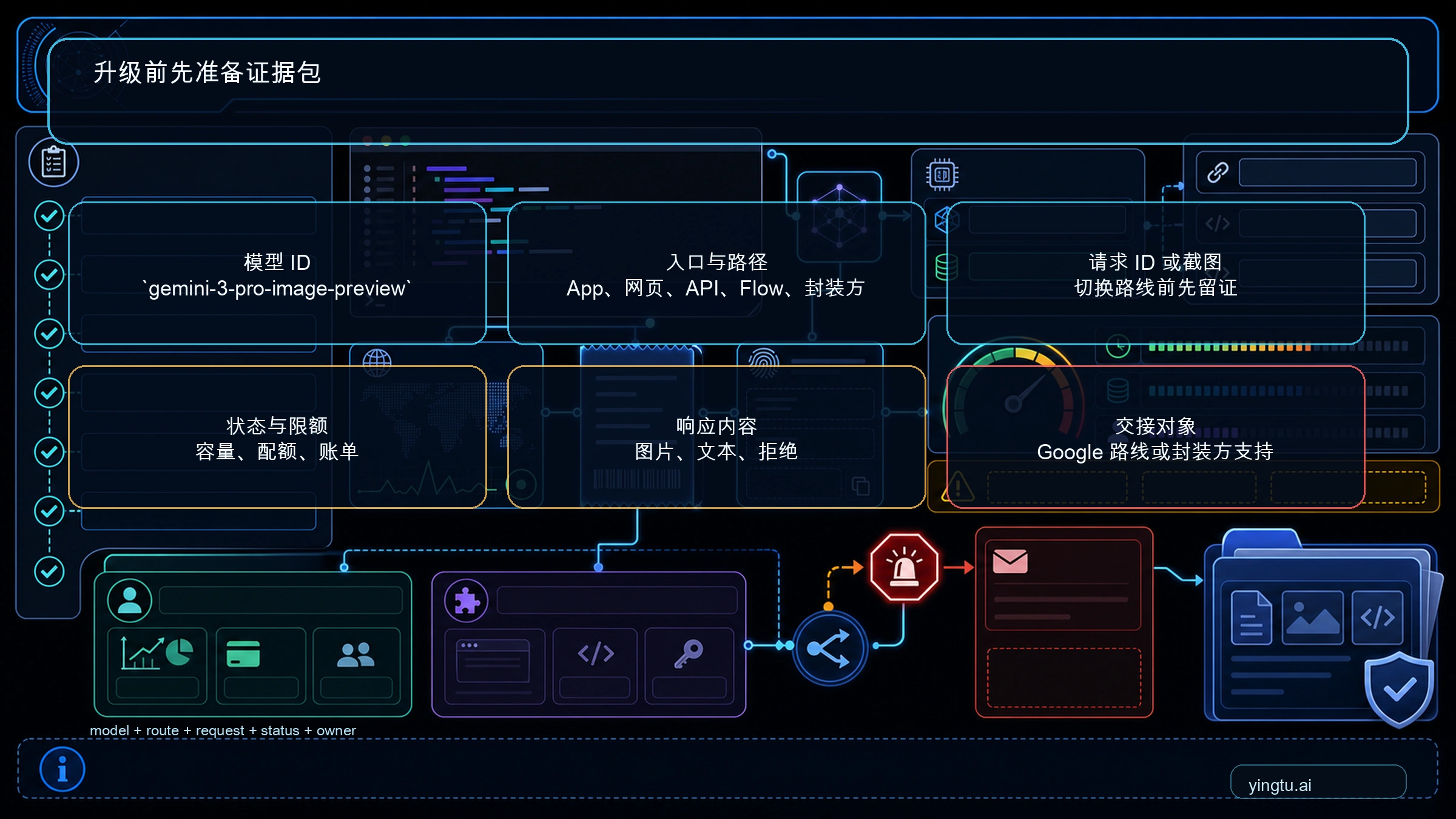
The key to efficient troubleshooting is correctly identifying the error type first. A rate limit error requires a completely different fix than a permission error, and attempting the wrong solution wastes valuable time. This guide organizes solutions by error category, provides verification steps to confirm each fix works, and offers alternatives when Google's services are the problem rather than your configuration.
Based on analysis of developer forums, support threads, and the official Google troubleshooting documentation, we've identified the most common Nano Banana Pro failures and their proven solutions.
Quick Diagnosis: Identify Your Issue
Before diving into solutions, determine which category your problem falls into. Each requires a different approach.
Step 1: Check Your Error Message
Open your browser's developer console (F12 → Console tab) or check your API response. Look for the HTTP status code:
| Error Code | Category | Common Message | Jump to Section |
|---|---|---|---|
| 429 | Rate Limiting | "Too Many Requests" / "Resource Exhausted" | Error 429 Fixes |
| 500 | Server Error | "Internal Server Error" | Server Error Fixes |
| 502 | Gateway Error | "Bad Gateway" | Server Error Fixes |
| 503 | Service Unavailable | "Model is overloaded" | Server Error Fixes |
| 403 | Permission Error | "Permission Denied" | Permission Fixes |
| 400 | Bad Request | "Invalid request" | API Troubleshooting |
| N/A | Content Block | "Content Blocked" | Content Block Fixes |
Step 2: Check Google's Service Status
Before extensive debugging, verify Google's services are operational. Visit the Google AI Studio Status Page to check for ongoing incidents. If there's a widespread outage, the only solution is waiting for Google to resolve it.
Step 3: Try a Fresh Session
According to user reports on Google's developer forums, starting a new chat session sometimes resolves cached error states. Close your current session completely, clear your browser cache, and try again before assuming a larger problem exists.

Error 429: Rate Limit Exceeded
Error 429 is the most common issue developers face. It means you've exceeded Google's request quotas, which are enforced across multiple dimensions simultaneously.
Understanding the Limits
Google enforces rate limits on three metrics:
| Metric | Free Tier | Pay-as-you-go |
|---|---|---|
| Requests per Minute (RPM) | 15 | 60 |
| Requests per Day (RPD) | 1,500 | 15,000 |
| Daily Image Generation | ~50 | Based on usage |
According to Google's rate limit documentation, even failed requests (including those rejected by safety filters) count against your quota.
Solution 1: Implement Exponential Backoff
When you receive a 429 error, don't retry immediately. Use exponential backoff:
hljs pythonimport time
import requests
def generate_with_backoff(prompt, max_retries=5):
wait_time = 10 # Start with 10 seconds
for attempt in range(max_retries):
response = requests.post(API_URL, json={"prompt": prompt}, headers=headers)
if response.status_code == 429:
print(f"Rate limited. Waiting {wait_time} seconds...")
time.sleep(wait_time)
wait_time *= 2 # Double wait time: 10s, 20s, 40s, 80s, 160s
elif response.status_code == 200:
return response.json()
else:
raise Exception(f"Error: {response.status_code}")
raise Exception("Max retries exceeded")
Solution 2: Upgrade Your Tier
If you consistently hit limits, upgrade from free tier to pay-as-you-go:
- Open Google AI Studio
- Navigate to Settings → Billing
- Link a billing account to enable pay-as-you-go
- Your RPM limit increases from 15 to 60
Solution 3: Spread Requests Over Time
For batch processing, implement request throttling:
hljs pythonimport asyncio
async def throttled_batch(prompts, requests_per_minute=10):
delay = 60 / requests_per_minute # Seconds between requests
results = []
for prompt in prompts:
result = await generate_image(prompt)
results.append(result)
await asyncio.sleep(delay)
return results
Solution 4: Use Alternative Access Points
For production applications requiring higher throughput, some developers route through third-party API providers like laozhang.ai that aggregate access across multiple accounts. This approach bypasses per-user rate limits, though it means routing requests through a third party rather than Google directly. The trade-off is losing direct Google support in exchange for higher effective limits and simplified billing.
Error 500/502/503: Server-Side Issues
Server errors indicate problems on Google's infrastructure, not your configuration. These are typically transient but can persist during high-traffic periods.
Error 500: Internal Server Error
The server encountered an unexpected condition. This is usually temporary.
Fix: Wait 5-10 seconds and retry. If persistent across multiple attempts, reduce your request complexity (shorter prompts, smaller input images).
Error 502: Bad Gateway
A proxy or gateway server received an invalid response from the upstream server.
Fix: This typically resolves within seconds. Implement automatic retry with short delays.
Error 503: Model Overloaded
According to forum reports, this is common during peak usage hours. The model genuinely cannot handle current demand.
Fix Options:
- Wait and retry: Try again after 30-60 seconds
- Avoid peak hours: US business hours (9 AM - 5 PM PST) see highest traffic
- Reduce resolution: Try generating at lower resolution first
- Switch models temporarily: If acceptable, use a different model variant
Verification Script
Use this script to verify service availability before large batch operations:
hljs pythondef check_service_health():
test_prompt = "Generate a simple blue square"
try:
response = requests.post(
API_URL,
json={"contents": [{"parts": [{"text": test_prompt}]}]},
headers=headers,
timeout=30
)
if response.status_code == 200:
print("✅ Service is healthy")
return True
else:
print(f"⚠️ Service returned {response.status_code}")
return False
except Exception as e:
print(f"❌ Service check failed: {e}")
return False
Error 403: Permission Denied
Permission errors occur when your credentials lack required access rights. This is common with new API setups.
Common Causes
- Missing billing: Nano Banana Pro requires an active billing account
- Wrong API key: Using a key from a different project
- Insufficient permissions: API key lacks required roles
- Leaked/blocked key: Google proactively blocks exposed keys
Solution 1: Enable Billing
The most common cause—even if you have Gemini Advanced subscription, API access requires separate billing setup.
- Go to Google Cloud Console
- Select your project
- Navigate to Billing → Link a billing account
- Return to AI Studio and regenerate your API key
Solution 2: Check API Key Permissions
Your API key needs specific roles. Verify in Cloud Console:
- Go to IAM & Admin → Service Accounts
- Find your service account
- Ensure it has both:
- Vertex AI User
- Generative Language User
Solution 3: Regenerate Your API Key
If your key was potentially exposed, Google may have blocked it:
- Open Google AI Studio
- Go to API Keys section
- Check if any keys show as "blocked"
- Generate a new key
- Update your application configuration
Solution 4: Verify Model Identifier
Ensure you're using the correct model ID:
hljs python# Correct model identifier for Nano Banana Pro
model_id = "gemini-3-pro-image-preview"
# Common mistakes
# "gemini-3-pro" - This is text-only, not image generation
# "nano-banana-pro" - This is a nickname, not the official ID
# "gemini-pro-vision" - This is an older model
Content Blocked Issues
When Nano Banana Pro displays "Content Blocked" or "Content Not Permitted," the safety filter has flagged your request.
Why Content Gets Blocked
Google's safety system checks for prohibited categories including explicit content, violence, hate speech, copyrighted characters, and real people manipulation. According to community reports, even innocent prompts can trigger false positives.
Important Limitation: You cannot bypass safety filters. Google handles all moderation server-side, and attempting workarounds violates Terms of Service.
Solution 1: Rephrase Your Prompt
Avoid trigger words even if your intent is innocent:
| Instead of... | Try... |
|---|---|
| "naked tree" | "bare tree" or "leafless tree" |
| "shooting stars" | "meteor shower" |
| "explosive colors" | "vibrant colors" |
| "bloody sunset" | "deep red sunset" |
Solution 2: Be More Specific
Vague prompts give the AI room for misinterpretation:
❌ "Make it look better"
✅ "Increase contrast and add warm color tones"
❌ "Add some people"
✅ "Add illustrated cartoon characters in business attire"
Solution 3: Review Image Inputs
If editing an existing image, the source image may trigger filters:
- Heavily compressed images can artifact into concerning patterns
- Low-resolution faces may be misinterpreted
- Try with a higher-quality source image
Solution 4: Start Fresh Session
Cached context from previous requests may contaminate current ones:
- Close the chat/session completely
- Clear browser cache
- Start a completely new conversation
- Try with a simple, clearly safe prompt first
Image Quality Problems
Sometimes Nano Banana Pro generates images but they don't meet quality expectations.
Problem: Blurry or Pixelated Output
Cause: The web interface shows compressed previews.
Fix: Always download the full-size image:
- Hover over the generated image
- Click the download icon (usually top-right corner)
- Open the downloaded file—this is the full-quality version (up to 4K)
Problem: Wrong Aspect Ratio
Cause: Nano Banana Pro defaults to square (1:1) images.
Fix: Explicitly specify aspect ratio in your prompt:
"Generate a landscape image (16:9 ratio) of mountain scenery"
For API users, set the aspect ratio in generation config:
hljs python"generationConfig": {
"responseModalities": ["IMAGE"],
"imageConfig": {
"aspectRatio": "16:9"
}
}
Problem: Wrong Model Being Used
Cause: In Gemini App, "Fast" mode uses standard Nano Banana, not Pro.
Fix: When clicking "Create images," ensure the model is set to "Thinking" (which powers Nano Banana Pro) rather than "Fast."

API-Specific Troubleshooting
Developers using the Gemini API face additional technical considerations.
Problem: "Model not found" Error
Cause: Wrong model identifier or incorrect endpoint.
Fix: Use the exact model identifier:
hljs pythonmodel_id = "gemini-3-pro-image-preview"
endpoint = "https://generativelanguage.googleapis.com/v1beta/models/gemini-3-pro-image-preview:generateContent"
Problem: Vertex AI Location Errors
Cause: Preview models are only available in the global region.
Fix: Explicitly set the location:
hljs pythonfrom google.cloud import aiplatform
aiplatform.init(
project="your-project-id",
location="global" # Required for preview models
)
Problem: Mixed Parameter Errors
Cause: Using deprecated parameters alongside new ones.
Fix: Don't mix thinking_budget (old) with thinking_level (new). Choose one approach:
hljs python# New approach (recommended)
"generationConfig": {
"thinking_level": "THINKING_LEVEL_STANDARD"
}
# Not: mixing both old and new parameters
Problem: Timeout Errors
Cause: Complex requests exceeding timeout thresholds.
Fix: Increase client timeout (image generation can take 30+ seconds):
hljs pythonresponse = requests.post(
API_URL,
json=payload,
headers=headers,
timeout=180 # 3 minutes for complex images
)
Complete Health Check Script
hljs pythonimport requests
import sys
def diagnose_api_access():
API_KEY = "your-api-key"
BASE_URL = "https://generativelanguage.googleapis.com/v1beta"
print("🔍 Running Nano Banana Pro diagnostics...\n")
# Test 1: API Key validity
print("1. Testing API key...")
response = requests.get(
f"{BASE_URL}/models?key={API_KEY}"
)
if response.status_code == 200:
print(" ✅ API key is valid")
else:
print(f" ❌ API key error: {response.status_code}")
return
# Test 2: Model availability
print("2. Checking model availability...")
models = response.json().get("models", [])
pro_image = any("gemini-3-pro-image" in m.get("name", "") for m in models)
if pro_image:
print(" ✅ Nano Banana Pro model is available")
else:
print(" ⚠️ Model not found - check billing status")
# Test 3: Generation test
print("3. Testing image generation...")
gen_response = requests.post(
f"{BASE_URL}/models/gemini-3-pro-image-preview:generateContent?key={API_KEY}",
json={
"contents": [{"parts": [{"text": "A simple red circle on white background"}]}],
"generationConfig": {"responseModalities": ["IMAGE"]}
},
timeout=60
)
if gen_response.status_code == 200:
print(" ✅ Image generation successful")
else:
error = gen_response.json().get("error", {})
print(f" ❌ Generation failed: {error.get('message', 'Unknown error')}")
print("\n📋 Diagnosis complete.")
diagnose_api_access()
Alternative Solutions When Official API Fails
When Google's service is unavailable or rate limits are too restrictive, consider these alternatives.
Option 1: Google's Batch API
For non-urgent workloads, the Batch API offers 50% lower pricing and more lenient rate limits:
- Standard: $0.067/image (vs $0.134 standard)
- Trade-off: Asynchronous processing, longer completion times
Option 2: Third-Party API Providers
Several providers offer Nano Banana Pro access through aggregated API access:
| Provider | Pricing | Key Advantage |
|---|---|---|
| laozhang.ai | $0.05/image | Flat rate, no rate limits |
| OpenRouter | Variable | Multi-provider routing |
| Kie.ai | $0.09-$0.12 | 24/7 support |
These work by routing requests through enterprise-tier Google accounts, bypassing individual rate limits. The trade-off is losing direct Google support and introducing a third-party dependency. For production applications where uptime matters more than direct vendor relationship, this can be a practical solution.
Option 3: Alternative Models
If Nano Banana Pro is unavailable, consider temporary alternatives:
| Model | Best For | Limitation |
|---|---|---|
| Nano Banana (standard) | Faster processing | Lower quality |
| DALL-E 3 | Alternative text rendering | Different API |
| Midjourney | Artistic styles | No direct API |
| Stable Diffusion | Self-hosted option | Requires infrastructure |

Frequently Asked Questions
Q1: Why does Nano Banana Pro keep timing out?
Timeouts occur when the server takes longer than your client's timeout threshold. Image generation can legitimately take 30-60 seconds for complex prompts or high-resolution outputs. Increase your client timeout to at least 120-180 seconds. If timeouts persist, the server may be overloaded—try during off-peak hours or reduce image complexity.
Q2: Why am I getting Error 429 even with a paid plan?
Pay-as-you-go increases but doesn't eliminate rate limits. You may have exceeded RPM (60 requests/minute) or RPD (15,000 requests/day) limits. Implement proper throttling in your code and consider using exponential backoff. For sustained high-volume needs, contact Google Cloud sales about enterprise-tier access.
Q3: Can I bypass Nano Banana Pro's content filter?
No. Google's safety filtering happens entirely server-side and cannot be circumvented. Attempting to bypass filters violates Terms of Service and risks account suspension. If your legitimate content is incorrectly blocked, try rephrasing with different terminology or submitting feedback through Google's channels.
Q4: Why does the same prompt work sometimes and fail other times?
Inconsistent behavior typically indicates server-side load variations. During high-traffic periods, requests may fail that would succeed during off-peak times. For critical workflows, implement retry logic with exponential backoff and monitor Google's status page for service degradation.
Q5: How do I know if it's my code or Google's service causing the issue?
Run the diagnostic script in the API Troubleshooting section to systematically verify each component. If API key validation succeeds but generation fails with 503 errors, the issue is server-side. If you get 403 errors, check your permissions and billing. If 429 errors occur immediately, your rate limiting logic needs adjustment.
Conclusion
Most Nano Banana Pro issues fall into predictable categories with known solutions. Rate limit errors (429) require patience and proper throttling, server errors (500/502/503) usually resolve with retries, permission errors (403) need billing and key verification, and content blocks require prompt refinement.
For the quickest resolution:
- Identify your error code from the diagnostic table
- Follow the specific solutions for that category
- Verify the fix using the provided test scripts
- Consider alternatives if Google's service is persistently unavailable
When official solutions don't work—particularly during peak usage or extended outages—third-party API providers offer practical alternatives that can maintain your workflow while Google resolves infrastructure issues.
For ongoing issues, monitor Google's AI Developer forum where engineers and community members share the latest workarounds for emerging problems.