How to Use Sora 2 Video Generator Step by Step: Complete Beginner Guide 2025
Master OpenAI Sora 2 video generator with this comprehensive step-by-step tutorial. Learn account setup, prompt writing techniques, advanced features like Storyboard and Cameo, pricing comparison, and troubleshooting tips for creating stunning AI videos.
Nano Banana Pro
4K-80%Google Gemini 3 Pro · AI Inpainting
谷歌原生模型 · AI智能修图

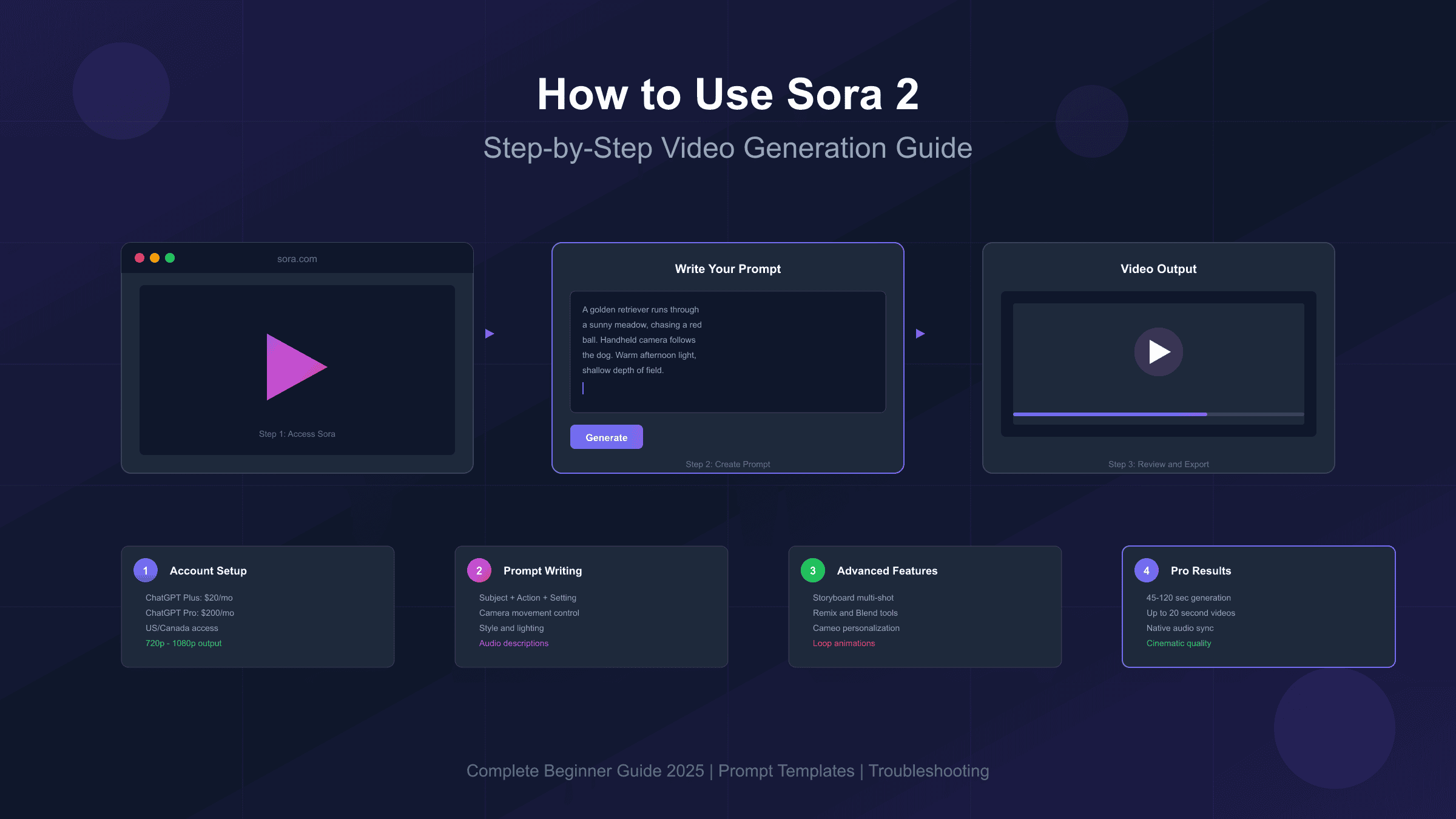
Learning how to use Sora 2 video generator step by step opens access to one of the most powerful AI video creation tools available today. OpenAI's Sora 2, launched in October 2025, generates photorealistic videos up to 20 seconds long with synchronized audio, realistic physics, and unprecedented visual quality. Unlike earlier text-to-video models that produced blurry or inconsistent results, Sora 2 delivers cinematic-quality output that's already being used for marketing content, social media, and creative projects worldwide.
This guide walks through every step of the Sora 2 workflow—from getting access and understanding the interface to writing effective prompts and leveraging advanced features. Whether you're a content creator exploring AI video for the first time or a developer evaluating Sora 2 for production use, you'll find practical techniques backed by real testing data. The goal isn't just showing what buttons to click, but helping you understand why certain approaches produce better results and how to iterate efficiently toward your creative vision.
| What You'll Learn | Time Investment | Difficulty |
|---|---|---|
| Account setup and access | 10 minutes | Beginner |
| Basic video generation | 15 minutes | Beginner |
| Prompt writing techniques | 30 minutes | Intermediate |
| Advanced features (Storyboard, Cameo) | 45 minutes | Intermediate |
| Troubleshooting and optimization | Ongoing | All levels |
Prerequisites: What You Need Before Starting
Before diving into video creation, understanding Sora 2's access requirements saves significant frustration. Unlike ChatGPT's text features that are available globally, Sora 2 has specific geographic and subscription restrictions that determine how—and whether—you can access the platform.
Subscription Requirements
Sora 2 is not available as a standalone product. Access comes bundled with ChatGPT subscriptions, but not all tiers include video generation capabilities. ChatGPT Plus at $20/month provides basic Sora 2 access with 1,000 monthly credits and 720p resolution. ChatGPT Pro at $200/month unlocks Sora 2 Pro with 10,000 credits, 1080p resolution, 20-second maximum duration, and priority queue access. The free ChatGPT tier does not include any Sora 2 functionality, though OpenAI occasionally runs invite-only beta programs for limited free access.
The credit system determines how many videos you can generate monthly. A 5-second 480p video consumes roughly 20-50 credits, while a 10-second 1080p video requires 500-1,000 credits. This means Plus subscribers can expect approximately 20-50 short videos monthly, while Pro subscribers have capacity for 100+ high-quality generations. Credits reset monthly and do not roll over—unused credits are lost at the end of each billing cycle.
Geographic Availability
As of October 2025, Sora 2 is available in the United States and Canada through the iOS app and sora.com web interface. Users outside these regions see "Sora is not available in your country yet" when attempting access. OpenAI has indicated plans for broader international rollout but hasn't provided specific timelines. For developers requiring programmatic access, the Sora 2 API remains in preview through Azure AI Foundry for enterprise customers, with broader API availability expected in late 2025.
Technical Requirements
The Sora 2 experience varies by platform. The iOS app (iPhone and iPad) offers the most polished interface with features like Cameo recording that require device cameras. The web version at sora.com works on any modern browser but lacks some mobile-specific features. Android users currently have no official app, though web access functions adequately on Android browsers. For optimal results, use a stable internet connection—video generation typically takes 45-120 seconds, and connection interruptions can cause generation failures.
Access Summary: ChatGPT Plus ($20/month) for basic access, ChatGPT Pro ($200/month) for full features. Currently US/Canada only. iOS app or sora.com web interface.
Step 1: Account Setup and Initial Configuration
Getting started with Sora 2 requires an OpenAI account with an active ChatGPT subscription. If you're already a ChatGPT Plus or Pro subscriber, you may have access immediately—check by visiting sora.com and logging in with your existing credentials. New users need to complete several setup steps before generating their first video.
Creating Your OpenAI Account
Navigate to sora.com in your browser. Click the "Sign Up" or "Log In" button—you'll be redirected to OpenAI's authentication system. You can create an account using an email address, Google account, Microsoft account, or Apple ID. Email signup requires verification; check your inbox for a confirmation link before proceeding. OpenAI may request birthday verification during onboarding to apply age-appropriate content filters.
Subscribing to ChatGPT Plus or Pro
Once logged in, you'll need an active subscription to access Sora 2 features. From the main ChatGPT interface or sora.com, navigate to subscription settings. Select either Plus ($20/month) or Pro ($200/month) based on your needs. Payment requires a valid credit card—Visa, Mastercard, and American Express are accepted. Some regions support additional payment methods. After successful payment, Sora 2 access activates within minutes.
First-Time Sora 2 Interface Tour
Upon accessing sora.com with an active subscription, you'll encounter several key interface elements. The Create button (or + icon on mobile) opens the video generation interface. The Feed shows publicly shared videos from other users for inspiration. The Drafts section stores your in-progress generations. The Library contains your completed and saved videos. The Settings icon provides access to account preferences, notification controls, and privacy options.
The generation interface presents a text input field for prompts, aspect ratio selection (Portrait, Landscape, or Square), duration slider, and model selection between Sora-2 (faster, good quality) and Sora-2-Pro (slower, higher quality). Understanding these controls before your first generation helps avoid wasting credits on unintended configurations.
Step 2: Understanding the Sora 2 Interface and Controls
Before writing your first prompt, familiarizing yourself with Sora 2's interface controls ensures you're making intentional choices about video specifications. Each setting affects both the output quality and credit consumption, making informed selection essential for efficient workflow.
Video Settings Panel
The settings panel appears alongside the prompt input area. Aspect Ratio offers three options: Portrait (9:16) optimized for mobile viewing and social media stories, Landscape (16:9) suited for YouTube and traditional video content, and Square (1:1) ideal for Instagram feeds and profile content. Changing aspect ratio significantly impacts composition—wide shots work better in landscape, while single-subject close-ups suit portrait orientation.
Duration controls how long your generated video runs. Options typically range from 5 to 20 seconds depending on your subscription tier. Longer durations consume more credits and require more precise prompting to maintain coherence. For beginners, starting with 5-second clips allows faster iteration and learning before committing to longer, more expensive generations.
Model Selection lets you choose between Sora-2 and Sora-2-Pro. The standard Sora-2 model generates faster—typically 45-70 seconds for a 10-second video—with good quality suitable for social media and prototyping. Sora-2-Pro takes 75-120 seconds but produces higher fidelity output with better physics simulation, more stable motion, and improved detail preservation. Pro is worth the extra time and credits for final deliverables; standard is better for exploration and iteration.
Quality and Resolution
Resolution options depend on your subscription tier and model selection. Plus subscribers access up to 720p output; Pro subscribers can generate at 1080p. Higher resolution consumes proportionally more credits but provides significantly better detail for large-screen viewing or professional use. Consider your final output destination when selecting resolution—social media compression reduces the benefit of maximum resolution, while YouTube or presentation use benefits from higher quality.
Style and Character Options
The interface may display optional style presets and character selection features. Style presets apply predefined visual aesthetics—cinematic, documentary, anime, vintage film—that influence the overall look without requiring detailed prompt descriptions. Character selection allows referencing previously created Cameos for consistent character appearance across multiple generations. These features are optional; leaving them unselected gives Sora maximum creative interpretation of your prompt.
Step 3: Writing Your First Sora 2 Prompt
The prompt is where your creative vision meets Sora 2's capabilities. Unlike image generation where a few words might produce acceptable results, video generation benefits significantly from structured, detailed prompts that guide the model through temporal sequences. Understanding prompt construction dramatically improves first-attempt success rates and reduces costly iterations.
The Anatomy of an Effective Sora 2 Prompt
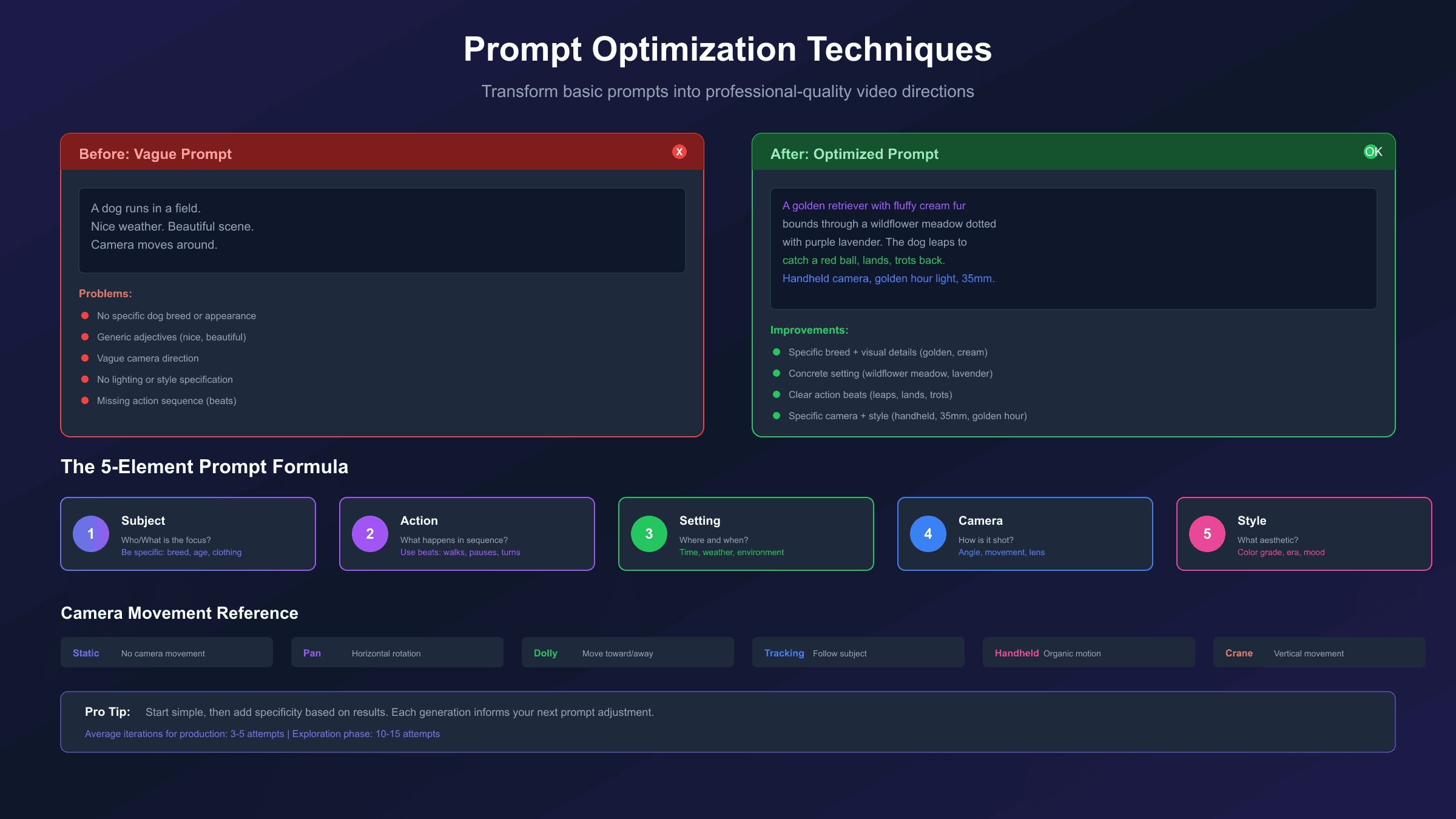
Think of your prompt as instructions for a cinematographer who has never seen your storyboard. Every detail you omit becomes creative space for the model to interpret—sometimes brilliantly, sometimes incorrectly. A well-structured Sora 2 prompt typically includes five core elements:
- Subject: Who or what is the main focus? Be specific—"an orange tabby cat" rather than "a cat"
- Action: What happens? Describe motion in beats—"walks three steps, pauses, looks up"
- Setting: Where does this take place? Include time of day, weather, environmental details
- Camera: How is this shot framed? Wide shot, close-up, tracking shot, static tripod
- Style: What aesthetic should this evoke? Cinematic, documentary, vintage, etc.
First Prompt Example: The Simple Approach
For your first generation, start simple to establish baseline expectations:
A golden retriever runs through a sunny meadow,
chasing a red ball. Handheld camera follows the dog.
Warm afternoon light, shallow depth of field.
This prompt provides clear subject (golden retriever), action (running, chasing ball), setting (sunny meadow), camera (handheld tracking), and style hints (warm light, shallow DOF). It's specific enough to guide the model while leaving room for creative interpretation.
First Prompt Example: The Detailed Approach
Compare with a more detailed prompt for the same concept:
A golden retriever with fluffy cream-colored fur bounds
through a wildflower meadow dotted with purple lavender
and yellow buttercups. The dog leaps to catch a bright
red tennis ball mid-air, lands softly, and trots back
toward camera with the ball in its mouth, tail wagging.
Shot on 35mm film with warm color grading, shallow depth
of field blurring the distant treeline. Handheld camera
with subtle motion following the action. Golden hour
sunlight creates lens flares and rim lighting on the
dog's fur. Ambient sounds of birds and rustling grass.
This detailed version produces more predictable, specific results but leaves less room for pleasant surprises. Both approaches are valid; choose based on how precisely you need to control the output.
Common First-Prompt Mistakes to Avoid
Several patterns consistently produce poor results in first attempts:
- Vague descriptions: "A beautiful scene" gives no actionable direction
- Multiple subjects with complex interactions: Start with one character, one action
- Rapid camera movements: "Quick pan" and "fast zoom" often produce artifacts
- Text requests: Sora 2 struggles with readable text; add text in post-production
- Copyrighted characters: Mickey Mouse, Spider-Man, etc. trigger content filters
Step 4: Generating and Previewing Your First Video
With your prompt written and settings configured, you're ready for the actual generation process. Understanding what happens during generation and how to evaluate results helps build effective iteration skills.
Initiating Generation
Click the Generate button (or tap Create on mobile) after entering your prompt and selecting settings. Sora 2 displays a progress indicator showing generation status. Standard model generations typically complete in 45-70 seconds for 10-second videos; Pro model generations take 75-120 seconds. Longer videos proportionally increase generation time.
During generation, avoid navigating away from the page or closing the app—this can interrupt the process and waste credits. Most generations complete successfully, but network issues or server load occasionally cause failures. Failed generations typically don't consume credits, but verify your credit balance if you experience multiple failures.
Understanding the Preview
Once generation completes, Sora 2 displays a preview video with several important characteristics:
- Watermark: All generated videos include a visible moving watermark and C2PA provenance metadata for authenticity tracking. Watermarks remain even on downloaded videos.
- Audio: If your prompt included audio elements (dialogue, ambient sounds, music descriptions), the preview includes synchronized audio. Review both visual and audio components.
- Multiple variations: Sora 2 may generate multiple versions of the same prompt. Review all variations—sometimes the second or third option better matches your vision.
Evaluating Results
Watch the entire clip before making judgments. Look for:
- Motion coherence: Do objects and characters move naturally throughout?
- Physics accuracy: Does gravity, momentum, and object interaction look realistic?
- Subject consistency: Does the main subject maintain appearance across frames?
- Camera stability: Does camera motion feel intentional or erratic?
- Audio sync: If dialogue was requested, do lip movements match speech?
Note specific issues for your next iteration. Rather than dismissing an imperfect result entirely, identify what worked and what needs adjustment. This iterative approach produces better final results than starting from scratch each time.
Saving and Organizing
Successful generations save automatically to your Drafts. From there, you can:
- Download: Save the video file to your device
- Post: Share to the public Sora feed (optional)
- Remix: Use this video as a starting point for modifications
- Delete: Remove videos you don't want to keep
Organize your drafts with descriptive captions to track which prompt variations produced which results. This documentation proves invaluable as you develop prompting intuition over time.
Step 5: Iterating and Refining Your Videos
First-generation perfection is rare—most professional Sora 2 workflows involve multiple iterations before achieving satisfactory results. Understanding systematic iteration approaches transforms random experimentation into efficient refinement.
The Iteration Mindset
Rather than viewing imperfect results as failures, treat each generation as data informing your next attempt. Professional creators report averaging 3-5 iterations for production content and 10-15 iterations during initial concept exploration. Budget your credits accordingly and expect refinement to be part of the process.
Systematic Refinement Strategies
When a generation doesn't meet expectations, diagnose the specific issue before adjusting your prompt:
| Problem | Likely Cause | Solution |
|---|---|---|
| Wrong subject appearance | Vague description | Add specific visual details (color, texture, clothing) |
| Chaotic motion | Too many moving elements | Simplify to one subject, one action |
| Random camera movement | No camera direction | Specify "static tripod" or specific movement |
| Poor lighting | Generic or missing light description | Define light source, quality, and color temperature |
| Inconsistent subject | Subject changes across frames | Add distinctive anchoring details |
| Physics errors | Complex interactions | Simplify physical movements; describe forces explicitly |
Prompt Modification Techniques
Small changes often produce significant improvements:
- Addition: Add missing specificity—"a car" becomes "a red 1965 Ford Mustang convertible"
- Clarification: Replace ambiguous terms—"moves quickly" becomes "jogs three steps"
- Simplification: Remove competing elements—delete secondary characters or actions
- Reordering: Put the most important elements first in your prompt
- Style anchoring: Add concrete style references—"shot on iPhone 15" or "1970s documentary footage"
When to Start Fresh
After 3-4 iterations without meaningful improvement, the fundamental approach may need reconsidering. Signs that suggest starting with a new prompt concept:
- Results consistently miss the core creative intent
- Adding specificity makes results worse, not better
- The model seems to interpret the prompt in unexpected ways consistently
In these cases, reframe your concept entirely rather than continuing to modify a problematic prompt.
Advanced Prompt Writing Formulas and Templates
Moving beyond basic prompting, advanced techniques produce consistently professional results. These formulas distill patterns from thousands of successful Sora 2 generations into reusable frameworks you can adapt for your specific needs.
The Cinematic Formula
For film-quality output, structure prompts using professional cinematography terminology:
[SHOT TYPE] of [SUBJECT with distinctive details].
[CAMERA MOVEMENT] as [ACTION in sequential beats].
[LIGHTING SETUP] creating [MOOD/ATMOSPHERE].
[COLOR PALETTE] with [TEXTURE/GRAIN] aesthetic.
[AUDIO DESCRIPTION] including [AMBIENT + SPECIFIC SOUNDS].
Example using the Cinematic Formula:
Medium close-up of a weathered fisherman in his 60s,
salt-and-pepper beard, wearing a faded blue wool sweater.
Slow dolly push as he mends a fishing net with calloused
hands, pauses to look at the horizon, then returns to work.
Overcast natural lighting from a cloudy sky creates soft,
even illumination with cool shadows. Muted blue-gray palette
with subtle film grain suggesting 16mm documentary footage.
Ambient harbor sounds: distant seagulls, lapping waves,
creaking dock wood, and the soft rasp of rope through hands.
The UGC (User-Generated Content) Formula
For authentic, social-media-ready content:
[DEVICE/PLATFORM STYLE] video of [RELATABLE SUBJECT].
[SPONTANEOUS ACTION] captured [CAMERA BEHAVIOR].
[NATURAL LIGHTING CONDITIONS] with [AUTHENTIC IMPERFECTIONS].
[REACTION/EMOTION] as [DISCOVERY/EVENT occurs].
Example using the UGC Formula:
iPhone selfie video of a young woman in her mid-20s with
curly brown hair. She's in her apartment kitchen, holding
the phone in one hand while tasting soup from a wooden spoon.
Her eyes widen in surprise, then she grins and gives a
thumbs-up to the camera. Natural window light from the left,
slightly overexposed. Vertical 9:16 format with subtle
autofocus hunting. Audio captures the sizzle of cooking,
her surprised "oh!" and subsequent laugh.
The Product Demo Formula
For commercial and marketing content:
[HERO SHOT TYPE] of [PRODUCT with brand-relevant details].
[REVEAL MOVEMENT] showcasing [KEY FEATURES in sequence].
[STUDIO LIGHTING] emphasizing [MATERIAL/TEXTURE qualities].
[BRAND-ALIGNED COLOR GRADE] with [PREMIUM FINISH].
[SUBTLE SOUND DESIGN] reinforcing [PRODUCT ATTRIBUTES].
Camera Movement Vocabulary
Sora 2 understands these professional camera terms—use them for precise control:
- Static/Locked off: Camera doesn't move; subject moves within frame
- Pan: Horizontal rotation from fixed position (pan left, pan right)
- Tilt: Vertical rotation from fixed position (tilt up, tilt down)
- Dolly: Camera physically moves toward/away from subject (dolly in, dolly out)
- Tracking/Follow: Camera moves alongside subject maintaining distance
- Crane/Boom: Vertical camera movement (crane up reveals city skyline)
- Handheld: Subtle organic motion suggesting human camera operator
- Steadicam: Smooth gliding motion while moving through space
Dialogue Integration Best Practices
When including spoken dialogue, format it clearly after visual description:
[Visual description as above]

DIALOGUE:
Character A: "We need to leave now."
Character B: "Just five more minutes."
Character A: (sighs) "Fine. But hurry."
Keep dialogue brief—2-3 exchanges maximum for a 10-second video. Sora 2 handles single speakers most reliably; multi-character dialogue increases the chance of lip-sync issues.
Storyboard Feature: Creating Multi-Shot Narratives
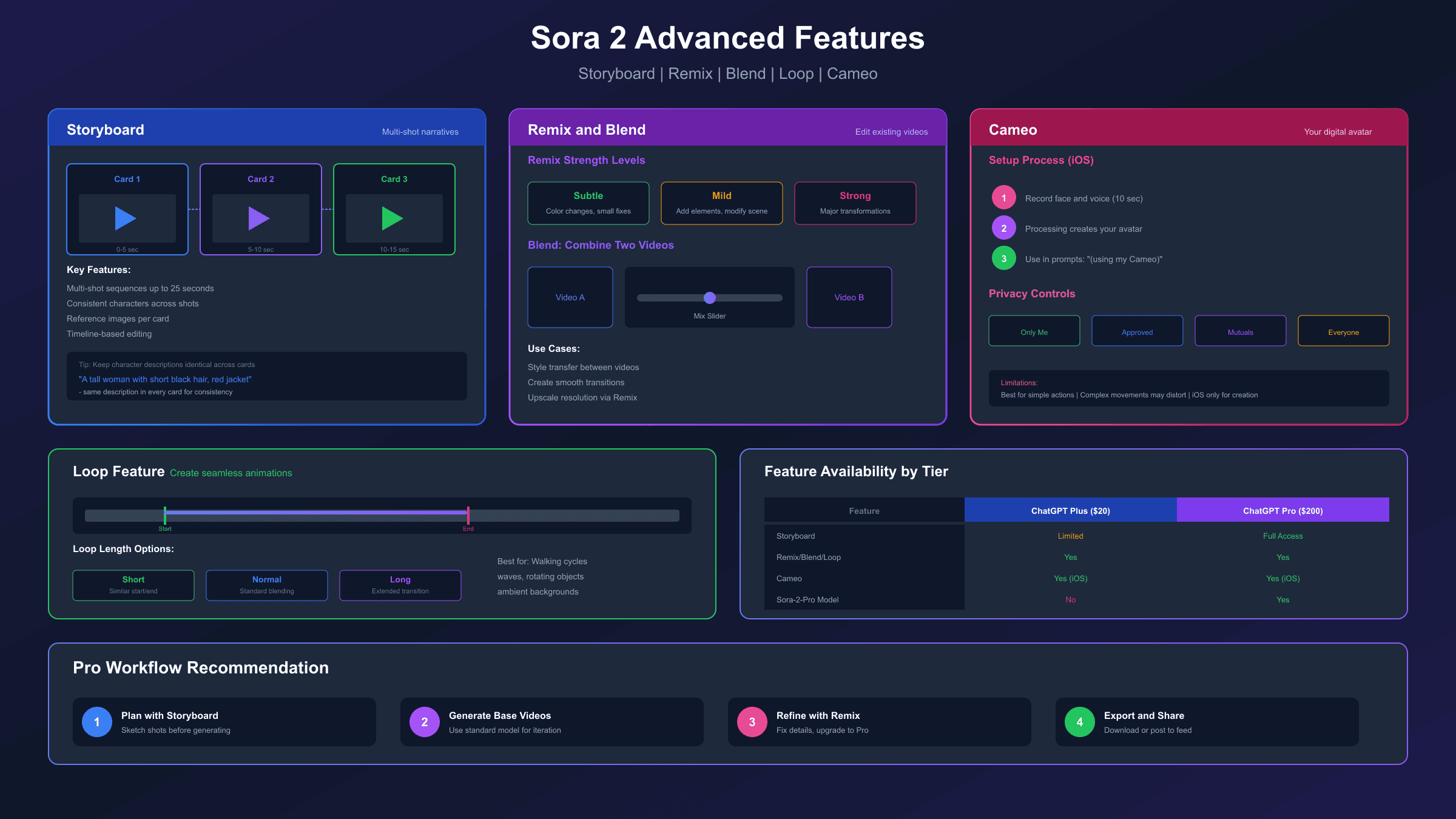
The Storyboard feature transforms Sora 2 from a single-clip generator into a narrative sequencing tool. Available to ChatGPT Pro subscribers through sora.com, Storyboard enables planning and generating multi-shot videos with consistent characters, settings, and visual continuity.
Accessing Storyboard Mode
From the main creation interface, look for the "Storyboard" option in the composer. This opens a timeline-based interface where each card represents a distinct shot in your sequence. You can create storyboards from scratch by adding blank cards, or describe a scene and let Sora generate a suggested storyboard structure that you then refine.
Building Your Storyboard
Each storyboard card contains several fields:
- Shot description: The prompt text for this specific shot
- Duration: How long this shot runs (contributing to total video length)
- Reference image: Optional image to anchor visual style
- Timing position: Where this shot falls in the sequence
Start by sketching your narrative arc—beginning, middle, end—then break it into individual shots. A typical 20-second video might contain 3-5 storyboard cards, each representing 4-7 seconds of footage.
Maintaining Consistency Across Shots
The key to successful multi-shot generation is consistency. Several techniques help:
-
Character anchoring: Use identical character descriptions across all cards where that character appears. "A tall woman with short black hair, red leather jacket, and silver hoop earrings" should appear verbatim in every card featuring her.
-
Setting continuity: Describe the environment consistently—if shot 1 shows "an industrial warehouse with exposed brick and hanging fluorescent lights," reference those same details in subsequent shots set in the same location.
-
Style persistence: Apply the same style and aesthetic descriptors to all cards—"shot on anamorphic lens with teal and orange color grade" throughout the sequence.
-
Reference images: Upload a reference image to your first card, then apply the same reference to subsequent cards. This visual anchor dramatically improves consistency.
Timing and Spacing Strategy
The spacing between storyboard cards influences transition smoothness. Cards placed too close together produce abrupt cuts; cards too far apart may introduce unwanted interpolation. Experiment with spacing to find the rhythm that matches your narrative intention.
Consider these pacing guidelines:
- Action sequences: Shorter shots (2-3 seconds), rapid transitions
- Emotional moments: Longer shots (5-7 seconds), gentle transitions
- Dialogue scenes: Medium shots (4-5 seconds), natural conversation rhythm
Storyboard Workflow Example
Creating a 15-second product reveal:
Card 1 (0-5s): Wide establishing shot of a minimalist white studio space. A single spotlight illuminates a small pedestal in the center. Camera slowly dollies forward.
Card 2 (5-10s): Medium shot revealing a sleek black smartphone on the pedestal. Camera orbits 90 degrees around the product, catching reflections on the glass surface.
Card 3 (10-15s): Close-up of the phone screen awakening, displaying a vibrant interface. Pull focus from screen detail to the full device as camera rises slightly.
Each card maintains consistent studio lighting, color temperature, and visual style while progressively revealing the product.
Remix, Blend, and Loop: Editing Your Generated Videos
Beyond initial generation, Sora 2 provides powerful editing tools that transform existing videos without starting from scratch. These features—Remix, Blend, and Loop—enable iterative refinement and creative experimentation using your generated content as raw material.
Remix: Modifying Existing Videos
Remix allows you to alter a generated video by describing desired changes. This is particularly useful when a generation is 80% perfect but needs specific adjustments.
To use Remix, select a video from your Drafts and click the Remix button. You'll see the original prompt and can describe modifications:
- Subtle: "Change the car color from red to blue" (minimal changes)
- Mild: "Add rain to the scene" (moderate additions)
- Strong: "Transform this into a night scene" (significant changes)
Remix strength controls how much the output can deviate from the original. Subtle works best for specific element swaps; Strong essentially re-generates with the original as loose guidance.
Practical Remix Applications:
- Correcting small errors without full regeneration
- Creating variations of successful generations
- Adapting content for different contexts (day to night, summer to winter)
- Upscaling resolution (Remix without changes at higher resolution setting)
Blend: Combining Multiple Videos
Blend merges two source videos into a hybrid output. This creative tool produces transitions, style transfers, and compositional combinations that neither source could achieve alone.
The Blend interface presents two video slots and a mixing slider. The slider position determines which video contributes more to the final output—centered creates equal influence; shifted positions weight toward one source.
Effective Blend Use Cases:
- Style transfer: Blend a content video with a style reference
- Smooth transitions: Create morphing effects between two scenes
- Compositional mixing: Combine elements from different generations
- Creative experimentation: Discover unexpected visual combinations
Loop: Creating Seamless Repetitions
Loop transforms a video segment into a seamless, endlessly repeating animation. This works best with videos containing cyclical motion—walking, waves, rotating objects—where the end state naturally connects to the beginning.
The Loop interface provides start and end frame selectors, plus loop length options:
- Short: Best when start and end frames are nearly identical
- Normal: Standard blending for moderate frame differences
- Long: Extended blending for more significant start/end differences
Loop Best Practices:
- Select segments where motion direction at the end matches the beginning
- Avoid loops containing dramatic action changes or character entrances/exits
- Test multiple loop points to find the smoothest connection
- Use for background animations, ambient content, and social media posts
Cameo Feature: Inserting Yourself into AI Videos
Cameo represents Sora 2's most distinctive feature—the ability to create a digital representation of yourself that appears in AI-generated videos. This technology raises obvious concerns about misuse, so OpenAI has implemented extensive safeguards alongside the creative capabilities.
Creating Your Cameo
The Cameo creation process requires iOS device access (iPhone or iPad) with camera capabilities:
- Open the Sora app and navigate to Cameo settings
- Follow the recording prompts—you'll read numbers aloud while slowly turning your head
- The recording captures facial structure, expressions, voice characteristics
- Processing takes approximately 30-60 seconds
- Your Cameo becomes available for video generation
The brief recording process captures enough data for Sora to generate your likeness in various poses, expressions, and situations without requiring additional input.
Using Cameo in Generations
With a Cameo created, you'll see a "Use Cameo" option when starting new generations. Selecting your Cameo adds it as a character reference for the prompt. You can then write prompts featuring yourself:
A person (using my Cameo) sits at a coffee shop table,
sipping espresso while reading a newspaper. They look up,
smile at someone off-camera, and return to reading.
Warm morning light through the window, shallow depth of field.
Sora uses your Cameo data to render your likeness performing the described actions. Results vary—complex actions or unusual angles produce less accurate representations than straightforward scenarios.
Privacy and Permission Controls
Cameo includes built-in protection against unauthorized use:
- Access levels: Control who can use your Cameo—only yourself, approved friends, mutual followers, or everyone
- Revocation: Remove access from specific users or delete your Cameo entirely at any time
- Video removal: Request removal of any video featuring your Cameo that you didn't authorize
- Violation reporting: Report unauthorized Cameo usage for OpenAI review
These controls exist because Cameo technology could enable deepfake-style content if unrestricted. The permission system creates accountability while enabling legitimate creative use.
Cameo Limitations
Current Cameo capabilities have boundaries:
- Works best for straightforward scenarios (sitting, standing, walking, talking)
- Complex physical actions (sports, dancing) may produce unrealistic results
- Extreme expressions or emotions can distort facial accuracy
- Other people's Cameos require their explicit permission to use
Sora 2 Pricing: Understanding Costs and Maximizing Value
Understanding Sora 2's pricing structure helps you budget effectively and choose the right subscription tier for your needs. The cost model differs from traditional subscription services—you're paying for both access and consumption through a credit system.
Subscription Tiers Comparison
| Feature | ChatGPT Plus | ChatGPT Pro |
|---|---|---|
| Monthly Cost | $20 | $200 |
| Monthly Credits | 1,000 | 10,000 |
| Max Resolution | 720p | 1080p |
| Max Duration | 10 seconds | 20 seconds |
| Model Access | Sora-2 | Sora-2 + Sora-2-Pro |
| Queue Priority | Standard | Priority |
| Relaxed Mode | No | Yes (unlimited) |
Credit Consumption Rates
Credits consumed depend on resolution, duration, and model selection:
| Video Type | Approximate Credits |
|---|---|
| 5-second 480p | 20-50 |
| 5-second 720p | 50-100 |
| 10-second 720p | 100-200 |
| 5-second 1080p | 100-250 |
| 10-second 1080p | 200-500 |
| 20-second 1080p | 500-1000 |
Pro model generations consume approximately 2x the credits of standard model for equivalent specifications. Storyboard and Remix operations also consume credits proportional to output length.
Calculating Real-World Costs
A practical cost analysis for different usage patterns:
Light User (social media content): ChatGPT Plus provides roughly 10-20 finished videos monthly after accounting for iteration. At $20/month, this equals $1-2 per final video—competitive with stock footage licensing.
Regular Creator (marketing, content production): ChatGPT Pro's 10,000 credits enable approximately 50-100 videos monthly. At $200/month, per-video cost drops to $2-4, with higher quality output and priority processing.
Heavy Producer (agency, commercial work): Pro's unlimited Relaxed Mode allows generation beyond credit limits with slower processing. This enables high-volume workflows without per-video cost concerns, though turnaround time increases.
API Access Pricing
For developers requiring programmatic access, the Sora 2 API (currently in preview) uses per-second pricing:
- Standard 720p: ~$0.10/second
- Standard 1080p: ~$0.20/second
- Pro 720p: ~$0.30/second
- Pro 1080p: ~$0.50/second
A 10-second standard 720p video costs approximately $1.00 through the API. Enterprise agreements may include volume discounts and SLA guarantees.
Cost Optimization Tip: Use the standard Sora-2 model for iteration and exploration, reserving Sora-2-Pro for final renders. This approach can reduce credit consumption by 50% while maintaining quality where it matters most.
For developers seeking lower-cost API access, third-party providers like laozhang.ai offer Sora 2 API access at reduced rates (~$0.15 per video versus official per-second pricing). While not officially supported by OpenAI, these services provide an alternative for budget-conscious projects. Review the full pricing comparison for detailed analysis of official versus third-party options.
Common Problems and Troubleshooting Solutions
Even with perfect prompts and optimal settings, Sora 2 users encounter predictable issues. This troubleshooting reference addresses the most common problems with tested solutions.
Access and Authentication Issues
"Sora is not available in your country yet"
This error appears when accessing from outside the US or Canada. Current solutions include:
- Wait for OpenAI's geographic expansion (no announced timeline)
- VPN usage may work but violates OpenAI's terms of service and risks account suspension
- Consider third-party API providers that don't have geographic restrictions
"You need a ChatGPT Plus or Pro subscription"
Sora 2 requires paid subscription access. Free ChatGPT accounts cannot access video generation. Subscribe through chatgpt.com or the ChatGPT mobile app.
Authentication errors or login loops
Clear browser cookies for openai.com and chatgpt.com, then try logging in fresh. If using multiple OpenAI accounts, ensure you're logged into the correct one with video access.
Generation Failures
"Something went wrong" during generation
Common causes and fixes:
- Server overload: Wait 10-15 minutes and retry. Peak hours (US evenings) experience highest load.
- Network interruption: Ensure stable connection throughout generation (45-120 seconds)
- Browser issues: Try a different browser; Chrome and Firefox work most reliably
- Content filter trigger: Review your prompt for potentially prohibited content
"Content policy violation"
Your prompt triggered OpenAI's content filters. Prohibited content includes:
- Copyrighted characters (Disney, Marvel, etc.)
- Real public figures (politicians, celebrities)
- Violent, sexual, or discriminatory content
- Requests for minors in any potentially sensitive context
Rephrase your prompt to avoid these categories. If you believe the filter triggered incorrectly, modify specific words that might have caused false positives.
"Rate limit exceeded"
You've hit generation limits. ChatGPT Plus users have lower rate limits than Pro subscribers. Wait for the indicated cooldown period, or upgrade to Pro for higher limits.
Quality Issues
Physics errors (floating objects, gravity defying motion)
Explicitly describe physical behaviors in your prompt: "The ball falls downward and bounces twice before rolling to a stop." Limit complex physics interactions to one per scene.
Inconsistent character appearance
Add distinctive anchoring details: "A woman with short black hair, wearing a red jacket and silver hoop earrings." Reference these details identically across multi-shot generations.
Hand and finger distortions
Keep hands in simple poses when possible. "Hands resting on the table" produces better results than "playing piano." Mid-shot framing (waist-up) reduces hand visibility issues.
Lip-sync problems with dialogue
Simplify dialogue to single speakers with brief lines. Multi-character conversations frequently cause sync issues. Consider generating silent video and adding dialogue in post-production.
Random camera movements
Explicitly specify camera behavior: "Static tripod shot with no camera movement" or "Slow steady dolly push." Avoid vague terms like "dynamic camera."
Credit and Billing Issues
Credits not appearing after payment
Subscription activation sometimes takes 5-10 minutes. If credits don't appear after 30 minutes, contact OpenAI support through help.openai.com.
Unexpected credit consumption
Failed generations typically don't consume credits, but partially completed generations might. Check your usage history for details on credit deductions.
Credits reset unexpectedly
Credits reset on your billing date, not the calendar month. Verify your billing date in subscription settings to understand your reset schedule.
Sora 2 vs Alternatives: Choosing the Right Tool
Sora 2 exists in a competitive landscape alongside other AI video generators. Understanding how it compares helps you choose the right tool for specific projects—or determine when a combination of tools produces optimal results.
Sora 2 vs Runway Gen-3/Gen-4
Runway has been the market leader in AI video generation, with Gen-3 and Gen-4 offering mature, production-tested capabilities.
| Aspect | Sora 2 | Runway Gen-3/4 |
|---|---|---|
| Visual Quality | Photorealistic, cinematic | Cinematic, excellent textures |
| Motion Control | Natural language prompts | Director Mode, Motion Brush |
| Max Duration | 20 seconds | 10 seconds (extendable) |
| Audio | Native synchronized audio | Separate audio tools |
| Unique Features | Cameo, native audio | Motion Brush, character consistency |
| Access | Subscription bundled | Standalone, pay-per-use |
| API | Preview only | Production-ready |
When to choose Runway: Complex camera control needs, production workflows requiring API integration, character consistency across projects, 4K output requirements.
When to choose Sora 2: Native audio generation, longer single-shot duration, Cameo feature for personalized content, tighter ChatGPT ecosystem integration.
Sora 2 vs Pika Labs
Pika Labs positions as an accessible, fast alternative emphasizing creative experimentation over production polish.
| Aspect | Sora 2 | Pika Labs |
|---|---|---|
| Generation Speed | 45-120 seconds | 15-30 seconds |
| Visual Quality | Higher fidelity | Good, stylized options |
| Pricing | $20-200/month | $8-28/month |
| Learning Curve | Moderate | Lower |
| Special Effects | Limited | Pikaffects (creative manipulations) |
When to choose Pika: Rapid prototyping, high-volume social content, budget constraints, creative/stylized aesthetics over photorealism.
When to choose Sora 2: Final deliverables requiring photorealism, synchronized audio needs, longer clip requirements.
Sora 2 vs Google Veo
Google's Veo represents direct competition with similar capabilities and Google ecosystem integration.
| Aspect | Sora 2 | Google Veo |
|---|---|---|
| Access | US/Canada, subscription | Limited preview |
| Integration | ChatGPT ecosystem | Google Workspace |
| Quality | Leading edge | Comparable |
| Audio | Native generation | In development |
| Availability | More accessible | More restricted |
For most users, Sora 2's current availability makes it the practical choice. Veo may become competitive as Google expands access.
Multi-Tool Workflow Considerations
Professional workflows often combine multiple tools:
- Concept exploration: Pika Labs for fast iteration
- Refinement: Sora 2 for quality and audio
- Complex edits: Runway for precise motion control
- Post-production: Traditional tools (Premiere, DaVinci) for final polish
Don't limit yourself to a single platform—each tool has strengths that complement the others.
Best Practices Summary and Next Steps
Mastering Sora 2 combines technical understanding with creative intuition. These consolidated best practices and recommended next steps help you continue developing your AI video creation skills.
Essential Best Practices
Prompt Writing:
- Structure prompts with subject, action, setting, camera, and style
- Be specific about visual details—colors, textures, lighting conditions
- Describe actions in sequential beats rather than general movements
- Specify camera behavior explicitly; avoid vague "dynamic" directions
- Start simple, add complexity based on results
Workflow Optimization:
- Use standard Sora-2 model for iteration; reserve Pro for finals
- Document successful prompts for future reference
- Generate 3-5 variations before declaring a concept unsuccessful
- Consider shorter clips stitched together over single long generations
- Plan credit consumption around your billing cycle
Quality Improvement:
- Add distinctive anchoring details for character consistency
- Simplify physics interactions to one major movement per scene
- Use reference images in Storyboard for visual consistency
- Test prompt modifications one element at a time to isolate effects
Recommended Learning Path
Week 1-2: Foundation
- Complete 20-30 simple generations to understand baseline behavior
- Experiment with all aspect ratios and duration settings
- Test each camera movement term to see its effect
- Establish personal prompt templates that work reliably
Week 3-4: Intermediate Skills
- Explore Storyboard for multi-shot sequences
- Create your Cameo and test personal appearance generation
- Practice Remix and Blend tools on existing generations
- Develop prompts for specific use cases (social, marketing, narrative)
Month 2+: Advanced Application
- Build a library of reusable prompt templates
- Develop consistent style guides for branded content
- Experiment with pushing model limits on complex scenes
- Integrate Sora 2 output with post-production workflows
Resources for Continued Learning
- OpenAI Academy (academy.openai.com): Official tutorials covering Sora features
- OpenAI Cookbook (cookbook.openai.com): Technical prompting guide and examples
- Sora Feed (sora.com/feed): Browse successful generations for inspiration
- Community forums: Reddit r/sora, Twitter #Sora2 for user discoveries
The AI video generation field evolves rapidly—techniques that produce optimal results today may be superseded as models improve. Maintain an experimental mindset, document what works, and continue exploring new approaches as Sora 2 capabilities expand.
Conclusion
Learning how to use Sora 2 video generator step by step opens creative possibilities that were technically impossible just a year ago. From writing your first prompt to mastering Storyboard sequences and Cameo personalization, this guide has covered the complete workflow needed to produce professional AI video content.
The key takeaways for successful Sora 2 usage center on intentional prompting and systematic iteration. Treat prompts as detailed instructions for a cinematographer—specify subjects, actions, camera movements, and style in concrete terms. Expect iteration; plan for 3-5 generations per final output. Use the right model for the task: standard for exploration, Pro for delivery. And remember that current limitations will diminish as the technology matures.
Start with simple, single-subject videos to build intuition. Progress to multi-shot Storyboards as you develop consistent prompt templates. The users producing the most impressive Sora 2 content aren't necessarily the most technically sophisticated—they're the ones who've invested time in understanding how the model interprets different prompt structures and camera directions.
For ongoing video production needs beyond consumer subscriptions, explore API access options that provide programmatic generation at scale. Whether you're creating social content, marketing videos, or experimental art, Sora 2 provides the foundation for a new era of accessible video production.