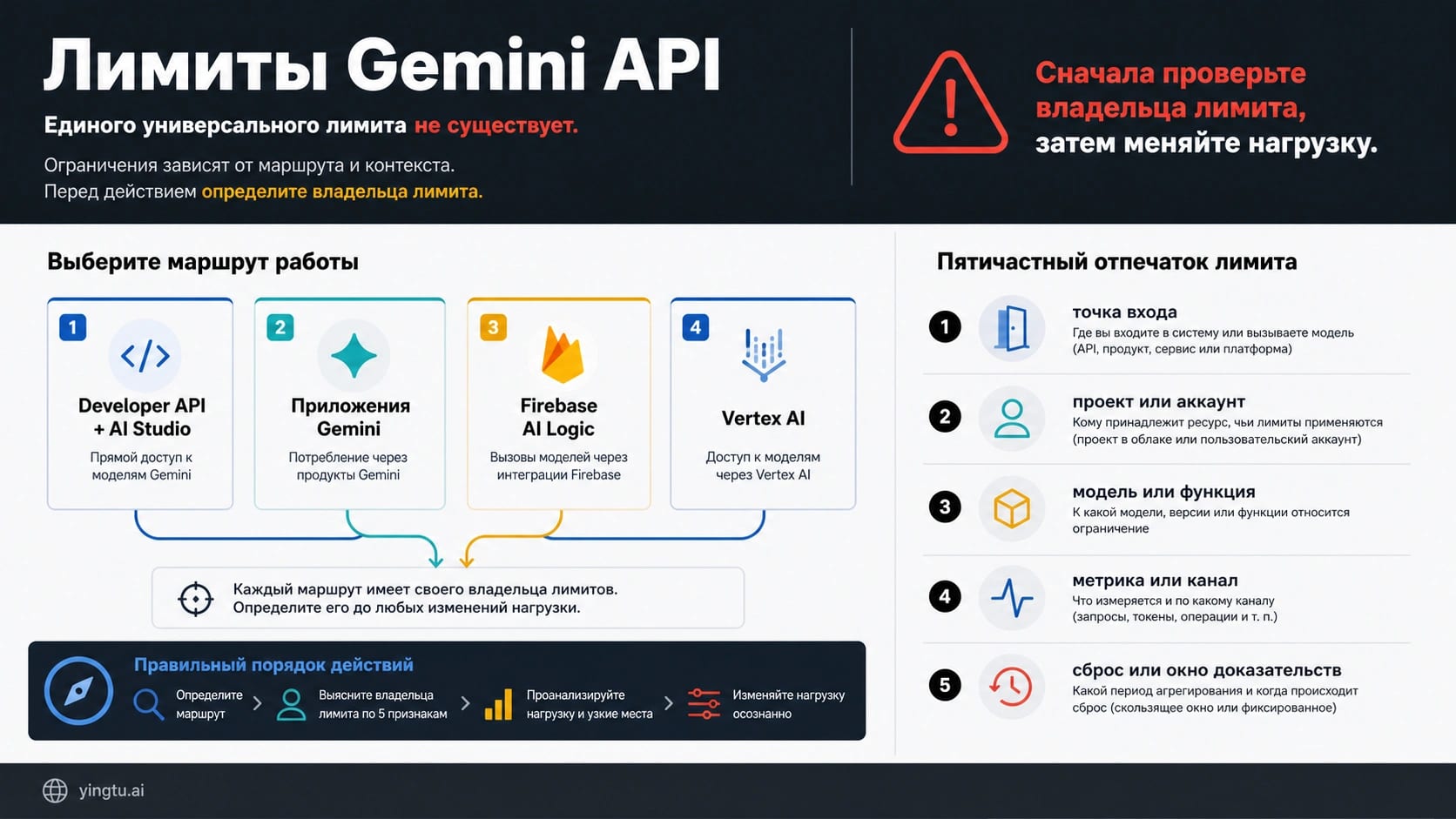
Ошибка 429 в Gemini API — не сигнал немедленно менять ключ, модель или тариф. Сначала установите, где выполнялся запрос, какому проекту он принадлежит, какая точная модель использовалась, какой счётчик мог исчерпаться и когда этот счётчик обновляется. Без этих пяти ответов вы ещё не знаете, какой лимит сработал.
Для Gemini Developer API применимые значения показывает страница лимитов Google AI Studio для конкретного Google Cloud project и конкретной строки модели. У приложения Gemini, Firebase AI Logic и Vertex AI другие точки учёта. Поэтому универсальная цифра «столько-то запросов Gemini в минуту» почти всегда слишком груба для решения инцидента.
| Где выполняется работа | Где искать действующие данные | Что сделать первым |
|---|---|---|
| Gemini Developer API | Строка точного проекта и модели в AI Studio | Найти ограничивающий RPM, входной TPM, RPD, IPM, TPD, расход, Priority или Batch |
| Приложение Gemini | Настройки → Ограничения использования | Проверить лимит функции и показанное время восстановления |
| Firebase AI Logic | Настройка шлюза на пользователя и квота вышестоящего провайдера | Проверить оба уровня: первым сработает меньший |
| Vertex AI | Dynamic Shared Quota либо Provisioned Throughput в Google Cloud | Отделить конкуренцию за общую мощность от купленной пропускной способности |
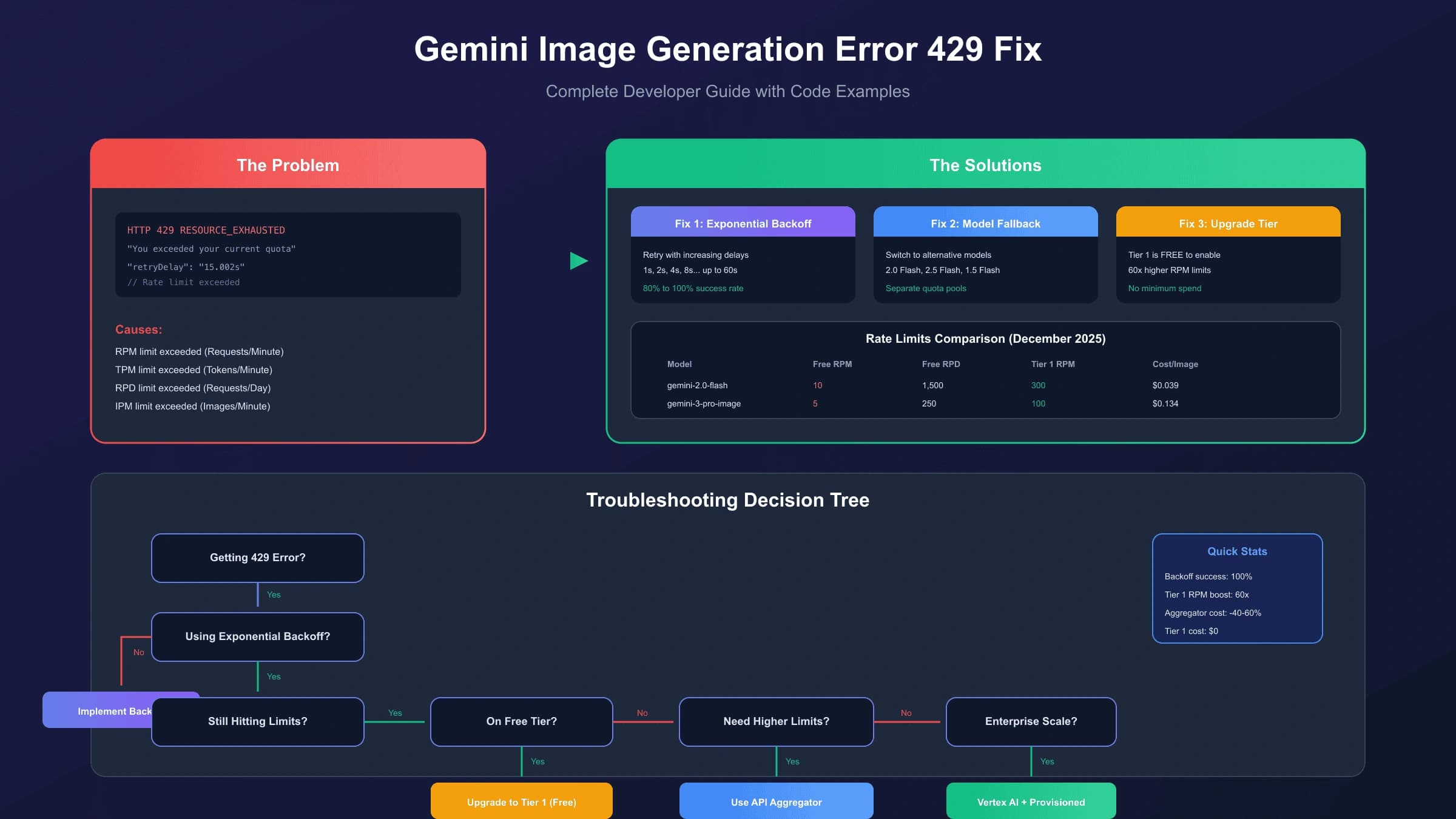
Правило остановки: не вращайте API keys и не запускайте бесконечный цикл повторов. 429 RESOURCE_EXHAUSTED направляет к данным о квоте, частоте, суточном лимите или расходах. 503 UNAVAILABLE направляет к данным о временной перегрузке и доступной мощности сервиса. Обе ошибки иногда проходят со временем, но их причины и долговременные исправления различаются.
Сначала найдите строку своего проекта, а не универсальную таблицу
Официальная документация Gemini API описывает механику ограничений, а авторизованная AI Studio показывает значения, действующие для аккаунта. Публичная таблица может объяснить обозначения, но не знает фактический usage tier, состояние billing account, статус preview-модели и доступную мощность вашего проекта.
У Developer API обычно есть несколько независимых измерений:
- RPM (requests per minute) считает вызовы. Большое число коротких запросов может первым исчерпать именно RPM;
- input TPM (input tokens per minute) считает входные токены prompt и context. Несколько крупных запросов способны исчерпать TPM при свободном RPM;
- RPD (requests per day) действует только там, где он указан в активной строке. По текущему правилу счётчик сбрасывается в полночь по Pacific Time;
- отдельные строки модели или функции могут также содержать IPM для изображений и TPD для токенов в сутки.
Превышение любого применимого измерения способно вызвать отказ. У preview и experimental models ограничения могут быть строже. Поэтому в журнале инцидента сохраняйте полный model ID из запроса, а не только слова Flash или Pro.
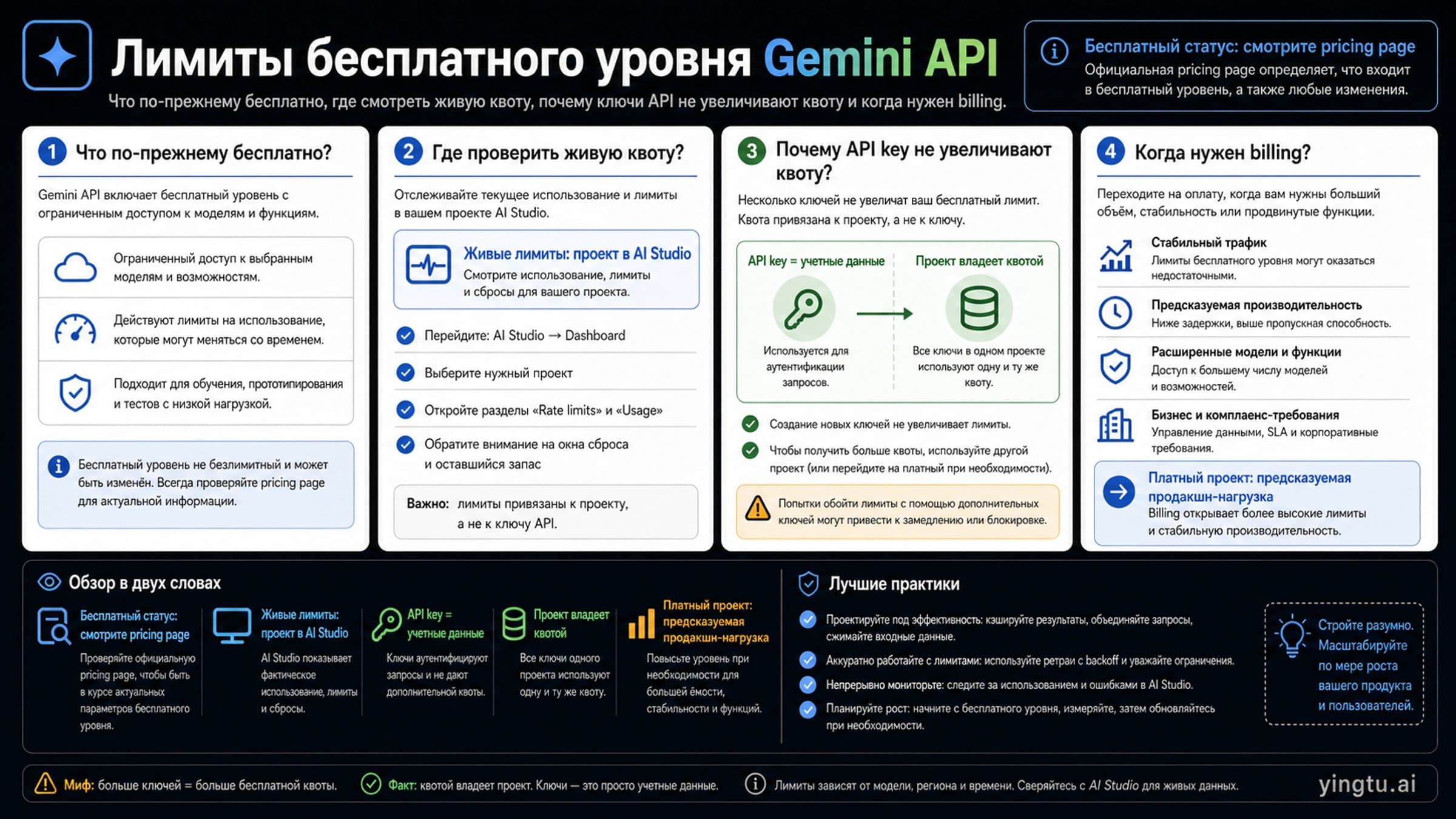
Несколько ключей одного проекта не дают несколько квот
Лимиты Developer API применяются к Google Cloud project, а не к API key. Два ключа в одном проекте расходуют общий RPM, TPM и RPD. Дополнительный ключ полезен для ротации credentials, разделения сервисов и прав доступа, но не создаёт новую пропускную способность.
Не распределяйте запросы по проектам ради обхода квоты. Несколько проектов оправданы, когда они отражают реальные границы окружений, billing, безопасности или организаций. Тогда заранее определите маршрутизацию, учёт расходов, data policy и изоляцию отказов.
Если ограничение появилось как конкретное сообщение в интерфейсе AI Studio, а не как ответ API, используйте отдельную инструкцию по восстановлению после лимита Google AI Studio. Интерфейсная пауза и проектная API quota — разные задачи.
Условия уровней и расходов меняются
На 15 июля 2026 года публичная страница Google указывает такие условия квалификации:
| Уровень | Опубликованное условие на эту дату | Что всё равно нужно проверить |
|---|---|---|
| Free | Активный проект или состояние free trial | Какие модели и значения открыты именно этому проекту |
| Tier 1 | Привязанный активный billing account | Какой уровень и строки появились после активации billing |
| Tier 2 | Оплачено не менее 100 долларов и прошло не менее 3 дней с первого успешного платежа | Состояние аккаунта и уровень, показанный Google |
| Tier 3 | Оплачено не менее 1 000 долларов и прошло не менее 30 дней с первого успешного платежа | Состояние аккаунта и уровень, показанный Google |
Та же страница сейчас описывает admission limit по расходам в скользящем десятиминутном окне: 10 долларов для Tier 1 и 200 долларов для Tier 2 и Tier 3. Эти суммы, условия и применимость могут измениться. Перед нагрузочным тестом перепроверьте официальную страницу и авторизованный проект.
Подключение billing меняет право на уровень, но не отменяет RPM, input TPM, RPD, окно расходов, Batch и другие ограничения. Вопрос о том, какая модель доступна без оплаты, лучше решать в руководстве по бесплатному уровню Gemini API, а не по старой строке из чужой статьи.
Разделите минутные, суточные и денежные окна
Запрос может укладываться в минутный лимит и всё равно быть отклонён суточным либо расходным ограничением. Кроме того, Standard, Priority и Batch — не три названия одной квоты, а разные serving paths, которые следует наблюдать отдельно.
| Счётчик или режим | Что он ограничивает | Какие данные сохранить | Типичная ошибка планирования |
|---|---|---|---|
| RPM | Число онлайн-вызовов в минуту | Времена запросов и текущую строку RPM | Считать только средний RPS и не видеть burst |
| Input TPM | Объём входных токенов в минуту | Распределение размера input, а не только число вызовов | Считать все prompts одинаковыми |
| RPD | Суточное число запросов там, где лимит включён | Текущую строку RPD и сброс по Pacific Time | Надеяться исправить суточный предел коротким backoff |
| Окно расходов | Допуск по расходам в соответствующем скользящем окне | Billing tier и актуальное официальное правило | Принимать его за месячный бюджет |
| Priority | Отдельную квоту приоритетной обработки | Запрошенный tier и x-gemini-service-tier в ответе | Считать Priority безграничным запасом |
| Batch | Отдельный асинхронный пул | Число jobs, размеры файлов и queued tokens | Отправлять срочную интерактивную работу в Batch |
Документация Priority inference сейчас задаёт исходный Priority limit как 0,3 от соответствующего Standard limit модели и уровня. При нехватке Priority capacity запрос может обслуживаться как Standard, а не обязательно завершаться ошибкой. Если для SLO важен режим, записывайте возвращённый x-gemini-service-tier.
Batch полезен для несрочных задач, потому что его quota pool отделён от интерактивных вызовов. На 15 июля 2026 года Batch API перечисляет 100 одновременных batch requests, максимум 2 GB на входной файл, 20 GB file storage и зависящий от модели и уровня предел enqueued tokens. Это ограничения с датой проверки, а не вечные константы.
В хорошем нагрузочном профиле записаны точная модель и проект, p50/p95 входных токенов, burst factor, requested serving tier, p95 latency, суточный объём, риск расходов, доля retries и допустимость асинхронной обработки. Один target RPS не описывает такую нагрузку.
Рассчитайте рабочую нагрузку по текущим значениям
После чтения активной строки определите, какой минутный предел сработает первым:
Потолок запросов = min(активный RPM, активный input TPM ÷ среднее число входных токенов на запрос)
Это ориентир для расчёта, а не production target. Размер input меняется, трафик приходит всплесками, retries добавляют нагрузку, а реальная capacity может быть ниже опубликованной границы. Operational headroom выбирают по наблюдаемой вариативности и цене ошибки; Google не назначает одно универсальное значение запаса.
Пример с явно указанными допущениями
Допустим, AI Studio показывает 60 RPM и 120 000 input TPM, а наблюдаемый запрос в среднем содержит 4 000 входных токенов:
- RPM допускает 60 запросов в минуту;
- input TPM допускает 120 000 ÷ 4 000 = 30 запросов в минуту;
- меньшая цифра ограничивает поток, поэтому потолок до запаса равен 30 запросам в минуту;
- если команда сама выбирает для этого примера запас 20%, стартовая рабочая скорость равна 24 запросам в минуту, или 0,4 RPS;
- при измеренной p95 latency 2 секунды оценка steady-state concurrency равна 0,4 × 2 = 0,8. Начать можно с concurrency 1, затем проверить очередь, burst и retry amplification.
Двадцать процентов здесь — инженерное допущение примера, не рекомендация Google. Неровному пользовательскому трафику может потребоваться больший запас, а плавной offline queue с контролируемым input — другой.
Минутного расчёта недостаточно. При 24 запросах в минуту непрерывный процесс попытался бы выполнить 34 560 запросов в сутки. Сравните это с активным RPD и отдельно проверьте окно расходов. Успешный десятиминутный тест не гарантирует возможность работать круглые сутки.
Для неодинаковых prompts используйте распределение, а не одно среднее:
| Показатель | Для чего он нужен |
|---|---|
| Средний input tokens | Начальная оценка стабильного режима |
| p95 input tokens | Проверка, не исчерпывает ли обычный пик TPM |
| Максимально разрешённый input | Защита от класса запросов, съедающего всю минуту |
| p95 latency | Перевод безопасного RPS в начальный concurrency cap |
| Retry rate | Измерение усиления трафика при частичных отказах |
| Cache hit rate | Поиск повторяющегося контекста, который можно убрать из горячего пути |
Пересчитывайте бюджет после смены модели, prompt template, размера context, tool use, traffic mix, уровня или serving path. Capacity planning — измеряемый цикл, а не разовое деление.
Разберите 429 и 503 по разным веткам
Официальная страница troubleshooting различает 429 RESOURCE_EXHAUSTED и 503 UNAVAILABLE. Для обеих ошибок может быть уместен ограниченный exponential backoff с jitter, но только после проверки ветки и безопасной повторяемости операции.
| Ответ | Первая гипотеза | Что проверить | Полезное действие | Когда остановиться |
|---|---|---|---|---|
429 RESOURCE_EXHAUSTED | Quota, RPM/TPM/RPD, расход или другое admission limit | Полное тело, headers, Retry-After, строку проекта/модели, недавнее usage | Поставить в очередь, снизить rate или input, дождаться правильного окна либо использовать официальный quota path | Не повторять вслепую, пока неизвестны исчерпанный счётчик и reset |
503 UNAVAILABLE | Временная перегрузка, capacity или недоступность сервиса | Request ID, время с timezone, endpoint/region, модель и service status | Ограниченный backoff, сглаживание трафика, поддерживаемый global endpoint, затем escalation с данными | После retry budget или при устойчивом влиянии |
429 после минутного burst может исчезнуть, когда окно сдвинется. 429 из-за RPD не исправит повтор каждые пять секунд. Расходное ограничение требует правильного rolling window или billing action. Устойчивый 503 может потребовать проверки статуса и другого capacity path даже при свободных проектных лимитах.
Повторы должны иметь бюджет и завершение
Production retry policy должна определить:
- какие status codes повторяются, а какие завершают операцию;
- безопасно ли повторять конкретное действие без двойного эффекта;
- maximum attempts и общий elapsed-time budget;
- exponential backoff с рандомизированным jitter;
- использование
Retry-After, если header присутствует; - queue или circuit breaker против синхронной retry storm;
- отдельные метрики исходных вызовов и повторов;
- пакет для escalation: request ID, model ID, endpoint, timestamp с timezone, response details и impact без API key.
Смена ключа не заменяет диагностику: quota принадлежит проекту. Она лишь затруднит восстановление последовательности credentials, services и запросов. Проекты также нельзя размножать как способ обхода лимита.
Устраняйте ограничитель, а не сообщение об ошибке
Самое короткое безопасное действие зависит от фактически исчерпанного измерения:
| Ограничение | Быстрая мера | Долговременное решение | Плохой короткий путь |
|---|---|---|---|
| RPM | Сгладить burst, ограничить concurrency, поставить calls в queue | Admission control и budgets по workload | Больше keys в том же project |
| Input TPM | Укоротить context, убрать повторения, уменьшить пакет | Кэшировать стабильный prefix, отделить крупные jobs | Считать calls без tokens |
| RPD | Убрать необязательные calls и дождаться Pacific reset, если применимо | Прогнозировать суточный volume и оценить подходящий tier | Tight retry loop |
| Spend window | Снизить допускаемый поток и дождаться rolling window | Alerts и cost-aware admission | Считать billing отменой лимитов |
| Priority | Наблюдать фактически возвращённый tier и решить, допустим ли Standard | Оставить Priority для latency-sensitive jobs и измерять отдельно | Считать Priority универсальным запасом |
| Batch tokens/jobs | Разнести submissions по времени и уменьшить job | Построить asynchronous scheduler по текущему контракту Batch | Отправлять interactive work в Batch |
| 503 capacity | Ограниченный backoff и traffic smoothing | Global routing, capacity planning либо Provisioned Throughput, где уместно | Искать project quota без capacity evidence |
Кэш помогает при большом стабильном prefix. Очередь помогает, когда работа может ждать. Batch помогает, когда ответ не нужен немедленно. Смена модели оправдана только если новая модель доступна сейчас, удовлетворяет требованиям качества и её активная строка улучшает именно ограничивающее измерение. Название устаревшей модели из старой таблицы не является fallback plan.
Запрос на повышение лимита полезнее, если содержит текущий project и model, распределение traffic, исчерпанное измерение, прогноз роста, уже введённые меры и business impact. Формулировка «нужно больше RPM» без этих данных почти ничего не объясняет.
Не смешивайте Developer API, приложение, Firebase и Vertex
Слово Gemini используется в нескольких продуктах, но их limits не переносятся друг на друга.
Приложение Gemini использует лимит потребительского аккаунта
Ограничение приложения зависит от модели или функции, сложности prompt, файлов и длины диалога. На 15 июля 2026 года Gemini Apps Help сообщает об обновлении доступного объёма каждые пять часов до достижения недельного лимита; конкретное время и текущий остаток показывает Настройки → Ограничения использования. Значения могут меняться вместе с capacity.
Подписка на приложение не увеличивает автоматически RPM, TPM или RPD проекта Developer API. Consumer subscription и billed API project решают разные задачи.
Firebase AI Logic добавляет ещё один уровень
Firebase AI Logic может применять per-user gateway limit перед квотой выбранного model provider. На 15 июля 2026 года Firebase документирует значение по умолчанию 100 RPM на пользователя. Вышестоящий project/model limit Gemini продолжает действовать.
Фактический потолок равен меньшему из применимых уровней. Если заблокирован один пользователь при нормальном project usage, проверьте Firebase gateway. Если одновременно падают многие пользователи и исчерпана строка Gemini project, изменение только gateway limit не поможет.
Vertex AI использует собственную модель мощности
Для более новых Gemini models в Vertex AI PayGo Google Cloud описывает Dynamic Shared Quota, а не фиксированную универсальную квоту проекта. Vertex 429 может означать конкуренцию в shared pool. Traffic smoothing, подходящий global endpoint, ограниченные retries и Provisioned Throughput относятся к этой ветке.
Не вставляйте RPM/RPD Developer API в Vertex plan. Если нужна предсказуемая enterprise throughput, сравните наблюдаемое поведение PayGo с Provisioned Throughput.
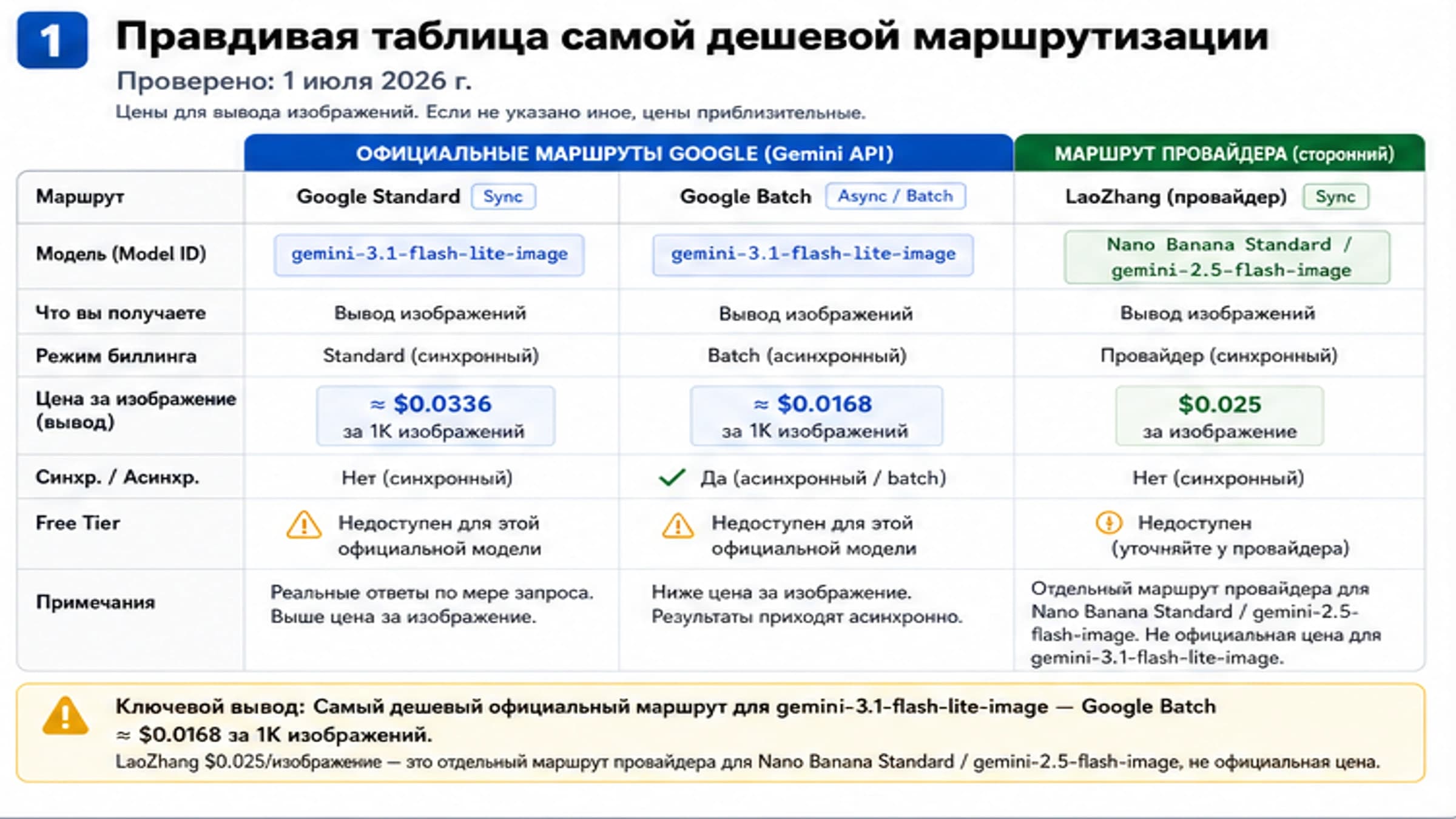
Image-generation workloads имеют свои IPM, consumer image limits и Vertex capacity. Для них используйте руководство по лимитам генерации изображений Gemini, не расширяя общий API guide до отдельной графической задачи.
Зафиксируйте ограничения до запуска
Перед production rollout создайте короткую запись, которая отвечает на вопросы:
- через какую поверхность идёт traffic: Developer API, приложение, Firebase или Vertex;
- какой project, billing account, consumer account или Firebase project является владельцем;
- какой точный model ID и status используются;
- какие RPM, input TPM, RPD, IPM, TPD, spend, Batch или Priority применимы;
- когда окно сбрасывается или сдвигается и где команда перепроверяет значение;
- каковы p50/p95 input tokens, p95 latency, burst factor, daily volume и retry rate;
- какие queue, concurrency cap, token budget и shed rule удерживают поток ниже target;
- разделены ли 429 и 503 в metrics и есть ли у каждой ветки stop rule;
- отдельно ли наблюдаются Standard, Priority и Batch;
- можно ли собрать request IDs, timestamps, model, project, response и impact без credentials.
Тестируйте с production-like input sizes, а не только с hello. Проверьте короткий burst и длительный интервал. Убедитесь, что retries видны как дополнительная нагрузка. Ставьте alerts ниже выбранной рабочей границы, а не ровно на опубликованный потолок.
Полезный dashboard — не стена чисел по моделям. Он должен быстро показать, какой путь выполнял запрос, какой счётчик исчерпался, что изменилось и какое действие остаётся безопасным.
Часто задаваемые вопросы
Лимиты Gemini API считаются на API key?
Нет. Для Developer API они применяются к Google Cloud project. Несколько keys одного project используют общий quota pool.
Есть ли у Gemini API суточный лимит?
В некоторых активных строках есть RPD или TPD, но универсального суточного числа нет. Когда RPD включён, текущее правило сбрасывает его в полночь Pacific Time.
Почему платный проект всё ещё получает 429?
Billing меняет право на usage tier, но проект всё ещё может исчерпать RPM, input TPM, RPD, spend window, Batch или другое admission limit. 429 требует найти измерение, а не доказывает неисправность оплаты.
Сколько ждать после 429?
Зависит от окна. Соблюдайте Retry-After, если он есть, и сопоставьте error body с активной строкой. Короткое ожидание может помочь minute pressure, но не сбрасывает RPD.
Batch API использует отдельную квоту?
Да. У Batch отдельный pool, собственные limits для concurrent jobs, input file, storage и queued tokens. Перед production scheduling проверьте актуальную документацию.
Подписка Gemini увеличивает лимиты API?
Не следует так считать. Лимиты приложения принадлежат consumer account, а Developer API — Cloud project, model, tier и активной строке AI Studio.
Лимиты Vertex AI совпадают с Developer API?
Нет. Новые Gemini workloads в Vertex AI PayGo используют Dynamic Shared Quota, а Provisioned Throughput — купленная capacity. Диагностируйте Vertex по Google Cloud evidence.
Можно ли увеличить capacity несколькими проектами?
Проекты могут иметь отдельные limits только при реальных границах среды, billing, безопасности или организации. Создавать или менять проекты ради обхода квоты нельзя.
Что отправить в поддержку?
Укажите поверхность продукта, безопасный project identifier, точный model, endpoint или region, timestamp с timezone, request ID, полный error code и details, активную строку limit, недавний traffic и token distribution, retry behavior и impact. Никогда не отправляйте API key.