Gemini API Safe Content Policy: Complete Guide to Safety Settings, Harm Categories and Configuration
Master Gemini API safety settings with this comprehensive guide covering the 4 harm categories, 5 threshold levels, code examples for Python and JavaScript, handling blocked requests, and production best practices.
Nano Banana Pro
4K-80%Google Gemini 3 Pro · AI Inpainting
谷歌原生模型 · AI智能修图

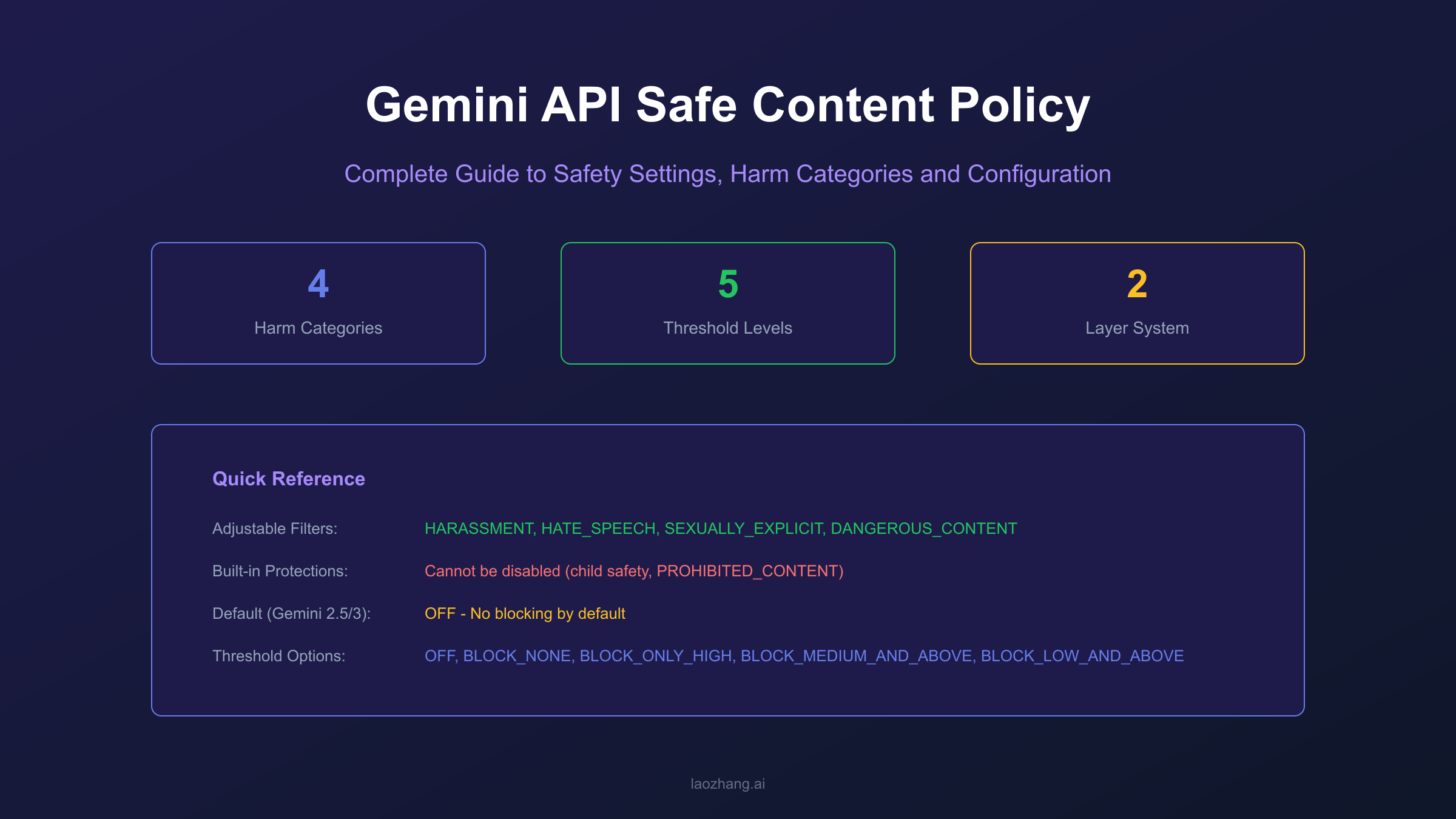
When your Gemini API call suddenly returns an empty response or you receive a finishReason: SAFETY error, the frustration is real. Your perfectly legitimate business request got blocked by content filters, and even setting BLOCK_NONE does not seem to help. The Gemini API implements a two-layer safety system: adjustable filters that you can configure across four harm categories, and built-in protections that cannot be disabled regardless of your settings.
Understanding this distinction is crucial for effectively working with the Gemini API. According to Google's official documentation, the default behavior for Gemini 2.5 and 3 models is OFF for all adjustable filters, meaning no blocking occurs by default. However, built-in protections against core harms like child safety content remain permanently active. This guide will walk you through the complete safety architecture, show you exactly how to configure settings in Python and JavaScript, and help you handle blocked requests gracefully in production environments.
| Safety Layer | Configurable | Default (Gemini 2.5/3) |
|---|---|---|
| Adjustable Filters | Yes | OFF |
| Built-in Protections | No | Always Active |
Understanding Gemini API Safety Architecture
The Gemini API uses a sophisticated two-layer safety system that every developer needs to understand. The first layer consists of adjustable safety filters that you control through the safety_settings parameter in your API calls. The second layer includes built-in protections that Google enforces regardless of your configuration, covering the most severe types of harmful content.
When you send a request to the Gemini API, both layers evaluate your prompt and the generated response. The adjustable filters analyze content across four harm categories, assigning probability scores (NEGLIGIBLE, LOW, MEDIUM, HIGH) to each. Based on your configured threshold, content may be blocked if it exceeds the allowed probability level. The built-in protections, however, operate independently and will block content that falls into categories like child safety threats or violates terms of service, returning PROHIBITED_CONTENT as the block reason.
The API response provides detailed feedback about safety evaluation through two key fields. The promptFeedback.blockReason tells you if your input prompt was blocked and why, while candidate.finishReason indicates whether the generated output was blocked. A finishReason of SAFETY means the output triggered adjustable filters, while PROHIBITED_CONTENT indicates built-in protections were activated. The safetyRatings array in the response provides detailed probability scores for each harm category, which is essential for debugging and understanding why specific content was flagged.
Understanding the difference between
blockReason(input blocking) andfinishReason(output blocking) is essential. A request can pass input validation but have its output blocked, or vice versa. Always check both fields when troubleshooting.
The Four Harm Categories Explained
Gemini API's adjustable safety filters cover four primary harm categories, each designed to detect specific types of potentially harmful content. Understanding what each category encompasses helps you make informed decisions about threshold configuration and anticipate potential false positives.
HARM_CATEGORY_HARASSMENT detects negative or harmful comments targeting identity or protected attributes. This includes content that attacks individuals based on race, gender, religion, nationality, or other characteristics. Even academic discussions or historical quotations containing such language may trigger this filter, which can be problematic for educational applications. Common false positive triggers include literary analysis of historical texts, discussion of discrimination topics, and role-playing scenarios.
HARM_CATEGORY_HATE_SPEECH covers content that is rude, disrespectful, or profane. This category is broader than harassment and includes general offensive language that does not necessarily target specific groups. Applications that process user-generated content frequently encounter this filter, especially when users include profanity in legitimate contexts like content moderation systems or sentiment analysis tools.
HARM_CATEGORY_SEXUALLY_EXPLICIT identifies content involving sexual acts or lewd material. This filter tends to be quite sensitive, sometimes flagging medical discussions, biological education content, or health-related queries. If your application deals with healthcare, biology, or reproductive health topics, you may need to adjust this threshold to avoid disrupting legitimate use cases.
HARM_CATEGORY_DANGEROUS_CONTENT detects content that promotes, facilitates, or encourages harmful acts. This includes instructions for creating weapons, tutorials for illegal activities, and content that could lead to physical harm. Security researchers, red team testers, and safety education developers often find their legitimate work blocked by this category.
| Category | Detection Target | Common False Positives |
|---|---|---|
| HARASSMENT | Identity-based attacks | Historical texts, academic discussions |
| HATE_SPEECH | Offensive language | User content with profanity |
| SEXUALLY_EXPLICIT | Sexual content | Medical/health discussions |
| DANGEROUS_CONTENT | Harmful instructions | Security research, safety education |
A fifth category, HARM_CATEGORY_CIVIC_INTEGRITY, has been added for election-related content, though it is less commonly configured. The probability levels for all categories are assessed as NEGLIGIBLE (very unlikely unsafe), LOW (unlikely unsafe), MEDIUM (possibly unsafe), and HIGH (likely unsafe).
Configuring Safety Threshold Levels
The Gemini API provides five threshold levels that determine when content should be blocked. Choosing the right threshold requires balancing safety requirements against the need for your application to function with legitimate content. For Gemini 2.5 and 3 models, the default setting is OFF for all categories, meaning no blocking occurs unless you explicitly configure stricter settings.
The threshold levels from most restrictive to least restrictive are: BLOCK_LOW_AND_ABOVE blocks any content with LOW, MEDIUM, or HIGH probability of being unsafe. This is the most restrictive setting, suitable for applications serving children or requiring maximum content safety. BLOCK_MEDIUM_AND_ABOVE blocks MEDIUM and HIGH probability content, providing moderate protection while allowing low-risk content through. BLOCK_ONLY_HIGH blocks only content with HIGH probability of being unsafe, suitable for adult platforms or applications where some edge content is acceptable. BLOCK_NONE allows all content through but still includes safety ratings in the response metadata. OFF completely disables the filter for that category, including the metadata.
When configuring safety settings, using BLOCK_NONE instead of OFF is generally recommended. Both allow content through, but BLOCK_NONE preserves the safety rating metadata in your response, which is valuable for logging, monitoring, and debugging. You can analyze patterns in flagged content without actually blocking it, helping you understand your application's safety profile over time.
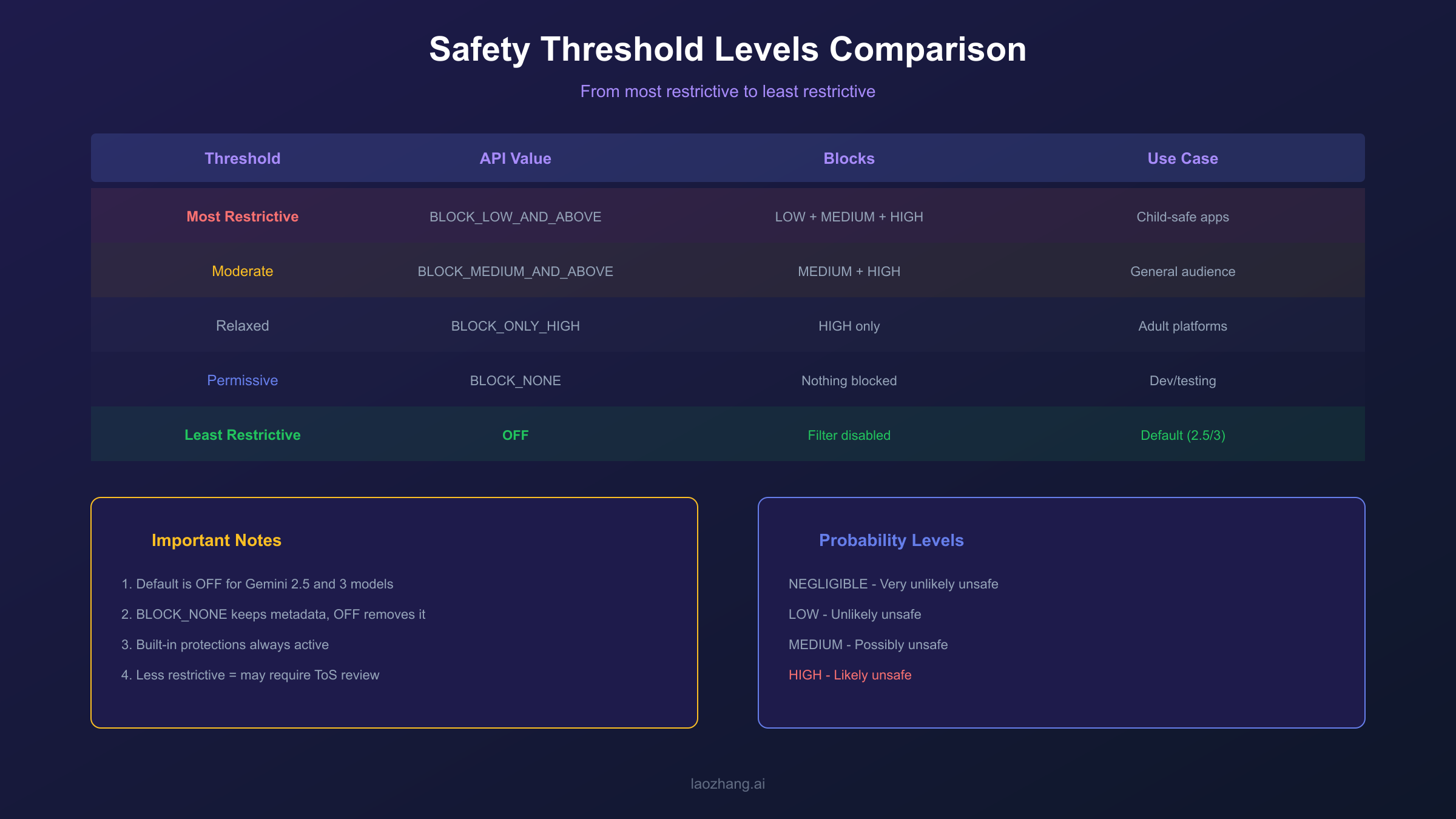
Remember that even with all adjustable filters set to OFF or BLOCK_NONE, built-in protections remain active. Content involving child safety, extreme violence, or terms of service violations will still be blocked with PROHIBITED_CONTENT, and there is no way to override this behavior. Additionally, applications using less restrictive safety settings may be subject to review under Google's Terms of Service, so ensure your use case justifies relaxed settings.
Working Code Examples (Python and JavaScript)
Configuring safety settings requires adding SafetySetting objects to your API calls. The following examples demonstrate complete, working implementations in Python and JavaScript that you can adapt for your applications.
Python Example with google-genai SDK:
hljs pythonfrom google import genai
from google.genai import types
import os
# Initialize client
client = genai.Client(api_key=os.getenv("GEMINI_API_KEY"))
# Define safety settings - set all categories to BLOCK_NONE
safety_settings = [
types.SafetySetting(
category=types.HarmCategory.HARM_CATEGORY_HARASSMENT,
threshold=types.HarmBlockThreshold.BLOCK_NONE
),
types.SafetySetting(
category=types.HarmCategory.HARM_CATEGORY_HATE_SPEECH,
threshold=types.HarmBlockThreshold.BLOCK_NONE
),
types.SafetySetting(
category=types.HarmCategory.HARM_CATEGORY_SEXUALLY_EXPLICIT,
threshold=types.HarmBlockThreshold.BLOCK_NONE
),
types.SafetySetting(
category=types.HarmCategory.HARM_CATEGORY_DANGEROUS_CONTENT,
threshold=types.HarmBlockThreshold.BLOCK_NONE
),
]
# Make API call with safety settings
response = client.models.generate_content(
model="gemini-2.5-flash",
contents="Your prompt here",
config=types.GenerateContentConfig(
safety_settings=safety_settings
)
)
# Check for safety blocking
if response.candidates:
candidate = response.candidates[0]
if candidate.finish_reason.name == "SAFETY":
print("Response blocked by safety filter")
for rating in candidate.safety_ratings:
print(f" {rating.category}: {rating.probability}")
else:
print(response.text)
else:
# Check prompt feedback for input blocking
if response.prompt_feedback.block_reason:
print(f"Prompt blocked: {response.prompt_feedback.block_reason}")
JavaScript/Node.js Example:
hljs javascriptconst { GoogleGenerativeAI, HarmCategory, HarmBlockThreshold } = require("@google/generative-ai");
const genAI = new GoogleGenerativeAI(process.env.GEMINI_API_KEY);
const safetySettings = [
{
category: HarmCategory.HARM_CATEGORY_HARASSMENT,
threshold: HarmBlockThreshold.BLOCK_NONE,
},
{
category: HarmCategory.HARM_CATEGORY_HATE_SPEECH,
threshold: HarmBlockThreshold.BLOCK_NONE,
},
{
category: HarmCategory.HARM_CATEGORY_SEXUALLY_EXPLICIT,
threshold: HarmBlockThreshold.BLOCK_NONE,
},
{
category: HarmCategory.HARM_CATEGORY_DANGEROUS_CONTENT,
threshold: HarmBlockThreshold.BLOCK_NONE,
},
];
const model = genAI.getGenerativeModel({
model: "gemini-2.5-flash",
safetySettings: safetySettings,
});
async function generateContent(prompt) {
try {
const result = await model.generateContent(prompt);
const response = result.response;
// Check for blocking
if (response.promptFeedback?.blockReason) {
console.log(`Prompt blocked: ${response.promptFeedback.blockReason}`);
return null;
}
const candidate = response.candidates?.[0];
if (candidate?.finishReason === "SAFETY") {
console.log("Response blocked by safety filter");
candidate.safetyRatings?.forEach(rating => {
console.log(` ${rating.category}: ${rating.probability}`);
});
return null;
}
return response.text();
} catch (error) {
console.error("Error:", error.message);
return null;
}
}
For developers who need reliable API access with lower latency in certain regions, API proxy services like laozhang.ai provide an alternative endpoint. Simply change the base_url parameter while keeping the same code structure. The safety settings configuration remains identical regardless of which endpoint you use.
Handling Blocked Requests and False Positives
Even with careful configuration, you will encounter blocked requests in production. False positives are surprisingly common with terms like "kill" (as in "kill the process"), "adult" (as in "adult education"), or "bomb" (as in "bomb calorimeter") triggering filters despite legitimate intent. Having a robust strategy for handling these situations is essential for maintaining good user experience.
When a request is blocked, first examine the promptFeedback.blockReason and candidate.finishReason fields. If blockReason is set, your input prompt was flagged, meaning you need to rephrase before the request can succeed. If finishReason is SAFETY, the model generated content that was then blocked, and a retry might produce different results since language models can generate varied outputs for the same prompt. If you see PROHIBITED_CONTENT or OTHER, the built-in protections were triggered, and no amount of threshold adjustment will help.
Rephrasing with context is often the most effective fix for false positives. Instead of simply saying "how to kill a process," try "how to terminate a running process in Linux." Adding professional context helps the safety system correctly classify your intent. For medical applications, including phrases like "for educational purposes" or "clinical discussion" can help legitimate content pass through. The key is providing information that clarifies your legitimate use case.
Implementing retry logic makes sense because LLMs can produce different outputs for the same input. If a response is blocked due to SAFETY (not PROHIBITED_CONTENT), retry the request two or three times before falling back to an error message. Each attempt may generate content that passes the safety filters. However, do not retry indefinitely, and always log blocked attempts for later analysis.
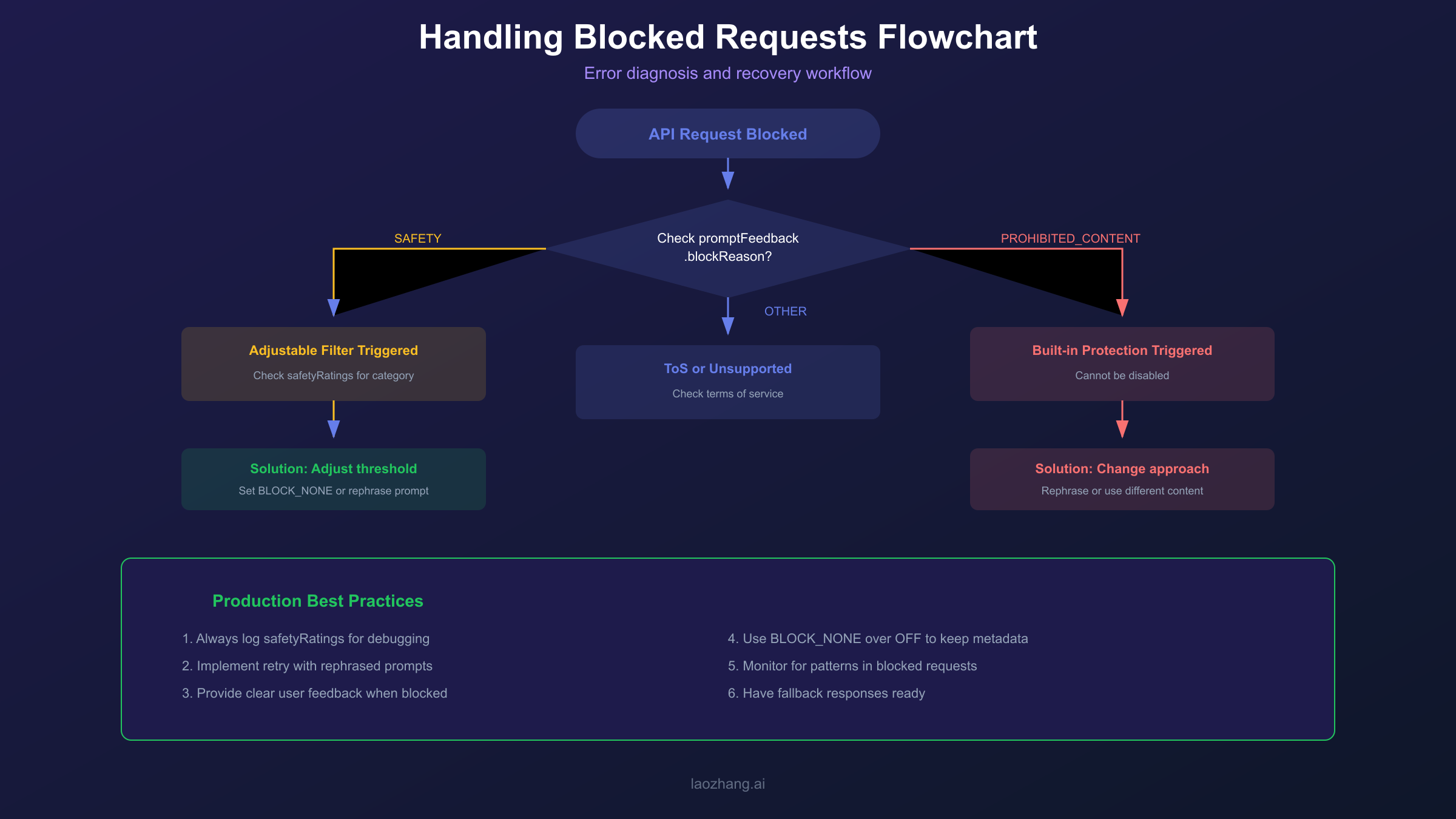
For PROHIBITED_CONTENT blocks, your only option is changing your approach. This block reason indicates content that Google will not allow under any circumstances. If your legitimate use case consistently triggers this, you may need to reconsider your prompt structure, use different phrasing, or in some cases, acknowledge that certain content cannot be generated through this API. For more details on handling API errors, see our guide on Gemini API key errors.
Production Best Practices
Building a production application with the Gemini API requires careful attention to safety handling beyond just configuring thresholds. The following practices will help you build resilient, user-friendly applications that handle safety blocking gracefully.
Always log safety ratings even when content is not blocked. This data helps you understand your application's safety profile, identify patterns in flagged content, and make informed decisions about threshold adjustments. Store the safetyRatings array from every response, including the category, probability, and whether blocking occurred. Over time, this data reveals which categories are most active and whether you are experiencing unnecessary blocking.
Provide clear user feedback when content is blocked. Rather than showing a generic error message, explain that the system detected potentially sensitive content and suggest alternative phrasing. This improves user experience and reduces frustration while maintaining safety. Avoid exposing internal error details like specific harm categories, which could be exploited by malicious users attempting to probe your system's limits.
Implement graceful degradation with fallback responses for common blocking scenarios. If a user's request is blocked, your application should not simply fail. Instead, offer to help with a related but safer query, suggest rephrasing, or provide pre-approved content that addresses common needs. For content generation applications, having template responses for blocked scenarios maintains a professional user experience.
Monitor for patterns in blocked requests. If legitimate use cases are frequently blocked, you may need to adjust thresholds, improve your prompts, or add pre-processing to sanitize user input. Regular review of blocked request logs helps identify false positive patterns that can be addressed through prompt engineering. Additionally, monitoring helps you detect potential abuse attempts where users try to exploit your application for harmful content generation.
Applications using less restrictive safety settings may be subject to review under Google's Terms of Service. Document your business justification for relaxed settings and ensure your application's legitimate use case is clear.
FAQ
What is the default safety setting for Gemini 2.5 and 3 models?
The default block threshold is OFF for Gemini 2.5 and 3 models, meaning no content blocking occurs by default for the four adjustable harm categories (harassment, hate speech, sexually explicit, dangerous content). However, built-in protections against core harms like child safety threats remain permanently active regardless of your settings. If you need stricter filtering, you must explicitly configure safety settings in your API calls.
Can I completely disable all safety filters in Gemini API?
No, you cannot completely disable all safety filtering. While you can set the four adjustable harm categories to OFF or BLOCK_NONE, the built-in protections against core harms (like child safety content) cannot be disabled. When these built-in protections are triggered, you will see PROHIBITED_CONTENT as the block reason. This is by design to ensure responsible AI use and compliance with Google's terms of service.
What is the difference between BLOCK_NONE and OFF?
Both BLOCK_NONE and OFF allow content to pass through without blocking. The key difference is that BLOCK_NONE preserves safety rating metadata in the API response, while OFF removes this metadata entirely. Using BLOCK_NONE is generally recommended because it allows you to log and analyze safety scores for monitoring purposes without actually blocking content. This helps you understand your application's safety profile over time.
Why is my request blocked even with BLOCK_NONE set?
If your request is blocked despite setting all adjustable filters to BLOCK_NONE, the built-in protections were likely triggered. Check the blockReason field. If it shows PROHIBITED_CONTENT or OTHER, the content falls into categories that Google protects regardless of your settings, such as child safety threats or terms of service violations. No threshold adjustment can override these blocks. You will need to modify your prompt or use case to avoid triggering these protections.
How do I debug which safety category blocked my request?
Examine the safetyRatings array in your API response. Each entry contains the category name and probability level (NEGLIGIBLE, LOW, MEDIUM, HIGH). The category with the highest probability that exceeds your configured threshold is likely the culprit. For input blocking, check promptFeedback.safetyRatings. For output blocking, check candidates[0].safetyRatings. Logging these values for all requests, even successful ones, helps you identify patterns and optimize your safety configuration. See our guide on Gemini API rate limits for related troubleshooting tips.