How to Change Aspect Ratio in Nano Banana Pro API: Complete Developer Guide
Master Nano Banana Pro aspect ratio settings with complete code examples for Python, JavaScript, and REST. Learn all 10 supported ratios, social media dimensions, and troubleshooting tips.
Nano Banana Pro
4K-80%Google Gemini 3 Pro · AI Inpainting
谷歌原生模型 · AI智能修图

Aspect ratio determines the shape and proportions of your AI-generated images, directly impacting how they display across different platforms and use cases. A YouTube thumbnail requires 16:9 widescreen, an Instagram Story demands 9:16 vertical, and a product listing needs 1:1 square. Getting this wrong means awkward cropping, black bars, or images that simply don't fit where you need them.
Nano Banana Pro (officially Gemini 3 Pro Image) provides native control over aspect ratio through its API, supporting 10 different ratios from square to ultrawide. Unlike some AI generators that force you to crop after generation, Nano Banana Pro composes images specifically for your chosen dimensions. This means a 9:16 vertical image is designed with mobile viewing in mind from the start, not simply cropped from a horizontal source.
This guide covers everything developers need to know about aspect ratio configuration in the Nano Banana Pro API. You'll find complete code examples for Python, JavaScript, and REST, a social media dimension reference, and solutions to the most common aspect ratio issues that trip up developers.
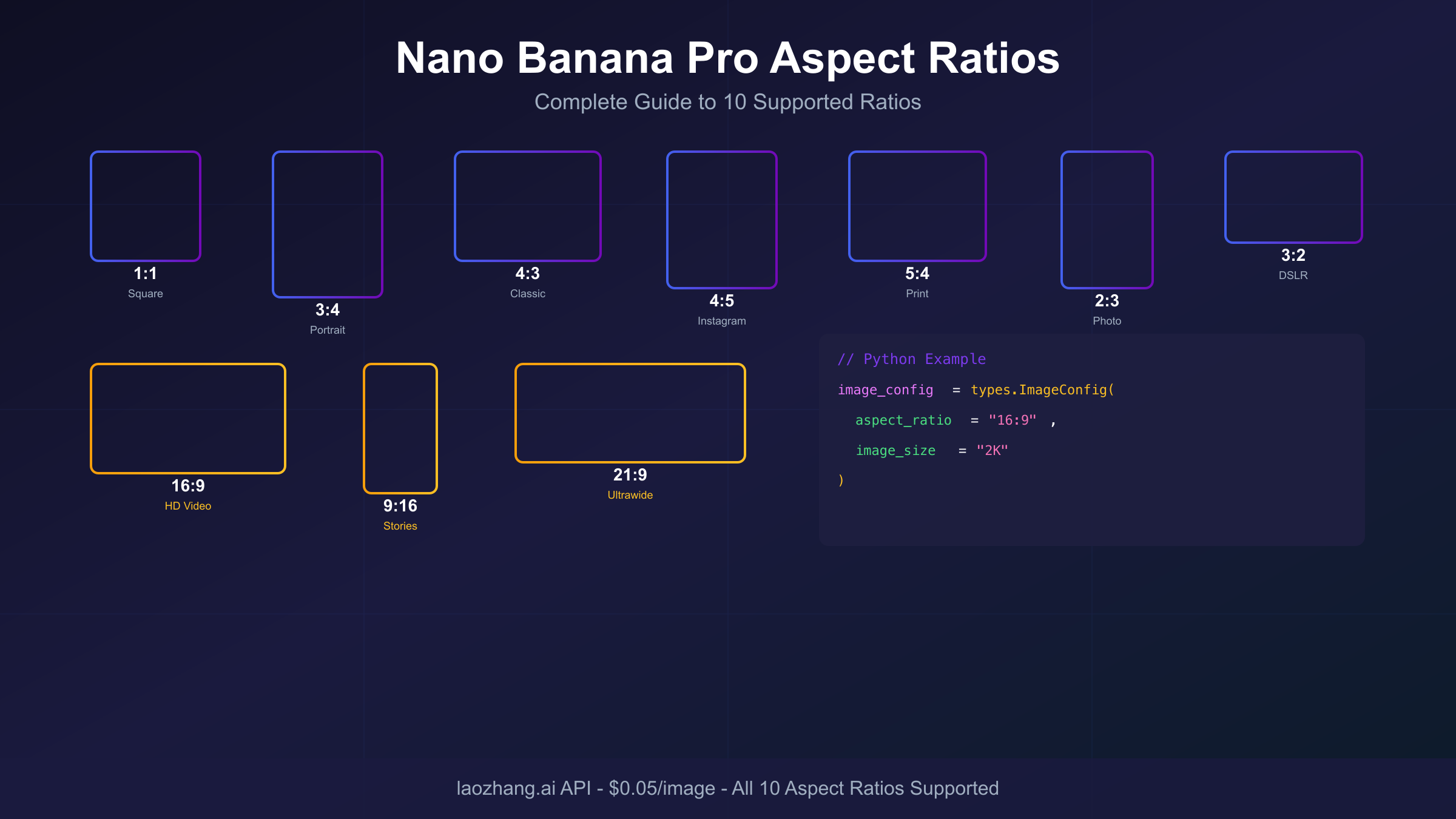
Supported Aspect Ratios: Complete Reference
Nano Banana Pro supports 10 aspect ratios through the aspectRatio parameter. These ratios are organized into three categories based on orientation and common use cases.
Landscape Ratios (Wider than Tall)
| Ratio | Description | Primary Uses |
|---|---|---|
| 21:9 | Ultrawide/Cinema | Movie banners, panoramic shots, website heroes |
| 16:9 | Standard Widescreen | YouTube thumbnails, presentations, desktop wallpapers |
| 3:2 | DSLR Standard | Photography prints, blog headers |
| 4:3 | Classic Format | Presentations, traditional photos |
| 5:4 | Large Format | Art prints, professional photography |
Square Ratio
| Ratio | Description | Primary Uses |
|---|---|---|
| 1:1 | Square | Instagram feed, profile pictures, avatars, product thumbnails |
Portrait Ratios (Taller than Wide)
| Ratio | Description | Primary Uses |
|---|---|---|
| 4:5 | Slight Portrait | Instagram posts, social media |
| 3:4 | Standard Portrait | Pinterest pins, portrait photography |
| 2:3 | DSLR Portrait | Posters, vertical prints |
| 9:16 | Vertical Mobile | TikTok, Instagram Stories/Reels, YouTube Shorts |
The API only accepts these exact ratios. Attempting to use non-standard ratios like 2:1 or 5:3 results in either an error or silent fallback to the default 1:1 square. If you need a custom ratio, generate at the closest supported ratio and crop afterward.
How to Set Aspect Ratio in the API
The aspect ratio parameter sits within the imageConfig object of your API request. The exact placement varies slightly between Google's native SDK format and the REST API format, but the parameter name and values remain consistent.
Parameter Details
- Parameter Name:
aspect_ratio(Python SDK) oraspectRatio(JavaScript/REST) - Data Type: String
- Valid Values:
"1:1","2:3","3:2","3:4","4:3","4:5","5:4","9:16","16:9","21:9" - Default Value:
"1:1"(square) when not specified - Case Sensitivity: The colon format is required;
"16/9"or"16x9"will not work
When you omit the aspect ratio parameter, the API defaults to 1:1 square format at 1K resolution. This conservative default ensures you always receive an image, but the dimensions may not match your intended use case. Always explicitly specify both aspect ratio and resolution in production code.
Parameter Placement
The aspectRatio parameter must be placed inside the imageConfig object, which itself sits within the generationConfig or config object depending on the SDK. Placing it at the root level of your request will have no effect.
Correct structure:
config → imageConfig → aspectRatio
Incorrect (common mistake):
config → aspectRatio // Won't work
Complete Code Examples by SDK
The following examples demonstrate aspect ratio configuration across different programming languages and API formats. Each example generates a 16:9 widescreen image suitable for YouTube thumbnails.
Python with Google GenAI SDK
hljs pythonfrom google import genai
from google.genai import types
import os
# Initialize client
client = genai.Client(api_key=os.environ.get("GOOGLE_API_KEY"))
# Generate 16:9 widescreen image
response = client.models.generate_content(
model="gemini-3-pro-image-preview",
contents="A professional tech workspace with dual monitors, soft ambient lighting, modern minimalist design",
config=types.GenerateContentConfig(
response_modalities=['TEXT', 'IMAGE'],
image_config=types.ImageConfig(
aspect_ratio="16:9",
image_size="2K"
)
)
)
# Save the generated image
for part in response.parts:
if image := part.as_image():
image.save("workspace_16x9.png")
print(f"Image saved: {image.size}")
JavaScript/Node.js with Google GenAI SDK
hljs javascriptimport { GoogleGenAI } from "@google/genai";
import fs from "fs";
const client = new GoogleGenAI({ apiKey: process.env.GOOGLE_API_KEY });
async function generateImage() {
const response = await client.models.generateContent({
model: "gemini-3-pro-image-preview",
contents: "A professional tech workspace with dual monitors, soft ambient lighting",
config: {
responseModalities: ["TEXT", "IMAGE"],
imageConfig: {
aspectRatio: "16:9",
imageSize: "2K"
}
}
});
// Extract and save image
for (const part of response.parts) {
if (part.inlineData) {
const imageData = Buffer.from(part.inlineData.data, "base64");
fs.writeFileSync("workspace_16x9.png", imageData);
console.log("Image saved successfully");
}
}
}
generateImage();
REST API (cURL)
hljs bashcurl -X POST "https://generativelanguage.googleapis.com/v1beta/models/gemini-3-pro-image-preview:generateContent" \
-H "Content-Type: application/json" \
-H "x-goog-api-key: YOUR_API_KEY" \
-d '{
"contents": [{
"parts": [{"text": "A professional tech workspace with dual monitors"}]
}],
"generationConfig": {
"responseModalities": ["IMAGE"],
"imageConfig": {
"aspectRatio": "16:9",
"imageSize": "2K"
}
}
}'
Python with OpenAI-Compatible Format
For developers using OpenAI-compatible endpoints or third-party relay services:
hljs pythonfrom openai import OpenAI
client = OpenAI(
api_key="your-api-key",
base_url="https://api.example.com/v1" # Your endpoint
)
response = client.chat.completions.create(
model="gemini-3-pro-image-preview",
messages=[{
"role": "user",
"content": "A professional tech workspace with dual monitors"
}],
extra_body={
"aspect_ratio": "16:9",
"resolution": "2K"
}
)
Note that OpenAI-compatible format places aspect ratio in extra_body, not in the standard parameters.
Aspect Ratio and Resolution Combinations
Nano Banana Pro supports three resolution tiers—1K, 2K, and 4K—that work independently of aspect ratio. The resolution parameter controls the total pixel count, while aspect ratio determines the shape.
How Dimensions Are Calculated
The model calculates actual pixel dimensions by setting the shorter edge to the resolution base value and scaling the longer edge according to the aspect ratio. For example:
- 1:1 at 2K: 2048 × 2048 pixels
- 16:9 at 2K: 3584 × 2048 pixels (long edge = 2048 × 16/9)
- 9:16 at 2K: 2048 × 3584 pixels (vertical)
Complete Dimension Matrix
| Aspect Ratio | 1K Dimensions | 2K Dimensions | 4K Dimensions |
|---|---|---|---|
| 1:1 | 1024 × 1024 | 2048 × 2048 | 4096 × 4096 |
| 16:9 | 1792 × 1024 | 3584 × 2048 | 5376 × 3072 |
| 9:16 | 1024 × 1792 | 2048 × 3584 | 3072 × 5376 |
| 4:3 | 1365 × 1024 | 2730 × 2048 | 4096 × 3072 |
| 3:4 | 1024 × 1365 | 2048 × 2730 | 3072 × 4096 |
| 3:2 | 1536 × 1024 | 3072 × 2048 | 4608 × 3072 |
| 2:3 | 1024 × 1536 | 2048 × 3072 | 3072 × 4608 |
| 21:9 | 2389 × 1024 | 4778 × 2048 | 5376 × 2304 |
| 4:5 | 1024 × 1280 | 2048 × 2560 | 3276 × 4096 |
| 5:4 | 1280 × 1024 | 2560 × 2048 | 4096 × 3276 |
Resolution Selection Guidelines
- 1K: Best for testing and iteration. Fastest generation (10-15 seconds), smallest file size (1-3 MB).
- 2K: Sweet spot for web and social media. Good balance of quality and speed (15-18 seconds).
- 4K: Required for print and large displays. Highest quality but slower (20-25 seconds) and higher cost.
Importantly, 1K and 2K share the same pricing at Google's official API, making 2K the better value when you need more than minimal resolution. 4K costs approximately 1.8× the standard rate.
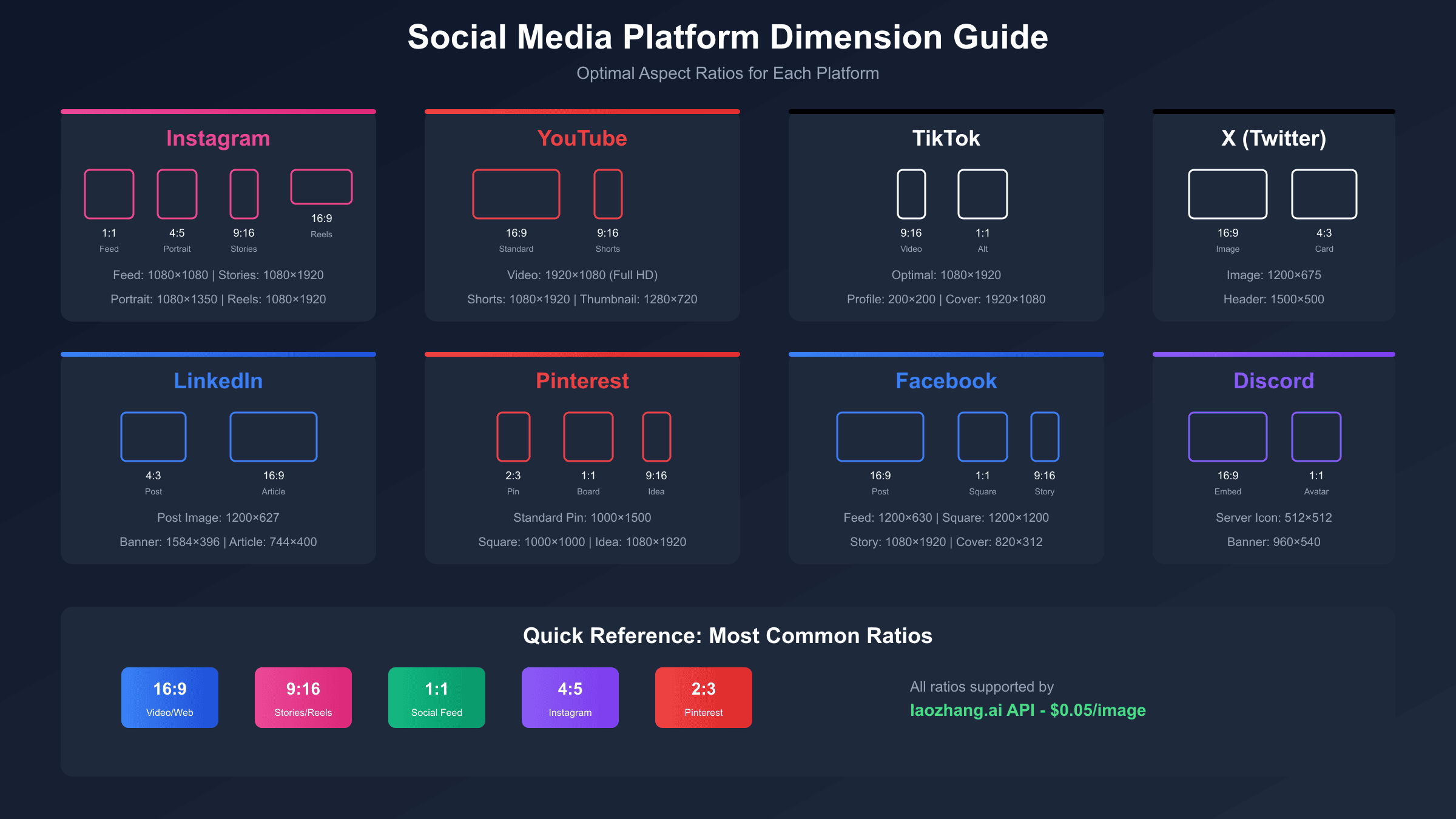
Social Media Platform Guide
Different social platforms have different requirements for image dimensions. Using the correct aspect ratio ensures your content displays properly without cropping or black bars.
Platform-Specific Recommendations
| Platform | Content Type | Recommended Ratio | Resolution |
|---|---|---|---|
| Feed Post | 1:1 or 4:5 | 2K | |
| Story/Reel | 9:16 | 2K | |
| TikTok | Video/Image | 9:16 | 2K |
| YouTube | Thumbnail | 16:9 | 2K+ |
| YouTube | Shorts | 9:16 | 2K |
| Pin | 2:3 or 3:4 | 2K | |
| Twitter/X | Post | 16:9 or 4:3 | 2K |
| Post | 1.91:1 (use 16:9) | 2K | |
| Post | 1:1 or 4:5 | 2K | |
| Website Hero | Banner | 21:9 or 16:9 | 4K |
Critical Platform Requirements
TikTok and YouTube Shorts strictly require 9:16 vertical format. Content with other aspect ratios displays with black bars on the sides, looking unprofessional and reducing visible content area. Always generate vertical content in 9:16 from the start rather than cropping from horizontal sources.
Instagram feed posts perform better with 4:5 ratio than 1:1 because the slightly taller format occupies more screen real estate in the feed, increasing engagement potential. However, 1:1 remains valid and widely used.
YouTube thumbnails must be 16:9 to match the video player dimensions. Non-conforming thumbnails are automatically resized by YouTube, potentially cropping important elements.
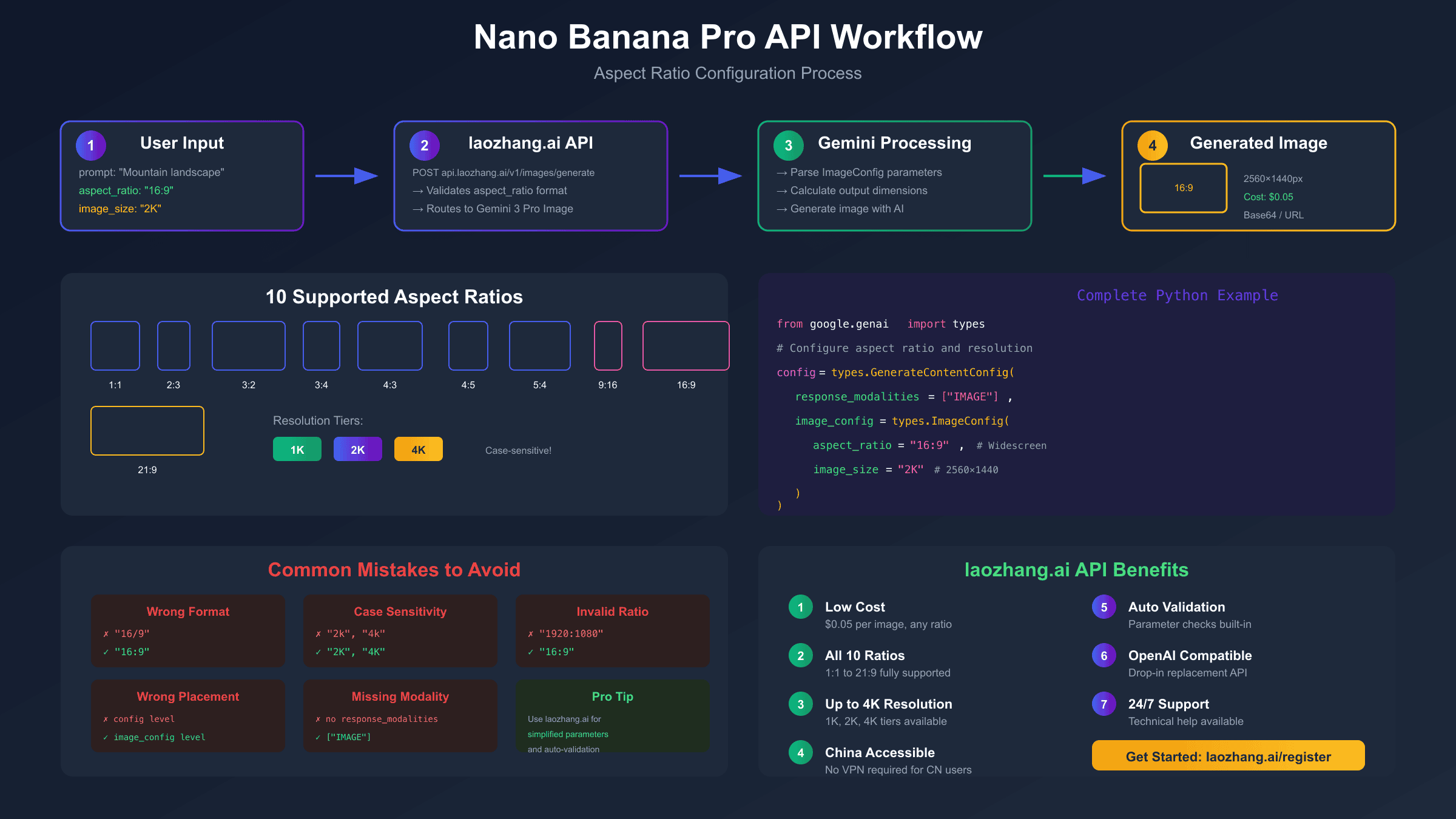
Common Mistakes and Troubleshooting
Aspect ratio configuration seems straightforward, but several issues frequently trip up developers. Understanding these common mistakes saves debugging time.
Mistake 1: Using Lowercase Resolution Values
The most frequent error involves case sensitivity in the resolution parameter. The API requires uppercase: "4K" not "4k".
hljs python# Wrong - silently defaults to 1K
image_config=types.ImageConfig(
aspect_ratio="16:9",
image_size="4k" # Lowercase - will be ignored
)
# Correct
image_config=types.ImageConfig(
aspect_ratio="16:9",
image_size="4K" # Uppercase required
)
When you use lowercase, the API doesn't throw an error. Instead, it silently defaults to 1K resolution. Your code appears to work, but you receive smaller images than expected. This bug is notoriously difficult to diagnose because there's no error message.
Mistake 2: Wrong Parameter Placement
Placing aspectRatio at the root level of your config instead of inside imageConfig:
hljs python# Wrong - aspectRatio at wrong level
config=types.GenerateContentConfig(
aspect_ratio="16:9", # This won't work
response_modalities=['IMAGE']
)
# Correct - aspectRatio inside imageConfig
config=types.GenerateContentConfig(
response_modalities=['IMAGE'],
image_config=types.ImageConfig(
aspect_ratio="16:9"
)
)
Mistake 3: Incorrect Ratio Format
The API requires the colon format exactly as specified:
hljs python# Wrong formats
aspect_ratio="16/9" # Slash not accepted
aspect_ratio="16x9" # X not accepted
aspect_ratio="1.78" # Decimal not accepted
aspect_ratio="widescreen" # Named values not accepted
# Correct format
aspect_ratio="16:9"
Mistake 4: Using Unsupported Ratios
Attempting to use ratios outside the supported 10 options:
hljs python# Won't work - not in supported list
aspect_ratio="2:1"
aspect_ratio="5:3"
aspect_ratio="1:2"
# Supported ratios only
aspect_ratio="1:1" # or 16:9, 9:16, 4:3, 3:4, 3:2, 2:3, 4:5, 5:4, 21:9
Mistake 5: Omitting Aspect Ratio Entirely
When you don't specify an aspect ratio, the model defaults to 1:1 square:
hljs python# This generates a square image, even if your prompt implies widescreen
config=types.GenerateContentConfig(
response_modalities=['IMAGE'],
image_config=types.ImageConfig(
image_size="2K"
# Missing aspect_ratio - defaults to 1:1
)
)
Always explicitly set aspect ratio in production code, even if you want square output. This makes your intent clear and prevents surprises.
Troubleshooting Checklist
If your aspect ratio isn't working as expected:
- Verify parameter is inside
imageConfig, not at root level - Check resolution value is uppercase (
4Knot4k) - Confirm ratio format uses colon (
16:9not16/9) - Ensure ratio is one of the 10 supported options
- Check that you're using
gemini-3-pro-image-previewmodel (Flash model has limited ratio support)
Best Practices for Production
Following these practices ensures reliable aspect ratio handling across your application.
Always Specify Both Aspect Ratio and Resolution
Never rely on defaults in production code. Explicitly set both parameters to ensure consistent output:
hljs pythonimage_config=types.ImageConfig(
aspect_ratio="16:9",
image_size="2K"
)
This makes your code self-documenting and prevents issues when API defaults change.
Validate Aspect Ratio Before API Calls
Add input validation to catch errors early:
hljs pythonVALID_RATIOS = {"1:1", "2:3", "3:2", "3:4", "4:3", "4:5", "5:4", "9:16", "16:9", "21:9"}
def validate_aspect_ratio(ratio: str) -> str:
if ratio not in VALID_RATIOS:
raise ValueError(f"Invalid aspect ratio: {ratio}. Must be one of {VALID_RATIOS}")
return ratio
# Usage
ratio = validate_aspect_ratio(user_input)
Generate at Final Dimensions, Don't Crop
Nano Banana Pro composes images specifically for your chosen aspect ratio. A 9:16 vertical is designed with vertical composition in mind, not simply cropped from a wider image. Generating at the intended ratio produces better results than post-generation cropping.
hljs python# Better approach - generate at target ratio
image_config=types.ImageConfig(aspect_ratio="9:16", image_size="2K")
# Avoid - generating square then cropping
image_config=types.ImageConfig(aspect_ratio="1:1", image_size="2K")
# Then cropping to 9:16 - loses composition quality
Handle API Responses Defensively
Add error handling for cases where the API might return unexpected dimensions:
hljs pythonfrom PIL import Image
import io
def verify_dimensions(image_data: bytes, expected_ratio: str) -> bool:
"""Verify generated image matches expected aspect ratio."""
img = Image.open(io.BytesIO(image_data))
width, height = img.size
ratio_parts = expected_ratio.split(":")
expected = int(ratio_parts[0]) / int(ratio_parts[1])
actual = width / height
# Allow 5% tolerance for rounding
return abs(expected - actual) / expected < 0.05
Cost Optimization Tips
Aspect ratio selection can impact your generation costs, particularly when combined with resolution choices.
Resolution Pricing Structure
At Google's official API pricing:
| Resolution | Price per Image |
|---|---|
| 1K | $0.134 |
| 2K | $0.134 |
| 4K | $0.24 |
Notice that 1K and 2K share the same price. This makes 2K the better choice for most use cases—you get 4× the pixels at no additional cost.
Cost-Effective Workflow
For development and testing, use 1K to iterate quickly on prompts. Once satisfied with the composition, regenerate at 2K or 4K for final output:
hljs python# Development phase - fast and cheap
dev_config = types.ImageConfig(aspect_ratio="16:9", image_size="1K")
# Production phase - same price as 1K but better quality
prod_config = types.ImageConfig(aspect_ratio="16:9", image_size="2K")
Third-Party API Options
For high-volume generation, third-party relay services can significantly reduce costs. laozhang.ai offers Nano Banana Pro access at $0.05 per image regardless of resolution—79% savings compared to Google's 4K pricing. The service supports the Gemini native format with full aspect ratio and resolution parameter support.
Example using laozhang.ai:
hljs pythonimport requests
import base64
API_KEY = "sk-YOUR_KEY" # From laozhang.ai
API_URL = "https://api.laozhang.ai/v1beta/models/gemini-3-pro-image-preview:generateContent"
headers = {
"Authorization": f"Bearer {API_KEY}",
"Content-Type": "application/json"
}
payload = {
"contents": [{
"parts": [{"text": "Professional YouTube thumbnail, tech review style"}]
}],
"generationConfig": {
"responseModalities": ["IMAGE"],
"imageConfig": {
"aspectRatio": "16:9",
"imageSize": "4K"
}
}
}
response = requests.post(API_URL, headers=headers, json=payload, timeout=180)
result = response.json()
image_data = result["candidates"][0]["content"]["parts"][0]["inlineData"]["data"]
with open("thumbnail.png", "wb") as f:
f.write(base64.b64decode(image_data))
You can test the output quality at images.laozhang.ai before integrating. Note that third-party services depend on provider stability; for production workloads requiring SLA guarantees, Google's official API or Vertex AI remains the recommended choice.
Cost Comparison (1000 Images)
| Service | 1K/2K Cost | 4K Cost |
|---|---|---|
| Google Official | $134 | $240 |
| Google Batch API | $67 | $120 |
| laozhang.ai | $50 | $50 |
Summary and Quick Reference
Nano Banana Pro's aspect ratio control enables precise image dimensions for any platform or use case. Here's a quick reference for common scenarios:
Supported Ratios
1:1, 2:3, 3:2, 3:4, 4:3, 4:5, 5:4, 9:16, 16:9, 21:9
Quick Code Template
hljs pythonimage_config=types.ImageConfig(
aspect_ratio="RATIO_HERE", # e.g., "16:9"
image_size="2K" # Must be uppercase
)
Platform Cheat Sheet
| Platform | Ratio |
|---|---|
| YouTube Thumbnail | 16:9 |
| TikTok/Reels/Shorts | 9:16 |
| Instagram Feed | 1:1 or 4:5 |
| 2:3 | |
| Website Banner | 21:9 |
Key Points to Remember
- Always place
aspectRatioinsideimageConfig, not at root level - Use uppercase for resolution values:
"4K"not"4k" - Format ratios with colon:
"16:9"not"16/9" - 2K offers the best value—same price as 1K with 4× pixels
- Generate at final ratio rather than cropping from square
For more Nano Banana Pro development resources, see our related guides: