OpenClaw Not Responding: Complete Troubleshooting Guide (2026)
Fix OpenClaw not responding issues with this comprehensive troubleshooting guide. Covers gateway errors, authentication problems, WebSocket failures, and the critical CVE-2026-25253 security patch.
Nano Banana Pro
4K-80%Google Gemini 3 Pro · AI Inpainting
谷歌原生模型 · AI智能修图

OpenClaw has become an essential tool for developers who want a unified gateway to interact with multiple AI models, but nothing is more frustrating than staring at a terminal that simply refuses to respond. Whether you're seeing timeout errors, gateway failures, or a chat interface that accepts messages but never replies, this guide will help you diagnose and fix the issue systematically.
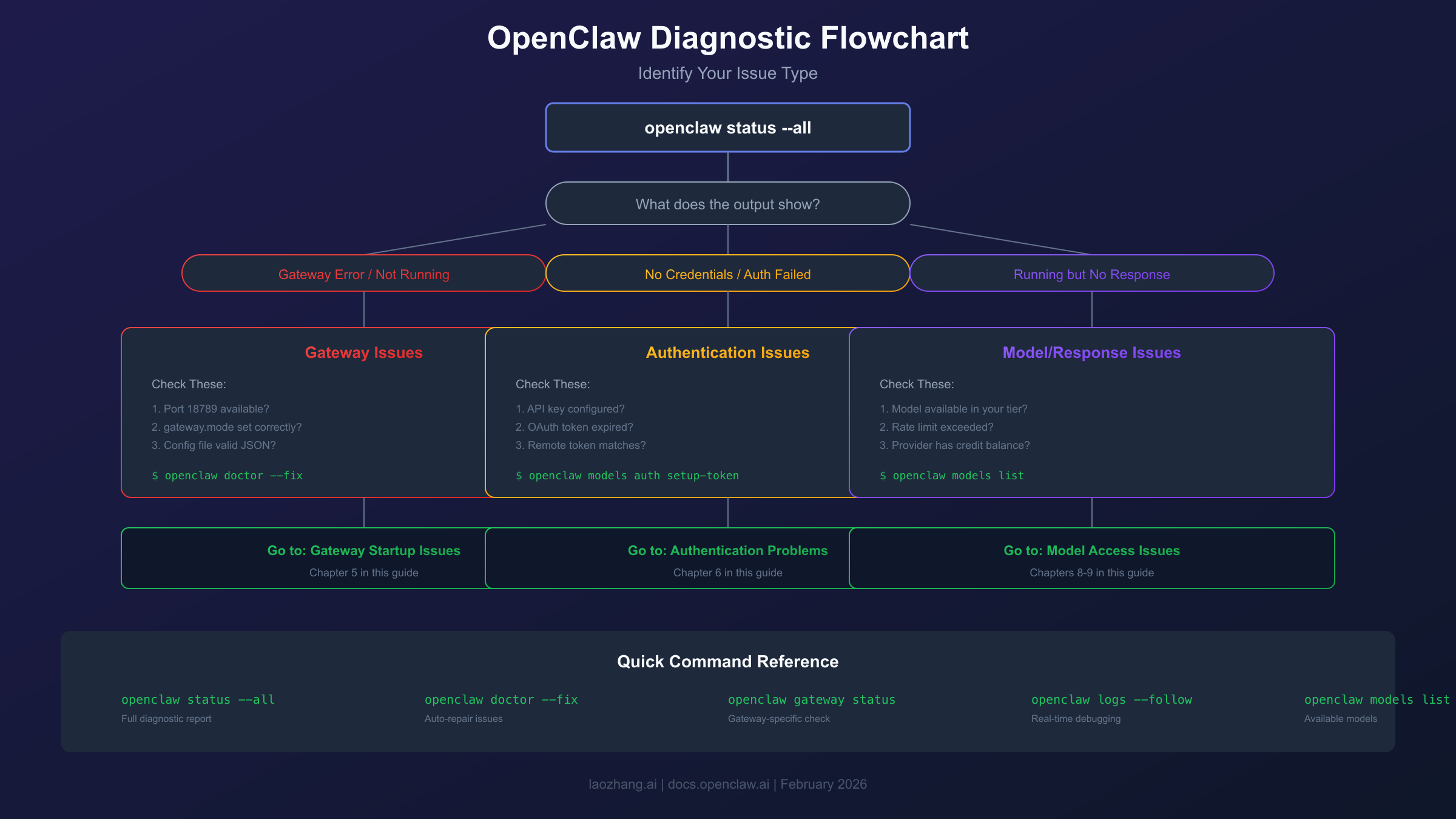
The most important first step when OpenClaw stops responding is running openclaw status --all to get a complete diagnostic report. This single command reveals authentication status, gateway health, and pending events—information that typically points directly to the root cause. From there, openclaw doctor can automatically detect and repair many common issues.
This troubleshooting guide covers everything from quick diagnostic commands to platform-specific fixes, including the critical CVE-2026-25253 security vulnerability that was patched in late January 2026. If you're running an older version, updating should be your first priority before any other troubleshooting steps.
Understanding OpenClaw Architecture
OpenClaw operates as a gateway that sits between you and various AI providers, managing authentication, message routing, and session state. Understanding this architecture helps explain why "not responding" issues can stem from multiple sources.
The system consists of several interconnected components. The Gateway is the core service that listens on port 18789 by default and handles all communication between clients and AI providers. It maintains WebSocket connections for real-time communication and manages authentication tokens for various providers like Anthropic, OpenAI, and Google.
The CLI (Command Line Interface) communicates with the Gateway to send commands and receive responses. When you type a message, it goes through the CLI to the Gateway, which then routes it to the appropriate AI provider and returns the response. If any link in this chain breaks, you'll experience the "not responding" symptom.
The Gateway can run in two modes. Local mode means the Gateway runs on your machine and listens on localhost. Remote mode connects to a Gateway running on another machine, typically accessed through SSH tunnels or Tailscale. Misconfiguring these modes is one of the most common causes of connection failures.
Additionally, OpenClaw maintains state files in ~/.openclaw/ including configuration (openclaw.json), authentication profiles (auth-profiles.json), and session data. Corruption or misconfiguration of these files can cause persistent issues that survive restarts.
Quick Diagnosis: First Commands to Run
Before diving into specific fixes, run these diagnostic commands in order to identify exactly what's broken. The output from these commands will tell you which section of this guide to focus on.
Start with the basic status check:
hljs bashopenclaw status
This shows your credentials status, active sessions, and any queued events. Look for warnings or errors in the output. If credentials show "missing" or "expired," jump to the Authentication section. If sessions show unusual states, the Gateway Issues section is your destination.
For a more comprehensive view:
hljs bashopenclaw status --all
This command provides everything from the basic status plus a tail of recent logs. The log output often contains the exact error message causing problems. Pay attention to any lines containing "error," "failed," or "refused."
To specifically check gateway health:
hljs bashopenclaw status --deep
This performs active probes against the gateway, testing not just whether the service is running but whether it's actually accepting connections and responding to requests. If this shows "RPC probe: failed" while the service appears running, you have a configuration mismatch.
The automated repair tool should be your next step:
hljs bashopenclaw doctor
This command runs a series of checks and reports all detected issues. It checks for deprecated configuration keys, invalid settings, service status mismatches, and common environmental problems. Many issues it detects can be automatically fixed.
If you want automatic repairs:
hljs bashopenclaw doctor --fix
This attempts to repair all fixable issues. It creates a backup of your configuration at ~/.openclaw/openclaw.json.bak before making changes. Note that this command may resolve environment variable references to plaintext, so review the changes afterward.
For real-time debugging:
hljs bashopenclaw logs --follow
This streams the gateway logs to your terminal, showing exactly what happens when you try to send a message. Leave this running in one terminal while testing in another to catch errors as they occur.
Common Causes: Why OpenClaw Stops Responding
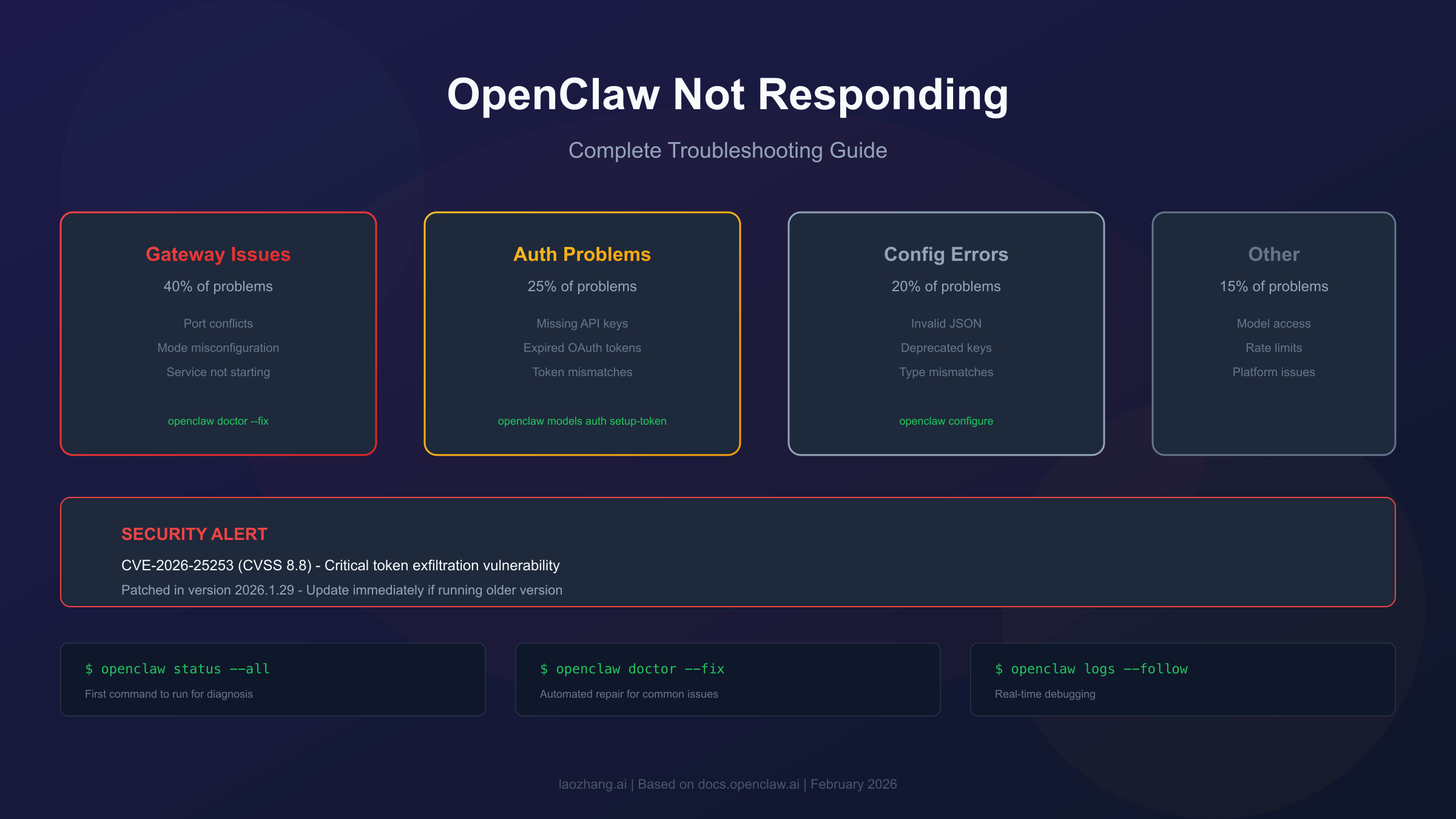
Gateway issues account for approximately 40% of "not responding" problems, followed by authentication failures at 25%, configuration errors at 20%, and model/subscription issues at 10%. Understanding these proportions helps prioritize your troubleshooting efforts.
Gateway-related problems are the most frequent because the gateway is the central hub through which all communication flows. These include the gateway not starting at all, the gateway starting but not binding to the expected port, and the gateway running but not accepting connections due to authentication requirements.
Authentication failures typically manifest as the gateway starting successfully but API calls failing. You might see messages about missing API keys, expired OAuth tokens, or invalid credentials. These issues are particularly common after system updates or when tokens naturally expire.
Configuration problems often arise from manual edits to openclaw.json, upgrades that introduce new required fields, or conflicts between multiple OpenClaw installations. The system is strict about configuration validation and will refuse to start with invalid settings.
Model and subscription issues are the most frustrating because the system appears to work—messages send, the interface responds—but you never get actual AI responses. This typically happens when using models that require paid subscriptions or when hitting rate limits on free tiers.
Less common but still significant are platform-specific issues. Windows users running outside WSL2 encounter numerous problems. macOS users sometimes face issues with launchd service management. Linux users may have systemd configuration problems, especially regarding user service lingering.
Gateway Startup Issues
If your gateway won't start or isn't listening on the expected port, the issue is usually related to configuration mode, port conflicts, or authentication requirements. This section addresses each of these scenarios.
Gateway Mode Not Set
When you see the error "Gateway start blocked: set gateway.mode=local," OpenClaw is refusing to start because it doesn't know how you want to run it. Fix this with either the interactive wizard or direct configuration:
hljs bash# Interactive approach
openclaw configure
# Direct approach
openclaw config set gateway.mode local
For development or testing where you want to skip this requirement:
hljs bashopenclaw gateway --allow-unconfigured
However, this flag is not recommended for regular use as it bypasses important safety checks.
Port Already in Use
The error "EADDRINUSE" or "port already in use" means something else is listening on port 18789. Identify the conflict:
hljs bash# On macOS/Linux
lsof -nP -iTCP:18789 -sTCP:LISTEN
# See gateway-specific status
openclaw gateway status
Common culprits include previous OpenClaw instances that didn't shut down cleanly, SSH tunnels forwarding to the same port, or other development services. Either stop the conflicting service or change OpenClaw's port:
hljs bashopenclaw config set gateway.bind "127.0.0.1:18790"
Service Running but Port Not Listening
This confusing situation—where openclaw gateway status shows the service as running but nothing responds on the port—usually indicates an authentication requirement. When binding to non-loopback addresses, OpenClaw requires authentication to be configured:
hljs bash# Check the last error
openclaw gateway status # Look at "Last gateway error"
# If it mentions auth, set a token
export OPENCLAW_GATEWAY_TOKEN="your-secure-token"
openclaw gateway install --force
You can also set this in your configuration file:
hljs json{
"gateway": {
"auth": {
"mode": "token",
"token": "your-secure-token"
}
}
}
Configuration Prevents Startup
If OpenClaw reports "Gateway won't start — configuration invalid," the configuration file contains errors. OpenClaw rejects unknown keys, malformed values, or invalid types. Run the diagnostic:
hljs bashopenclaw doctor # Shows all invalid entries
Common configuration problems include leftover keys from previous versions, JSON syntax errors (trailing commas, missing quotes), and type mismatches (string where number expected). Let the doctor fix it:
hljs bashopenclaw doctor --fix
This rewrites the configuration file, removing invalid entries and updating deprecated formats.
Authentication and API Key Problems
Authentication issues prevent OpenClaw from communicating with AI providers even when the gateway is running perfectly. These problems show up as successful message sending but no responses, or explicit "no credentials" errors.
No API Key Found
The error "No API key found for provider anthropic" (or similar for other providers) means the agent's authentication store is empty or missing credentials for the provider you're trying to use:
hljs bash# Set up authentication for Anthropic
openclaw models auth setup-token --provider anthropic
# Verify authentication status
openclaw models status
For providers that use API keys rather than OAuth, you can also set the key directly:
hljs bashopenclaw config set providers.anthropic.apiKey "your-api-key"
OAuth Token Expired
For users on Claude subscriptions (not API keys), OAuth tokens can expire and fail to refresh automatically. This manifests as authentication errors despite previously working configuration:
hljs bash# Re-authenticate with a setup token
openclaw models auth setup-token --provider anthropic
# Alternative: paste token directly
openclaw models auth paste-token --provider anthropic
# Verify it worked
openclaw models status
Token Mismatch for Remote Access
When using remote gateways, you need both transport security (SSH tunnel or Tailscale) and gateway authentication. A common error is "gateway token missing" when tokens don't match:
hljs bash# On the gateway host, get the token
openclaw gateway token
# Use this same token for remote connections
# Set in your local config as gateway.remote.token
The gateway.auth.token (on the server) must match gateway.remote.token (on the client). A mismatch results in "unauthorized" errors.
macOS Token Override Issues
On macOS, if you previously ran launchctl setenv OPENCLAW_GATEWAY_TOKEN, that value persists and overrides your configuration file. This can cause confusing "unauthorized" errors when your config file appears correct:
hljs bash# Check for overrides
launchctl getenv OPENCLAW_GATEWAY_TOKEN
# Remove the override
launchctl unsetenv OPENCLAW_GATEWAY_TOKEN
# Restart the service
openclaw gateway install --force
WebSocket and Connection Failures
WebSocket connection problems typically manifest as the interface loading but failing to communicate with the gateway. These issues are distinct from gateway startup problems—the gateway is running, but clients can't connect to it.
Gateway Mode Mismatch
The most common WebSocket issue is a mismatch between your configuration and how you're trying to connect. If gateway.mode is set to remote but you're running a local gateway, the CLI will try to connect to the wrong endpoint:
hljs bash# Check current mode
openclaw config get gateway.mode
# Set to local for local gateway
openclaw config set gateway.mode local
# Or set to remote with correct URL
openclaw config set gateway.mode remote
openclaw config set gateway.remote.url "wss://your-server:18789"
SSH Tunnel Not Running
For remote access via SSH, the tunnel must be active before OpenClaw can connect:
hljs bash# Start SSH tunnel (run this first)
ssh -N -L 18789:127.0.0.1:18789 user@your-server
# Then test connection
openclaw gateway probe
If the tunnel drops (common after idle timeouts), OpenClaw connections fail. Consider using autossh for persistent tunnels or Tailscale for a more robust solution.
Tailscale Serve Issues
When using Tailscale for remote access, ensure the serve is running on the remote host:
hljs bash# On remote host
openclaw gateway --tailscale serve
Then configure your local client to connect to the Tailscale address. Check that your Tailscale network is connected on both ends.
Control UI HTTP Issues
If you're accessing the Control UI over HTTP (not HTTPS) and see "device identity required" or "connect failed," the issue is that HTTP contexts block WebCrypto, preventing device identity generation:
hljs bash# Solution 1: Use localhost (works on HTTP)
# Access via http://127.0.0.1:18789/
# Solution 2: Enable HTTPS via Tailscale Serve
# Solution 3: Enable insecure auth in config
For solution 3, add to your configuration:
hljs json{
"gateway": {
"controlUi": {
"allowInsecureAuth": true
}
}
}
This enables token-only authentication without device pairing.
Stale WebSocket Connections
Sometimes the WebSocket connection goes stale silently—you can send messages, but responses stop arriving. This particularly affects the dashboard where the queue button might get stuck. The workaround is a hard refresh (Ctrl+Shift+R or Cmd+Shift+R) of the browser tab.
For persistent issues, enable more frequent keepalives in your configuration:
hljs json{
"gateway": {
"websocket": {
"pingInterval": 30000
}
}
}
Chat Interface Not Responding
When the chat interface accepts messages but never returns responses, the problem is usually not with OpenClaw itself but with model access or subscription tiers. This is one of the most frustrating issues because everything appears to work.
Model Subscription Required
Many AI models require paid subscriptions even when OpenClaw connects successfully. A common scenario: using gemini-3-pro-preview which isn't included in Google AI Studio's free tier:
hljs bash# Check which models are available
openclaw models list
# Try a model known to work with your tier
openclaw config set models.default "gemini-3-flash-preview"
The gemini-3-flash-preview model has a free tier, unlike the Pro variant. Similarly for other providers, check your subscription level against the model requirements.
Rate Limits Exceeded
Even with valid subscriptions, hitting rate limits causes responses to stop:
hljs bash# Check your current usage (if supported by provider)
openclaw models status --verbose
Rate limits reset after specific time windows (typically 60 seconds for request rate limits). For Anthropic, you can check your account dashboard for current usage against limits. For detailed guidance on Claude API quotas and limits, see our Claude API quota tiers guide.
For development, consider implementing retry logic or using multiple provider keys to distribute load.
Agent Stuck in Bootstrap State
If openclaw status shows agents in "PENDING" bootstrap state that never progresses, the agent initialization failed:
hljs bash# View detailed agent status
openclaw agents list
# Force reinitialization
openclaw agents restart
# If that fails, remove and recreate
openclaw agents remove [agent-id]
openclaw agents create [agent-name]
Session Timeout
OpenClaw has a default session timeout of 30 minutes for long-running tasks. If your task exceeds this, the session terminates without response:
hljs bash# For long tasks, use background processing
openclaw process --background "your long task"
# Or increase the timeout
openclaw config set session.timeout 3600000 # 1 hour in ms
Model Access and Subscription Issues
OpenClaw intentionally blocks certain models for security reasons, and subscription tiers limit access to others. Understanding these restrictions prevents wasted troubleshooting time.
Model Not Supported
The error "Unknown model: anthropic/claude-haiku-3-5" indicates OpenClaw doesn't recognize or has blocked that model identifier:
hljs bash# See all available models
openclaw models list
# Scan for accessible models with current credentials
openclaw models scan
OpenClaw blocks older models that are vulnerable to prompt injection attacks. This is a security feature, not a bug. Use currently supported model identifiers as shown in the list output.
Free Tier Limitations
Each provider has different free tier offerings:
| Provider | Free Tier Models |
|---|---|
| Anthropic | Limited access, requires API key with $5 credit |
gemini-3-flash-preview (with rate limits) | |
| OpenAI | Requires paid API access |
If you're trying to use free options, ensure you've selected an appropriate model:
hljs bashopenclaw config set models.default "gemini-3-flash-preview"
Anthropic Credit Requirement
For Anthropic (Claude), even though the web chat interface is free, API access requires adding a credit card and preloading at least $5:
hljs bash# After adding credit in Anthropic dashboard, verify
openclaw models auth setup-token --provider anthropic
openclaw models status
This is an Anthropic policy, not an OpenClaw limitation.
Platform-Specific Solutions
Each operating system has unique considerations for running OpenClaw. This section addresses common platform-specific issues.
Windows (WSL2 Required)
OpenClaw does not support native Windows—you must use WSL2 (Windows Subsystem for Linux):
hljs bash# Install WSL2 if not present
wsl --install
# Use Ubuntu (recommended)
wsl --install -d Ubuntu
# Inside WSL, install Node 22
curl -fsSL https://deb.nodesource.com/setup_22.x | sudo bash -
sudo apt install -y nodejs
# Then install OpenClaw
curl -fsSL https://openclaw.ai/install.sh | bash
Common Windows-specific issues include running OpenClaw outside WSL2 (unsupported, causes numerous issues), Windows Defender interfering with Node processes, and path issues when mixing Windows and Linux paths.
For scheduled task issues where the gateway appears "offline" every few hours:
hljs bash# Run the gateway manually for stability
openclaw gateway --foreground
Consider running OpenClaw as a systemd service within WSL2 instead of using Windows Task Scheduler.
macOS
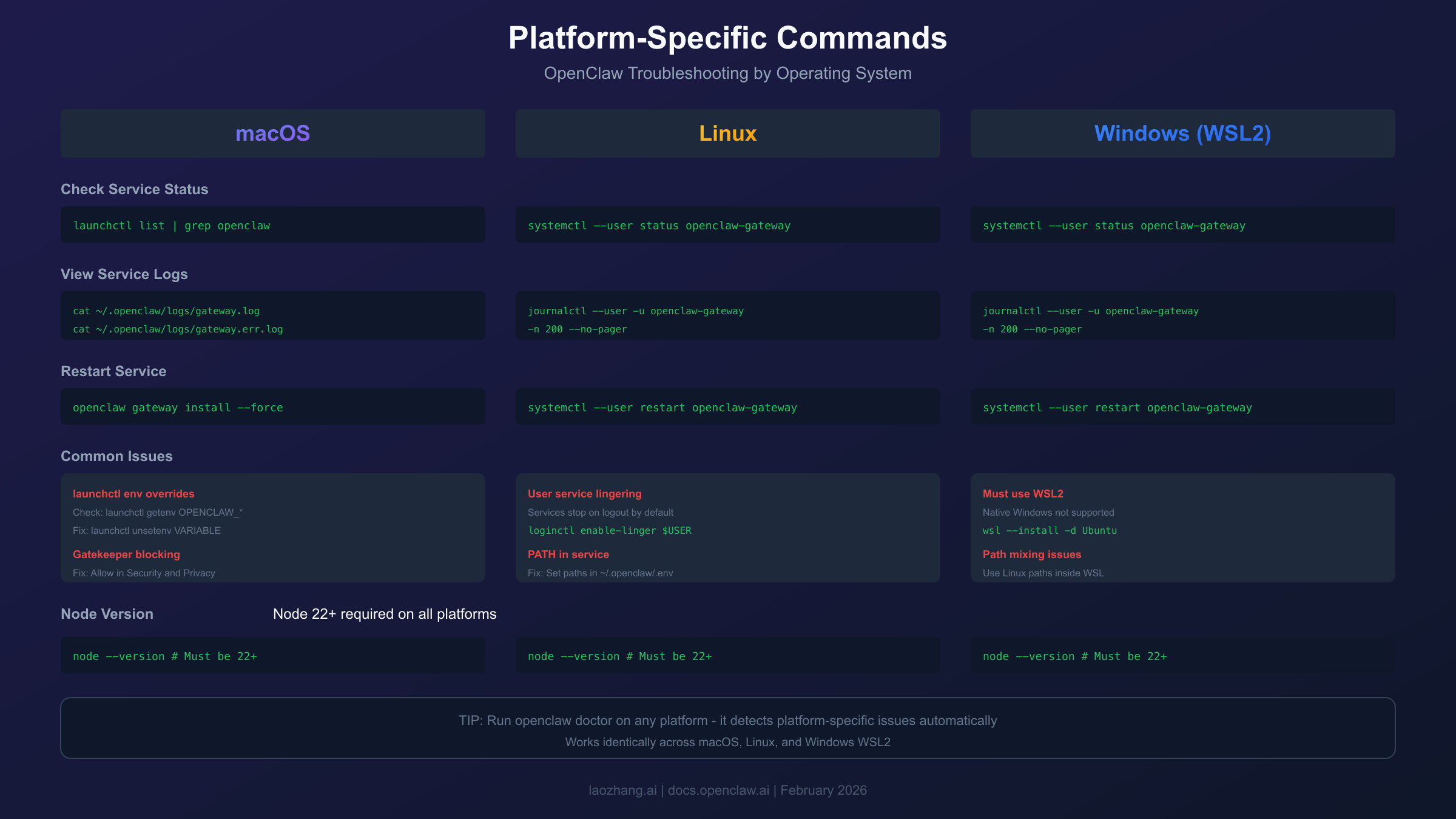
macOS generally works well with OpenClaw. The service runs via launchd:
hljs bash# Check service status
launchctl list | grep openclaw
# View service logs
cat ~/.openclaw/logs/gateway.log
cat ~/.openclaw/logs/gateway.err.log
# Reinstall service
openclaw gateway install --force
Common macOS issues:
Environment variables set via launchctl persist and override configuration files. Clear them with launchctl unsetenv VARIABLE_NAME.
Gatekeeper blocking downloaded binaries. If you see security prompts, allow OpenClaw in System Preferences → Security & Privacy.
Node version manager conflicts where the service runs with a different Node version than your terminal. Set explicit paths in ~/.openclaw/.env:
hljs bashexport PATH=/usr/local/bin:$PATH
Linux
Linux uses systemd for service management:
hljs bash# Check service status
systemctl --user status openclaw-gateway.service
# View logs
journalctl --user -u openclaw-gateway.service -n 200 --no-pager
# Restart service
systemctl --user restart openclaw-gateway.service
A critical Linux-specific issue is user service lingering. By default, systemd user services stop when you log out. OpenClaw's gateway needs to survive SSH disconnection:
hljs bash# Enable lingering for your user
loginctl enable-linger $USER
# Verify
loginctl show-user $USER | grep Linger
openclaw doctor automatically detects and prompts to fix this when it sees a loaded user service.
Security Update: CVE-2026-25253
A critical security vulnerability (CVE-2026-25253, CVSS 8.8) was discovered and patched in January 2026. If you're running an older version, update immediately before proceeding with other troubleshooting.
The Vulnerability
The vulnerability allowed token exfiltration leading to full gateway compromise. The Control UI trusted gatewayUrl from query strings without validation and auto-connected on load, sending stored gateway tokens in WebSocket payloads. Combined with missing WebSocket origin validation, this enabled cross-site WebSocket hijacking attacks.
In practical terms: clicking a malicious link could allow attackers to steal your gateway credentials and take over your OpenClaw installation.
Check Your Version
hljs bashopenclaw --version
If your version is older than 2026.1.29, you are vulnerable.
Update Immediately
hljs bash# Update via npm
npm update -g openclaw
# Verify new version
openclaw --version
# Restart gateway with new code
openclaw gateway install --force
What If Already Compromised
If you suspect compromise:
- Revoke all tokens at your AI providers (Anthropic, OpenAI, etc.)
- Generate new API keys from provider dashboards
- Update credentials in OpenClaw:
hljs bashopenclaw models auth setup-token --provider anthropic
# Repeat for other providers
- Review gateway access logs for suspicious activity
- Consider full reset if uncertain (see next section)
Ongoing Security
After updating, ensure gateway.controlUi.allowInsecureAuth is not set to true unless absolutely necessary. Use HTTPS (via Tailscale Serve or reverse proxy) for any non-localhost access.
Nuclear Option: Complete Reset
When all else fails, a clean slate often resolves persistent issues that defy diagnosis. This should be your last resort as it removes all configuration and requires re-setup.
Backup First
Before resetting, save anything you want to preserve:
hljs bash# Backup configuration
cp ~/.openclaw/openclaw.json ~/openclaw-backup.json
# Backup auth profiles if you want to reference old API keys
cp ~/.openclaw/auth-profiles.json ~/auth-backup.json
# Note your connected channels
openclaw channels list > ~/channels-backup.txt
Complete Reset Procedure
hljs bash# Stop the gateway
openclaw gateway stop
# Uninstall the service (removes scheduled task/launchd/systemd service)
openclaw gateway uninstall
# Remove all OpenClaw state
# Option 1: Move to trash (recoverable)
mv ~/.openclaw ~/openclaw-backup-$(date +%Y%m%d)
# Option 2: Delete completely (not recoverable)
rm -rf ~/.openclaw
# Reinstall OpenClaw CLI (gets latest version)
npm install -g openclaw
# Fresh setup
openclaw onboard
After Reset
The onboarding process will:
- Create new configuration files
- Prompt for AI provider authentication
- Set up the gateway service
- Guide you through channel connections (WhatsApp, Telegram, etc.)
Re-add any custom configuration from your backup after verifying the fresh installation works.
When Reset Doesn't Help
If a completely fresh installation still doesn't work:
- Check Node version: Must be 22 or higher
- Check system resources: Adequate RAM, disk space
- Check network: Firewall, proxy, DNS issues
- Report to developers: File an issue at GitHub with
openclaw status --alloutput
Frequently Asked Questions
Why does OpenClaw say "no credentials" when I've already authenticated?
This typically happens when authentication is stored in a different profile or workspace than expected. Run openclaw models status to see which profiles are active, and openclaw models auth setup-token --provider [name] to re-authenticate. Also check for multiple ~/.openclaw directories if you've moved installations.
My gateway starts but nothing responds on port 18789—what's wrong?
This usually indicates either a port conflict or an authentication requirement for non-loopback binds. Run lsof -nP -iTCP:18789 to check for conflicts. If the gateway log mentions "refusing to bind without auth," you need to set gateway.auth.token before binding to non-localhost addresses.
OpenClaw worked yesterday but not today. What changed?
Common causes for sudden failures: OAuth tokens expired (refresh with openclaw models auth setup-token), automatic system updates changed Node version (verify with node --version), security software started blocking OpenClaw, or you hit a rate limit that resets daily.
How do I know if CVE-2026-25253 affected me?
If you used versions before 2026.1.29 and accessed the Control UI from the web (not just CLI), you may have been vulnerable. The safest course is updating to the latest version and rotating all your AI provider API keys. Review your gateway logs for any suspicious connection attempts.
Can I run OpenClaw on native Windows without WSL2?
Native Windows is not officially supported and causes numerous problems. The developers strongly recommend WSL2. If you must use native Windows, expect issues with tool compatibility, service management, and path handling. Most troubleshooting guides assume WSL2 or Linux/macOS.
Why does openclaw doctor --fix resolve environment variables to plaintext?
This is a known bug. When you have ${ENV_VAR} references in your configuration, --fix replaces them with actual values. After running doctor --fix, review openclaw.json and restore any environment variable references you need. Consider backing up your config before running --fix.
My messages send but I never get responses. Is OpenClaw broken?
Not necessarily. This often indicates a model subscription issue rather than an OpenClaw problem. Verify your model is available in your subscription tier (openclaw models list). Try switching to gemini-3-flash-preview which has a free tier, or check that you've added credit to your Anthropic account for Claude access.
How often should I update OpenClaw?
Given the active development and recent security patches, updating regularly (at least monthly) is recommended. Check for updates with npm outdated -g openclaw. The project maintains backward compatibility for configuration files, so updates are generally safe.
Telegram/WhatsApp channel keeps disconnecting—is this related to "not responding"?
Channel disconnections are a separate issue from the gateway not responding. For Telegram, try webhook mode instead of long-polling. For WhatsApp, re-pair using openclaw channels logout then openclaw channels login --verbose. Channel issues don't affect other parts of OpenClaw.
Where can I get more help?
The best resources in order: Official Documentation, GitHub Discussions, and the Discord community. When reporting issues, include the output of openclaw status --all (which automatically redacts sensitive tokens) and describe what you've already tried.
Conclusion
OpenClaw "not responding" issues stem from a variety of causes, but systematic diagnosis typically reveals the problem quickly. Start with openclaw status --all and openclaw doctor for automated detection, then work through the specific sections relevant to your error messages.
The key points to remember: gateway issues are the most common (40%), authentication problems follow (25%), and model subscription limitations cause many "silent failures" where messages appear to send but never receive responses. Always verify you're running version 2026.1.29 or later to ensure you have the critical security patch.
For persistent issues that resist troubleshooting, the complete reset procedure provides a reliable path to a working installation. Keep your configuration backed up, and don't hesitate to reach out to the community—OpenClaw has an active developer community that responds quickly to issues on GitHub and Discord.