Veo 3.1 Audio Quality: Complete Guide to Native Sound Generation 2025
Comprehensive guide to Veo 3.1 audio quality, covering native sound generation, technical specs (48kHz/192kbps), prompting techniques, and comparison with Sora 2. Includes troubleshooting tips and API pricing.
Nano Banana Pro
4K-80%Google Gemini 3 Pro · AI Inpainting
谷歌原生模型 · AI智能修图

Everyone obsesses over which AI video generator produces the prettiest pixels. But here's what they're missing: the real battleground isn't visual fidelity—it's audio sophistication. And with the release of Veo 3.1 in October 2025, Google DeepMind has fundamentally changed the game by introducing native audio generation that doesn't feel like an afterthought.
For the first time, an AI video model generates synchronized dialogue, ambient soundscapes, and precisely-timed sound effects as an integrated part of the video creation process—not as a post-production add-on. This represents a paradigm shift in AI-generated video, where the audio isn't just "good enough" but actually contributes to the cinematic quality of the output.
In this comprehensive guide, I'll break down everything you need to know about Veo 3.1's audio capabilities: the technical specifications that matter, prompting techniques that actually work, how it compares to competitors like Sora 2, and how to troubleshoot the inevitable issues you'll encounter. Whether you're a content creator, developer, or filmmaker exploring AI video tools, understanding Veo 3.1's audio quality is essential for making the most of this technology.
What Makes Veo 3.1 Audio Different
Before Veo 3.1, AI video generation treated audio as a separate problem. You'd generate visuals first, then run your video through a text-to-speech engine, add stock sound effects, or manually compose a soundtrack in post-production. The results were predictable: awkward lip-sync, generic ambient sounds that didn't match the scene, and sound effects that felt disconnected from the visual action.
Veo 3.1 takes a fundamentally different approach. The model jointly generates audio and visual streams during the same inference process, treating sound as an integrated output modality rather than an add-on layer. This means timing, acoustic cues, and visual events are inherently coherent—the system "understands" that a door closing should produce a sound at the exact frame it latches, not 200 milliseconds later.
Key differences from traditional approaches:
- Joint modeling: Audio and video are generated together, not sequentially
- Prompt-driven audio: Sound design is controlled through text descriptions, not separate audio tools
- Native lip-sync: Dialogue is synchronized during generation, not retrofitted afterward
- Contextual awareness: The model understands acoustic environments (reverb in a cave differs from a living room)
This integration means you can describe a scene like "a woman in a coffee shop says 'we need to talk' while the espresso machine hisses in the background and rain patters against the window," and Veo 3.1 will generate video with all those audio elements properly layered and synchronized.
The practical implication is significant: what previously required a video generator, a TTS engine, a sound effects library, and audio editing software can now be accomplished in a single generation step. For rapid prototyping, social content, and iterative creative work, this compression of the production pipeline is transformative.
Technical Specifications: Audio Quality Deep Dive
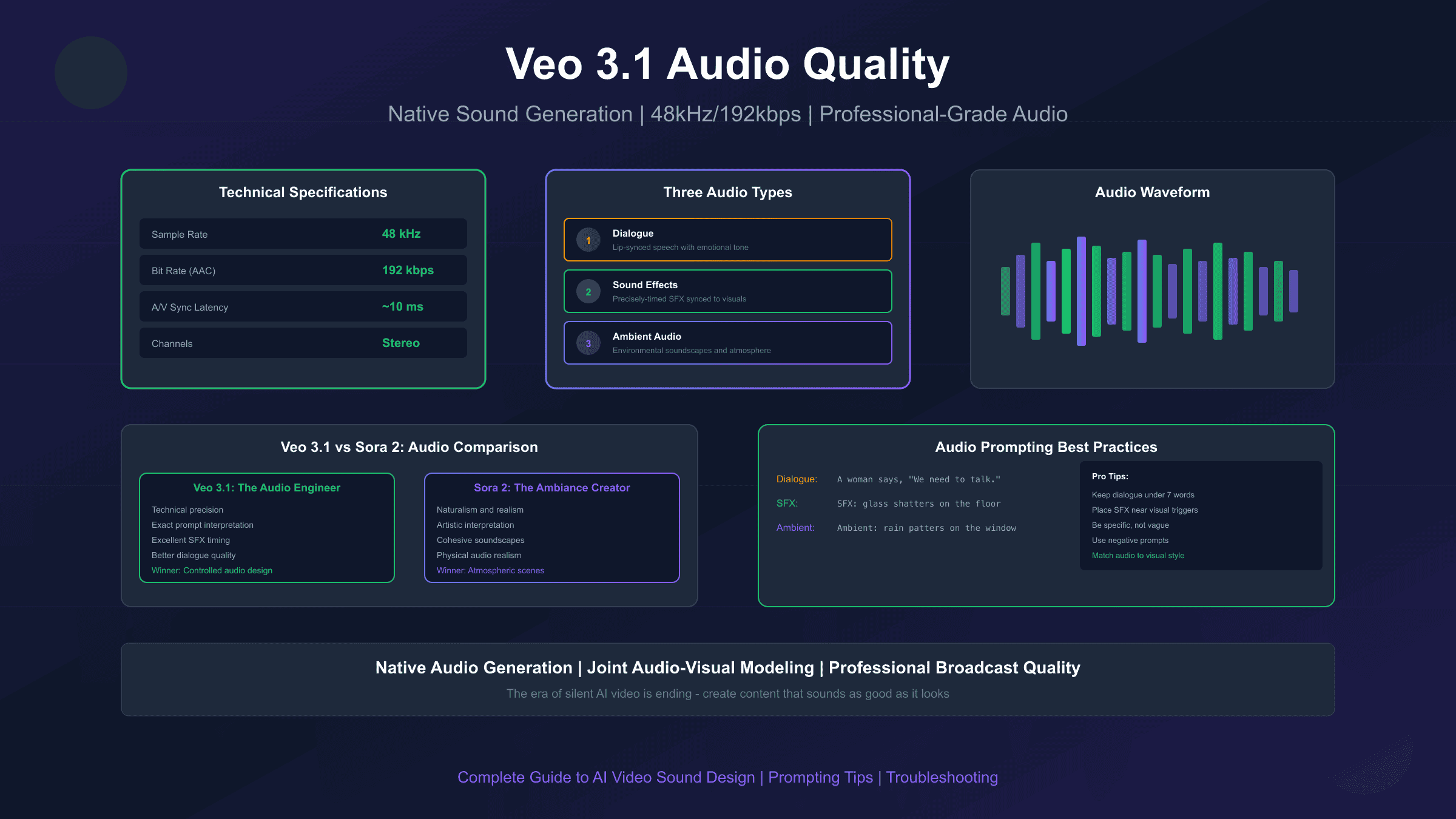
Understanding Veo 3.1's audio technical specifications helps you set realistic expectations and optimize your workflow. According to Google DeepMind's official documentation, here's what the model actually delivers:
| Specification | Value | Notes |
|---|---|---|
| Sample Rate | 48 kHz | Professional broadcast standard |
| Bit Rate | 192 kbps | AAC encoding |
| Channels | Stereo | Left/right separation for spatial audio |
| A/V Sync Latency | ~10 ms | Near-imperceptible delay |
| Maximum Duration | 8 seconds | Per generation; extendable via chaining |
Sample Rate Analysis: The 48 kHz sample rate matches professional video production standards (broadcast TV, streaming platforms). This is notably higher than the 44.1 kHz CD-quality standard and ensures the generated audio integrates seamlessly with professional editing workflows without requiring sample rate conversion.
Bit Rate Considerations: At 192 kbps AAC, the audio quality sits in the "transparent" range for most listeners—meaning the compression artifacts are imperceptible under normal listening conditions. However, this isn't lossless audio, so heavy processing in post-production may reveal limitations. For most use cases including social media, web content, and prototyping, 192 kbps is more than sufficient.
Synchronization Performance: The approximately 10ms audio-visual sync latency is effectively imperceptible. According to SMPTE broadcast standards, human perception typically notices A/V sync issues starting around 45ms for audio leading video and 125ms for audio lagging video. At 10ms, Veo 3.1's output is well within professional broadcast tolerances.
Video Resolution Options:
| Resolution | Frame Rate | Use Case |
|---|---|---|
| 720p (1280×720) | 24 fps | Social media, fast iteration |
| 1080p (1920×1080) | 24 fps | Professional production |
| 4K (3840×2160) | 24 fps | High-end production (limited availability) |
The fixed 24 fps frame rate aligns with cinematic standards, contributing to the "film look" that distinguishes Veo 3.1 output from typical webcam or smartphone footage.
Three Types of Audio Generation
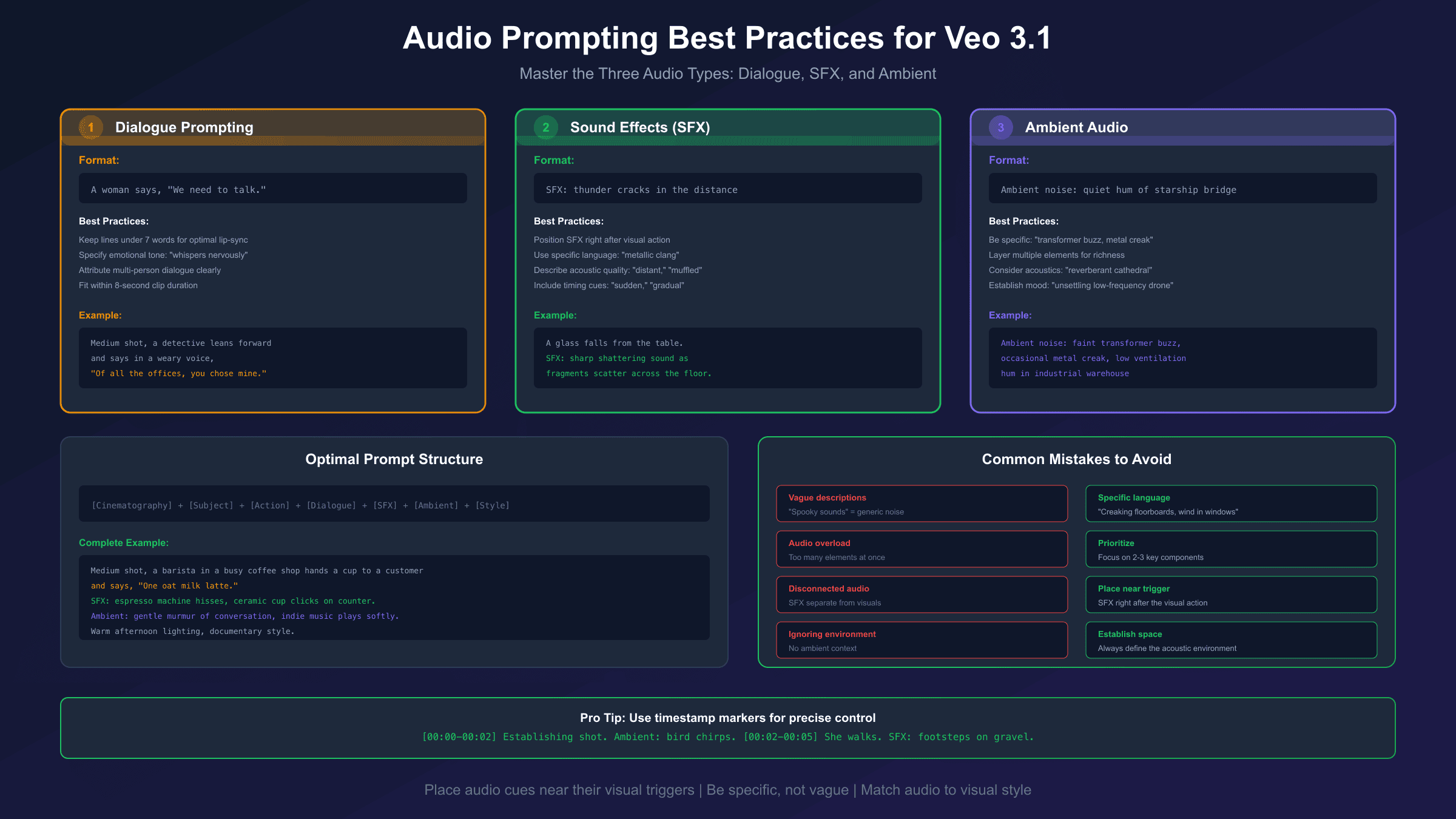
Veo 3.1 generates three distinct categories of audio, each controlled through specific prompting techniques. Understanding these categories is essential for crafting effective prompts.
Type 1: Dialogue and Speech
Dialogue generation is Veo 3.1's most impressive audio capability. The model produces character speech with realistic lip-sync, appropriate emotional tone, and natural cadence.
Prompting format: Use quotation marks for specific speech.
A detective leans forward and says, "I know what you did last summer."
Best practices for dialogue:
- Keep individual lines under 7 words for optimal lip-sync accuracy
- Specify emotional tone when needed: "whispers nervously," "shouts angrily"
- For multi-person conversations, clearly attribute each line: "The man says... The woman replies..."
- Total dialogue should fit within the 8-second clip duration
Current limitations: Dialogue quality varies run-to-run. Longer sentences sometimes result in rushed delivery or subtle lip-sync drift. Short, punchy lines consistently perform better than extended monologues.
Type 2: Sound Effects (SFX)
Sound effects are generated based on visual actions and explicit prompts. Veo 3.1 excels at tying sounds to specific moments in the video.
Prompting format: Use the "SFX:" prefix for clarity.
A glass falls from the table. SFX: sharp shattering sound as fragments scatter across the floor.
Best practices for SFX:
- Position SFX descriptions immediately after the visual action they accompany
- Use specific, concrete language: "metallic clang" not "loud noise"
- Describe the acoustic quality: "distant," "muffled," "echoing"
- Include timing cues when relevant: "sudden," "gradual crescendo"
Type 3: Ambient and Environmental Audio
Ambient audio creates the acoustic environment of your scene—the constant background soundscape that establishes location and atmosphere.
Prompting format: Use "Ambient noise:" or describe the environment's soundscape.
Ambient noise: quiet hum of air conditioning, occasional keyboard clicks, distant phone ringing
Best practices for ambient audio:
- Be specific rather than generic: "transformer buzz and occasional metal creak" beats "industrial sounds"
- Layer multiple ambient elements for richness
- Consider acoustic properties: "reverberant cathedral" vs "dampened recording studio"
- Use ambient to establish mood: "unsettling low-frequency drone" for tension
Audio Hierarchy and Mixing
When combining all three audio types, Veo 3.1 attempts to create an appropriate mix where dialogue sits in the foreground, SFX punctuate specific moments, and ambient audio provides continuous background texture. You can influence the mix through phrasing:
- "Crystal clear dialogue" prioritizes speech intelligibility
- "Music low, duck under dialogue" ensures speech isn't masked
- "Distant ambient, prominent SFX" adjusts the balance
Audio Prompting Best Practices
Crafting effective audio prompts for Veo 3.1 requires understanding how the model interprets your instructions. Based on extensive testing, here are the techniques that consistently produce better audio results.
Structure Your Prompt for Audio Success
The optimal prompt structure integrates audio elements with visual descriptions:
[Cinematography] + [Subject] + [Action] + [Dialogue] + [SFX] + [Ambient] + [Style]
Example:
Medium shot, a barista in a busy coffee shop hands a cup to a customer and says,
"One oat milk latte." SFX: the espresso machine hisses in the background,
ceramic cup clicks on the counter. Ambient noise: gentle murmur of conversation,
indie music plays softly. Warm afternoon lighting, documentary style.
Key Prompting Techniques:
-
Place audio cues near their visual triggers: Don't stack all audio descriptions at the end. Weave them into the visual narrative where they occur.
-
Use precise language: "Faint transformer buzz, occasional metal creak, low ventilation hum" produces more accurate sound than "industrial background noise."
-
Specify audio hierarchy: "Dialogue cuts through the ambient noise" tells the model to prioritize speech in the mix.
-
Include negative audio instructions when needed: "No background music" or "silence except for footsteps" can prevent unwanted audio additions.
-
Match audio to visual style: If you specify "film noir aesthetic," the audio should complement that—"jazz piano plays in a smoky bar" works better than "upbeat electronic music."
Common Prompting Mistakes to Avoid:
| Mistake | Why It Fails | Better Approach |
|---|---|---|
| Vague descriptions | "Spooky sounds" → generic noise | "Distant creaking floorboards, wind through broken windows" |
| Audio overload | Too many simultaneous elements | Prioritize 2-3 key audio components |
| Disconnected audio | SFX described separately from visuals | Place SFX immediately after the action it accompanies |
| Ignoring environment | No ambient context | Always establish the acoustic space |
Timestamp-Based Audio Direction
For precise control, you can use timestamp markers in your prompts:
[00:00-00:02] Establishing shot of a forest at dawn. Ambient: bird chirps, gentle breeze.
[00:02-00:05] A hiker emerges from the mist, footsteps crunching on gravel.
[00:05-00:08] She stops, looks up and says, "Finally." SFX: deep exhale of relief.
This technique helps Veo 3.1 understand the temporal structure of your audio design.
Veo 3.1 vs Sora 2: Audio Comparison
The two leading AI video generators—Google's Veo 3.1 and OpenAI's Sora 2—take distinctly different approaches to audio generation. Understanding these differences helps you choose the right tool for specific projects.
Philosophical Differences:
| Aspect | Veo 3.1 | Sora 2 |
|---|---|---|
| Audio Philosophy | "The Audio Engineer" | "The Ambiance Creator" |
| Strength | Technical precision, exact prompt interpretation | Naturalism, environmental realism |
| Approach | Literal: generates what you specify | Artistic: interprets mood and feel |
| Mixing | Excellent layering of discrete elements | Better at creating cohesive soundscapes |
Head-to-Head Test Results (based on Tom's Guide 7-prompt comparison):
Test 1: Coffee Shop Scene (conversation, barista sounds, door opening with siren Doppler)
- Veo 3.1: Delivered exactly what was asked—visible barista, audible espresso, purely diegetic sound with great dialogue/background mix. Failure: siren appeared at 0:08, disconnected from door opening.
- Sora 2: Created moody scene with exceptional dialogue and perfect ambient hum. Completely ignored the door/siren requirement and added subtle atmospheric music despite instructions.
- Winner: Veo 3.1 for prompt adherence; Sora 2 for atmospheric quality
Test 2: Car Window Doppler Effect (window rolls down, siren passes)
- Veo 3.1: Generated a driver in traffic with visible ambulance and good siren, but the window never moved. Treated elements as a checklist, missing the causal relationship.
- Sora 2: Nearly nailed it—window rolls down, radio stays consistent, convincing Doppler effect. Exterior sound punched in abruptly rather than swelling gradually.
- Winner: Sora 2 for understanding the physics of the scenario
Test 3: Multi-Person Dialogue
- Veo 3.1: Dialogue was lively and realistic with proper turn-taking.
- Sora 2: Dialogue sounded somewhat flat in comparison.
- Winner: Veo 3.1 for dialogue quality
Summary of Comparative Strengths:
| Use Case | Recommended Model |
|---|---|
| Precise sound design with specific SFX | Veo 3.1 |
| Atmospheric, mood-driven scenes | Sora 2 |
| Multi-person dialogue scenes | Veo 3.1 |
| Complex physical audio interactions | Sora 2 |
| Short social clips with sound | Both work; Veo 3.1 preferred for richer audio |
| Dialogue-driven micro-scenes (~8s) | Veo 3.1 for lip-sync reliability |
The Bottom Line: Veo 3.1 is the better choice when you need controllable, precise audio that follows your prompt literally. Sora 2 excels when you want the AI to interpret and enhance the atmospheric quality of a scene. For most structured content creation where audio requirements are specific, Veo 3.1 has the edge. If you're encountering prompt errors with Sora 2, check out our guide to fixing Sora 2 invalid prompt errors.
Common Audio Issues and How to Fix Them
Despite Veo 3.1's impressive audio capabilities, users regularly encounter issues. Here are the most common problems and their solutions.
Issue 1: No Audio Generated
Symptoms: Video renders but playback is silent.
Common Causes:
- Prompt didn't explicitly request sound
- Content restrictions triggered (children, animals)
- Browser cache/plugin interference
- Wrong model version selected
Solutions:
- Add explicit audio cues: Include at least one of dialogue, SFX, or ambient description
- Age up subjects: If characters appear young, the safety system may mute audio. Change to "teenagers" or "young adults"
- Clear browser cache and disable ad blockers
- Verify you're using Veo 3.1 (not Veo 2, which doesn't generate audio)
- Use Text-to-Video mode, not Image-to-Video (which may default to silent generation)
Issue 2: Audio-Visual Sync Drift
Symptoms: Lip movements don't match dialogue; SFX are slightly off from visual cues.
Solutions:
- Shorten dialogue lines to under 7 words
- Simplify the scene—fewer simultaneous elements means better sync
- Regenerate with the same prompt (sync quality varies between runs)
- Try lower resolution (720p) which processes faster and may sync better
Issue 3: Audio Cuts or Artifacts
Symptoms: Audible clicks, abrupt transitions, or unnatural stops in audio.
Solutions:
- Avoid video extension features (currently use Veo 2, which strips audio)
- Generate complete clips rather than chaining segments
- Check if you're hitting generation limits during peak hours
Issue 4: Wrong Audio Style
Symptoms: Audio doesn't match the intended mood or genre.
Solutions:
- Be more specific: "tense orchestral underscore" instead of "dramatic music"
- Add style modifiers: "film noir," "documentary," "horror movie" help set audio expectations
- Use negative prompts: "no music," "no happy sounds" can steer away from unwanted elements
Issue 5: Audio Missing After Upscaling
Symptoms: Original 720p video has audio; upscaled 1080p version is silent.
Cause: The upscaling process currently strips audio.
Solution: Generate at your target resolution from the start rather than upscaling, or extract audio separately and reattach in post-production.
Troubleshooting Checklist:
- ✓ Prompt includes explicit audio descriptions
- ✓ No content that triggers safety filters
- ✓ Using Veo 3.1 (not Veo 2)
- ✓ Text-to-Video mode selected
- ✓ Browser cache cleared, extensions disabled
- ✓ Not attempting video extension or upscaling
API Integration and Pricing
For developers integrating Veo 3.1 into applications, understanding the API structure and pricing is essential for budgeting and implementation. For a detailed breakdown of rate limits and quota management, see our Veo 3.1 API rate limit guide.
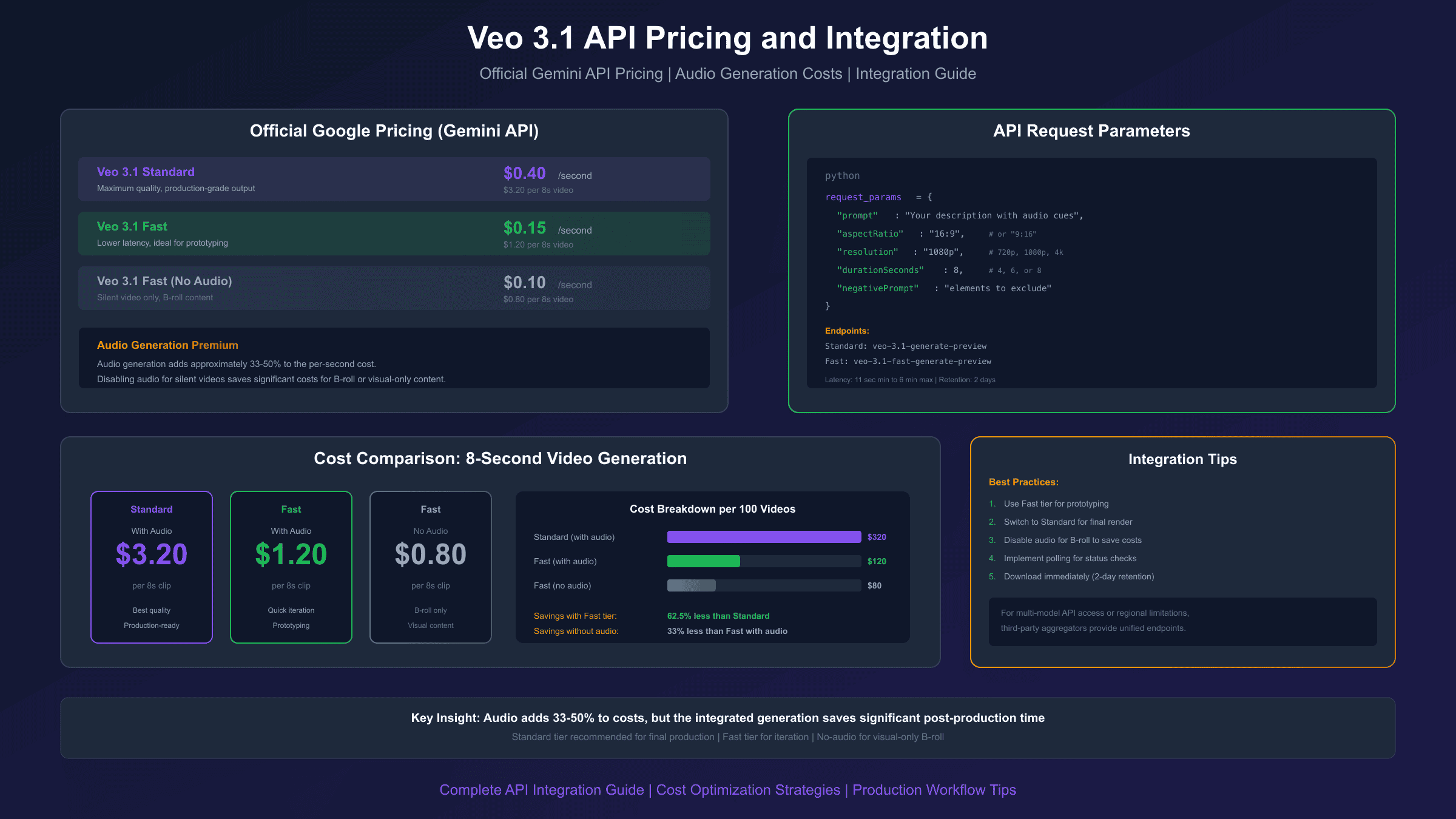
API Endpoints:
| Model | Endpoint | Use Case |
|---|---|---|
| Veo 3.1 Standard | veo-3.1-generate-preview | Maximum quality |
| Veo 3.1 Fast | veo-3.1-fast-generate-preview | Rapid iteration |
Official Google Pricing (Gemini API):
| Tier | Price per Second | 8-Second Video Cost | Audio Included |
|---|---|---|---|
| Veo 3.1 Standard | $0.40/second | $3.20 | Yes |
| Veo 3.1 Fast | $0.15/second | $1.20 | Yes |
| Veo 3.1 Fast (no audio) | $0.10/second | $0.80 | No |
Key Observations:
- Audio generation adds approximately 33-50% to the per-second cost
- Disabling audio for silent videos can save significant costs for B-roll or visual-only content
- Standard tier is recommended for final production; Fast tier for prototyping
- For cost-effective options, explore our cheapest stable Veo 3.1 API guide
Request Parameters:
hljs python{
"prompt": "Your text description with audio cues",
"aspectRatio": "16:9", # or "9:16"
"resolution": "1080p", # "720p", "1080p", or "4k"
"durationSeconds": 8, # 4, 6, or 8
"negativePrompt": "elements to exclude"
}
Generation Time: Expect 11 seconds minimum to 6 minutes maximum depending on server load. The API uses polling-based status checks—your integration should implement appropriate retry logic.
Video Retention: Generated videos are stored on Google's servers for 2 days before automatic deletion. Implement immediate download functionality in production applications.
For developers and businesses requiring multi-model access or facing regional API limitations, third-party aggregators provide alternative integration options. Services like laozhang.ai offer unified API access to various AI models with OpenAI-compatible endpoints, which can simplify integration when you need to test across multiple video generation platforms. However, always verify compliance with original provider terms of service for production use.
Professional Audio Workflow Integration
While Veo 3.1's native audio is impressive, professional productions often require additional polish. Here's how to integrate Veo 3.1 into a professional audio workflow.
Treating Veo 3.1 Audio as a First Draft
The generated audio should be considered a starting point, not a final deliverable. Expect to:
- Adjust levels and EQ in a DAW (Digital Audio Workstation)
- Replace or enhance specific sound effects
- Add music beds separately for better control
- Apply noise reduction if needed
- Master the final audio for platform-specific requirements
Recommended Workflow:
- Generate: Create Veo 3.1 clips with detailed audio prompts
- Evaluate: Review the generated audio—what works, what needs replacement?
- Extract: Separate audio tracks if needed for independent processing
- Enhance: Process in your DAW (Logic Pro, Pro Tools, Audacity)
- Replace: Swap low-quality elements with professional library SFX
- Mix: Balance levels, apply EQ, add compression
- Master: Finalize for target platform specifications
When to Use Veo 3.1 Audio Directly:
- Social media content where speed matters more than polish
- Rapid prototyping and client previews
- Reference audio for production planning
- Projects where "good enough" native audio saves significant time
When to Replace or Heavily Process:
- Broadcast or streaming platform delivery
- Commercial or brand content
- Projects requiring specific licensed music
- Scenes requiring precise Foley work
Export Considerations:
If you need to work with the audio separately:
- Download the video and extract audio using FFmpeg or your NLE
- Be aware that exported audio is 192kbps AAC—not ideal for heavy processing
- For best results, use Veo 3.1 audio as a guide track and recreate in studio if needed
Limitations and Future Improvements
Transparency about current limitations helps set realistic expectations and plan appropriate workarounds.
Current Limitations:
-
Dialogue Consistency: Creating natural spoken audio, particularly for shorter speech segments, remains an active development area. Quality varies run-to-run.
-
No Exposed Audio Parameters: You cannot directly control sample rate, bit rate, or audio mix levels. All audio guidance comes through prompt text.
-
Extension Limitations: Video extension features currently use Veo 2, which doesn't generate audio. Extending a Veo 3.1 clip results in silent additional segments.
-
Limited Duration: 8 seconds maximum per generation. Longer content requires chaining clips, which can produce audible audio discontinuities.
-
Safety Filter Audio Muting: Content involving children or certain sensitive subjects may silently mute audio without warning.
-
Music Generation Constraints: While Veo 3.1 can generate musical cues, complex compositions or specific genre requirements are hit-or-miss.
Areas of Active Development (per Google DeepMind):
- Improved audio synchronization and elimination of incoherent speech
- Extended clip durations
- Better consistency across chained generations
- Enhanced musical composition capabilities
What to Expect in Future Updates:
Based on the trajectory from Veo 3 to Veo 3.1, future versions will likely address:
- Longer coherent speech segments
- More sophisticated music generation
- Audio-only regeneration for existing videos
- Better extension continuity
Conclusion: Mastering Veo 3.1 Audio
Veo 3.1's native audio generation represents a genuine leap forward in AI video production. For the first time, we have a model that treats sound as a first-class citizen of the generation process, not an afterthought to be handled in post-production.
Key Takeaways:
-
Technical Quality is Professional-Grade: 48kHz/192kbps stereo audio with ~10ms sync is broadcast-ready for most applications.
-
Prompting is Everything: The quality of your audio output directly correlates with the specificity and structure of your prompts. Master the dialogue/SFX/ambient framework.
-
Veo 3.1 Beats Sora 2 for Precision: When you need exact prompt adherence and technical control, Veo 3.1 is the superior choice. Sora 2 wins on atmospheric interpretation. For detailed Sora 2 pricing, see our Sora 2 pricing per second guide.
-
Expect Troubleshooting: Audio issues are common. Know the fixes—explicit prompts, avoiding safety triggers, checking model versions.
-
Integrate into Professional Workflows: Treat Veo 3.1 audio as a strong first draft. Professional productions will still benefit from DAW polish.
The era of silent AI video is ending. As these models continue to improve, the gap between "AI-generated" and "professionally produced" audio will continue to narrow. For creators willing to master the prompting techniques and understand the current limitations, Veo 3.1 offers unprecedented capability to generate complete audio-visual content from text descriptions alone.
Now go create something that sounds as good as it looks.