- Home
- /
- Blog
- /
- AI Image Generation
- /
- Nano Banana Pro Troubleshooting Hub: Fix Every Error Code with Proven Solutions (2026)
Nano Banana Pro Troubleshooting Hub: Fix Every Error Code with Proven Solutions (2026)
Complete guide to fixing Nano Banana Pro errors including 429 rate limits, 500/502 server errors, IMAGE_SAFETY blocks, blank outputs, and API failures. Production-ready Python code and prevention strategies included.
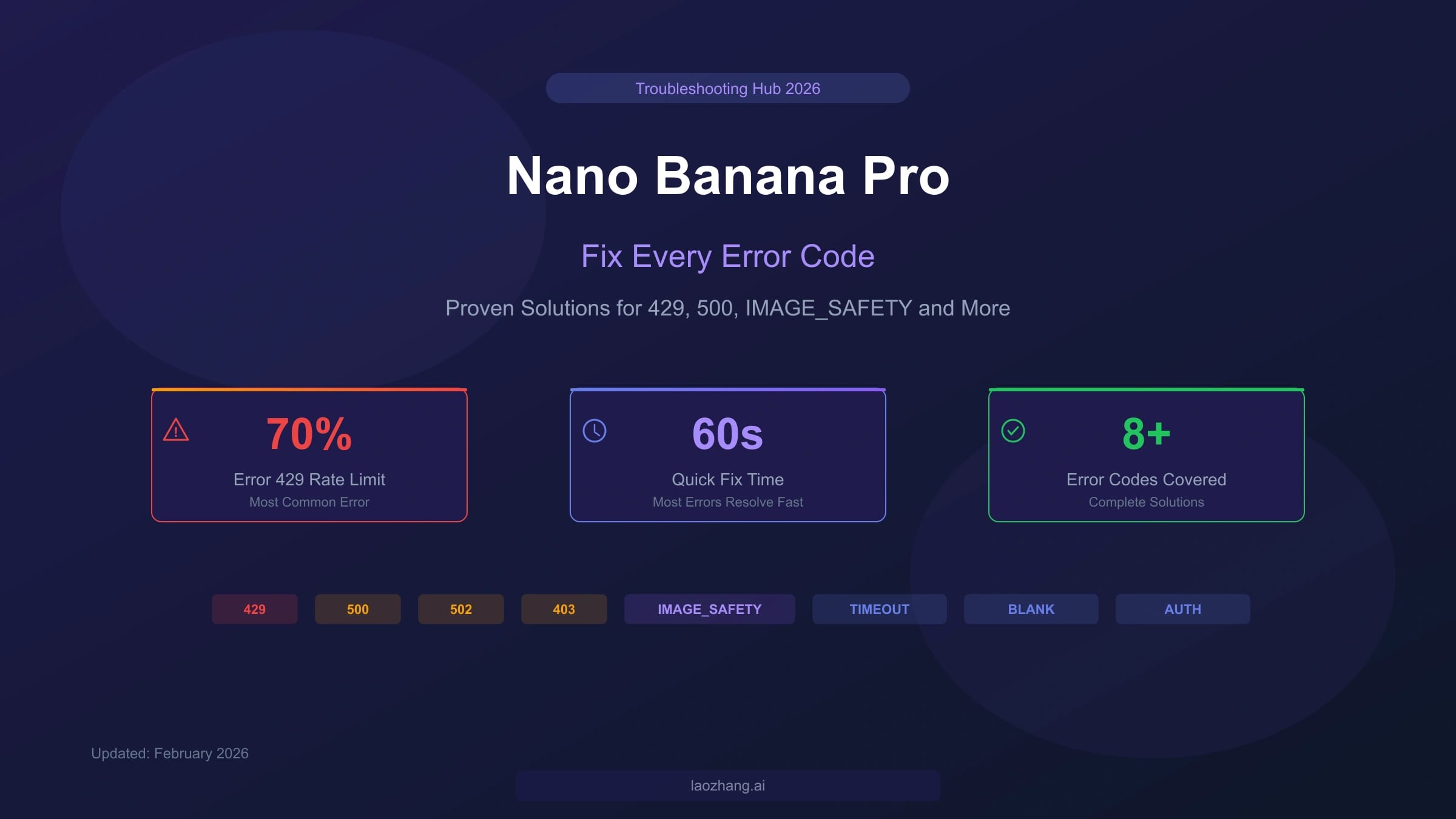
Nano Banana Pro errors typically fall into five categories: rate limits (Error 429, affecting roughly 70% of users), server errors (500/502), safety filter blocks (IMAGE_SAFETY), blank outputs, and access issues. Most 429 errors resolve within 60 seconds by waiting for RPM limits to reset, while IMAGE_SAFETY errors require distinguishing between Layer 1 (configurable) and Layer 2 (prompt engineering required) filters. This comprehensive troubleshooting hub covers every error code you will encounter, with production-ready Python code and prevention strategies that no other guide provides.
Quick Fix Table — Find Your Error in 10 Seconds

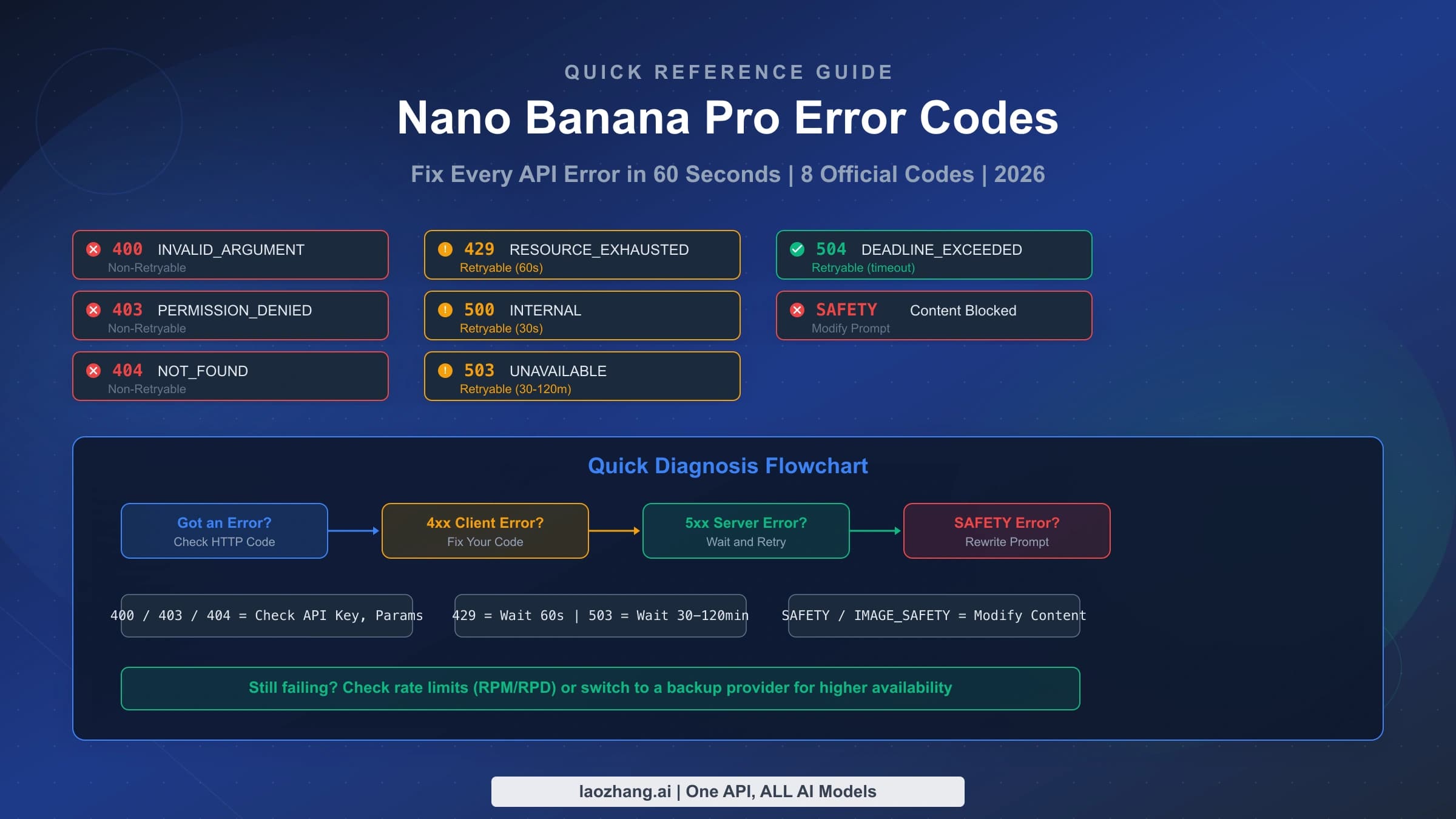
When your Nano Banana Pro image generation fails mid-project, the last thing you need is to read through thousands of words before finding a fix. The error lookup table below maps every common error code to its meaning and a 60-second solution, so you can get back to generating images as quickly as possible. Each error type links to a detailed section further in this guide for users who need deeper understanding.
| Error Code | Meaning | 60-Second Fix | Details |
|---|---|---|---|
| 429 RESOURCE_EXHAUSTED | Rate limit hit (RPM, RPD, or TPM) | Wait 60 seconds, then retry | Error 429 Deep Dive |
| 500 Internal Server Error | Google server failure | Retry after 30 seconds with exponential backoff | Server Errors |
| 502 Bad Gateway | Google infrastructure overload | Wait 2-5 minutes, try again | Server Errors |
| 403 Forbidden | Invalid API key or permissions | Verify API key and billing status | API Errors |
| IMAGE_SAFETY | Content filter triggered | Check Layer 1 vs Layer 2 diagnosis | IMAGE_SAFETY Guide |
| Blank Output | Generation succeeded but returned empty | Simplify prompt, reduce complexity | Blank Output Fix |
| Timeout | Request took too long | Lower resolution or simplify scene | Timeout Fix |
| 400 Bad Request | Malformed request | Check prompt format and parameters | API Errors |
The distribution of errors across the Nano Banana Pro user base follows a clear pattern that reveals where to focus your troubleshooting efforts. Error 429 (RESOURCE_EXHAUSTED) accounts for approximately 70% of all reported issues, making it the dominant failure mode by a wide margin. Server errors (500 and 502 combined) represent about 15% of failures and are entirely outside your control as they originate from Google's infrastructure. Authentication errors (403) make up roughly 8%, and the remaining errors — including IMAGE_SAFETY blocks, blank outputs, and timeouts — collectively account for about 7% of reported problems. Understanding this distribution helps you prioritize which sections to read first: if you are experiencing intermittent failures, Error 429 is almost certainly your culprit.
Error 429 — Rate Limit Exceeded (The Number One Error)
Error 429 RESOURCE_EXHAUSTED is the single most common problem that Nano Banana Pro users encounter, and understanding its three-dimensional rate limiting system is essential for both fixing and preventing it. Unlike simpler APIs that only limit requests per minute, Google's Gemini API enforces limits across three simultaneous dimensions: RPM (requests per minute), RPD (requests per day), and TPM (tokens per minute). Exceeding any single dimension triggers a 429 error, which means you can still hit the limit even if you think you are well within quota on the other two dimensions.
The rate limits differ dramatically between free and paid tiers, which is the root cause of frustration for many users. The following table shows the complete tier structure as of February 2026, verified against the official Google AI documentation (ai.google.dev/rate-limits, February 2026):
| Tier | Requirement | RPM | RPD | TPM |
|---|---|---|---|---|
| Free | Users in eligible regions | 5-10 | 100 | 15,000 |
| Tier 1 | Paid billing account linked | Up to 300 | 10,000 | 100,000 |
| Tier 2 | $250+ total spend, 30+ days | Higher | Higher | Higher |
| Tier 3 | $1,000+ total spend, 30+ days | Highest | Highest | Highest |
Free tier users can generate at most 100 images per day, and no more than about 10 per minute — for anyone building an application or running batch processing, these limits are extremely restrictive. Tier 1 users see limits jump to up to 300 RPM and 10,000 RPD, which represents a 30x improvement in per-minute capacity and a 100x improvement in daily capacity. Reaching Tier 2 or Tier 3 requires not just spending the threshold amount but also waiting 30 days since your first payment, which means you cannot simply pay $1,000 upfront to immediately access Tier 3 limits. The Gemini app (as opposed to the API) has its own separate limits tied to subscription tier: free accounts get approximately 2 images per day, Pro subscribers ($19.99/month) get roughly 100 per day, and Ultra subscribers ($99.99/month) can generate up to 1,000 per day at higher resolutions.
The most effective immediate fix for a 429 error is simply to wait. RPM limits reset every 60 seconds, so pausing for one minute before retrying will resolve most rate limit errors. RPD limits reset at midnight Pacific Time, so if you have exhausted your daily quota, you will need to wait until the next day. For a more robust solution, especially in production applications, you should implement exponential backoff with jitter. The following Python code provides a production-ready retry mechanism that handles all three dimensions. For a detailed guide to fixing Gemini 429 errors, see our dedicated article that covers edge cases and advanced strategies.
hljs pythonimport time
import random
import google.generativeai as genai
def generate_with_retry(prompt, max_retries=5, base_delay=2):
"""Generate image with exponential backoff and jitter."""
for attempt in range(max_retries):
try:
model = genai.GenerativeModel("gemini-2.0-flash-exp")
response = model.generate_content(prompt)
return response
except Exception as e:
if "429" in str(e) or "RESOURCE_EXHAUSTED" in str(e):
delay = base_delay * (2 ** attempt) + random.uniform(0, 1)
print(f"Rate limited. Waiting {delay:.1f}s (attempt {attempt + 1}/{max_retries})")
time.sleep(delay)
else:
raise e
raise Exception(f"Failed after {max_retries} retries")
Beyond retrying, you have several strategic options for dealing with persistent 429 errors. Upgrading your tier is the most straightforward path: linking a billing account immediately unlocks Tier 1 limits, which are 30 times higher for RPM and 100 times higher for RPD than the free tier. If your budget allows, reaching Tier 2 or Tier 3 removes rate limiting as a practical concern for most use cases. Alternatively, you can use batch processing through the Gemini API's batch endpoints, which process requests asynchronously at significantly reduced rates. For users who need reliable, high-volume access without managing tiers and quotas, third-party API providers like laozhang.ai offer Nano Banana Pro access at approximately $0.05 per image with no rate limiting, which is roughly 60% less than the official per-image cost of $0.134 for 1K/2K resolution images (ai.google.dev/pricing, February 2026). For a complete breakdown of Gemini API rate limits, our detailed rate limits guide covers every tier and dimension.
Error 500 and 502 — Server-Side Failures
Server errors 500 and 502 originate from Google's infrastructure rather than from anything in your code or prompt, which makes them simultaneously frustrating and straightforward to handle. A 500 Internal Server Error indicates that Google's server encountered an unexpected condition while processing your request, while a 502 Bad Gateway means the server acting as a gateway received an invalid response from an upstream server. Both errors are symptoms of the same underlying issue: Google's Gemini infrastructure is experiencing load, maintenance, or transient failures that prevent your request from completing successfully.
These errors tend to cluster around periods of high demand. The December 2025 holiday season saw a particularly severe spike, with community reports indicating a 340% increase in usage that overwhelmed Google's infrastructure and caused widespread 502 errors for approximately two weeks. Enterprise users on Vertex AI experienced a separate incident in early January 2026, when the Vertex AI endpoint returned persistent 429 and 502 errors that Google acknowledged and partially resolved with a fix pushed on January 8, 2026. The important takeaway is that server errors are transient by nature — they will resolve on their own as Google scales capacity or completes maintenance, and your code should be designed to handle them gracefully through retry logic.
The correct response to server errors is a retry strategy that respects both your time and Google's infrastructure. Unlike 429 errors where you know the cause is rate limiting, server errors may resolve in seconds or may persist for hours. A good retry strategy uses exponential backoff starting at 30 seconds, doubling with each attempt up to a maximum delay of 5 minutes, with a total retry budget of 3-5 attempts before falling back to an alternative. If retries are exhausted, your application should have a fallback path — either queuing the request for later, notifying the user of temporary unavailability, or routing the request through an alternative endpoint. For production systems, implementing a circuit breaker pattern that temporarily stops making requests after detecting multiple consecutive server errors will prevent your application from contributing to the overload and will recover automatically once the issue resolves.
One important distinction that helps you set expectations is the difference between a 500 error and a 502 error in terms of recovery time. A 500 error typically indicates a specific request processing failure that may be resolved simply by retrying the same request — the problem was transient and localized to your specific request. A 502 error, on the other hand, suggests a broader infrastructure issue where upstream servers are unavailable, and recovery may take longer. During the December 2025 holiday crisis, 502 errors persisted for many users for up to two weeks as Google worked to scale capacity. If you are seeing consistent 502 errors across multiple different prompts and API keys, the issue is almost certainly on Google's end, and the most productive action is to monitor the Google Cloud Status Dashboard for updates rather than repeatedly retrying and consuming your own rate limit quota on failed requests.
IMAGE_SAFETY — Why Your Prompt Gets Blocked

The IMAGE_SAFETY error is arguably the most confusing error that Nano Banana Pro users encounter, because it encompasses two fundamentally different filtering mechanisms that require completely different solutions. Understanding the distinction between Layer 1 and Layer 2 filters is the key to resolving IMAGE_SAFETY blocks efficiently, and this section provides the clearest diagnosis framework available. For an even more detailed walkthrough, see our guide on fixing policy-blocked errors in Nano Banana Pro.
Layer 1 filters are input-side content safety filters that examine your prompt text before generation begins. These filters check for categories including HARASSMENT, HATE_SPEECH, SEXUALLY_EXPLICIT, and DANGEROUS_CONTENT. The critical distinction is that Layer 1 filters are configurable through the API using safety settings. By setting the threshold to BLOCK_NONE for relevant categories, you can effectively disable Layer 1 filtering for your requests. When a Layer 1 filter triggers, the API response will show a finishReason of SAFETY — this is your diagnostic signal that you are dealing with a configurable filter.
Layer 2 filters are output-side image safety filters that examine the generated image itself, not your prompt. These filters check for IMAGE_SAFETY, PROHIBITED_CONTENT, CSAM, and SPII (Sensitive Personally Identifiable Information). Layer 2 filters are not configurable — they cannot be disabled or adjusted through any API parameter. When a Layer 2 filter triggers, the finishReason will show IMAGE_SAFETY specifically. The only way to work around Layer 2 blocks is through prompt engineering: rewording your prompt to avoid generating content that triggers the output filter.
The diagnostic process is straightforward once you understand this distinction. First, check the API response for the finishReason field. If it says SAFETY, you have a Layer 1 issue — configure your safety settings to BLOCK_NONE and retry. If it says IMAGE_SAFETY, you have a Layer 2 issue — you need to rephrase your prompt. For Gemini app users who do not have access to the API response, a good heuristic is whether the prompt itself seems innocuous: if your prompt describes a completely safe scene but the generation still fails, you are likely hitting Layer 2 after the image was partially generated.
Google tightened IMAGE_SAFETY policies in January 2026, which has increased the false positive rate particularly for e-commerce use cases. Fashion retailers and clothing brands have reported that product images featuring underwear, swimwear, or form-fitting clothing are now more likely to trigger IMAGE_SAFETY blocks than they were before the policy change. For e-commerce merchants dealing with these blocks, effective prompt engineering strategies include explicitly specifying "fashion catalog photography," "professional product photography," and "retail merchandise display" in your prompts. Adding context about the commercial nature of the image — such as "for an online store listing" or "product catalog shot on white background" — can help the model understand the legitimate intent and reduce false positives. When prompt engineering alone fails, consider using alternative image generation models for sensitive product categories, or generating the base image with Nano Banana Pro and editing problematic areas separately.
Blank Output and Timeout Errors
Blank output and timeout errors represent the "silent failures" of Nano Banana Pro — your request appears to succeed (or at least does not return an explicit error code), but you receive either an empty response or the request hangs until it times out. These issues are particularly frustrating because there is no error message to guide your troubleshooting, and the root causes range from overly complex prompts to infrastructure issues that overlap with server errors.
Blank outputs most commonly occur when the model attempts to generate an image but encounters an internal issue during the rendering process that prevents it from producing a valid output. The most frequent trigger is prompt complexity: when a prompt contains too many simultaneous requirements — multiple subjects, specific text rendering, precise spatial relationships, and detailed styling — the model may fail silently rather than producing a low-quality result. The solution is systematic prompt simplification. Start by removing secondary requirements from your prompt and testing with just the core subject and action. If the simplified prompt generates successfully, add requirements back one at a time to identify which element triggers the blank output. This binary search approach is far more efficient than repeatedly trying variations of the full prompt.
Timeout errors occur when the image generation process exceeds the maximum allowed time, which varies by endpoint and configuration. The Gemini API default timeout is typically 60 seconds for synchronous requests, and extending this timeout client-side does not help if the server-side processing itself is taking too long. High-resolution requests (particularly 4K outputs at $0.24 per image) are more susceptible to timeouts because they require more computational resources and processing time. A notable incident in January 2026 caused widespread timeout crashes specifically for 4K resolution API requests, affecting users across both Google AI Studio and Vertex AI endpoints.
If you are experiencing timeouts with high-resolution outputs, the most effective diagnostic approach is to reduce to 2K resolution ($0.134 per image) first to confirm the issue is resolution-related. If the same prompt succeeds at 2K but fails at 4K, implement asynchronous processing for 4K requests where timeouts are less of a concern because the request is processed in the background and you poll for results rather than waiting synchronously. For complex scenes that timeout even at lower resolutions, the step-by-step generation technique works well: break the scene into simpler components by generating the background first, then compositing foreground elements in separate requests. This approach not only avoids timeouts but often produces better results because each generation can focus on rendering one element well rather than compromising across many simultaneous requirements. Community testing has shown that prompts with more than three distinct subjects in a single scene are significantly more likely to produce blank outputs or timeouts than prompts focusing on a single primary subject with supporting context.
Nano Banana Pro Not Showing in Gemini
One of the most common non-error frustrations is simply not being able to find or access Nano Banana Pro at all. Users searching for "Nano Banana Pro not showing" or "Nano Banana Pro not available" encounter this issue for three main reasons: Workspace account restrictions, regional limitations, and incorrect model selection. Each has a different resolution path, so identifying which applies to your situation is the first step.
Google Workspace accounts (formerly G Suite) do not have automatic access to all Gemini features. If you are signed into Chrome or the Gemini app with a Workspace account managed by your organization, your administrator may not have enabled Gemini Advanced features or image generation capabilities. The fix requires your Workspace administrator to enable the relevant Gemini features in the Google Admin Console under Apps > Additional Google services > Gemini. Individual users cannot override this restriction; you must request access through your IT department or switch to a personal Google account for testing purposes.
Regional restrictions also limit access to Nano Banana Pro. While Google has expanded availability significantly throughout 2025 and early 2026, some regions still do not have full access to image generation features in the Gemini app. If you are in a region where Nano Banana Pro is not available in the Gemini app interface, you can still access it through the API via Google AI Studio (ai.google.dev) or Vertex AI, which have broader regional availability. Using a VPN to access the Gemini app is against Google's terms of service and may result in account restrictions.
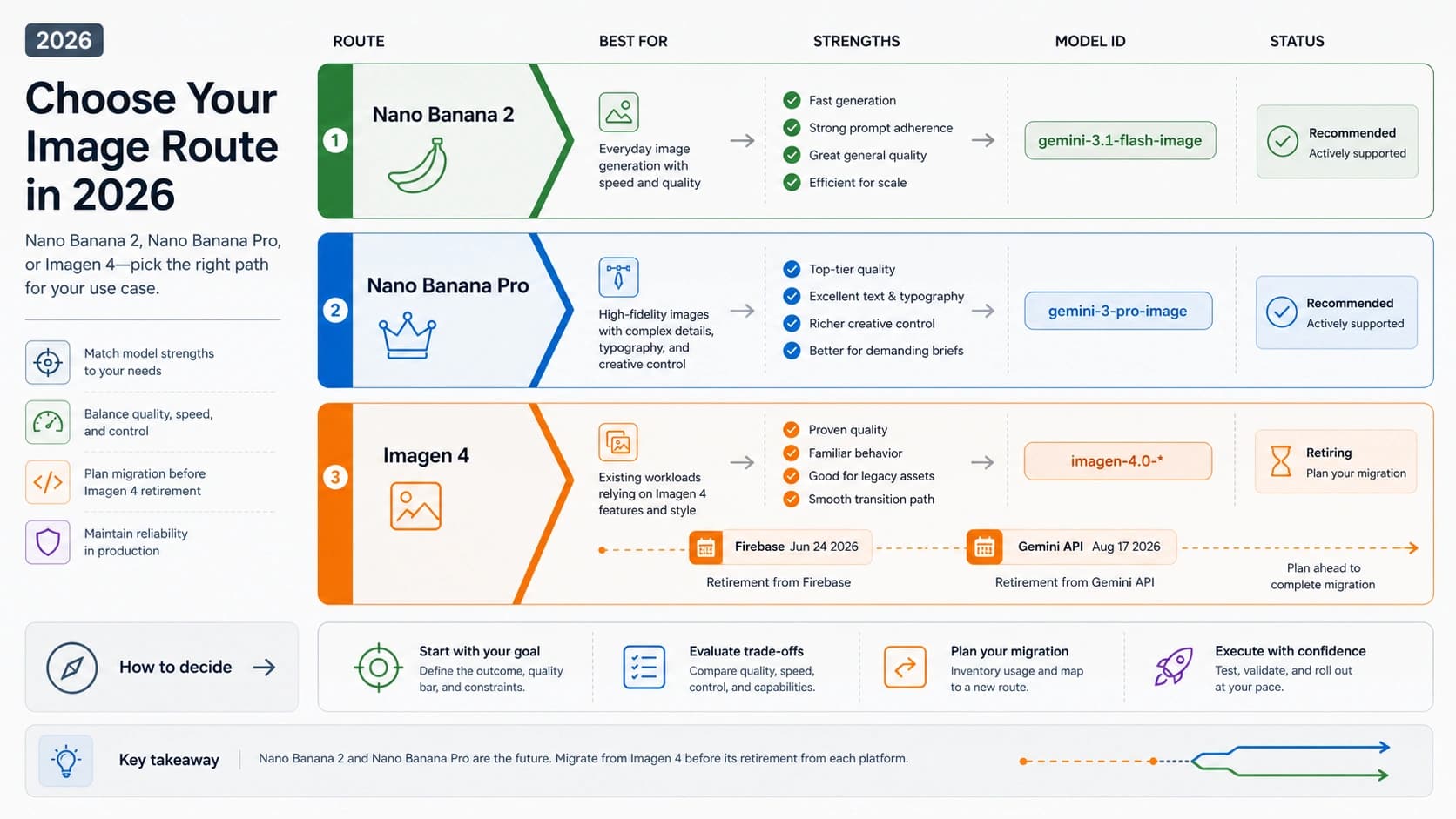
For API users who cannot find Nano Banana Pro, the issue is typically model selection. The current model identifier for Nano Banana Pro is gemini-3-pro-image-preview (ai.google.dev, February 2026). The original Nano Banana model uses gemini-2.5-flash-image, and Google recently announced Gemini 3.1 Pro Preview though it is not yet widely available for image generation. If you are using an older model identifier, an outdated SDK version, or referencing documentation from before the Gemini 3 launch, your requests may be routed to a model that does not support image generation. Always verify you are using the current model ID from the official documentation, and ensure your SDK is updated to the latest version that supports the Gemini 3 model family. The pricing difference between models is also worth noting: Nano Banana Pro generates images at $0.134 per 1K/2K image and $0.24 per 4K image, while the faster Nano Banana (Flash) model generates at $0.067 per 1K/2K image and $0.12 per 4K image (ai.google.dev/pricing, February 2026). If you do not need Pro-level quality, switching to the Flash model can halve your costs while maintaining good quality for most use cases.
API-Specific Errors for AI Studio and Vertex AI
Developers building applications on top of Nano Banana Pro through either Google AI Studio or Vertex AI encounter a distinct set of errors related to authentication, quota management, and platform-specific configuration. These API-level errors differ from the user-facing errors discussed above because they often have nothing to do with the image generation itself — they are infrastructure and configuration problems that prevent your request from reaching the model in the first place. For a complete Nano Banana Pro API integration guide, our dedicated article walks through setup from scratch.
Authentication failures (403 errors) in the API context almost always trace back to one of three causes: an invalid or expired API key, a project without billing enabled, or incorrect IAM permissions on Vertex AI. For Google AI Studio, verify that your API key was generated from the same project where billing is configured, and that the key has not been rotated or revoked. For Vertex AI, authentication is more complex because it uses service account credentials rather than API keys — ensure your service account has the aiplatform.endpoints.predict permission and that your application is correctly loading the service account JSON credentials. A common mistake is using Google AI Studio API keys with Vertex AI endpoints or vice versa; these are separate systems with different authentication mechanisms.
Quota exhaustion manifests differently from rate limiting (429 errors). While 429 errors are temporary and resolve by waiting, quota exhaustion means you have consumed your allocated budget for the billing period. Check your quota usage in the Google Cloud Console under IAM & Admin > Quotas, and request quota increases if needed. The relationship between billing tiers and quotas is important to understand: Tier 1 (paid billing account linked) provides up to 300 RPM, Tier 2 ($250+ total spend, 30+ days) provides higher limits, and Tier 3 ($1,000+ total spend, 30+ days) provides the highest available limits (ai.google.dev/rate-limits, February 2026).
SDK version incompatibility is an increasingly common source of errors as Google rapidly iterates on the Gemini API. If you are getting unexpected 400 Bad Request errors or seeing error messages about unsupported parameters, your SDK version may be out of date. The Gemini API has undergone significant changes between major versions, and using an SDK that predates the current model may send malformed requests. The most common SDK-related issues include using the older generative-ai Python package instead of the current google-genai package, passing deprecated parameters like generation_config fields that have been renamed or removed, and referencing model identifiers that have been superseded by newer versions. Always pin your SDK version explicitly in your dependency management (for example, google-genai>=1.0.0 in your requirements.txt), test against the latest version in a staging environment before upgrading production, and check the official SDK changelog for breaking changes. When in doubt, create a minimal test script that sends a single request with the simplest possible prompt to isolate whether the issue is in your SDK configuration or in your specific request parameters.
A key difference that enterprise users should understand is how error behavior differs between Google AI Studio and Vertex AI. During the January 2026 incident, Vertex AI experienced more severe and prolonged 429 errors than the Google AI Studio endpoint. Vertex AI requests also pass through additional infrastructure layers (load balancers, IAM checks, VPC routing) that can introduce latency and additional failure points. If you are building a reliability-critical application, consider implementing a fallback from Vertex AI to the direct Gemini API endpoint (or vice versa) to improve overall availability.
hljs python# Dual-endpoint fallback pattern
import google.generativeai as genai
def generate_with_fallback(prompt, primary="vertex", max_retries=3):
"""Try primary endpoint, fall back to secondary on failure."""
endpoints = {
"vertex": {"project": "your-project", "location": "us-central1"},
"ai_studio": {"api_key": "your-api-key"}
}
for endpoint_name in [primary, "ai_studio" if primary == "vertex" else "vertex"]:
for attempt in range(max_retries):
try:
if endpoint_name == "ai_studio":
genai.configure(api_key=endpoints["ai_studio"]["api_key"])
model = genai.GenerativeModel("gemini-3-pro-image-preview")
return model.generate_content(prompt)
else:
# Vertex AI endpoint logic
pass
except Exception as e:
if attempt == max_retries - 1:
print(f"{endpoint_name} failed after {max_retries} attempts, trying fallback...")
break
time.sleep(2 ** attempt)
raise Exception("All endpoints exhausted")
Prevention — How to Avoid Errors Entirely

Every section above focuses on fixing errors after they occur, but the most effective strategy is preventing errors from happening in the first place. No other troubleshooting guide covers proactive error prevention, which is why this section exists: to transform you from a reactive troubleshooter into a proactive system designer. The prevention strategies below apply whether you are a developer building an application, a designer generating images through the Gemini app, or a business owner managing a team's AI image generation workflow.
Rate limit monitoring is the foundation of error prevention. Rather than waiting for a 429 error to tell you that you have hit a limit, actively track your usage against your tier's limits. For API users, the Gemini API response headers include rate limit information that you can parse and log. Build a simple dashboard or alerting system that warns you when usage reaches 80% of any dimension (RPM, RPD, or TPM). This early warning gives you time to throttle requests, switch to batch processing, or temporarily route traffic to an alternative endpoint before errors begin. For Gemini app users who do not have access to API headers, the simplest monitoring approach is to track the number of images generated per session and set personal limits below the known thresholds for your subscription tier — 2 per day for free, approximately 100 per day for Pro ($19.99/month), and up to 1,000 per day for Ultra ($99.99/month), based on community reports.
Cost budget setup prevents both financial surprises and quota exhaustion. In Google Cloud Console, configure billing alerts at 50%, 80%, and 100% of your monthly budget. For the Gemini API specifically, set project-level quotas that cap daily spending below your comfort threshold. This is especially important when using higher-cost features like 4K image generation at $0.24 per image, where a runaway script generating thousands of images could result in unexpected charges — a batch of 1,000 4K images costs $240, which can accumulate rapidly during development and testing phases. Budget alerts do not stop spending automatically, so pair them with quota limits that enforce hard caps. The combination of soft alerts and hard quota caps creates a safety net that prevents both gradual budget creep and sudden spending spikes from runaway processes or unexpected traffic surges. Teams working on production applications should assign a dedicated billing admin who reviews spending patterns weekly and adjusts quotas based on actual usage trends rather than setting arbitrary limits that may be too restrictive or too permissive.
Smart request scheduling distributes your API usage evenly across time to avoid hitting RPM limits during bursts. Instead of sending 100 requests as fast as possible and immediately hitting a 5-10 RPM free tier limit, implement a request queue that spaces requests at consistent intervals. For batch processing, schedule heavy workloads during off-peak hours (late evening to early morning Pacific Time) when Google's infrastructure experiences lower overall load, reducing the probability of both 429 rate limit errors and 500/502 server errors. For a deeper dive into finding the most cost-effective Nano Banana Pro API access, our pricing comparison guide analyzes all available options. Third-party providers like laozhang.ai can serve as a reliability layer in your architecture — routing requests through a provider with its own request management, retry logic, and multi-endpoint failover eliminates most error categories before they reach your application, at approximately $0.05 per image without rate limiting (documentation at docs.laozhang.ai).
Frequently Asked Questions
How long should I wait after a 429 error?
For RPM (requests per minute) limits, waiting 60 seconds is sufficient because the limit window resets every minute. For RPD (requests per day) limits, you must wait until midnight Pacific Time when the daily counter resets. If you are unsure which dimension triggered the error, start by waiting 60 seconds — if the error persists, you have likely hit the RPD limit and will need to wait until the next day or upgrade your billing tier to access higher limits.
Can I increase my rate limit without paying?
The free tier limits are fixed at approximately 5-10 RPM and 100 RPD. The only way to increase limits is to link a billing account (Tier 1), which increases limits to up to 300 RPM and 10,000 RPD. Further increases require accumulating spending: $250+ total spend for Tier 2 and $1,000+ total spend for Tier 3, each with a 30-day waiting period since first payment (ai.google.dev/rate-limits, February 2026).
Why does Nano Banana Pro block safe images?
This is almost always a Layer 2 IMAGE_SAFETY filter issue. Layer 2 examines the generated image output, not your prompt text. Even if your prompt describes something completely safe, the generated image might contain elements that trigger the output filter — for example, skin tones, poses, or compositions that the filter interprets as potentially inappropriate. The solution is prompt engineering: add explicit context about the commercial or educational nature of the image, specify clothing details precisely, and avoid ambiguous descriptions that the model might interpret in unintended ways.
What is the difference between Error 429 and Error 503?
Error 429 (RESOURCE_EXHAUSTED) means you personally have exceeded your allocated rate limit — it is specific to your API key and billing tier. Error 503 (Service Unavailable) means Google's service is temporarily down or overloaded for all users. The fix for 429 is to wait for your personal limit to reset or upgrade your tier. The fix for 503 is to retry with exponential backoff, as it indicates a server-side issue that will resolve on its own.
How do I use Nano Banana Pro API without errors?
The key to error-free API usage is implementing three layers of protection: first, use exponential backoff with jitter for all API calls to handle transient errors automatically; second, monitor your usage against your tier's limits and throttle requests before hitting thresholds; third, implement a fallback strategy (secondary endpoint, request queuing, or alternative provider) for when the primary endpoint is unavailable. The production-ready Python code examples in this guide provide the foundation for all three layers. In practice, teams that implement all three layers report error rates below 1% in production, compared to 15-30% for applications that only handle errors reactively. The upfront engineering investment is modest — typically a few hours of work — but the long-term reliability improvement is dramatic and directly translates to better user experiences and lower operational costs from reduced debugging time and wasted API calls.
Nano Banana Pro
4K-80%Google Gemini 3 Pro · AI Inpainting
Google Native Model · AI Inpainting