Nano Banana API 401 Unauthorized Error: Complete Fix Guide 2025
Fix the 401 Unauthorized error when using Nano Banana (Gemini) API. Learn common causes including invalid API keys, endpoint mismatches, and leaked credentials. Step-by-step solutions with code examples for Python and Node.js.
Nano Banana Pro
4K-80%Google Gemini 3 Pro · AI Inpainting
谷歌原生模型 · AI智能修图

The 401 Unauthorized error is one of the most frustrating issues developers face when working with the Nano Banana (Gemini) API. You've set up your code, configured what you believe is a valid API key, and yet every request returns that dreaded authentication failure. The error message provides little context: "Request had invalid authentication credentials. Expected OAuth 2 access token, login cookie or other valid authentication credential."
This guide provides a systematic approach to diagnosing and fixing 401 errors with the Nano Banana API. Based on analysis of common developer issues and official documentation, we'll walk through every possible cause and its solution. By the end, you'll not only fix your current error but also understand how to prevent authentication issues in the future.
Understanding the 401 Unauthorized Error
Before diving into fixes, it's important to understand what a 401 error actually means. In HTTP terms, 401 indicates that the request lacks valid authentication credentials. For the Gemini/Nano Banana API, this specifically means:
- The API key is missing from the request
- The API key is present but invalid
- The API key has been revoked or blocked
- The wrong authentication method is being used for the endpoint
- The credentials are correct but improperly formatted
The 401 error differs from 403 Forbidden in a crucial way: 401 means "I don't know who you are," while 403 means "I know who you are, but you're not allowed." This distinction matters because it tells us the problem is with authentication itself, not permissions.
When you see a 401 from the Gemini API, the response typically includes one of these messages:
| Error Message | Likely Cause |
|---|---|
| "API keys are not supported by this API" | Wrong endpoint (Vertex AI vs Gemini API) |
| "Request had invalid authentication credentials" | Invalid or expired API key |
| "Your API key was reported as leaked" | Key was publicly exposed and blocked |
| "No auth credentials found" | Key not included in request |
| "Expected OAuth 2 access token" | Using API key with OAuth-only endpoint |
Understanding which message you're receiving is the first step to fixing the issue.
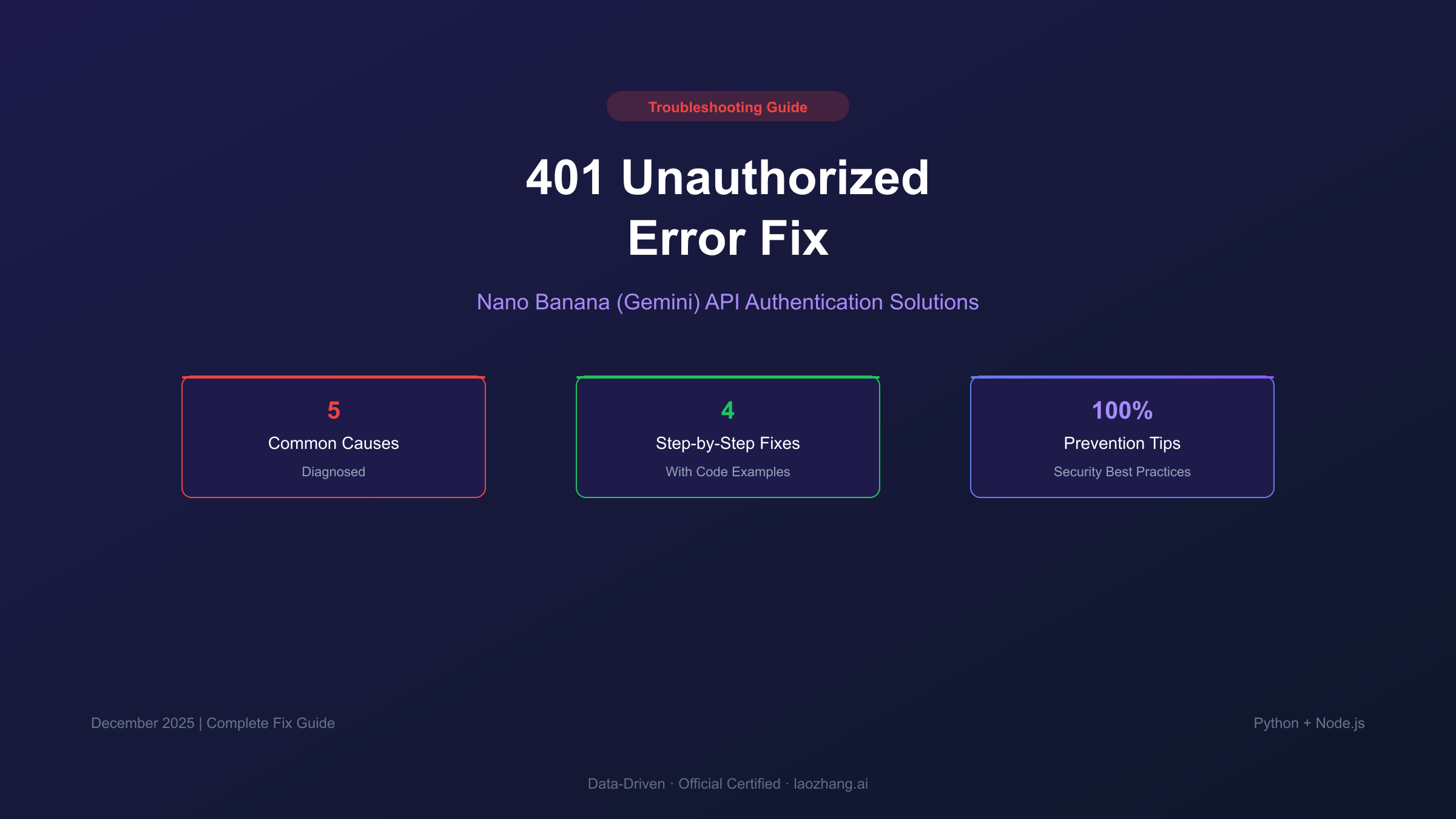
Common Causes of 401 Errors
Through analyzing developer forums, GitHub issues, and official documentation, five primary causes account for the vast majority of 401 errors with the Nano Banana API.
Cause #1: Invalid or Missing API Key
The most straightforward cause: your API key is simply wrong. This happens when:
- Copying the key included extra whitespace or characters
- The key was regenerated but code wasn't updated
- Environment variable isn't being read correctly
- Hardcoded key has a typo
Cause #2: Vertex AI Endpoint Mismatch
A significant percentage of 401 errors stem from endpoint confusion. The Gemini API has two distinct endpoints with different authentication requirements:
| Endpoint | URL | Authentication |
|---|---|---|
| Gemini API (Standard) | generativelanguage.googleapis.com | API Key |
| Vertex AI | aiplatform.googleapis.com | OAuth2 Token |
If your application sends an API key to the Vertex AI endpoint, you'll receive: "API keys are not supported by this API. Expected OAuth2 access token." This is particularly common when using third-party tools or extensions that default to Vertex AI.
Cause #3: Leaked API Key
Google actively monitors for publicly exposed API keys. If your key appears in a public GitHub repository, Stack Overflow post, or any indexed content, Google will automatically block it. You'll receive: "Your API key was reported as leaked. Please use another API key."
Blocked keys cannot be unblocked—you must generate a new one.
Cause #4: Incorrect Environment Variable Configuration
The Gemini SDK libraries automatically look for GEMINI_API_KEY or GOOGLE_API_KEY environment variables. Common issues include:
- Variable name misspelled
- Variable set in wrong shell profile (.bashrc vs .zshrc)
- Variable not exported
- New terminal session needed after setting
Cause #5: External Domain Restrictions
Some developers report 401 errors when calling the API from web applications hosted on external domains (like Netlify or Vercel), while the same code works within Google's environments. This suggests potential CORS or domain validation issues on Google's backend.
Quick API Key Verification
Before attempting complex fixes, verify your API key is actually valid. Here's a simple test you can run immediately.
Python Verification Test
hljs pythonimport os
from google import genai
# Method 1: Check environment variable
api_key = os.environ.get("GEMINI_API_KEY")
if not api_key:
print("ERROR: GEMINI_API_KEY environment variable not set")
exit(1)
print(f"API Key found: {api_key[:10]}...{api_key[-4:]}")
# Method 2: Test API connection
try:
client = genai.Client(api_key=api_key)
models = list(client.models.list())
print(f"SUCCESS: API key valid. Found {len(models)} available models")
except Exception as e:
print(f"ERROR: API key validation failed - {e}")
cURL Verification Test
hljs bash# Replace YOUR_API_KEY with your actual key
curl -s "https://generativelanguage.googleapis.com/v1beta/models?key=YOUR_API_KEY" | head -20
If the cURL command returns model data, your key is valid. If it returns an error, the key itself is the problem.
Node.js Verification Test
hljs javascriptconst { GoogleGenerativeAI } = require("@google/generative-ai");
const apiKey = process.env.GEMINI_API_KEY;
if (!apiKey) {
console.error("ERROR: GEMINI_API_KEY not set");
process.exit(1);
}
console.log(`API Key found: ${apiKey.slice(0, 10)}...${apiKey.slice(-4)}`);
const genAI = new GoogleGenerativeAI(apiKey);
async function testKey() {
try {
const model = genAI.getGenerativeModel({ model: "gemini-2.5-flash" });
const result = await model.generateContent("Say hello");
console.log("SUCCESS: API key valid");
} catch (error) {
console.error(`ERROR: ${error.message}`);
}
}
testKey();
Fix #1: Generate a New API Key
If verification reveals your key is invalid or blocked, generating a new key is the solution.
Step 1: Access Google AI Studio
Navigate to Google AI Studio. Sign in with the same Google account you used previously.
Step 2: Check Existing Keys
In the API Keys section, look for your existing key. If it shows a warning icon or "blocked" status, that confirms it's been revoked—likely due to exposure.
Step 3: Generate New Key
Click "Create API Key." Choose either:
- Create API key in new project: Creates a fresh project (recommended if previous project has issues)
- Create API key in existing project: Uses your current project
Copy the new key immediately—you won't be able to view it again.
Step 4: Update Your Application
Replace the old key everywhere it appears:
- Environment variables
- Configuration files
- CI/CD secrets
- Any deployment platforms
Step 5: Secure the New Key
Add your key to a .env file (never commit this file):
hljs bash# .env file
GEMINI_API_KEY=your_new_api_key_here
Update your .gitignore:
hljs bash# Add to .gitignore
.env
.env.local
.env*.local
Fix #2: Correct the API Endpoint
If you're getting "API keys are not supported by this API," you're using the wrong endpoint. Here's how to fix it for different scenarios.
For Direct API Calls
Ensure you're calling the standard Gemini API endpoint:
hljs python# WRONG - Vertex AI endpoint (requires OAuth)
base_url = "https://aiplatform.googleapis.com/v1/..."
# CORRECT - Gemini API endpoint (accepts API key)
base_url = "https://generativelanguage.googleapis.com/v1beta/..."
For the Official Python SDK
The SDK uses the correct endpoint by default, but verify you're not overriding it:
hljs pythonfrom google import genai
# Correct initialization - uses Gemini API automatically
client = genai.Client(api_key="YOUR_API_KEY")
# If you need to specify explicitly
client = genai.Client(
api_key="YOUR_API_KEY",
# Do NOT set vertex=True unless using OAuth
)
For Third-Party Extensions (VS Code, etc.)
Many VS Code extensions and CLI tools have settings that control which endpoint to use. Look for options like:
useVertexAI: falseisVertex: falseapiProvider: "google-ai-studio"(not "vertex-ai")
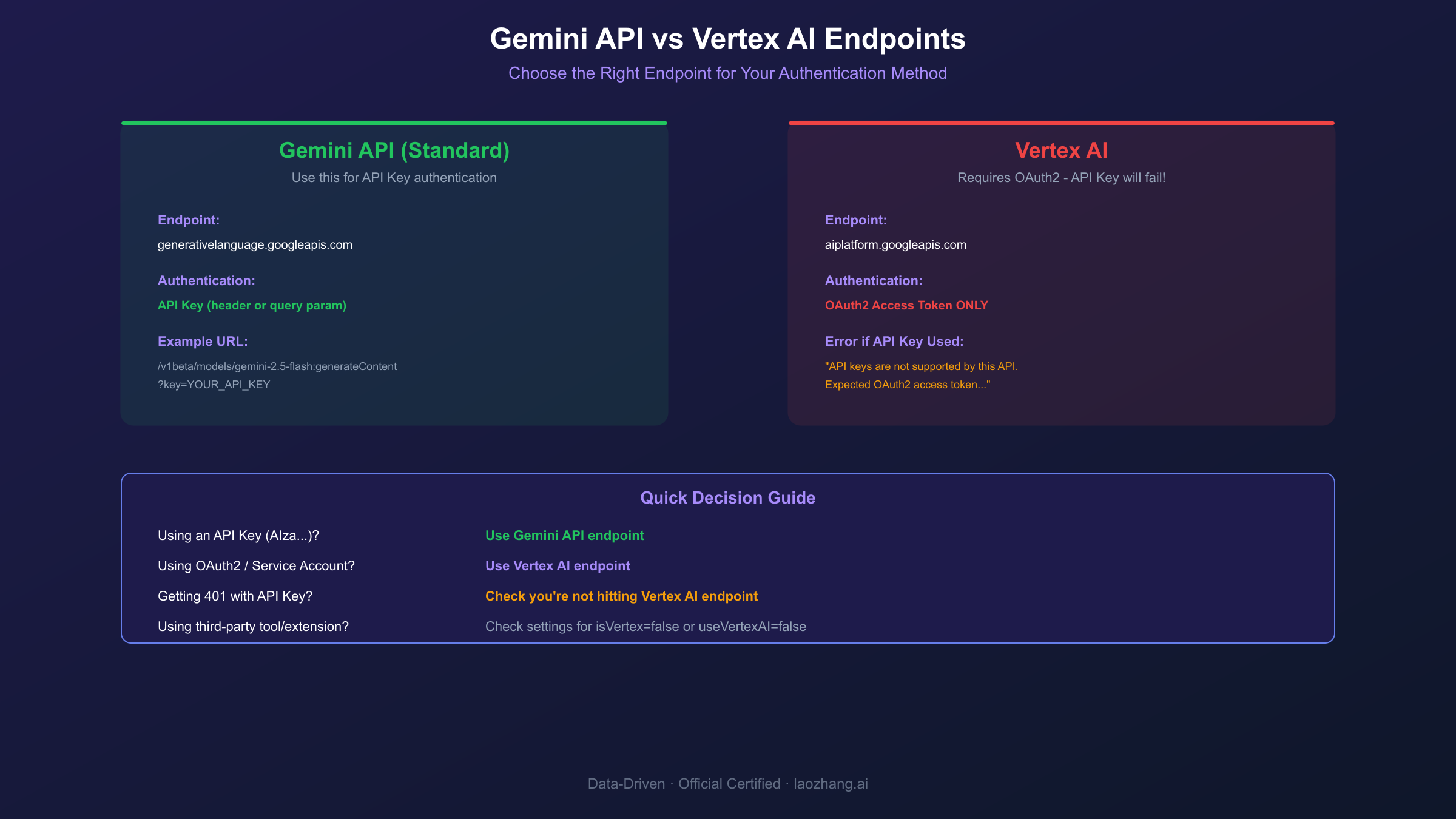
Endpoint Quick Reference
| Use Case | Endpoint | Auth Method | Example URL |
|---|---|---|---|
| Standard API | generativelanguage.googleapis.com | API Key | /v1beta/models/gemini-2.5-flash:generateContent |
| Vertex AI | aiplatform.googleapis.com | OAuth2 | /v1/projects/PROJECT/locations/REGION/publishers/... |
| OpenAI-compatible | Varies by provider | API Key | Provider-specific |
Fix #3: Environment Variable Configuration
Proper environment variable setup is critical for the Gemini SDK to find your key automatically.
Linux/macOS (Bash)
hljs bash# Add to ~/.bashrc
export GEMINI_API_KEY="your_api_key_here"
# Apply changes
source ~/.bashrc
# Verify
echo $GEMINI_API_KEY
macOS (Zsh - Default since Catalina)
hljs bash# Add to ~/.zshrc
export GEMINI_API_KEY="your_api_key_here"
# Apply changes
source ~/.zshrc
# Verify
echo $GEMINI_API_KEY
Windows (PowerShell)
hljs powershell# Set for current session $env:GEMINI_API_KEY = "your_api_key_here" # Set permanently (User level) [Environment]::SetEnvironmentVariable("GEMINI_API_KEY", "your_api_key_here", "User") # Verify echo $env:GEMINI_API_KEY
Windows (Command Prompt)
hljs cmd# Set for current session set GEMINI_API_KEY=your_api_key_here # Set permanently (requires admin or System Settings) setx GEMINI_API_KEY "your_api_key_here"
Using .env Files (Recommended for Projects)
Install python-dotenv:
hljs bashpip install python-dotenv
Create .env file:
hljs bashGEMINI_API_KEY=your_api_key_here
Load in Python:
hljs pythonfrom dotenv import load_dotenv
import os
load_dotenv() # Load .env file
api_key = os.getenv("GEMINI_API_KEY")
Common Environment Variable Issues
| Problem | Symptom | Fix |
|---|---|---|
| Variable name wrong | Key not found | Use exact name: GEMINI_API_KEY |
| Quotes included in value | Auth fails | Remove quotes from value in shell config |
| Terminal not reloaded | Old value persists | Run source ~/.bashrc or open new terminal |
| Set in wrong profile | Works in one shell, not another | Add to all profiles (.bashrc AND .zshrc) |
Fix #4: Recover from a Leaked Key
If your API key was publicly exposed, Google has likely already blocked it. Here's how to recover.
Step 1: Confirm the Key is Blocked
Run the verification test from earlier. If you see "Your API key was reported as leaked," the key is confirmed blocked.
Step 2: Check Where It Leaked
Common exposure points:
- Public GitHub repositories
- Stack Overflow answers
- Blog posts or tutorials
- Client-side JavaScript code
- Logs pushed to public services
Step 3: Remove the Exposed Key
- Delete from any public repositories
- Edit or delete Stack Overflow posts
- Update blog posts
- Rotate any credentials that were stored alongside the key
Step 4: Generate New Key
Follow the steps in Fix #1 to create a new API key.
Step 5: Implement Prevention Measures
Prevent future leaks with these practices:
- Never hardcode keys in source files
- Use
.gitignorefor all secret files - Use environment variables or secret managers
- Enable git pre-commit hooks to scan for secrets
- Use GitHub's secret scanning alerts
Git Pre-commit Hook Example
Create .git/hooks/pre-commit:
hljs bash#!/bin/bash
# Scan for potential API keys
if git diff --cached | grep -qE "AIza[0-9A-Za-z_-]{35}"; then
echo "ERROR: Possible Gemini API key detected in commit"
echo "Please remove the key and use environment variables"
exit 1
fi
Make it executable:
hljs bashchmod +x .git/hooks/pre-commit
Prevention: Security Best Practices
Following these practices will prevent 401 errors caused by security issues.
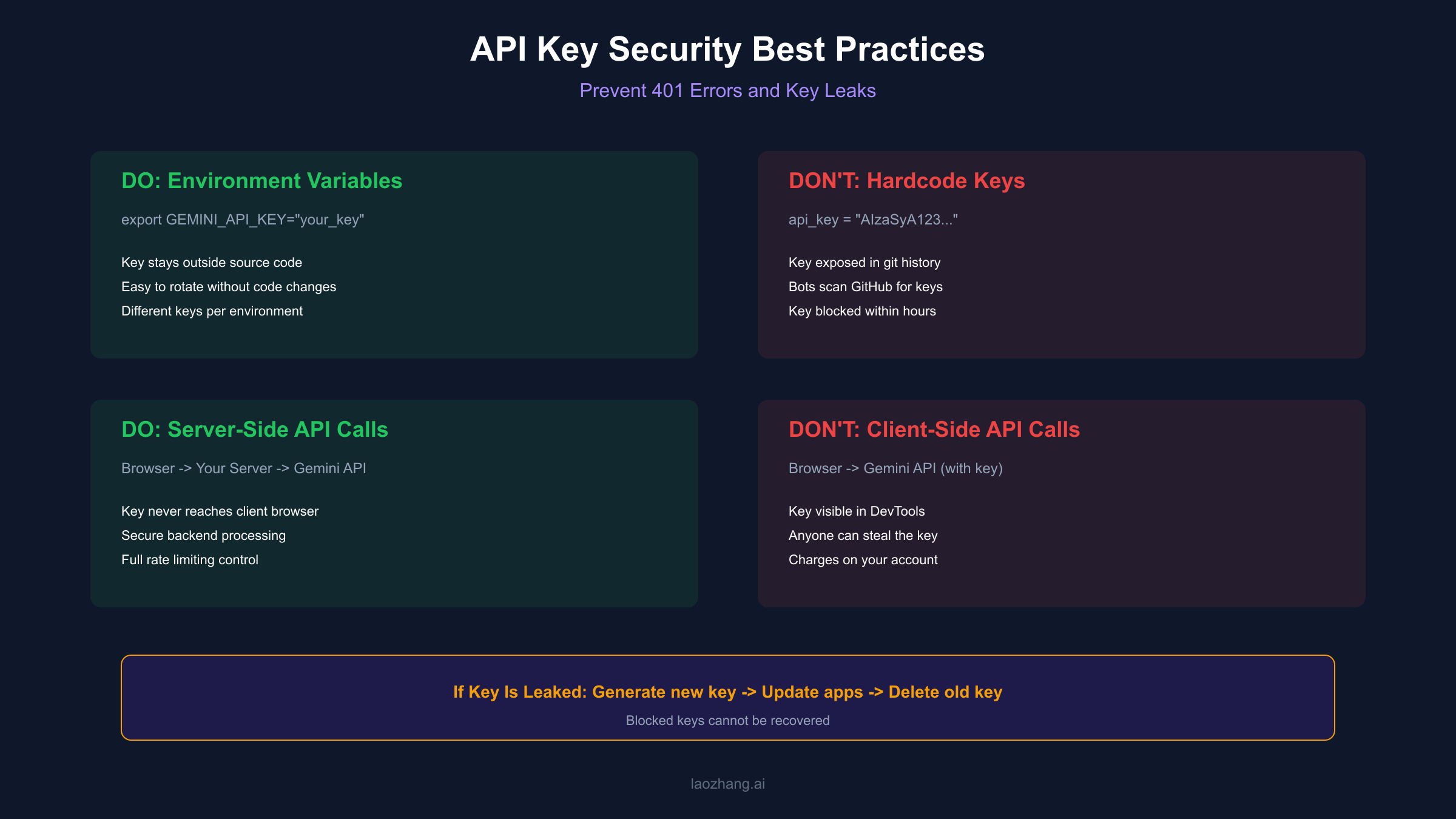
Rule 1: Never Hardcode API Keys
hljs python# WRONG - Key exposed in source code
client = genai.Client(api_key="AIzaSyA123...")
# CORRECT - Key from environment
client = genai.Client(api_key=os.environ["GEMINI_API_KEY"])
Rule 2: Use Server-Side Calls Only
Never call the Gemini API directly from browser JavaScript. Always proxy through your backend:
hljs javascript// WRONG - Exposes key in browser
const response = await fetch(
"https://generativelanguage.googleapis.com/v1beta/models/gemini-2.5-flash:generateContent?key=YOUR_KEY"
);
// CORRECT - Call your own server, which holds the key
const response = await fetch("/api/generate", {
method: "POST",
body: JSON.stringify({ prompt: userPrompt })
});
Rule 3: Restrict API Keys
In Google Cloud Console, add restrictions to your API key:
- Limit to specific IP addresses (for servers)
- Limit to specific referrer URLs (for web apps)
- Limit to only the Generative Language API
Rule 4: Rotate Keys Regularly
Even if you believe your key is secure, rotate it periodically:
- Generate new key
- Update all applications
- Verify new key works
- Delete old key
Rule 5: Monitor Usage
Set up billing alerts in Google Cloud Console to detect unusual API usage that might indicate key compromise.
Alternative Solution: Third-Party API Providers
If you continue experiencing issues with the official Gemini API—whether due to regional restrictions, persistent authentication problems, or rate limiting (429 errors)—third-party API providers offer a reliable alternative.
laozhang.ai provides access to Gemini models (including Nano Banana/Nano Banana Pro) through an OpenAI-compatible API. Key benefits include:
- No regional restrictions: Access from any location without VPN
- Simplified authentication: Standard API key that works consistently
- OpenAI SDK compatibility: Minimal code changes required
- Cost-effective: Competitive pricing with transparent billing
Integration Example
hljs pythonfrom openai import OpenAI
# Connect via laozhang.ai
client = OpenAI(
api_key="sk-your-laozhang-key",
base_url="https://api.laozhang.ai/v1"
)
response = client.chat.completions.create(
model="gemini-2.5-flash-image", # Nano Banana
messages=[{"role": "user", "content": "Describe this image"}]
)
print(response.choices[0].message.content)
This approach eliminates endpoint confusion (always use the same base URL) and provides stable authentication that doesn't suffer from the 401 issues common with the official API.
For more details on accessing Nano Banana Pro through third-party providers, see our Nano Banana Pro Third-Party API Guide.
Troubleshooting Checklist
Use this checklist to systematically diagnose 401 errors:
Authentication Basics
- API key is set in environment variable
- Variable name is exactly
GEMINI_API_KEYorGOOGLE_API_KEY - Key doesn't have extra whitespace or quotes
- Terminal was reloaded after setting variable
Key Validity
- Key works in cURL test
- Key is not marked as blocked in AI Studio
- Key was generated recently (not expired/rotated)
- Key hasn't been publicly exposed
Endpoint Configuration
- Using
generativelanguage.googleapis.com(not Vertex AI) - Using API key authentication (not OAuth2)
- SDK/library not overriding endpoint settings
- Third-party tools configured for Gemini API (not Vertex)
Code Implementation
- Key is being read correctly in code
- No typos in environment variable name
- Using correct SDK version
- Request format matches API requirements
Frequently Asked Questions
Why does my 401 error mention OAuth2 when I'm using an API key?
This indicates you're hitting the Vertex AI endpoint instead of the standard Gemini API endpoint. Vertex AI only accepts OAuth2 tokens, not API keys. Change your endpoint to generativelanguage.googleapis.com.
Can I recover a blocked API key?
No. Once Google blocks a key for being leaked, it cannot be unblocked. You must generate a new key and update all your applications.
Why does my key work in Google AI Studio but fail in my code?
Common causes include: incorrect environment variable setup, extra whitespace in the key, or your code using the wrong endpoint. Verify with the cURL test to isolate whether it's a key issue or code issue.
How quickly does Google block leaked keys?
Very quickly—often within hours. Automated bots continuously scan public repositories and forums for API keys. If your key appears in any indexed content, assume it will be detected.
Is there a way to test my API key without making a billable request?
Yes, listing models is a free operation. Use client.models.list() in the SDK or the /models endpoint in REST to verify authentication without incurring charges.
What's the difference between GEMINI_API_KEY and GOOGLE_API_KEY?
Both work, but if both are set, GOOGLE_API_KEY takes precedence. For clarity, use GEMINI_API_KEY exclusively when working with the Gemini API.
Conclusion
The 401 Unauthorized error with the Nano Banana API, while frustrating, almost always traces back to one of five causes: invalid API key, wrong endpoint, leaked credentials, misconfigured environment variables, or external domain issues. By systematically working through the verification steps and fixes in this guide, you can resolve authentication failures and get back to building.
Key takeaways:
- Always verify first: Run the cURL test to confirm whether your key is valid
- Check your endpoint: Gemini API uses API keys; Vertex AI uses OAuth2
- Protect your keys: Never hardcode, always use environment variables
- Have alternatives: If official channels fail, laozhang.ai provides reliable access
For additional troubleshooting resources, consult the official Gemini API troubleshooting guide or join the Google AI Developer Forum. If you're experiencing regional access issues, check our Gemini region restriction guide for additional solutions.