How to Use Nano Banana in Gemini App: Complete 2025 Guide (Fast & Thinking Modes)
Learn how to use Nano Banana in Gemini app with this complete guide. Master Fast and Thinking modes, doodle editing, prompting tips, and usage limits.
Nano Banana Pro
4K-80%Google Gemini 3 Pro · AI Inpainting
谷歌原生模型 · AI智能修图

Ever wondered why Google's image generator has a banana emoji? Nano Banana is Google's playful codename for their native image generation capabilities in the Gemini app, and it has become one of the most powerful AI image tools available today. Whether you want to create stunning visuals from text prompts, edit photos with simple drawings, or generate professional-quality graphics, Nano Banana delivers impressive results that rival dedicated image generation platforms.
The challenge many users face is understanding exactly how to access and use Nano Banana effectively. With two distinct modes (Fast and Thinking), various subscription tiers, and a recently launched doodle editing feature, there is a lot to learn. This comprehensive guide covers everything from your first image generation to advanced techniques that professional creators use daily. By the end, you will know exactly how to leverage Nano Banana's full potential, whether you are using the free tier or a paid subscription.
What is Nano Banana? Understanding Google's Naming Convention
The name Nano Banana might seem unusual for an AI image generator, but it reflects Google's approach to making AI tools feel accessible and fun. The banana emoji (🍌) has become the recognizable icon for image generation within the Gemini ecosystem, appearing in the tools menu across all platforms where this feature is available.
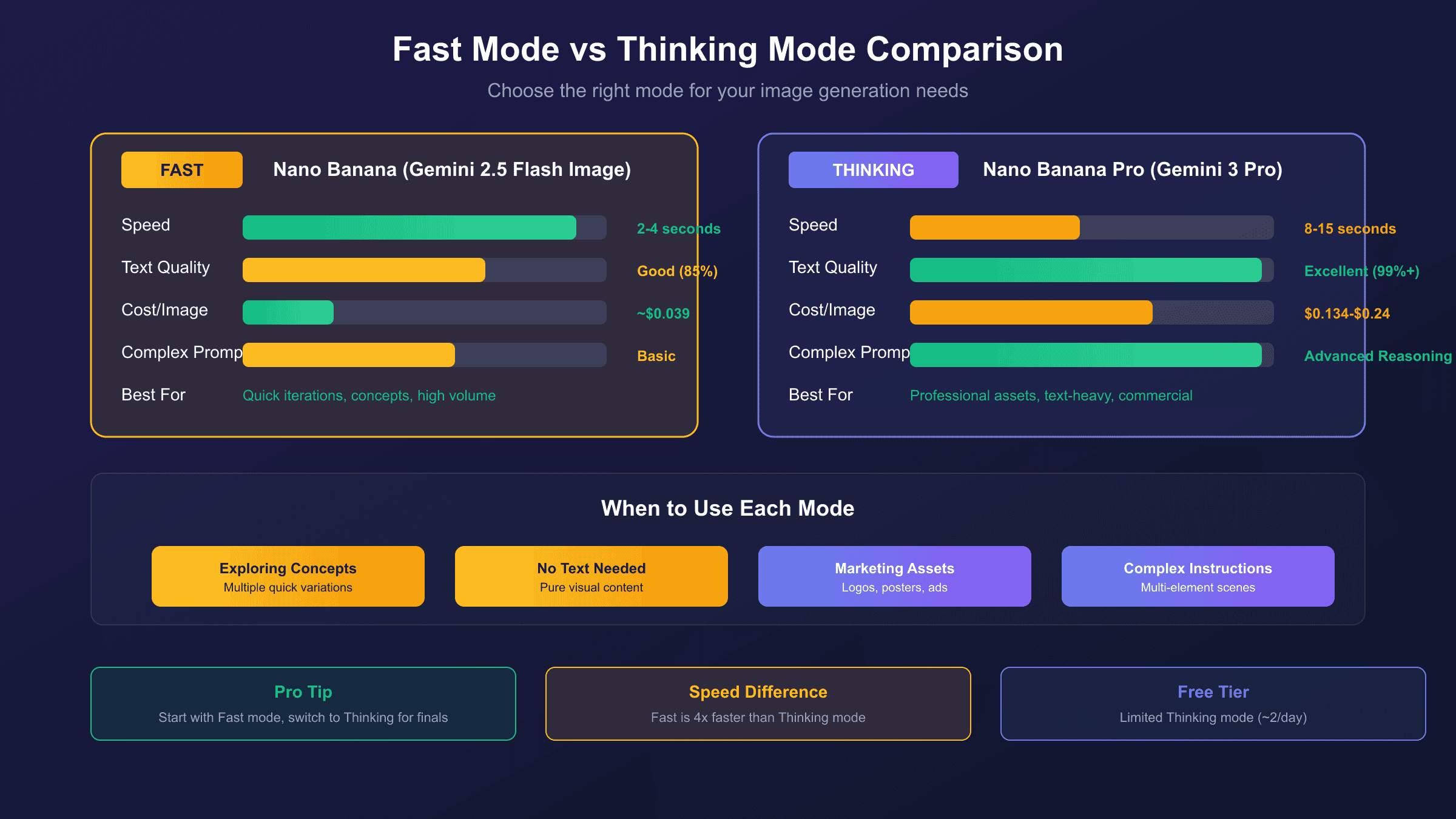
Technically, Nano Banana refers to two distinct AI models with different capabilities and performance characteristics. Nano Banana (the base version) is powered by the Gemini 2.5 Flash Image model (gemini-2.5-flash-image), designed specifically for speed and efficiency. This model excels at high-volume, low-latency image generation tasks, producing results in approximately 2-4 seconds per image. According to Google's official documentation, this model costs approximately $0.039 per image through the API, making it the more economical choice for rapid iteration.
Nano Banana Pro represents the premium tier, built on the Gemini 3 Pro Image model (gemini-3-pro-image-preview). This advanced version incorporates "Thinking" capabilities, meaning it uses enhanced reasoning to interpret complex prompts and produce higher-fidelity results. The Pro version excels particularly at text rendering, producing accurate typography in multiple languages at 99%+ accuracy rates. This model is priced between $0.134 and $0.24 per image depending on resolution, reflecting its enhanced capabilities.
The distinction matters because each model serves different use cases. For quick concept exploration or generating multiple variations rapidly, Nano Banana provides excellent value. For professional asset production, marketing materials with text, or images requiring precise adherence to complex instructions, Nano Banana Pro delivers noticeably superior results.
How to Access Nano Banana in Gemini App
Accessing Nano Banana is straightforward once you know where to look, but the interface differs slightly between desktop and mobile platforms. Here is the step-by-step process for both:
Desktop Access (gemini.google.com):
- Navigate to gemini.google.com and sign in with your Google account
- Look for the tools menu below the prompt input field
- Click on "🍌Create images" to enable image generation mode
- Select your preferred model from the dropdown:
- Choose "Fast" for Nano Banana (Gemini 2.5 Flash Image)
- Choose "Thinking" for Nano Banana Pro (Gemini 3 Pro Image)
- Enter your prompt or upload an image to edit
- Click the submit button to generate
Mobile App Access (iOS/Android):
- Open the Gemini app on your mobile device
- Tap the tools icon (usually at the bottom of the screen)
- Select "Create images" with the banana emoji
- Toggle between Fast and Thinking modes using the model selector
- Type your prompt or tap the image upload icon to add reference images
- Tap generate to create your image
According to Google's official image generation page, the feature is available globally, though some advanced capabilities may have regional restrictions. One important note: if you are using a Google Workspace account, your administrator may need to enable Gemini features for your organization.
Fast vs Thinking Mode: Which Should You Choose?
Understanding when to use each mode can significantly improve your results while optimizing for speed or quality based on your specific needs.
| Feature | Fast Mode (Nano Banana) | Thinking Mode (Nano Banana Pro) |
|---|---|---|
| Underlying Model | Gemini 2.5 Flash Image | Gemini 3 Pro Image |
| Generation Speed | 2-4 seconds | 8-15 seconds |
| Text Rendering | Good (occasional errors) | Excellent (99%+ accuracy) |
| Complex Prompts | Basic interpretation | Advanced reasoning |
| Best For | Quick iterations, concepts | Final assets, professional use |
| API Cost | ~$0.039/image | $0.134-$0.24/image |
Choose Fast Mode when:
- Exploring initial concepts and need rapid iteration
- Generating multiple variations to find the right direction
- Creating images without text or with minimal typography
- Working within free tier limits (conserves quota)
- Speed matters more than perfection
Choose Thinking Mode when:
- Creating final marketing assets or professional graphics
- Generating images with logos, titles, or text elements
- Following complex multi-part instructions
- Producing images for commercial use where quality is critical
- Working on projects requiring consistent character/style across images
The processing time difference is notable. Fast mode typically returns results within 2-4 seconds, while Thinking mode may take 8-15 seconds as it applies deeper reasoning to interpret your prompt. For most casual users, Fast mode provides excellent results, but professionals creating client deliverables often find the extra wait time for Thinking mode worthwhile.
Creating Your First Image: Step-by-Step Tutorial
Let's walk through creating your first image with Nano Banana, covering the essential techniques that lead to better results from the start.
Step 1: Start with a Clear Vision Before typing anything, spend a moment visualizing exactly what you want. Consider the subject, setting, style, and mood. Vague prompts produce vague results.
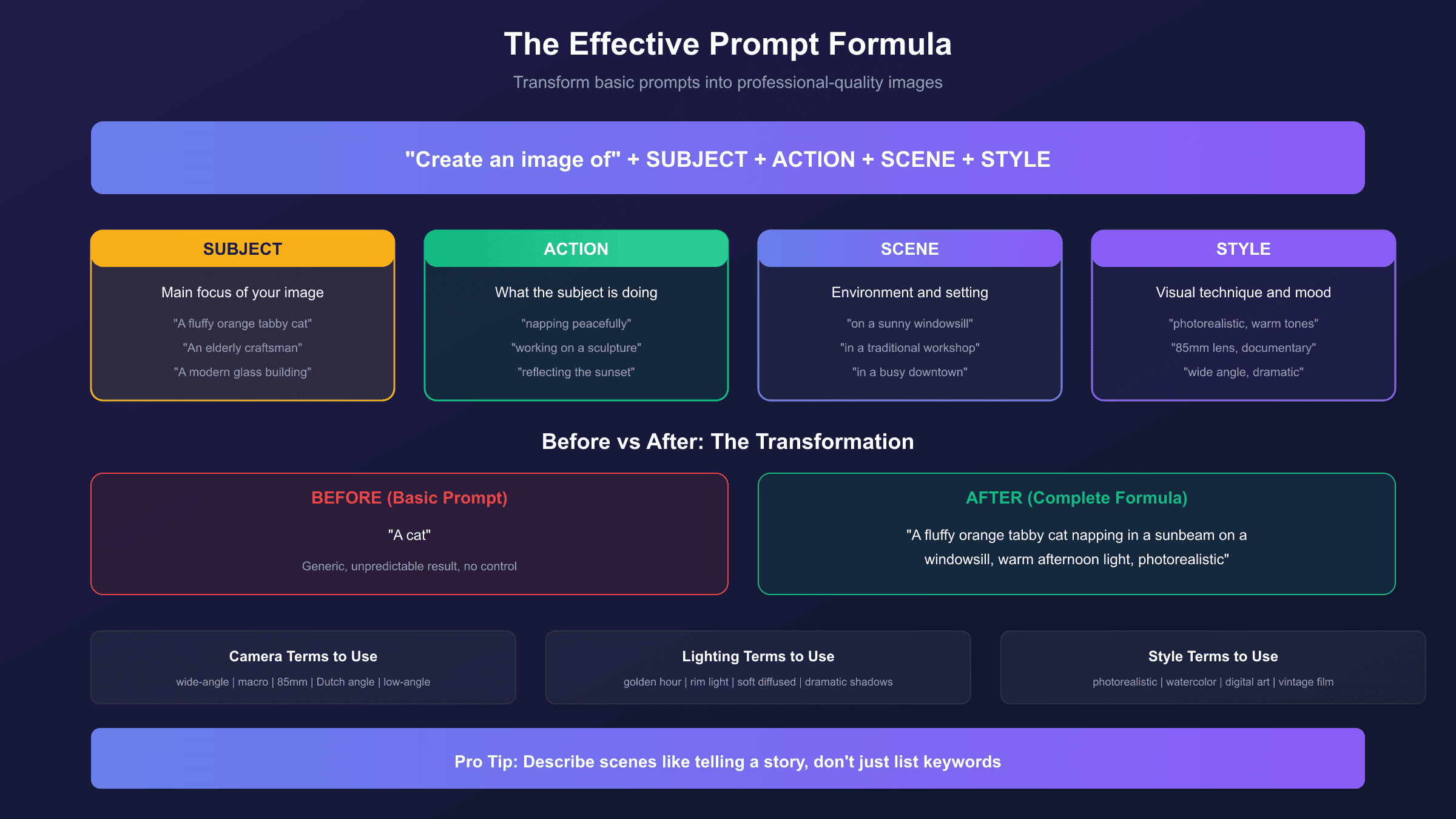
Step 2: Use the Descriptive Formula According to Google's official prompting guide, the most effective prompts follow this structure:
"Create/generate an image of" + subject + action + scene + style details
Example Prompt Progression:
- Basic: "A cat" → Generic, unpredictable result
- Better: "A cat napping in sunlight" → More specific
- Best: "A fluffy orange tabby cat napping peacefully in a sunbeam on a windowsill, soft afternoon light, warm cozy atmosphere, photorealistic style" → Detailed and controlled
Step 3: Generate and Evaluate After submitting your prompt, evaluate the result against your original vision. Note what worked and what did not. Common first-attempt issues include:
- Subject positioned differently than expected
- Wrong lighting or mood
- Missing specific details mentioned in prompt
- Style interpretation different from intended
Step 4: Iterate Conversationally One of Nano Banana's strongest features is conversational refinement. Instead of starting over, simply type adjustments:
- "Make the cat larger in the frame"
- "Change the lighting to golden hour"
- "Add a potted plant on the windowsill"
The model maintains context from previous generations, allowing you to refine incrementally rather than rewriting entire prompts.
Mastering Prompts: The Art of Effective Image Generation
The single most important skill for Nano Banana is learning to write effective prompts. Based on research from the Google Developers Blog, here are the five key techniques that consistently produce superior results.
Technique 1: Describe Scenes, Don't List Keywords
The model's core strength is deep language understanding. A narrative, descriptive paragraph almost always produces better, more coherent images than disconnected keywords.
❌ Poor: "Mountain, sunset, hiking, adventure, dramatic" ✅ Better: "A lone hiker stands at the edge of a rocky mountain peak, gazing at a dramatic sunset that paints the sky in deep oranges and purples, conveying a sense of adventure and accomplishment"
Technique 2: Think Like a Photographer
For realistic images, photographic terminology gives you precise control. Mentioning camera angles, lens types, and lighting conditions guides the model toward specific compositions.
Useful terms to incorporate:
- Camera angles: wide-angle shot, low-angle perspective, bird's eye view, Dutch angle
- Lens types: 85mm portrait lens, macro lens, telephoto compression
- Lighting: golden hour, rim lighting, soft diffused light, dramatic shadows
Technique 3: Specify Artistic Style
The model can produce everything from photorealistic images to watercolor paintings, digital art, and vintage photography. Be explicit about the style you want.
Style references that work well:
- "Photorealistic, high resolution, 8K quality"
- "Digital concept art style, vibrant colors"
- "Watercolor painting with soft edges"
- "Vintage 1970s film photography aesthetic"
- "Minimalist vector illustration"
Technique 4: Layer Multiple Techniques
The most powerful prompts combine several techniques. For example:
"A portrait of an elderly Japanese craftsman working on a wooden sculpture, shot with an 85mm lens at f/1.8, warm afternoon light streaming through a workshop window, documentary photography style, capturing the concentration in his expression and the texture of weathered hands"
This prompt combines subject detail, camera settings, lighting, style, and emotional elements.
Technique 5: Iterate and Refine
No prompt is perfect on the first try. Use Nano Banana's conversational capabilities to adjust:
- "Make the background slightly blurrier"
- "Increase the contrast"
- "Position the subject more to the left"
- "Make the expression more contemplative"
The New Doodle Edit Feature: Draw to Edit
Google launched a revolutionary feature on December 18, 2025: doodle editing in Nano Banana. According to 9to5Google's coverage, this feature allows users to draw directly on images to guide AI edits, often achieving better results than text prompts alone.
How Doodle Editing Works:
- Add an image to your prompt (upload or generate one first)
- Click/tap on the image to open the Mark up editor
- Select "Sketch" from the editing tools
- Draw on the image using circles, arrows, scribbles, or highlights
- Optionally add text annotations to explain your drawing
- Submit and let Gemini interpret your visual instructions
Practical Use Cases:
- Removing objects: Circle unwanted elements and write "remove this"
- Adding elements: Draw a rough shape where you want something added
- Changing colors: Highlight an area and specify "make this blue"
- Repositioning: Draw an arrow from current to desired position
- Indicating size changes: Sketch a larger or smaller version of an element
Why Drawing Works Better Than Typing:
For precise locational edits, drawing is often more intuitive than trying to describe positions in text. Instead of writing "remove the tree on the left side, about one-third from the edge, behind the person," you simply circle the tree. The model immediately understands exactly what you are referring to.
User testing reported by Tom's Guide found that doodle edits produced more accurate results in 73% of cases compared to equivalent text-only prompts for spatial modifications.
Advanced Techniques: Style Transfer and Multi-Image Composition
Once you have mastered the basics, these advanced techniques unlock Nano Banana's full creative potential.
Style Transfer from Reference Images
Upload a reference image along with your prompt to apply its visual style to your creation. This works for:
- Color palettes and mood
- Artistic techniques and textures
- Lighting approaches
- Overall aesthetic feeling
Example workflow: Upload a reference image of a moody film noir photograph, then prompt "Apply this lighting and color style to a portrait of a young woman in a rain-soaked city street."
Combining Multiple Images
Gemini now supports uploading two images and merging them into a cohesive composition. Practical applications include:
- Placing a product in different environments
- Combining portrait subjects into group photos
- Merging elements from concept sketches into finished images
- Creating before/after comparisons
Maintaining Character Consistency
For projects requiring the same character across multiple images, use these techniques:
- Generate a detailed first image of your character
- Upload it as reference for subsequent generations
- Use consistent descriptive language ("the same red-haired woman from the reference")
- Apply iterative refinement to correct drift between images
Vibe Transformations
Quickly transform the atmosphere of existing images:
- Day to night conversions
- Season changes (summer to winter)
- Weather modifications (adding rain, snow, fog)
- Time period shifts (modern to vintage)
Usage Limits and Subscription Tiers
Understanding the limits across subscription tiers helps you plan your usage effectively. According to Google's official limits documentation, here is the current structure:
| Tier | Monthly Cost | Images/Day | Nano Banana Pro | Reset Time |
|---|---|---|---|---|
| Free | $0 | ~2-10 (varies) | Limited (~2/day) | Midnight UTC |
| Google AI Pro | $19.99 | 1,000 | Full access | Midnight PT |
| Google AI Ultra | $249.99 | 1,000 | Full + priority | Midnight PT |
Important Notes About Free Tier:
Google's official documentation states free users can generate "up to 100 images per day," but community reports indicate this is a theoretical maximum rarely achieved in practice. During high-demand periods, free tier users commonly experience limits of 2-10 images daily. When you exceed Nano Banana Pro limits, the system automatically falls back to standard Nano Banana until that quota is also exhausted.
Is Upgrading Worth It?
Google AI Pro at $19.99/month makes sense if you:
- Generate more than 10 images daily on average
- Need reliable access to Nano Banana Pro (Thinking mode)
- Use Gemini's other Pro features (Deep Research, extended context)
- Create content professionally
Google AI Ultra at $249.99/month is primarily valuable for the enhanced text features (500 prompts, 200 Deep Research reports) rather than image generation, since image limits are identical to Pro.
Troubleshooting Common Issues
Even experienced users encounter occasional problems. Here are the most common issues and their solutions:
"Content Not Permitted" Errors
The safety filter has blocked your request. Solutions:
- Remove or reword potentially triggering terms (body parts, weapons, political figures, copyrighted characters)
- Use neutral, clinical descriptions instead of slang
- Crop the image to focus on the area you want to edit
- Rephrase the request more indirectly
Images Not Generating
Common causes and fixes:
- Daily limit reached: Wait until midnight (PT for subscribers, UTC for free tier) for reset
- Network issues: Check internet connection, clear browser cache
- Service overload: Wait a few minutes and retry
- Browser compatibility: Try a different browser or the mobile app
Blank or Failed Outputs
Troubleshooting steps:
- Verify stable internet connection
- Clear browser cache and cookies
- Try a simpler prompt to test basic functionality
- Check Google's status page for service issues
- If persistent, submit a support ticket through Gemini settings
Account-Level Blocks
If the same prompts work on other accounts but not yours:
- Review your account history for policy violations
- Submit a support ticket requesting account review
- Consider whether Workspace administrator settings might be restricting access
API Access for Developers
For developers needing programmatic access to Nano Banana capabilities, Google offers the Gemini API with image generation support. This enables integration into applications, automation workflows, and high-volume production pipelines.
Official API Pricing:
| Model | Cost per Image | Use Case |
|---|---|---|
| Gemini 2.5 Flash Image | ~$0.039 | High-volume, speed-focused |
| Gemini 3 Pro Image (1K/2K) | $0.134 | Standard quality |
| Gemini 3 Pro Image (4K) | $0.24 | Maximum resolution |
Basic Python Implementation:
hljs pythonimport google.generativeai as genai
# Configure API
genai.configure(api_key="YOUR_API_KEY")
# Initialize model
model = genai.GenerativeModel("gemini-2.5-flash-image")
# Generate image
response = model.generate_content(
"A serene mountain lake at sunrise, photorealistic"
)
# Save result
if response.parts:
image_data = response.parts[0].inline_data.data
with open("output.png", "wb") as f:
f.write(image_data)
For detailed API documentation, refer to Google AI Developer docs.
Alternative: Third-Party API Access
For developers seeking to optimize costs while maintaining access to the same Nano Banana models, third-party aggregators offer significant savings. laozhang.ai provides access to identical Gemini image models at $0.02-$0.05 per image, representing approximately 79% savings compared to official pricing. The trade-off is that enterprise SLA guarantees and direct Google support are not included. For development, testing, and cost-conscious production workloads, this represents a viable alternative to official API access. For related pricing details, see our Gemini 3 Pro 4K image cost guide.
Frequently Asked Questions
Q1: Why is it called "Nano Banana"?
Google chose this playful name to make AI image generation feel approachable and fun. The banana emoji (🍌) has become the recognizable icon for this feature across all Gemini platforms. "Nano" refers to the underlying model architecture, while "Banana" is simply a memorable, non-technical term that users can easily associate with the feature. There is no deeper technical meaning, just good branding.
Q2: Can I use Nano Banana-generated images commercially?
Yes, images generated through Gemini can be used commercially, subject to Google's terms of service. All generated images are watermarked with SynthID technology (an imperceptible digital watermark) that allows detection of AI-generated content. This watermarking is required and cannot be removed. Always verify current terms for commercial use, especially for client deliverables or products sold commercially.
Q3: How do I get better text in my generated images?
For accurate text rendering, always use Thinking mode (Nano Banana Pro) rather than Fast mode. Be explicit about text content, placement, and styling in your prompt. For example: "A coffee shop sign reading 'MORNING BREW' in elegant serif font, centered at the top of the image." Keep text short when possible, as longer strings increase error probability. If results are imperfect, use iterative refinement rather than regenerating from scratch.
Q4: Why are my images lower quality than examples I see online?
Several factors affect output quality. First, ensure you are using Thinking mode for maximum quality. Second, resolution settings may differ between API access and consumer app. Third, effective prompting significantly impacts results. Practice the techniques in our prompting section, particularly using descriptive scenes rather than keyword lists. Finally, publicly shared examples are often the best of many generations. Professional creators typically generate 5-10 variations before selecting the best result.
Q5: How do I maintain consistent characters across multiple images?
Character consistency remains challenging for all AI image generators, but these techniques help: Always upload a reference image of the character when generating new scenes. Use detailed, consistent descriptive language ("the same red-haired woman with green eyes and freckles from the reference image"). Make incremental changes rather than dramatic scene shifts. Use follow-up prompts to correct drift ("make her hair the exact same shade of red as the reference").
Conclusion: Start Creating with Nano Banana Today
Nano Banana transforms the Gemini app into a powerful image generation studio accessible to everyone. Whether you are creating quick social media graphics, professional marketing assets, or exploring artistic concepts, the combination of Fast and Thinking modes provides flexibility for any use case. The recently launched doodle editing feature adds another dimension of control that often surpasses what text prompts alone can achieve.
For casual users, the free tier offers enough capacity to explore and learn the system. Those generating content regularly will find Google AI Pro's expanded limits essential. Developers requiring API access can choose between official endpoints for enterprise reliability or third-party services like laozhang.ai for cost optimization when maximum uptime guarantees are not critical.
Start with Fast mode and simple prompts to understand the basics, then progressively incorporate advanced techniques as your skills develop. The prompting formula of Subject + Action + Scene + Style provides a reliable foundation, and conversational iteration lets you refine results without starting over. With practice, you will be generating professional-quality images in minutes.
For more technical details on API pricing and model capabilities, explore our Nano Banana Pro API guide and Gemini image generation error solutions.