OpenClaw Messaging Channel Integration Guide: Slack, Discord, Telegram & WhatsApp Setup (2026)
Complete guide to integrating OpenClaw with Slack, Discord, Telegram, and WhatsApp. Covers OAuth setup, permission configuration, access control, and troubleshooting for each messaging platform.
Nano Banana Pro
4K-80%Google Gemini 3 Pro · AI Inpainting
谷歌原生模型 · AI智能修图

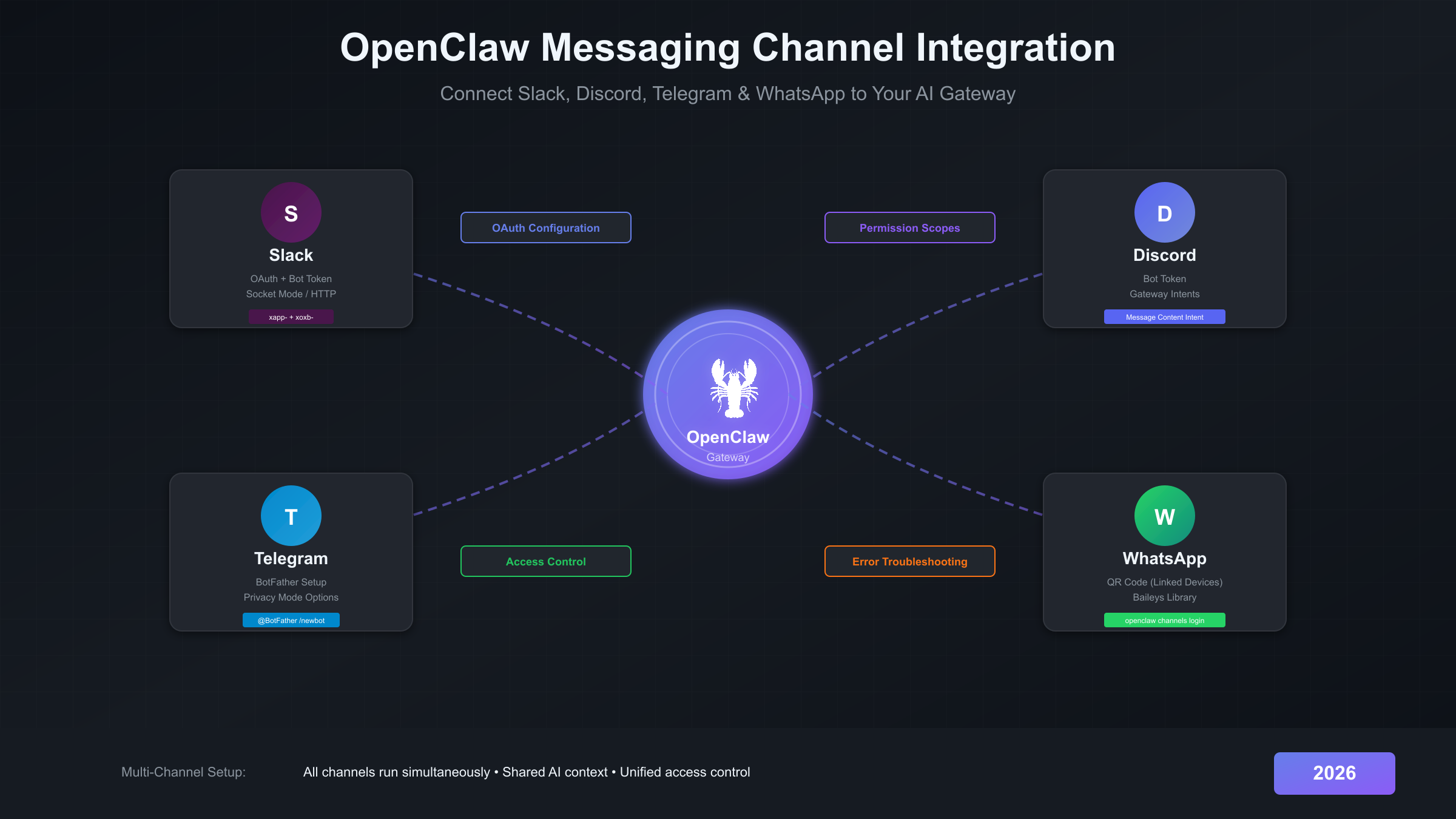
OpenClaw's real power emerges when you connect it to the messaging platforms where you already spend your time. Whether you're using Slack for work, Discord for community management, Telegram for personal messaging, or WhatsApp for staying connected with friends and family, OpenClaw can be your AI assistant across all of them simultaneously from a single Gateway.
The key to successful channel integration is understanding that each platform has its own authentication mechanism and permission model. Slack uses OAuth with App and Bot tokens, Discord requires enabling specific Gateway Intents, Telegram works through BotFather with optional privacy settings, and WhatsApp relies on the Linked Devices QR code flow. This guide walks through each platform step-by-step, with particular attention to the OAuth configuration, permission scopes, and common errors you'll encounter.
By the end of this guide, you'll have all four major channels connected to your OpenClaw Gateway, with proper access control configured to determine who can message your AI assistant and under what conditions.
Prerequisites and Gateway Setup
Before integrating any messaging channel, your OpenClaw Gateway must be running and verified. The Gateway is the central hub that receives messages from all channels and routes them to your configured AI model.
Ensure you have Node.js version 22 or higher installed—this is a hard requirement that causes mysterious failures if not met. Run node --version to verify, and use nvm to upgrade if necessary. If you haven't installed OpenClaw yet, the quickest method is the curl installer:
hljs bashcurl -fsSL https://openclaw.ai/install.sh | bash
After installation, run the onboarding wizard to configure your Gateway, model provider, and initial settings:
hljs bashopenclaw onboard
The onboarding process guides you through selecting an AI provider (Anthropic, OpenAI, Google, or others), authenticating with that provider, and starting your Gateway. Once complete, verify everything works with:
hljs bashopenclaw status openclaw doctor
If doctor reports any issues, run openclaw doctor --fix to attempt automatic repairs. The Gateway should show as "running" before you proceed to channel integration. All channel credentials will be stored in ~/.openclaw/openclaw.json under the channels section, and authentication tokens live in ~/.openclaw/credentials/.
For users who've experienced installation issues, our OpenClaw installation error guide covers common problems and their solutions.
Slack Integration
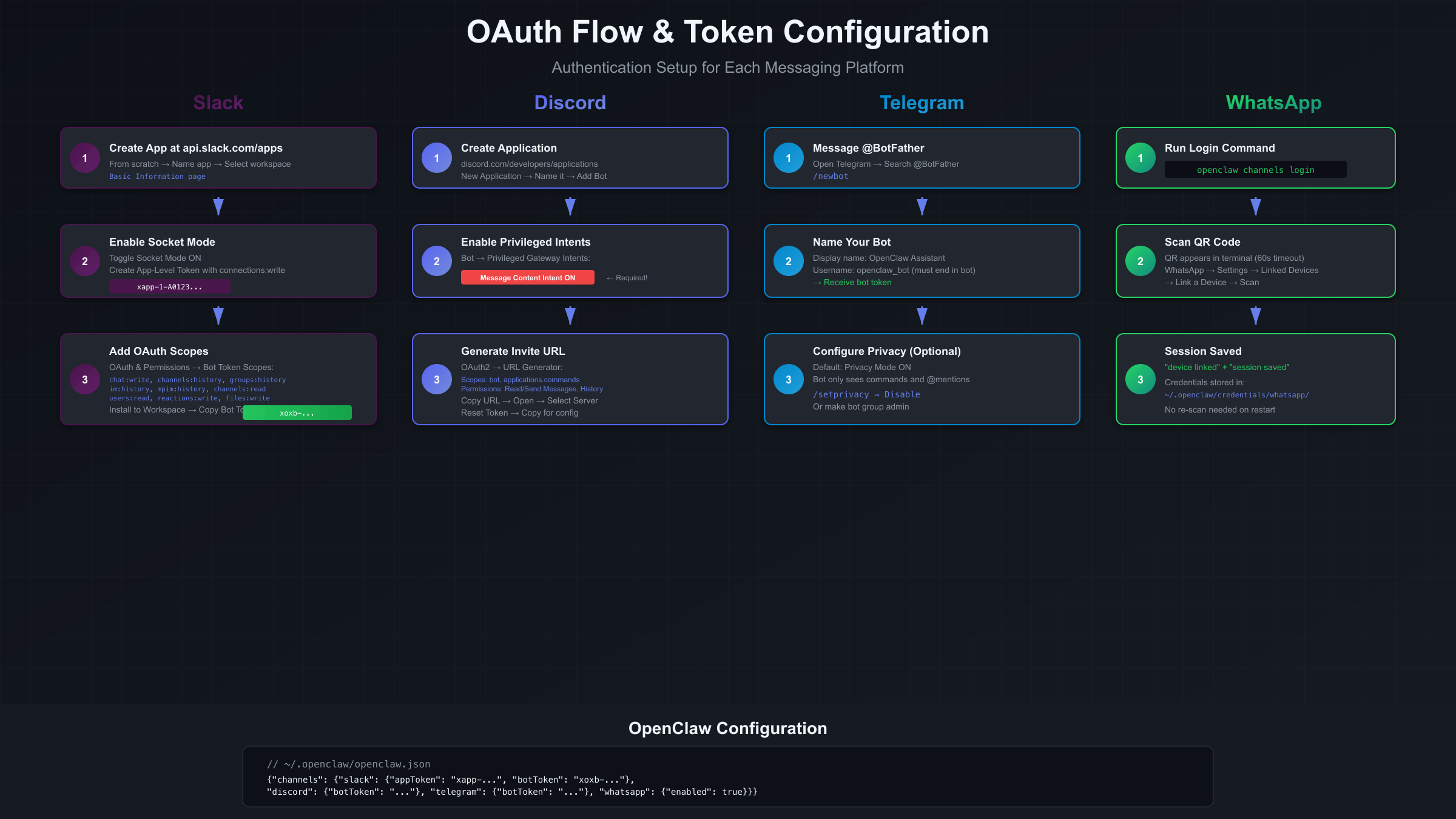
Slack integration requires two tokens: an App Token (xapp-) for Socket Mode connections and a Bot Token (xoxb-) for API operations. The setup involves creating a Slack app, configuring OAuth scopes, enabling Socket Mode, and subscribing to the events your bot needs to receive. If you're migrating from the older Clawdbot version, the channel configuration process is similar—check our Clawdbot installation guide for comparison.
Start by visiting api.slack.com/apps and clicking "Create New App." Choose "From scratch" and give your app a name like "OpenClaw" along with the workspace where you want to install it. Once created, you'll land on the app's Basic Information page.
Navigate to "Socket Mode" in the left sidebar and toggle it on. Socket Mode lets your app connect to Slack via WebSocket rather than requiring a public HTTP endpoint, which is ideal for local OpenClaw deployments. When prompted, create an App-Level Token with the connections:write scope. Copy this token—it starts with xapp- and you'll need it for your OpenClaw configuration.
Next, go to "OAuth & Permissions" and scroll down to "Scopes." Under "Bot Token Scopes," add the following:
chat:write          # Send messages
channels:history    # Read public channel messages
groups:history      # Read private channel messages
im:history          # Read direct messages
mpim:history        # Read group DMs
channels:read       # List public channels
groups:read         # List private channels
users:read          # Resolve user information
reactions:write     # Add reactions (optional)
files:write         # Upload files (optional)
The history scopes are critical—without them, your bot won't see message context in conversations. After adding scopes, scroll up and click "Install to Workspace." After authorization, copy the "Bot User OAuth Token" that starts with xoxb-.
Now configure Event Subscriptions. Go to "Event Subscriptions," toggle it on, and under "Subscribe to bot events" add:
message.channels        # Messages in public channels
message.groups          # Messages in private channels
message.im              # Direct messages
message.mpim            # Group DMs
app_mention             # When someone @mentions your bot
reaction_added          # Reactions to messages
Finally, configure OpenClaw with your tokens. Edit ~/.openclaw/openclaw.json or set environment variables:
hljs json{
"channels": {
"slack": {
"enabled": true,
"appToken": "xapp-1-...",
"botToken": "xoxb-..."
}
}
}
Restart your Gateway with openclaw gateway restart and test by messaging your bot in Slack. If the bot doesn't respond, check that Socket Mode is enabled and your App Token has the connections:write scope.
Discord Integration
Discord requires enabling Message Content Intent in the Developer Portal—without this privileged intent, your bot cannot read message text in most servers. The setup involves creating a Discord application, configuring a bot with proper intents, and inviting it to your server.
Go to discord.com/developers/applications and click "New Application." Name it "OpenClaw" or similar and accept the terms. You'll land on the General Information page for your application.
Navigate to "Bot" in the left sidebar and click "Add Bot." Under the bot configuration, you'll see several important settings:
First, enable the Privileged Gateway Intents. Scroll down to find these toggles:
- Message Content Intent: Required to read message text. Without this, your bot only sees message metadata.
- Server Members Intent: Optional, but useful for resolving user information.
- Presence Intent: Usually not needed for OpenClaw.
Next, under "Bot Token," click "Reset Token" (or "Copy" if you haven't reset before) and store this token securely. Treat it like an SSH private key—anyone with this token can control your bot.
Now generate an invite URL. Go to "OAuth2" → "URL Generator." Under "Scopes," select:
botapplications.commands
Under "Bot Permissions," select at minimum:
- Read Messages/View Channels
- Send Messages
- Read Message History
- Add Reactions (optional)
Copy the generated URL at the bottom and open it in your browser. Select your server from the dropdown and authorize the bot.
Configure OpenClaw with your bot token:
hljs json{
"channels": {
"discord": {
"enabled": true,
"botToken": "your-discord-bot-token"
}
}
}
Restart your Gateway. Test by messaging the bot in your Discord server. If the bot appears online but doesn't respond to messages, the most common cause is Message Content Intent not being enabled—go back to the Developer Portal and verify that toggle is on.
For server-specific access control, OpenClaw supports guild policies that determine which channels and users can interact with the bot. Configure these in the channels.discord.guildPolicy section of your config.
Telegram Integration
Telegram is the most straightforward channel to set up because it has a formal Bot API with BotFather handling all bot creation. The entire process takes under five minutes if you follow the steps correctly.
Open Telegram on your phone or desktop and search for "@BotFather"—this is the official Telegram bot for creating and managing bots. Start a chat with BotFather and send the command:
/newbot
BotFather will ask for a display name for your bot (like "OpenClaw Assistant") and then a username (which must end in "bot", like "openclaw_assistant_bot"). After you provide both, BotFather responds with your bot token—a long string of numbers and characters. Copy this token immediately.
Configure OpenClaw with the token:
hljs json{
"channels": {
"telegram": {
"enabled": true,
"botToken": "123456789:ABCdefGHIjklMNOpqrSTUvwxYZ"
}
}
}
Alternatively, set the environment variable TELEGRAM_BOT_TOKEN before starting your Gateway.
By default, Telegram bots operate in Privacy Mode, meaning they only receive messages that are commands (starting with /) or directly mention the bot. If you want your bot to see all messages in groups, you have two options:
Option 1: Disable Privacy Mode (via BotFather)
Send /setprivacy to BotFather, select your bot, and choose "Disable." This lets the bot see all group messages.
Option 2: Make the Bot a Group Admin Add your bot to a group and promote it to administrator. Admin bots always receive all messages regardless of privacy settings.
For most use cases, keeping Privacy Mode enabled and requiring @mentions is the better choice—it prevents the bot from processing every message in busy groups.
Optional BotFather commands to configure your bot:
/setdescription- Set the bot's profile description/setabouttext- Set the "About" text shown in the bot's profile/setuserpic- Upload a profile picture for your bot/setcommands- Register slash commands for autocomplete
Restart your Gateway and test by sending a message to your bot in Telegram. If the bot doesn't respond in groups, check whether Privacy Mode is disabled or the bot has admin rights.
WhatsApp Integration
WhatsApp integration uses the Linked Devices feature through the Baileys library, which means you're connecting an existing WhatsApp account rather than creating a new bot account. This approach has important implications: your personal phone number is tied to the bot, and only one web session can be active at a time.
The setup process involves displaying a QR code, scanning it with WhatsApp on your phone, and storing the session credentials for future Gateway restarts.
First, ensure your Gateway is running, then execute the login command:
hljs bashopenclaw channels login
A QR code appears in your terminal. Open WhatsApp on your phone, go to Settings → Linked Devices → Link a Device, and scan the QR code. The code expires after 60 seconds, so scan promptly. Once successful, you'll see "device linked" and "session saved" messages.
The session credentials are stored in ~/.openclaw/credentials/whatsapp/<accountId>/creds.json. As long as these credentials remain valid, you won't need to re-scan on Gateway restarts.
Configure the channel in your config:
hljs json{
"channels": {
"whatsapp": {
"enabled": true
}
}
}
OpenClaw supports multiple WhatsApp accounts in a single Gateway. To add another account, use:
hljs bashopenclaw channels login --account secondary
Then reference the account in your config with accountId: "secondary".
Important considerations for WhatsApp integration:
Dedicated Number Recommended: Using your personal WhatsApp number means all your AI interactions mix with personal messages. The ideal setup is a spare phone with an eSIM or secondary SIM dedicated to OpenClaw.
Single Session Limitation: WhatsApp only allows one linked web session per account. If you open WhatsApp Web in a browser while OpenClaw is connected, one session will be disconnected.
Session Persistence: The Baileys library maintains connection state. If your phone loses internet connectivity for extended periods, the session may need re-authentication.
Media Handling: OpenClaw can receive and process images, documents, and voice messages from WhatsApp. Check your model provider's multimodal capabilities if you need image understanding.
If QR login fails repeatedly, ensure no other WhatsApp Web sessions are active. Close any browser tabs with WhatsApp Web and wait a minute before trying again.
Multi-Channel Configuration
All OpenClaw channels run simultaneously from a single Gateway process, sharing the same AI context and memory. This means you can start a conversation on Telegram, continue it on Discord, and get answers on Slack—the AI maintains continuity across platforms.
Enable multiple channels in your configuration:
hljs json{
"channels": {
"slack": {
"enabled": true,
"appToken": "xapp-...",
"botToken": "xoxb-..."
},
"discord": {
"enabled": true,
"botToken": "..."
},
"telegram": {
"enabled": true,
"botToken": "..."
},
"whatsapp": {
"enabled": true
}
}
}
When the Gateway starts, it initializes connections to all enabled channels. Monitor the startup with:
hljs bashopenclaw logs --follow
You should see connection confirmation for each channel. If any channel fails to connect, the others continue operating—a failure in one doesn't bring down the rest.
List all configured channels and their status:
hljs bashopenclaw channels list
For deeper diagnostics on a specific channel:
hljs bashopenclaw channels describe slack openclaw channels status --probe
The --probe flag performs active connection testing rather than just checking configuration.
Each channel can have independent configuration for text limits, threading behavior, and typing indicators. For example, to customize Discord's reply threading:
hljs json{
"channels": {
"discord": {
"enabled": true,
"botToken": "...",
"replyToMode": "thread"
}
}
}
The key benefit of multi-channel operation is unified identity. Your AI assistant maintains consistent personality and context regardless of which platform you're using, while respecting the unique features and limitations of each.
Access Control
OpenClaw provides granular control over who can interact with your AI assistant through DM policies and group allowlists. Understanding these controls is essential for production deployments where you don't want arbitrary users consuming your API credits.
DM (Direct Message) policies control how the bot responds to private messages from users it doesn't know. Four policy modes are available:
| Policy | Behavior |
|---|---|
pairing | Unknown senders receive an approval code; owner must approve |
allowlist | Only users in the allowFrom list can message |
open | Allow all senders (requires "*" in allowlist) |
disabled | Ignore all DMs |
The default pairing mode works like this: when an unknown user messages your bot, they receive a pairing code. You review and approve the request with:
hljs bashopenclaw pairing list telegram openclaw pairing approve telegram ABC123
Once approved, that user is added to your allowlist and can message freely.
Configure DM policy in your channel settings:
hljs json{
"channels": {
"telegram": {
"enabled": true,
"botToken": "...",
"dmPolicy": "allowlist",
"allowFrom": ["user123", "user456"]
}
}
}
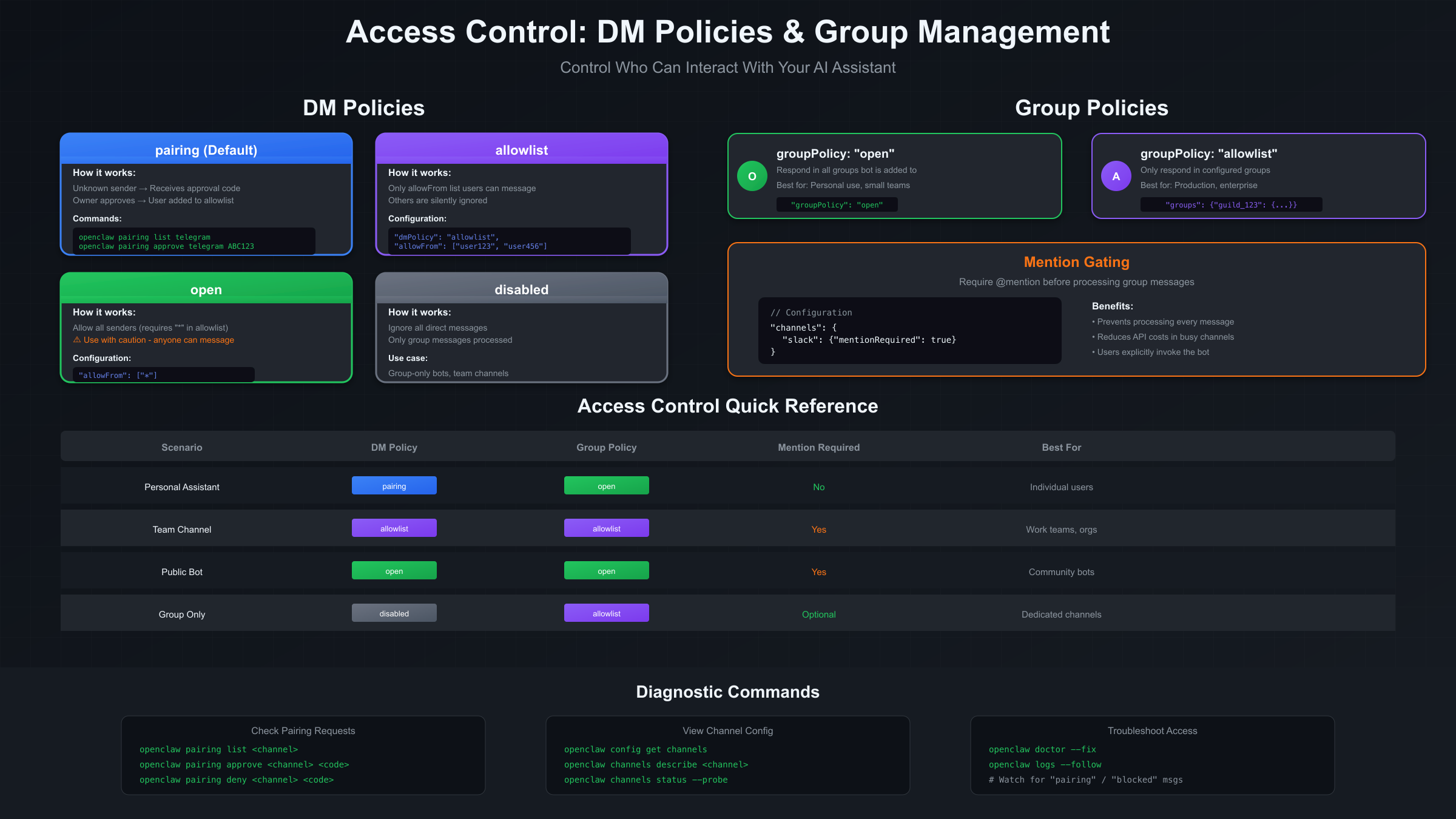
Group policies work similarly but control access in group chats. Options include:
open- Respond in all groups the bot is added toallowlist- Only respond in configured groupsdisabled- Ignore all group messages
For busy groups, mention gating requires users to @mention the bot before it responds. This prevents the bot from processing every message:
hljs json{
"channels": {
"slack": {
"groupPolicy": "open",
"mentionRequired": true
}
}
}
Per-group configuration allows different settings for different groups:
hljs json{
"channels": {
"discord": {
"groups": {
"guild_id_123": {
"allowFrom": ["user1", "user2"],
"mentionRequired": false
}
}
}
}
}
Troubleshooting Common Errors
Most channel integration failures fall into three categories: authentication errors, permission problems, and configuration mismatches. This section covers the most common errors and their fixes.
Authentication Errors
"OAuth token expired" or "Invalid token"
Tokens can expire or become invalid for various reasons. Re-authenticate using the channel-specific login command:
hljs bashopenclaw channels login # WhatsApp
openclaw models auth logout # Model provider OAuth
openclaw models auth login # Re-authenticate
For Slack and Discord, you may need to regenerate tokens in the developer portal and update your configuration.
"401 Unauthorized" or "403 Forbidden"
The bot token is either incorrect, expired, or the bot has been removed from the workspace/server. Verify the token matches what's in the developer portal. For Discord, check that the bot is still a member of the server.
Permission Errors
"missing_scope" (Slack)
You're missing a required OAuth scope. Go to api.slack.com/apps, select your app, navigate to OAuth & Permissions, add the missing scope, and reinstall the app to your workspace.
"Used disallowed intents" (Discord)
The Message Content Intent is not enabled. Go to the Discord Developer Portal, select your application, navigate to Bot settings, and toggle on "Message Content Intent" under Privileged Gateway Intents.
Bot not seeing group messages (Telegram)
Either enable Privacy Mode is still enabled, or the bot isn't an admin. Send /setprivacy to BotFather and choose Disable, or promote the bot to admin in the group settings.
Connection Errors
"Channel not responding"
Run diagnostics:
hljs bashopenclaw doctor --fix openclaw channels status --probe
Check that credentials exist in the correct location and the Gateway has network access to the platform's servers.
"pairing request" for known users
The user isn't in your allowlist or hasn't been approved. Check with:
hljs bashopenclaw pairing list <channel>
Approve pending requests or add users to allowFrom in your configuration.
QR code expired (WhatsApp)
The QR code only lasts 60 seconds. Run openclaw channels login again and scan quickly. Ensure no other WhatsApp Web sessions are active.
For persistent issues, check the logs for specific error messages:
hljs bashopenclaw logs --follow
If you're experiencing Gateway-level problems rather than channel-specific issues, our OpenClaw not responding guide covers broader troubleshooting.
Message Handling
Each messaging platform has different limits for message length, attachment types, and threading behavior. OpenClaw handles these differences automatically, but understanding them helps explain certain behaviors.
Text message limits vary by platform:
| Platform | Character Limit | Chunking |
|---|---|---|
| Slack | 4,000 | Automatic |
| Discord | 2,000 | Automatic |
| Telegram | 4,096 | Automatic |
| 4,096 | Automatic |
When a response exceeds the limit, OpenClaw automatically splits it into multiple messages. The textLimit configuration option lets you customize this behavior if needed.
Threading behavior differs across platforms. Slack has native threading, Discord has reply-to functionality, Telegram supports message chains, and WhatsApp has quoted replies. Configure how responses are threaded:
hljs json{
"channels": {
"slack": {
"replyToMode": "thread"
},
"discord": {
"replyToMode": "reply"
}
}
}
Options include:
thread- Create or continue in a threadreply- Reply to the original messagechannel- Send as a new message in the channel
Rate limiting is handled differently by each platform. OpenClaw implements sequential message processing to avoid triggering platform rate limits. If you're seeing messages delayed, this is likely intentional throttling rather than an error.
For Telegram specifically, forum topics (threads in groups) are treated as separate sessions. This means each topic maintains its own conversation context, useful for dedicated support channels.
Media handling depends on both the platform and your AI model's capabilities. Most platforms support sending images, documents, and voice messages to OpenClaw. The AI's ability to understand this media depends on whether you're using a multimodal model like Claude or GPT-4V.
Security Best Practices
Bot tokens and OAuth credentials are as sensitive as SSH keys—anyone with them can impersonate your bot. Following security best practices protects both your AI credits and the users interacting with your assistant.
Store credentials securely. OpenClaw supports system keychain storage for tokens rather than plaintext configuration files:
hljs bashopenclaw config set channels.slack.botToken --keychain
This stores the token in macOS Keychain, Windows Credential Manager, or Linux Secret Service, depending on your platform.
Use minimal permissions. Start with the smallest set of scopes and permissions that enable basic functionality. Add more only when a specific feature requires them. For Discord, don't request Administrator permission—it's almost never necessary and presents a security risk.
Rotate tokens periodically. Especially for production deployments, regenerate tokens every few months. Update your configuration and restart the Gateway after rotation.
Monitor access logs. Keep an eye on who's interacting with your bot:
hljs bashopenclaw logs --follow | grep "message received"
Set up alerting for unusual patterns like high message volumes or access from unexpected users.
Use allowlists in production. The default pairing mode is convenient for personal use, but production deployments should use explicit allowlists:
hljs json{
"channels": {
"slack": {
"dmPolicy": "allowlist",
"allowFrom": ["U12345", "U67890"]
}
}
}
Separate environments. Use different bot accounts for development and production. This prevents test messages from reaching your production AI and keeps development errors from affecting real users.
For WhatsApp specifically, consider the privacy implications. The linked phone number can see your contacts, and message metadata flows through WhatsApp's servers. Use a dedicated number if privacy is a concern.
Verification
After configuring channels, systematic verification ensures everything works before you rely on the integration. This section provides a testing checklist and commands for each step.
Start with overall Gateway health:
hljs bashopenclaw status --all openclaw doctor
Both commands should show green status with no errors.
List all configured channels:
hljs bashopenclaw channels list
Verify each enabled channel shows as "connected" or "ready."
Probe channels for active connectivity:
hljs bashopenclaw channels status --probe
This performs actual connection tests rather than just checking configuration.
Test message flow for each channel:
Slack: Send a DM to your bot. You should see the message logged and receive a response within a few seconds.
Discord: @mention your bot in a channel where it has access. Verify it responds and the response appears in the correct format.
Telegram: Send a message to your bot in a private chat. If using Privacy Mode in groups, test with an @mention.
WhatsApp: Send a message from an approved phone number. The bot should respond just like any other WhatsApp contact.
Verify access control by testing from an unapproved user or channel. The behavior should match your policy:
pairing: User receives approval codeallowlist: Message silently droppedopen: Response sent
Check logs during testing:
hljs bashopenclaw logs --follow
Watch for any errors or warnings as you send test messages. Common issues like missing permissions or scope problems appear here.
For each channel, verify threading works as expected. Send a follow-up message and confirm the AI maintains context from the previous exchange.
FAQ
Can I run OpenClaw channels without keeping the Gateway running 24/7?
The Gateway must be running to receive and respond to messages. For personal use, running the Gateway on your laptop works fine—messages queue on each platform and are processed when you start the Gateway. For production use, deploy the Gateway on a server or use Docker for persistent operation.
Which channel should I set up first?
Telegram is the easiest starting point because BotFather handles everything and there's no OAuth complexity. Once you're comfortable with how channels work, expand to Slack or Discord depending on your primary use case.
Can I use the same bot across multiple Discord servers?
Yes. The bot account is created at the application level, not the server level. Invite your bot to additional servers using the OAuth2 URL, and configure per-guild access control as needed in your OpenClaw configuration.
Why does my Slack bot need so many permission scopes?
Each scope grants access to a specific type of data. The history scopes let the bot read existing messages for context. Channel read scopes let it know which channels exist. If you're comfortable with limited functionality, you can remove optional scopes, but the bot may behave unexpectedly in certain situations.
My WhatsApp session keeps disconnecting. How do I fix it?
Ensure your phone stays connected to the internet—WhatsApp Linked Devices requires periodic phone connectivity for session validation. Also check that no other WhatsApp Web sessions are competing for the connection. For persistent issues, delete the credentials folder and re-scan the QR code.
Can I integrate channels not covered in this guide?
OpenClaw supports 12+ channels including Signal, iMessage (macOS only), MS Teams, Matrix, and others through extensions. The core concepts from this guide apply—each channel needs credentials and may have platform-specific permissions. Check the official documentation for extension channel setup.
How do I prevent the bot from responding to every message in a busy channel?
Enable mention gating with mentionRequired: true in your channel configuration. This requires users to @mention the bot before it processes their message. Works well for group channels where you want the bot available but not overwhelming.
Is there a way to test channel configuration without sending real messages?
The openclaw channels status --probe command tests connectivity without sending messages. For full end-to-end testing, create a private test channel or group where you can send test messages without disturbing others.