Clawd Bot: Complete Guide to the Open-Source Personal AI Assistant (2026)
Master Clawdbot setup and configuration. Learn installation, Discord/WhatsApp/Telegram integration, pricing breakdown, and practical automation use cases for this self-hosted AI assistant.
Nano Banana Pro
4K-80%Google Gemini 3 Pro · AI Inpainting
谷歌原生模型 · AI智能修图

Imagine having an AI assistant that lives in your WhatsApp, responds through Discord, remembers your preferences from last week, and can actually control your computer to get things done. That's exactly what Clawd Bot delivers. Unlike ChatGPT or Claude's web interfaces that forget everything when you close the tab, Clawdbot runs on your own hardware with persistent memory across all your messaging platforms.
Clawdbot has taken the developer community by storm since its late 2025 release. Created by Peter Steinberger, the founder behind PSPDFKit, this open-source project has already garnered over 8,500 GitHub stars. Federico Viticci from MacStories burned through 180 million tokens in his first week of testing, declaring it "the most fun and productive experience I've had with AI in a while."
This guide covers everything you need to get Clawdbot running: from understanding what makes it different, through installation on any operating system, to connecting your favorite messaging platforms. You'll also find real cost breakdowns, comparisons with alternatives, and practical automation ideas that can transform your daily workflow.
What is Clawdbot? The Open-Source AI Assistant Revolution
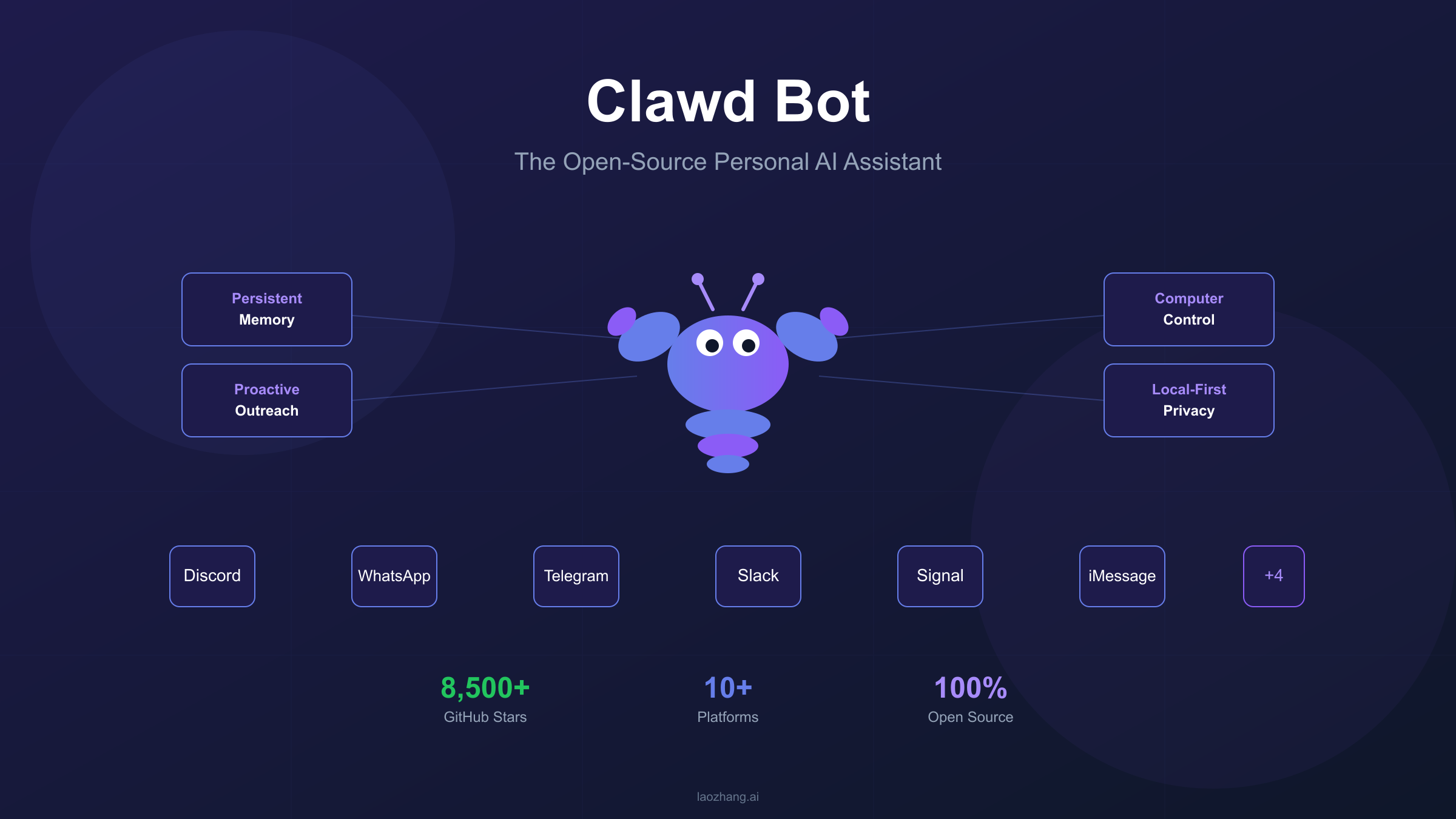
Clawdbot is a self-hosted personal AI assistant that runs locally on your devices and responds through messaging apps you already use daily. Instead of visiting a website to chat with AI, you message it through WhatsApp, Discord, Telegram, Slack, Signal, or iMessage—and it messages you back just like a human contact.
The project emerged from Peter Steinberger's personal need for an AI assistant that could integrate seamlessly into his existing workflow. He built the initial version around a playful space lobster character named Clawd, which explains the project's distinctive mascot and naming convention. What started as a personal tool quickly attracted a community of developers who recognized its potential, leading to rapid iteration and feature expansion.
The fundamental difference between Clawdbot and cloud-based AI assistants lies in its architecture. When you use ChatGPT or Claude's web interface, your conversations happen on their servers, context resets with each session, and the AI cannot take actions beyond generating text. Clawdbot flips this model entirely. Your data stays on your machine in Markdown files resembling an Obsidian vault. The AI maintains persistent memory across sessions, remembering that you mentioned a Friday meeting three weeks ago. Most importantly, it can execute real actions—browsing the web, filling forms, running shell commands, and controlling applications on your computer.
This local-first approach addresses privacy concerns that make many users hesitant about cloud AI services. Every conversation, every piece of context the AI learns about you, remains under your control. You can audit exactly what the system knows, back it up to a private Git repository, or wipe it entirely without depending on a third party's data deletion policies.
Core Features That Make Clawdbot Stand Out
The feature set that distinguishes Clawdbot from conventional AI chatbots centers on four core capabilities that cloud-based alternatives simply cannot match due to their architectural constraints.
Persistent Memory represents perhaps the most transformative feature for daily use. Traditional AI assistants suffer from context amnesia—each conversation starts fresh, requiring you to re-explain your preferences, projects, and circumstances. Clawdbot maintains continuous memory across all interactions regardless of which messaging platform you use. Tell it about your dietary restrictions in a WhatsApp message, and it remembers when you ask for recipe suggestions through Discord a month later. This persistence transforms the AI from a question-answering tool into something closer to a genuine assistant that understands your context.
Multi-Platform Messaging eliminates the friction of context-switching between apps. Clawdbot connects to WhatsApp, Telegram, Discord, Slack, Signal, iMessage, Microsoft Teams, Google Chat, Matrix, and WebChat simultaneously. The same conversation thread can flow across platforms—you might start a discussion on your laptop through Slack, continue it via WhatsApp while commuting, and pick it up again through iMessage on your iPad. All messages route to the same AI session with full context preserved.
Proactive Outreach inverts the typical chatbot interaction model. Rather than waiting passively for your queries, Clawdbot can initiate contact based on schedules, triggers, or conditions you define. Configure it to send morning briefings summarizing your calendar and important emails at 8 AM. Set up stock price alerts, weather warnings, or notifications when specific keywords appear in your RSS feeds. The AI reaches out to you through your preferred messaging channel, turning a reactive tool into an active assistant.
Computer Control enables Clawdbot to take actions beyond text generation. Given appropriate permissions, it can browse websites, fill out forms, extract data, run shell commands, and execute scripts. Users have built workflows where they describe a task in natural language—"order my usual groceries from Instacart"—and the AI handles the browser automation to complete it. This capability leverages tools like Playwright for browser control, giving the assistant hands to act on your behalf.
The Skills Ecosystem extends functionality through community-contributed modules. Skills connect Clawdbot to external services like Google Workspace, GitHub, Obsidian, Spotify, and smart home systems. Installing a skill often takes a single command, and you can build custom skills for your specific needs using the provided framework. The awesome-clawdbot-skills repository catalogs available extensions.
System Requirements and Prerequisites
Before installing Clawdbot, ensure your system meets the minimum requirements. The gateway process that handles message routing and AI communication is remarkably lightweight, but you'll need specific software versions to avoid compatibility issues.
Node.js version 22 or higher is mandatory. Older versions lack required features and will cause startup failures. Check your current version by running node --version in your terminal. If you need to upgrade, use a version manager like nvm for easy switching between Node.js versions.
Operating system compatibility covers macOS, Linux, and Windows through WSL2. Native Windows support remains experimental and is not recommended—the development team strongly suggests running within Windows Subsystem for Linux with Ubuntu. macOS users planning to build companion apps should have Xcode or Command Line Tools installed, though the core CLI functionality only requires Node.js.
Hardware requirements are surprisingly modest for personal use. The official documentation lists 512MB to 1GB RAM and approximately 500MB disk space as the minimum. A Raspberry Pi 4 can run the gateway comfortably. However, if you plan to use browser automation features extensively, 2GB or more RAM provides better headroom for Playwright and Chrome processes.
LLM access requires either API keys or OAuth authentication. Clawdbot supports multiple providers including Anthropic (Claude), OpenAI, and local models. The recommended configuration uses Anthropic's Claude models, specifically claude-opus-4-5 for its strong long-context performance and resistance to prompt injection attacks. For details on Claude's pricing structure, see our Claude Opus 4.5 pricing guide. You can authenticate using a direct API key from your Anthropic console or through Claude Pro/Max subscription OAuth if you prefer usage-based access through your existing subscription.
| Component | Minimum | Recommended |
|---|---|---|
| Node.js | v22+ | v22 LTS |
| RAM | 512MB | 2GB+ |
| Storage | 500MB | 1GB+ |
| OS | macOS/Linux/WSL2 | macOS/Linux |
Step-by-Step Installation Guide
Clawdbot offers multiple installation paths depending on your preference for convenience versus control. The quickest approach uses the automated installer, while developers who want to modify the source can clone directly from GitHub.
Method 1: One-Line Installer (Recommended)
The fastest path to a running Clawdbot instance uses the official installation script. Open your terminal and execute:
hljs bashcurl -fsSL https://clawd.bot/install.sh | bash
For Windows users running WSL2, this same command works within your Ubuntu terminal. PowerShell users on Windows can alternatively use:
hljs powershelliwr -useb https://clawd.bot/install.ps1 | iex
The script downloads the latest release, installs dependencies, and prepares your environment. After completion, verify the installation by running clawdbot --version.
Method 2: Package Manager Installation
If you prefer explicit package management, install globally through npm or pnpm:
hljs bashnpm install -g clawdbot@latest
Or with pnpm:
hljs bashpnpm add -g clawdbot@latest
This approach gives you more control over updates and makes version management straightforward through your package manager's standard commands.
Method 3: Source Installation (For Developers)
Developers who want to modify Clawdbot or contribute to its development should clone the repository directly:
hljs bashgit clone https://github.com/clawdbot/clawdbot.git
cd clawdbot
pnpm install
pnpm ui:build
pnpm build
This builds the project from source, giving you access to the full codebase for customization.
Running the Onboarding Wizard
Regardless of installation method, the next step runs the interactive onboarding wizard:
hljs bashclawdbot onboard --install-daemon
The wizard guides you through several configuration decisions:
- Gateway deployment: Choose local (runs on your machine) or remote (runs on a VPS)
- Authentication: Configure your LLM provider credentials (Anthropic API key recommended)
- Model selection: Pick your default model (claude-opus-4-5 suggested)
- Channel setup: Connect your first messaging platform
- Daemon installation: Optionally install as a background service (systemd on Linux, launchd on macOS)
After onboarding completes, start the gateway manually to verify everything works:
hljs bashclawdbot gateway --port 18789 --verbose
You should see log output indicating successful startup. The WebChat interface becomes available at http://127.0.0.1:18789/chat for testing before connecting external messaging platforms.
Setting Up Messaging Platforms
Connecting Clawdbot to your preferred messaging platforms requires platform-specific configuration. This section covers the four most popular integrations: Discord, WhatsApp, Telegram, and Slack.
Discord Integration
Discord provides robust bot infrastructure that Clawdbot leverages for server-wide or DM-based interactions. Setting up requires creating a Discord Application and configuring the bot token.
Navigate to the Discord Developer Portal and create a new application. Give it a recognizable name—"My Clawdbot" or similar. Under the Bot section in the sidebar, click "Add Bot" to create the bot user.
Enable two critical privileged intents before generating your token:
- Message Content Intent: Required to read message text in guild channels
- Server Members Intent: Recommended for user lookups and allowlist matching
Click "Reset Token" to generate a new bot token. Copy this immediately—Discord only shows it once. Store it securely; this token grants full control over your bot.
Generate an OAuth2 invite URL to add the bot to your server. Under OAuth2 → URL Generator, select these scopes: bot and applications.commands. For permissions, enable: View Channels, Send Messages, Read Message History, Embed Links, Attach Files, and Add Reactions.
Configure Clawdbot with your token through the wizard or manually edit your configuration:
hljs json{
"channels": {
"discord": {
"enabled": true,
"token": "YOUR_BOT_TOKEN"
}
}
}
Alternatively, set the DISCORD_BOT_TOKEN environment variable for production deployments where configuration files might be visible.
WhatsApp Integration
WhatsApp connection works through the Linked Devices feature, treating Clawdbot as a secondary device paired to your phone.
Run the channel login command:
hljs bashclawdbot channels login
The terminal displays a QR code. Open WhatsApp on your phone, navigate to Settings → Linked Devices → Link a Device, and scan the code. Connection establishes within seconds.
One important consideration: WhatsApp lacks a formal bot protocol like Discord or Telegram. Your Clawdbot instance functions as a linked device on your personal WhatsApp number. Messages sent by the bot appear to come from you. For dedicated bot functionality, consider using a separate phone number.
Telegram Integration
Telegram's BotFather provides a straightforward bot creation process. Open Telegram and start a conversation with @BotFather.
Send the /newbot command and follow the prompts to name your bot and choose a username. BotFather responds with your bot token upon successful creation.
Configure Clawdbot with the Telegram token:
hljs bashclawdbot configure --section telegram
The wizard prompts for your bot token and optional settings like allowed user IDs for access control.
Slack Integration
Slack configuration requires creating a Slack App in your workspace's administration panel.
Visit api.slack.com/apps, create a new app "From scratch," and select your workspace. Under OAuth & Permissions, add the bot scopes: chat:write, channels:history, im:history, and users:read.
Install the app to your workspace and copy the Bot User OAuth Token. Configure Clawdbot similarly to other platforms, using the wizard or direct configuration file editing.
Security: DM Pairing
By default, Clawdbot requires approval for direct messages from unknown senders. This prevents random users from consuming your API credits or accessing your assistant.
When someone messages your bot for the first time, they receive a pairing code. View pending requests and approve them:
hljs bashclawdbot pairing list whatsapp clawdbot pairing approve whatsapp <code>
For trusted environments, you can adjust the DM policy to open for unrestricted access or allowlist for explicit user approval.
Real Costs: Clawdbot Pricing Breakdown
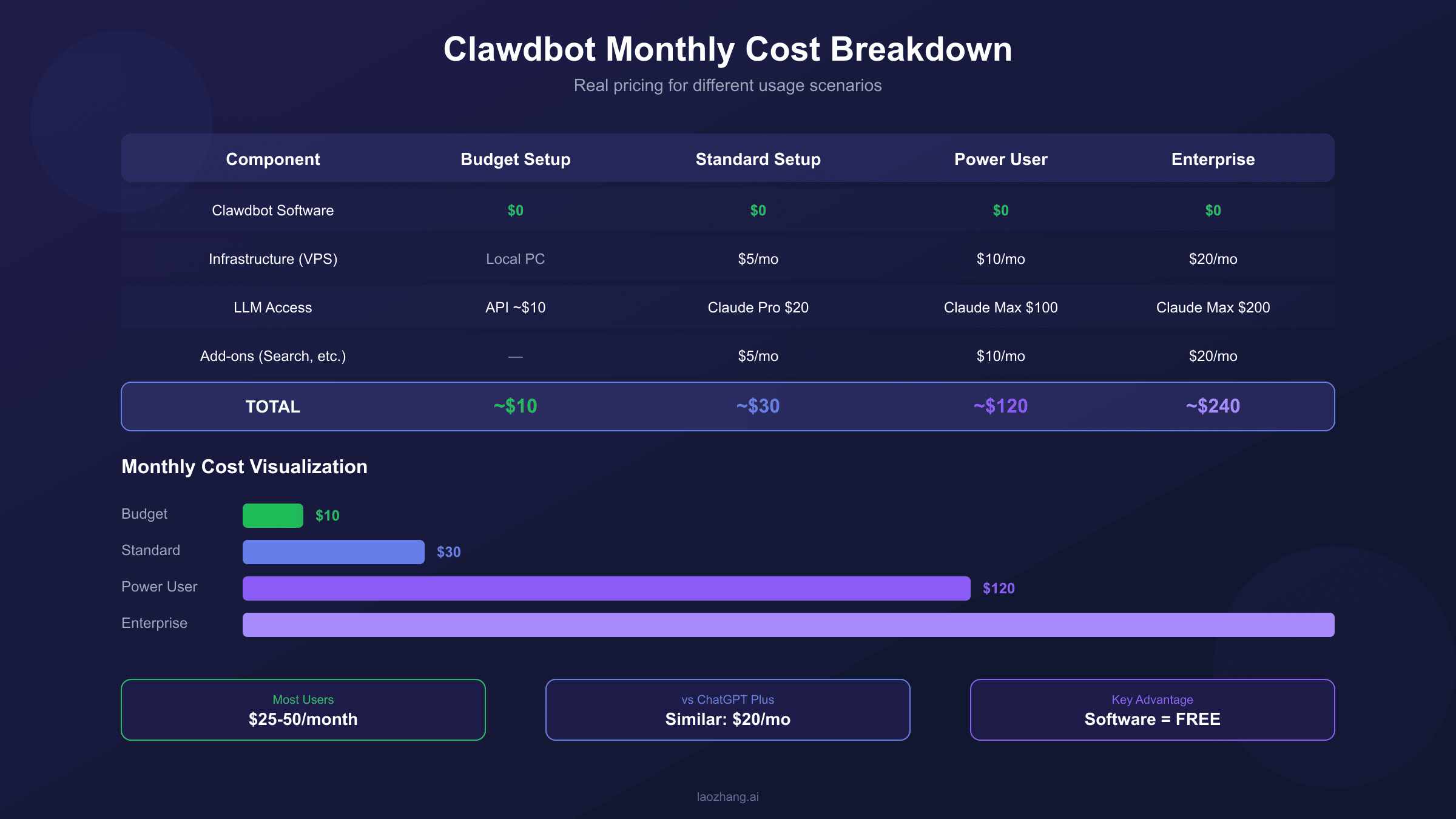
Understanding the true cost of running Clawdbot helps you plan appropriately and avoid surprise bills. The expense breaks down into three categories: the software itself, infrastructure hosting, and LLM API usage.
Clawdbot Software: Free
The core Clawdbot software is completely free and open-source under the MIT license. You pay nothing to download, install, or use the gateway, CLI, or any bundled skills. Community contributions and updates arrive at no cost.
Infrastructure Costs: $0-10/month
If you run Clawdbot on an existing computer—your laptop, a Mac Mini, or a spare desktop—infrastructure adds no additional cost beyond electricity. For 24/7 availability without keeping a personal machine running, a VPS (Virtual Private Server) provides reliable hosting.
Entry-level VPS options from providers like Hetzner, DigitalOcean, or Vultr start around $5/month for 1 vCPU, 1GB RAM, and 25GB storage—more than sufficient for Clawdbot's gateway. Users wanting browser automation headroom should consider 2GB RAM instances at approximately $10/month.
LLM Costs: $20-200/month (Variable)
This represents your primary ongoing expense. Clawdbot requires LLM access to power its AI capabilities, and pricing depends on your chosen authentication method and usage patterns.
| Option | Monthly Cost | Best For |
|---|---|---|
| Claude Pro (OAuth) | $20 | Moderate personal use |
| Claude Max (OAuth) | $100-200 | Heavy use, longer contexts |
| Anthropic API (Pay-as-you-go) | ~$10-50 | Variable usage, cost control |
| OpenAI API | Variable | Alternative model preference |
| Local Models | $0 (+ hardware) | Maximum privacy, offline use |
Federico Viticci's experience using 180 million tokens in his first week represents unusually heavy experimentation. Typical personal use ranges from 10-30 million tokens monthly, translating to roughly $15-45 on pay-as-you-go API pricing or comfortable headroom within a Claude Pro subscription.
Total Monthly Estimate
| Setup | Monthly Cost |
|---|---|
| Local machine + Claude Pro | $20 |
| VPS + Claude Pro | $25-30 |
| VPS + API usage (moderate) | $15-35 |
| VPS + Claude Max | $105-210 |
For developers seeking cost optimization on API expenses, aggregator platforms like laozhang.ai offer Claude API access at competitive rates—typically 10-30% below direct Anthropic pricing for the same models. While Anthropic's direct API remains the gold standard for enterprise deployments requiring SLAs and support, third-party platforms provide a practical option for personal projects and prototyping where cost matters more than vendor relationships.
Clawdbot vs ChatGPT vs Claude: Which Should You Choose?
The decision between Clawdbot and traditional cloud AI assistants depends on your priorities around privacy, integration, proactivity, and control. Each approach offers distinct advantages.
| Feature | Clawdbot | ChatGPT Plus | Claude Pro |
|---|---|---|---|
| Data Location | Your machine | OpenAI servers | Anthropic servers |
| Memory Persistence | Indefinite | Limited session | Limited session |
| Messaging Integration | 10+ platforms | None (web/app only) | None (web/app only) |
| Proactive Messages | Yes | No | No |
| Computer Control | Yes (browser, shell) | No | No |
| Offline Capability | With local models | No | No |
| Monthly Cost | $20-50 typical | $20 | $20 |
| Setup Complexity | Moderate | None | None |
Choose Clawdbot when:
- Privacy matters and you want data under your control
- You need AI integrated into messaging apps you already use
- Proactive alerts and scheduled briefings would help your workflow
- You want the AI to take actions like browsing or running scripts
- You're comfortable with technical setup and enjoy customization
Choose ChatGPT or Claude web interfaces when:
- You want zero setup friction—create an account and start chatting
- You need the latest model capabilities immediately upon release
- Enterprise compliance requires using established vendors
- Your use case is purely conversational without action requirements
- You prefer mobile apps over messaging platform integration
The hybrid approach works for many users: Clawdbot handles persistent memory and proactive tasks through messaging platforms, while direct access to ChatGPT or Claude provides the latest features and model updates. Since Clawdbot can use Claude's API as its backend, you're often getting the same underlying intelligence in a different delivery mechanism.
For users interested in deeper exploration of subscription options, understanding what ChatGPT Plus offers helps inform this comparison.
Practical Use Cases and Automation Ideas
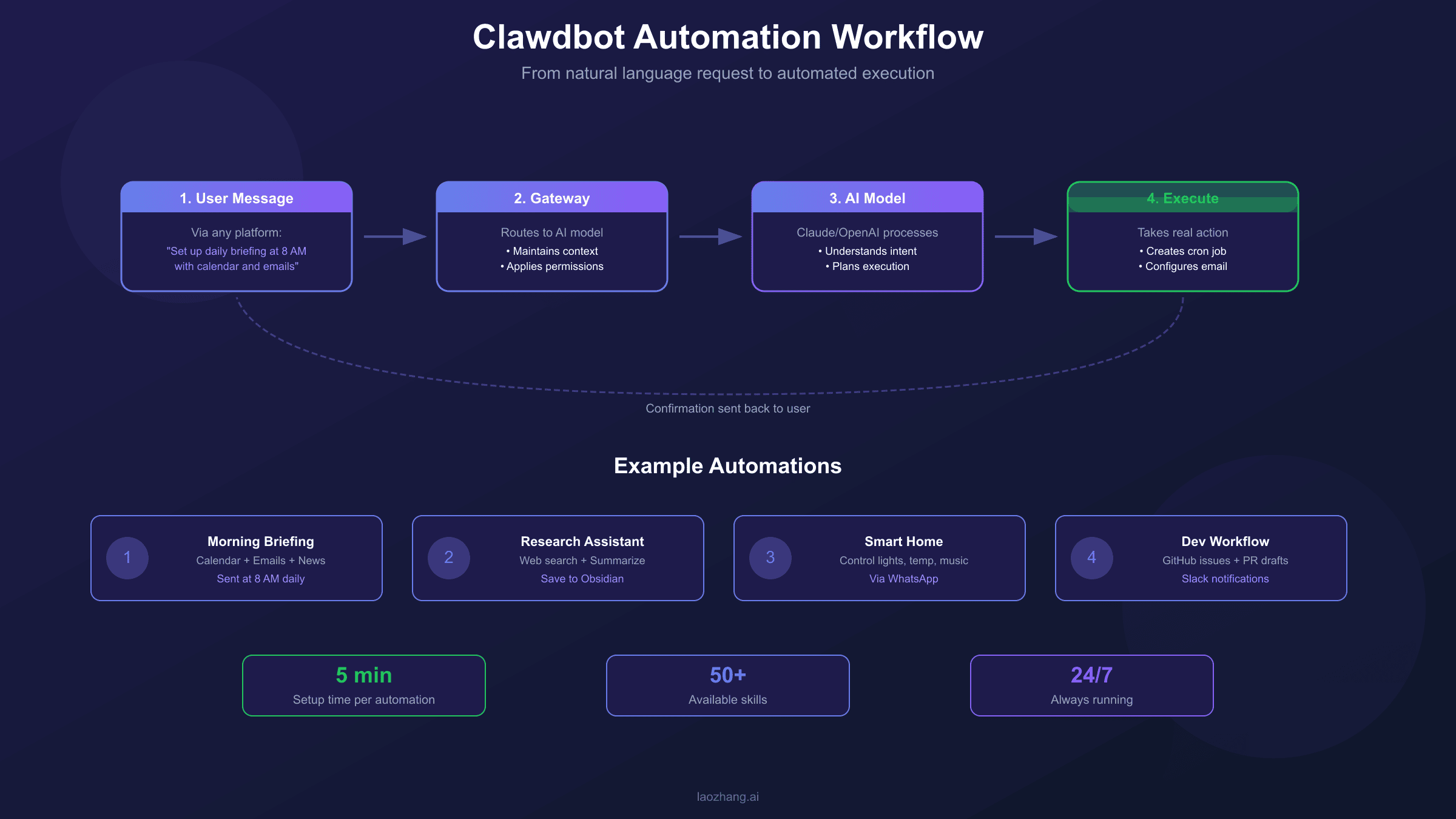
Moving from theory to practice, here are concrete automation patterns that Clawdbot users have implemented. These examples demonstrate the system's capability to replace scattered tools with a unified, conversational interface.
Morning Briefing Automation
Configure a cron job that runs at 8 AM daily. Clawdbot fetches your calendar events, scans unread emails for urgent items, aggregates headlines from specified RSS feeds, and compiles everything into a summary. The briefing arrives through your preferred channel—WhatsApp, Telegram, or Discord DM—ready to review while you make coffee.
Implementation involves asking Clawdbot to create the briefing workflow conversationally: "Set up a daily 8 AM briefing with my calendar, urgent emails, and tech news headlines. Send it to my Telegram." The assistant creates the necessary cron job, configures email access through the appropriate skill, and tests the workflow.
Research Assistant Workflow
Rather than manually searching, copying links, and organizing notes, describe your research need: "Find the latest benchmarks comparing Claude Opus 4.5 and GPT-5.2 for code generation. Summarize the key findings and save to my Obsidian vault."
Clawdbot uses web search capabilities (with a Brave Search API key configured), visits relevant pages, extracts information, synthesizes a summary, and writes it to your specified location. You interact naturally while the assistant handles the mechanical work.
Smart Home Integration
Users with home automation setups have connected Clawdbot to Philips Hue, HomeAssistant, and other systems through available skills. Natural language commands through WhatsApp—"dim the living room lights to 30% and set the bedroom temperature to 68"—translate to actual device control without switching to dedicated apps.
Development Workflow Assistance
For developers, Clawdbot can monitor GitHub repositories for new issues, draft responses, create pull requests based on natural language descriptions, and manage project workflows. Tell it "watch my-repo for new issues labeled 'bug' and notify me on Slack with a summary" to stay informed without constant dashboard monitoring.
Federico Viticci reported replacing a $15/month Zapier subscription entirely: his automation that created Todoist projects from RSS feed items now runs through Clawdbot. A five-minute conversation created the shell script, configured the schedule, and tested the workflow.
Email Drafting and Scheduling
The Google Workspace skill enables email management through conversation. "Draft a response to John's email about the project timeline. Be professional but note that we need an extra week. Don't send yet—let me review first." Clawdbot prepares the draft in Gmail, waiting for your approval.
Troubleshooting Common Issues
Even with careful setup, you may encounter issues. This section addresses the most frequent problems and their solutions.
Authentication Errors (401/403)
If the gateway fails to start with authentication errors, your API credentials may be missing or invalid. Run clawdbot doctor to verify credential status. For Anthropic, ensure your API key is active in your Anthropic Console. Common API errors and their solutions are covered in our Claude API error code guide. If using OAuth through Claude Pro/Max, try re-running clawdbot login to refresh your tokens.
Gateway Port Conflicts
The gateway defaults to port 18789. If startup fails with "address in use" errors, another process occupies that port. Check what's running:
hljs bashlsof -nP -i :18789
Kill any conflicting process or specify an alternative port:
hljs bashclawdbot gateway --port 18790 --verbose
Discord Error 4014
This error indicates missing privileged intents in your Discord bot configuration. Return to the Discord Developer Portal, navigate to your application's Bot settings, and enable both Message Content Intent and Server Members Intent. Changes take effect immediately; restart your gateway afterward.
WhatsApp Connection Drops
WhatsApp linked devices occasionally disconnect, especially after phone software updates or network changes. Re-scan the QR code using clawdbot channels login. For persistent issues, check that your phone maintains a stable internet connection—WhatsApp requires the primary device to be online for linked devices to function.
Model Compatibility Errors
Clawdbot rejects older models vulnerable to prompt injection attacks. If you see "unsupported model" errors, update your configuration to use a current model:
hljs bashclawdbot models list
This shows available models for your configured providers. Update your agent's default model in the configuration file or through the wizard.
High Latency or Slow Responses
If responses take unusually long, check your LLM provider's status page for outages. For API users, verify you haven't exceeded rate limits—understanding Claude API quota tiers and limits helps prevent this issue. Users experiencing persistent rate limiting might benefit from API aggregator services that offer higher concurrency limits—platforms like laozhang.ai maintain multiple upstream connections, providing failover when primary endpoints become overloaded.
Diagnostic Commands
When issues aren't immediately clear, these commands help diagnose problems:
hljs bashclawdbot doctor # Comprehensive health check
clawdbot status --all # Component status overview
clawdbot logs --follow # Real-time log streaming
clawdbot health --json # Machine-readable health report
The active Clawdbot Discord community provides rapid support, with bugs often fixed while you're still describing them in chat.
FAQ
Is Clawdbot free to use?
Clawdbot itself is completely free and open-source. However, you need LLM access to power it—either through API subscriptions (Claude Pro at $20/month, or pay-per-use API keys) or local models. Optional VPS hosting for 24/7 availability adds $5-10/month if you don't want to run it on your own computer.
Can Clawdbot work offline?
Yes, with local models. Configure Clawdbot to use models running through Ollama or similar local inference servers. While cloud-based models like Claude offer superior capabilities, local models provide offline functionality and maximum privacy. Performance depends on your hardware.
Which AI model works best with Clawdbot?
The developers recommend Anthropic's claude-opus-4-5 for most users. It offers strong long-context handling (important for persistent memory), good resistance to prompt injection, and reliable tool use. Claude-sonnet-4-5 provides a faster, cheaper alternative for less demanding use cases.
How secure is my data with Clawdbot?
Clawdbot stores all data locally in your home directory by default. Conversations, memory, and settings remain on your machine rather than third-party servers. You can back up the workspace to a private Git repository. For messaging platforms, standard platform security applies—messages transit through WhatsApp, Discord, or Telegram infrastructure before reaching your local gateway.
Can multiple people use one Clawdbot instance?
Yes, through multi-agent routing. Configure separate agents for different users, each with isolated workspaces and memory. Messages from different senders route to their respective agents automatically. This allows a family or team to share infrastructure while maintaining separate AI assistants.
Does Clawdbot work on mobile devices?
Clawdbot's gateway runs on desktop/server platforms, but you interact with it through mobile messaging apps. The experience on mobile is identical to messaging any contact—your WhatsApp, Telegram, or Discord mobile app connects to the assistant running on your computer or VPS.
How do I update Clawdbot?
For npm installations, run npm update -g clawdbot. For source installations, pull the latest changes with git pull and rebuild. The project releases updates frequently—check the GitHub releases page for changelogs.
Can I use Clawdbot for business purposes?
The MIT license permits commercial use. However, ensure your LLM provider's terms allow commercial applications—Anthropic and OpenAI have specific policies about API usage in production services. For team deployments, consider dedicated infrastructure and appropriate rate limit tiers.