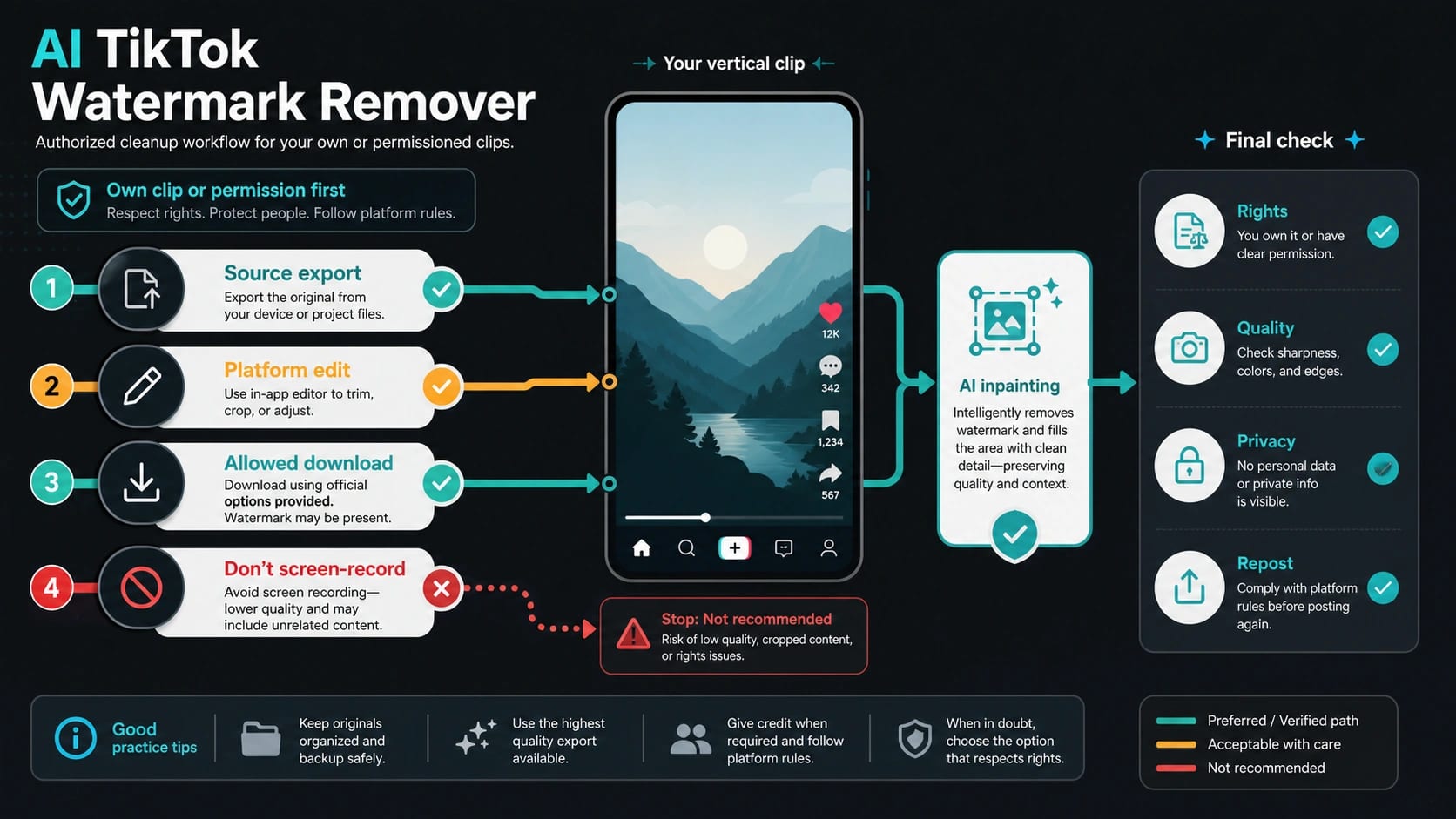
If the TikTok clip is yours or a creator gave you permission to edit it, AI can clean the visible logo and username from a saved video. If the clip is not yours, removing the mark does not give you the right to repost it. Start with the original export when you still have it; use an AI TikTok watermark remover only when the file is permissioned and the missing area needs inpainting instead of a simple crop or platform edit.
| Your situation | Start here | Use AI only if... | Stop if... |
|---|---|---|---|
| You still have the camera file, project file, or creator export | Original source export | You need to repair a small remaining mark after the clean export is unavailable | You only want to erase attribution from someone else's post |
| You posted the clip yourself and can edit it in TikTok, CapCut, or TikTok Studio | Platform edit or re-export | The platform export still leaves a visible logo or username and you have rights to modify it | The edit would remove required credit, music attribution, or creator context |
| You have a public link and the creator allows downloads | Allowed URL downloader | The downloader leaves a visible mark or compression artifact that needs repair | Downloads are disabled or the creator did not grant reuse permission |
| You have a saved file with a moving logo or username | AI inpainting remover | The clip is yours or permissioned, and preview quality passes motion, edge, and privacy checks | The tool asks for client, private, or rights-sensitive footage without clear terms |
| The mark covers faces, subtitles, product labels, or fast motion | Manual edit or recreate from source | A small masked repair still looks natural in preview | The repair changes meaning, hides required context, or creates blur that hurts the clip |
| The clip belongs to someone else | Do not remove the watermark | Never; ask for permission or use an allowed embed/share route instead | Ownership, music rights, download permission, or reposting rights are unclear |
Treat no-blur, HD, free, and privacy promises as tool-page claims, not guarantees for your file. Before reposting, inspect the old logo zone, username zone, motion edges, audio rights, private details, and any credit the creator or platform still requires.
Can you remove a TikTok watermark with AI?
Yes, but the useful answer is permission-bound. AI inpainting tools can mask the visible TikTok logo and username, track the area across frames, and reconstruct the background behind it. That can help when you are cleaning an owned clip, archiving a campaign asset, preparing permissioned UGC for a different layout, or fixing a saved file when the original export is gone.
The same operation is not a shortcut for third-party reuse. TikTok's terms require the person submitting content to own it or have the necessary permissions and clearances. TikTok's copyright and intellectual-property pages also treat videos and music as protected works, with enforcement consequences for infringement. Removing a visible mark does not clear copyright, music, likeness, brand, or reposting rights.
The cleanest workflow is still source-first. If you have the camera file, project file, or a creator-delivered export, use that. If you posted the clip yourself, check whether you can re-export or edit it through your own account workflow. Use AI inpainting after those routes fail, not before them.
Why TikTok watermarks are harder than static logos
A TikTok watermark is not only a corner logo. It usually includes a logo mark, a username, transparent overlays, and movement between corners or zones. It may cross sky, faces, subtitles, product labels, food, clothing, text, or fast-moving edges. A crop can damage composition, and a blur can create an obvious patch that looks worse than the original mark.
Upload-based AI removers solve the problem by inpainting. The tool detects or lets you mark the logo and username area, then fills that area with pixels that match the surrounding frame. The result depends on the clip. A smooth wall, sky, or empty background is easier than hair, hands, subtitles, fabric, water, reflections, product labels, or fast motion.
That is why "no blur" is a claim to verify in preview, not a promise to trust. Public tool pages checked on June 8, 2026 commonly advertise no-blur, no-crop, HD, 4K, free credits, or maximum file-size limits. Those statements describe the vendor page, not your exact video. A good workflow treats the first export as a test, then checks the output frame by frame where the watermark used to move.
Which cleanup route should you use?
The route depends on what file you have and what permission you can prove. A downloader and an AI inpainting remover are not the same tool. A downloader starts from a TikTok link and tries to return a video file. An AI remover starts from an uploaded file and repairs a visible area. A platform edit starts from an account or project workflow. Source export starts before the watermark problem exists.
Use this decision order:
| Route | Best fit | Main risk | Verification step |
|---|---|---|---|
| Original export | You own the camera file, project file, or clean creator delivery. | None if rights are already clear, but you may need to preserve metadata and credit. | Keep the master file and export at the highest usable quality. |
| TikTok, CapCut, or TikTok Studio edit | You posted the clip or can edit the project/account route. | Re-export may add compression or platform marks. | Check whether the edit, crop, or re-export is allowed and preserves meaning. |
| Allowed URL downloader | The creator allows downloads and you have reuse permission. | Disabled downloads, low quality, link restrictions, or unclear rights. | Confirm download permission and do not treat the file as rights-cleared. |
| AI inpainting remover | You have a saved file with a visible moving logo or username. | Artifacts, privacy exposure, vendor terms, and false no-blur confidence. | Preview the old logo zone, username zone, motion edges, and private details. |
| Manual edit or recreate | The mark crosses critical content or AI repair changes meaning. | Time cost or partial rebuild. | Compare against the source and decide whether repair is acceptable. |
| Stop | Ownership, music, or repost permission is missing. | Copyright, account, reputation, and client risk. | Ask for permission, use an embed/share route, or do not reuse the clip. |
TikTok's video download settings matter here. Creators can control whether other people can download videos or photos. When downloads are not allowed, TikTok's built-in download flow is not available for those posts, although sharing links and direct messages may still be possible. A disabled download setting is not an invitation to bypass the creator's choice.
Safe workflow for owned or permissioned clips
Start by writing down why the clip is yours to edit. That sounds formal, but it prevents bad decisions later. The answer may be "I shot it," "my team owns the project file," "the creator delivered this clip under a UGC agreement," or "the brand has written permission to adapt it." If the answer is vague, pause before uploading the file anywhere.
Then choose the least destructive route. Source export is preferred because it avoids repair artifacts. Platform edit is second when you own the account or project. An allowed downloader can help when a public link is the only available source and the creator permits the use. AI inpainting is the repair route for a saved file with a visible mark that cannot be solved cleanly through the source.
For AI inpainting, keep the first pass small:
- Save the original file and do not overwrite it.
- Check whether the tool explains upload terms, retention, privacy, and output rights.
- Upload only non-sensitive or approved footage.
- Mark the visible logo and username area if auto-detection misses it.
- Preview the worst sections: movement, faces, subtitles, product labels, sky, hair, water, and fast cuts.
- Export a short test before processing the full clip.
- Compare the result against the original and keep notes on rights, credit, and source.
If the preview looks artificial, do not force it. A slight crop, a new edit from the original project, a creator-requested re-export, or a recreated asset may be better than publishing a smeared patch.
Tool-selection and privacy checklist
Tool pages checked on June 8, 2026 show the range of public claims. Media.io's TikTok remover page described upload-based removal, vertical and horizontal modes, MP4/MOV support, free credits, and a credit-per-time model. Clipfly described AI detection for the TikTok logo and username plus limits such as 4K, 60 seconds, 60 FPS, and 500 MB. Morph Studio described brushing the watermark area and limits around duration and file size. Pixelbin framed use cases such as archiving original content, presentations, permissioned UGC, and preview checks. SnapTik is a URL downloader route, not AI inpainting.
Those examples are useful because they show what to verify. They are not a ranking and they are not proof that a tool is private, legal, free forever, or no-blur for every clip.
Before uploading, check:
| Check | Why it matters |
|---|---|
| File type, size, and duration | A tool may accept MP4/MOV but reject long clips, large files, or high-frame-rate exports. |
| Watermark mode | Moving logo plus username needs different handling than a static corner mark. |
| Preview control | You need to see the repaired zones before trusting the full export. |
| Credits and signup | Free credits can expire, shrink, or require an account. Treat them as current page claims. |
| Privacy and retention | Client footage, private people, unreleased products, and brand material should not go into an unclear upload route. |
| Output rights | A tool can process pixels without granting permission to repost the underlying content. |
| Support and failure handling | If a file fails, uploads slowly, or exports with artifacts, you need a way to recover or stop. |
Do not upload client, face, brand, legal, medical, financial, private, or unreleased product material to a tool that does not clearly explain who operates it, how files are processed, how long files are retained, and how support works.
Output QA and rights after removal
The watermark being gone is only the first checkpoint. The repaired video still has to look natural, preserve meaning, and remain publishable under the rights you actually have.
Inspect the result in the areas where the visible mark appeared. Look for smearing, duplicated textures, warped edges, ghost text, flicker, sudden blur, banding, odd shadows, or moving objects that no longer line up. Watch the clip at normal speed and pause on the frames where the logo or username used to cross complex content.
Then inspect the non-visual issues. Audio rights may be separate from video ownership. TikTok's terms distinguish user ownership from the licenses and permissions needed for sounds, music, and other materials. If the clip includes a commercial track, a brand-owned sound, a creator's voice, a person's likeness, or UGC submitted under a contract, the visible watermark is not the only permission surface.
Use this final stop rule:
| Question | Publish if yes | Ask if unclear | Stop if no |
|---|---|---|---|
| Do you own the clip or have permission to edit it? | Continue to quality review. | Ask the owner or creator. | Do not remove or repost. |
| Is the download or file source allowed? | Keep source notes. | Check account, creator, or contract terms. | Do not bypass disabled downloads. |
| Are music and sound rights clear? | Keep the license or platform-safe route. | Ask the rights owner or use different audio. | Do not publish with unclear audio. |
| Are private or client details protected? | Export only after preview. | Use a non-sensitive test file. | Do not upload or publish. |
| Are tool terms and retention clear? | Keep the route documented. | Choose another tool or source export. | Do not upload sensitive footage. |
| Is credit still required? | Preserve credit where required. | Confirm with the creator or contract. | Do not hide required attribution. |
The safest finished file is one where the source, permission, edit route, export quality, and credit decision are all explainable. If any part is hard to explain, the clip is not ready.
FAQ
Can I use an AI TikTok watermark remover for my own video?
Yes. If you created the clip or control the project, AI can be a practical repair route when the original export is gone and the visible logo or username needs inpainting. Keep the master file, use source export first when possible, and inspect the repaired area before publishing.
Can I remove the watermark from someone else's TikTok?
Not as a reposting shortcut. Removing a visible mark does not give you copyright, music, likeness, brand, or platform rights. Ask for permission, use the platform's allowed share/embed route, preserve credit where required, or do not reuse the clip.
Is a URL downloader the same as an AI remover?
No. A URL downloader starts from a TikTok link and tries to return a video file. An AI remover starts from an uploaded video and repairs the visible mark through inpainting. Downloaders depend on link access and permission; inpainting depends on file upload, mask quality, motion, background complexity, and preview review.
Can AI remove a TikTok watermark without blur?
Sometimes. Smooth backgrounds and slow motion are easier; faces, subtitles, hair, water, product labels, and fast motion are harder. Treat no-blur as something to test in preview, not a guaranteed outcome.
Are free TikTok watermark removers safe?
Free means different things: free credits, trial exports, file-size limits, duration limits, signup requirements, or ad-supported pages. Check the current tool page, privacy policy, retention terms, and preview behavior before uploading anything sensitive.
What should I do if downloads are disabled?
Do not treat disabled downloads as a technical obstacle to bypass. Ask the creator for a clean export or permissioned file, use an allowed share route, or stop. If the clip is yours, use your own account, project, or source files.
Does removing the watermark remove music rights?
No. Music and sound rights can be separate from video ownership. A cleaned video can still be blocked, claimed, or unsafe to publish if the audio is not cleared for the new use.
What is the safest order for cleaning an owned TikTok clip?
Use source export first, platform edit second, allowed downloader third, AI inpainting fourth, manual edit or recreate when repair fails, and stop whenever ownership, download permission, music rights, privacy, or credit is unclear.