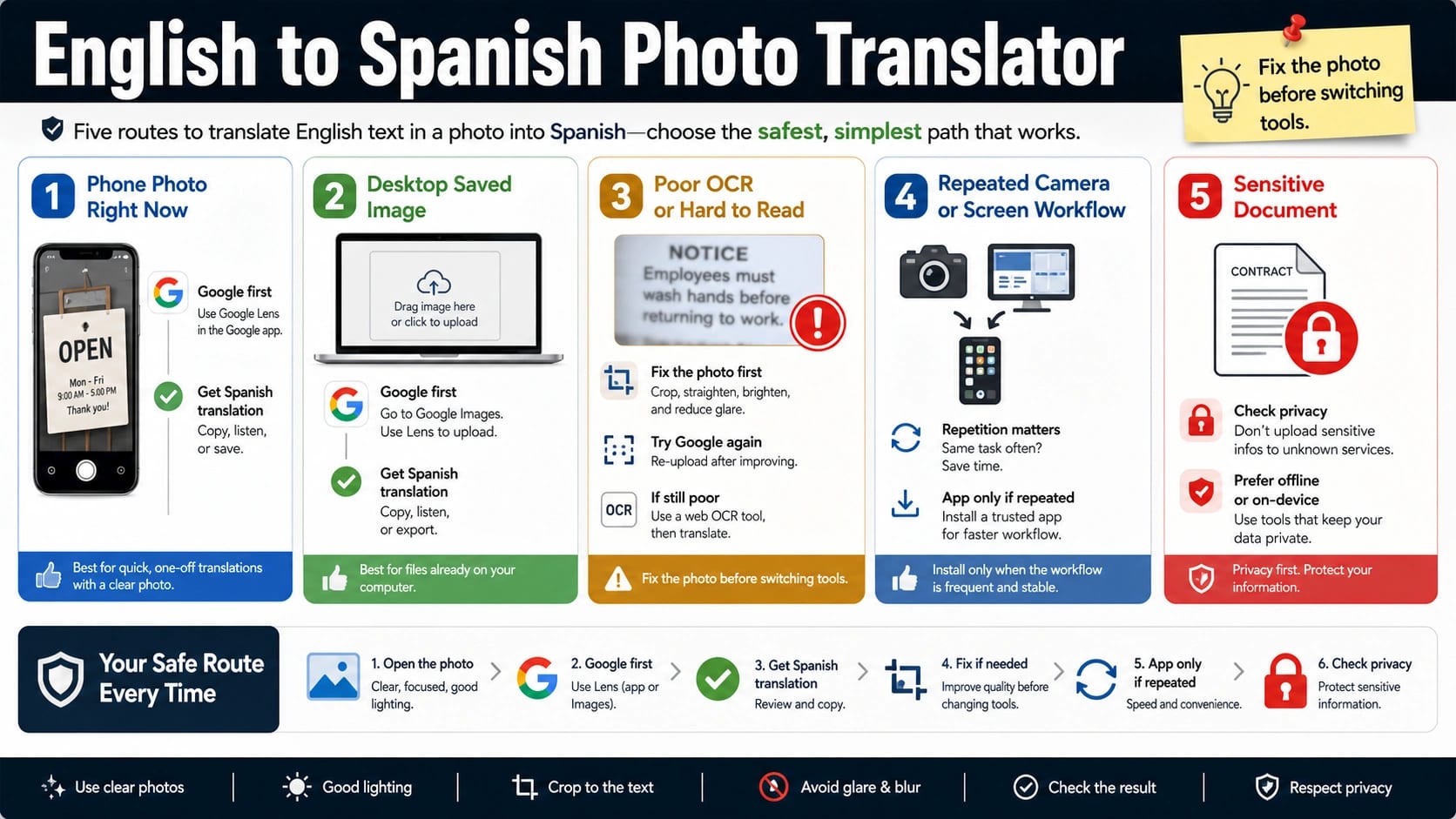
Use Google Translate first for most English-to-Spanish photo translation, and do not install a new app just to translate one picture. For a phone photo, set English -> Spanish in Google Translate and use Camera or Gallery; for a desktop screenshot or saved image, use the web Images route; switch to web OCR only when upload or recognition gets awkward, and install a photo translator app only if you translate images often enough to justify checking ads, subscriptions, offline support, and data safety.
| Your image job | Start here | Use this route when | Next move if it fails |
|---|---|---|---|
| A sign, menu, label, or page in front of you | Google Translate app Camera | You can point the phone at the text or take a fresh photo | Retake closer, improve light, crop to only the English text |
| A saved screenshot or document photo on desktop | Google Translate web Images route | The file is already on your computer | Try a web OCR fallback if the upload path or layout is awkward |
| Text is recognized badly | Fix the image before changing translators | The output misses words, columns, small print, or handwriting | Crop, straighten, brighten, and retest the same route |
| You translate photos every day | A dedicated photo translator app after audit | Repeated camera work, offline packs, or saved history matter | Check ads, subscriptions, offline language support, and data-safety details |
| The photo contains private information | Decide before uploading | IDs, addresses, invoices, medical, legal, school, or client data appear in the image | Redact first, translate only the needed text, or use a route you trust |
Stop rule: do not upload a sensitive photo until you know who operates the tool, what data may leave your device, and whether you can redact the image first. If the translation is wrong, fix the crop, lighting, blur, or text angle before you switch tools; a cleaner image often improves OCR more than another app does.
Use Google Translate on a phone
For a phone photo, start in the Google Translate app because it owns the official camera and gallery workflow. Set the source language to English and the target language to Spanish before you scan. That avoids a common failure where auto-detect sees only part of the image, mistakes a brand name for another language, or translates the wrong text block.
Use the camera route when the text is physically in front of you: a menu, street sign, package label, appliance manual, poster, homework sheet, or travel notice. Hold the phone steady, fill the frame with the English text, and avoid shadows or glare. If the app lets you select only part of the detected text, select the sentence or paragraph you actually need instead of translating the whole scene.
Use the gallery route when the picture is already saved: a screenshot, a photo someone sent you, a document capture, or a label you photographed earlier. Open the image from the app rather than re-photographing a screen. Re-photographing a screen usually adds blur, moire patterns, glare, and angle distortion, all of which make OCR less reliable.
If you need the translation offline, treat that as a separate check. Google Help describes offline camera translation through downloaded languages on supported mobile routes, but offline behavior depends on the app, device, language packs, and current settings. Download English and Spanish before you travel, test one photo while still online, and do not assume every gallery or advanced recognition feature works the same way offline.
Translate a saved image on desktop
For a saved image on a computer, use the Images route in Google Translate before you search for a separate image translator. It fits screenshots, scanned pages, labels, receipts, and document photos that are already on your desktop. Open Google Translate in the browser, choose English to Spanish, switch to Images, and upload the file.
This route is best when the image is simple: one page, one sign, one label, or one screenshot with clear text. It is weaker when the file has multiple columns, tiny print, handwriting, rotated text, mixed languages, or a layout where the translated text needs to preserve exact formatting. In those cases, the problem is not just translation. It is text recognition plus layout interpretation.
Use a web OCR fallback when the saved-file workflow is the real blocker. Yandex Translate's OCR page is one current browser fallback because it exposes an image/document upload translator and publishes visible file-format and size constraints on the page. That does not make it automatically better for every English-to-Spanish photo. It means it is a reasonable second route when Google Translate's web image flow is awkward for the file you have.
Do not run the same photo through five tools at once and trust the nicest-looking Spanish sentence. First, compare whether the English text was recognized correctly. If the OCR layer missed a number, column, brand name, dosage, address, or negation, a smooth Spanish translation can still be wrong.
Fix bad OCR results
Bad photo translation usually starts before translation. OCR is text recognition: the tool first guesses what letters are inside the image, then translates that recognized text. If the recognized English is wrong, the Spanish result can sound fluent while carrying the wrong meaning.
Use this repair order before changing apps:
| OCR problem | What it usually means | First fix |
|---|---|---|
| Words are missing | The text is too small, cropped, or low contrast | Move closer, crop tighter, or use a higher-resolution original |
| Letters are wrong | Blur, glare, angle, or unusual font confused recognition | Retake in steady light and straighten the image |
| Columns merge together | The layout is more complex than the OCR route expects | Crop one column or paragraph at a time |
| Handwriting fails | The text style is hard for the tool to recognize | Type the key phrase manually or capture only the clearest line |
| Numbers change | OCR read a digit, decimal, date, or unit incorrectly | Check the recognized English before trusting the Spanish output |
| Auto-detect chooses the wrong language | The image has mixed labels, names, or short fragments | Force English -> Spanish instead of relying on detection |
The fastest rescue is usually a better crop. Remove surrounding photos, icons, prices, logos, and unrelated paragraphs. If the image has a heading, a table, and a note, translate them separately. A smaller clean crop gives the OCR engine fewer decisions and gives you a better chance of spotting a bad recognition before it becomes a bad translation.
For documents, do one extra pass on numbers and names. Translation tools are useful for understanding meaning, but they are not a notary, medical reviewer, legal translator, or school authority. If the photo contains a deadline, dosage, bank detail, address, name, passport number, grade instruction, or contract clause, compare the recognized English text against the image before acting on the Spanish result.
When a photo translator app is worth it
A dedicated photo translator app is worth considering only when the workflow repeats. If you translate one sign or one screenshot, the official Google route is usually enough. If you translate product labels every day, save translated history, need batch behavior, work offline often, or need quick camera access from a widget, an app may reduce friction.
Before installing, audit the app like a tool that may handle private images:
| Check | Why it matters | What to look for |
|---|---|---|
| Ads and interruptions | Heavy ads slow down urgent translation and can push confusing buttons | Recent reviews, in-app purchase labels, subscription prompts |
| Subscription terms | Some apps look free until export, unlimited scans, or premium OCR appears | Trial length, renewal price, cancellation path |
| Data safety | A photo can contain faces, IDs, addresses, invoices, or client material | Whether photos, files, diagnostics, or device data may be collected or shared |
| Offline claims | Offline translation may require language packs and may not cover every feature | English and Spanish packs, camera support, gallery support |
| Output control | You may need to copy only one sentence, not translate a full page | Text selection, copy, pronunciation, history, delete controls |
| Support and updates | OCR and privacy behavior can change after updates | Recent update date, developer support, visible policy pages |
Do not treat download count, star rating, or "100+ languages" as proof of safety or accuracy. Those signals can show popularity or broad language coverage, but they do not prove that your English photo will be recognized correctly, that Spanish phrasing will be fit for context, or that the image handling matches your privacy needs.
Handle sensitive images before upload
The privacy decision comes before the translation route. A menu, product label, public sign, or travel notice is usually low risk. A photo of an ID card, invoice, school document, medical label, legal letter, client screenshot, passport page, address, bank notice, or private chat deserves a pause.
Use a redaction-first workflow for sensitive images. Crop to the minimum sentence you need. Blur or cover names, account numbers, addresses, faces, barcodes, QR codes, and document IDs when they are not needed for translation. If the exact layout matters, keep an original copy for your own reference, but upload only the smallest safe crop.
If you cannot redact the image without losing the meaning, type the key English sentence manually into a trusted translator instead of uploading the full photo. Manual typing is slower, but it gives you control over what leaves the device. For legal, medical, immigration, finance, school, or client material, use the photo translation as a comprehension aid, not as the final authority.
Worked route examples
For a restaurant menu in front of you, use the phone camera route. Set English -> Spanish, scan the menu, and select only the dish description you need. If the menu is glossy, tilt it away from glare and translate one section at a time. The goal is quick comprehension, not a perfect document translation.
For a screenshot from a website, use the desktop Images route or the phone gallery route depending on where the screenshot already lives. Do not photograph your laptop screen with your phone unless you have no other option. The saved screenshot is usually cleaner than a second photo.
For a shipping label, medicine label, invoice, or school notice, start by deciding whether the image is sensitive. If it includes private data, crop to the warning line, instruction line, or product text you actually need. Then verify names, dates, quantities, and units against the original English image.
For handwriting, expect more failure. Try a clean crop first. If OCR still guesses badly, type the line manually or ask the sender for typed text. Switching from Google to another photo translator may help in some cases, but a handwritten note with poor contrast remains a hard input.
For repeated travel or warehouse use, test a dedicated app with harmless images before relying on it. Check whether it works fast enough, whether ads interrupt camera mode, whether English and Spanish offline packs behave as expected, and whether the app lets you delete photo history.
FAQ
What is the best English to Spanish photo translator?
For most one-off photos, Google Translate is the best starting route because it covers phone camera, gallery, and web image workflows without forcing a new app install. A web OCR tool or dedicated app becomes useful only when the file route, repeated workflow, offline need, or app-specific feature justifies the extra privacy and subscription checks.
Can I translate an English photo to Spanish for free?
Usually yes for a basic one-off task through Google Translate or a web image translator, but "free" does not mean every app feature, offline pack, batch scan, export, or ad-free workflow is free. Check the tool's current limits and app-store labels before assuming unlimited photo translation.
Can Google Translate translate text from a picture?
Yes. Google Translate supports camera and saved-image translation routes on mobile, and the web version exposes an Images route for uploaded files. Use English -> Spanish explicitly when the image contains short text, brand names, or mixed-language elements.
Should I use Google Translate or Yandex OCR?
Start with Google Translate. Try Yandex OCR or another web OCR route when the file is already on desktop, the upload workflow is awkward, or you need a second text-recognition attempt. Compare the recognized English text before deciding which Spanish output to trust.
Why is the Spanish translation wrong?
First check the OCR result. If the tool misread the English text, the Spanish translation will inherit that error. Crop tighter, improve lighting, straighten the photo, force English -> Spanish, and retest before switching tools.
Does a photo translator work offline?
Some mobile routes support offline camera translation after you download the needed languages, but offline support depends on the app, device, language packs, and feature. Test English and Spanish offline with a harmless photo before travel or field work.
Is a photo translator safe for private documents?
Not automatically. A translator app or web OCR tool may process uploaded images outside your device. Redact unnecessary personal data, crop to the minimum needed text, and avoid uploading IDs, invoices, medical, legal, financial, school, or client documents unless you trust the route and understand its data handling.
Can it translate handwriting?
Sometimes, but handwriting is less reliable than printed text. Use a clean crop with strong contrast. If the recognized English is wrong, type the line manually or ask for typed text instead of trusting a fluent-looking Spanish result.