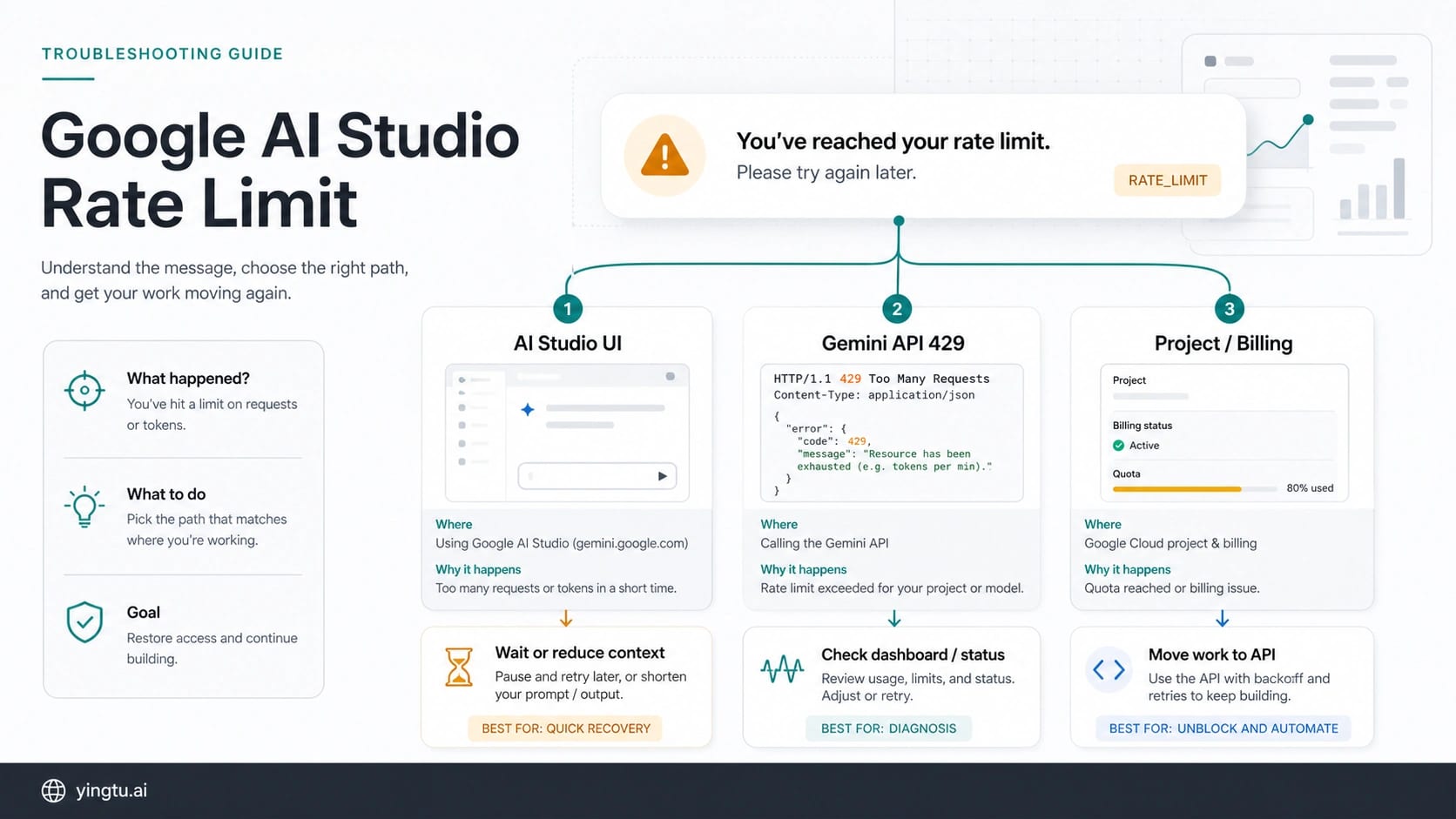
If Google AI Studio says "You've reached your rate limit. Please try again later.", do not treat it as one universal Gemini quota problem. Save the current prompt and error context first, then decide whether the owner is the AI Studio chat UI, a Gemini API 429 response, the Google Cloud project quota, billing state, model/session load, or a temporary service condition.
| What you see | Most likely owner | First safe move | Stop rule |
|---|---|---|---|
| The message appears inside an AI Studio Gemini chat | AI Studio UI or model/session pressure | Save the prompt, test a tiny fresh prompt, then reduce context or wait | Do not change keys, billing, and model all at once |
Your code receives HTTP 429 or RESOURCE_EXHAUSTED | Gemini API project quota or request rate | Check the same project dashboard and add backoff | Stop blind retries until quota or reset evidence is clear |
| A paid key still gets blocked | Project, tier, billing, prepay, or wrong project | Verify the project behind the key and billing state | Do not assume a Gemini app subscription changes API quota |
| Dashboard usage looks low but the UI is blocked | UI cooldown, model capacity, stale dashboard view, or service issue | Check status, reproduce with a smaller prompt, and collect evidence | Escalate with project, model, time, and exact message |
The shortest recovery path is: preserve the work, run one tiny same-surface test, reduce the request if the test succeeds, check the correct project dashboard if API or quota evidence appears, and only then decide whether to wait, file feedback, or move repeated work into a monitored API workflow.
What the AI Studio rate-limit message means
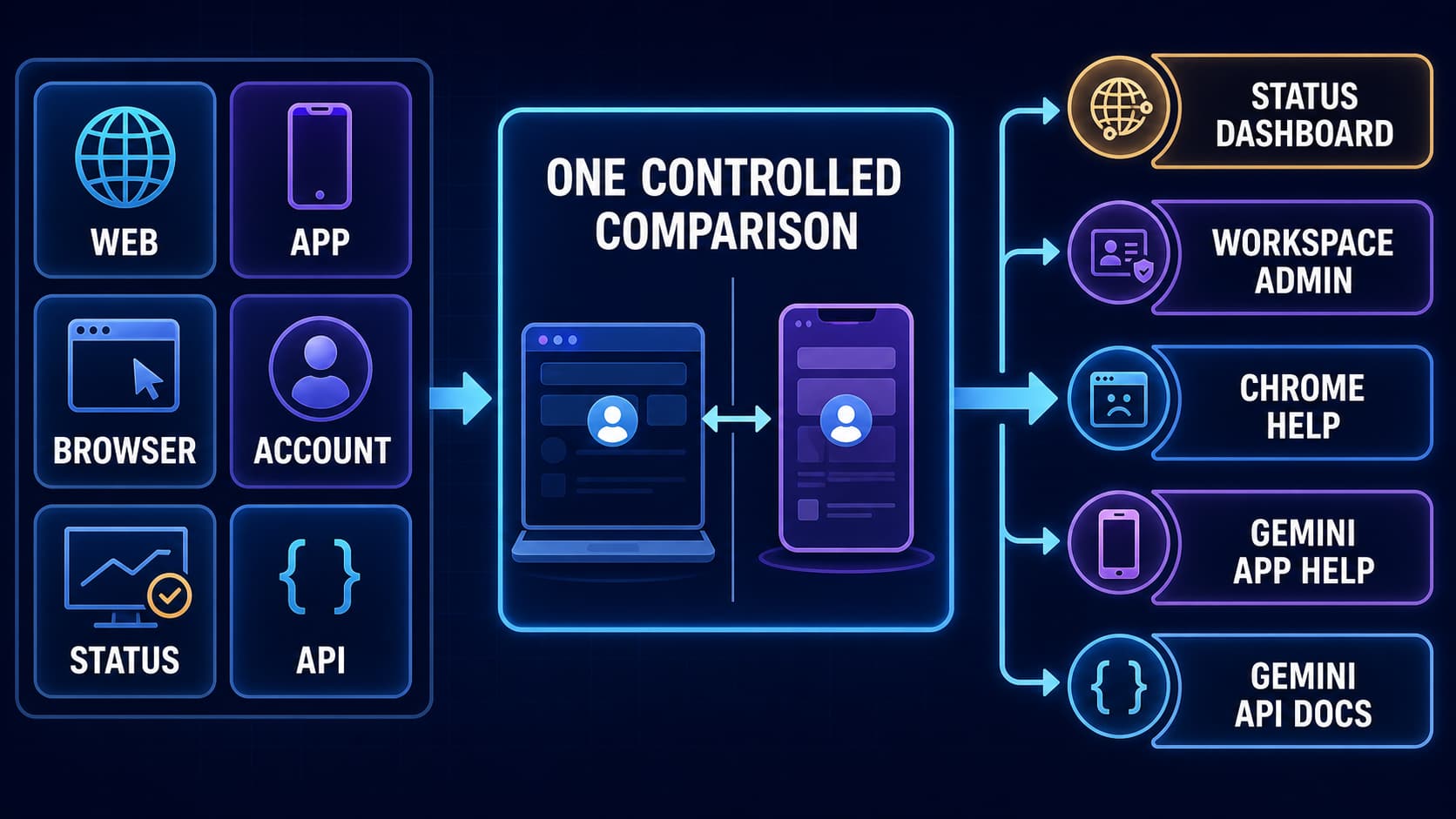
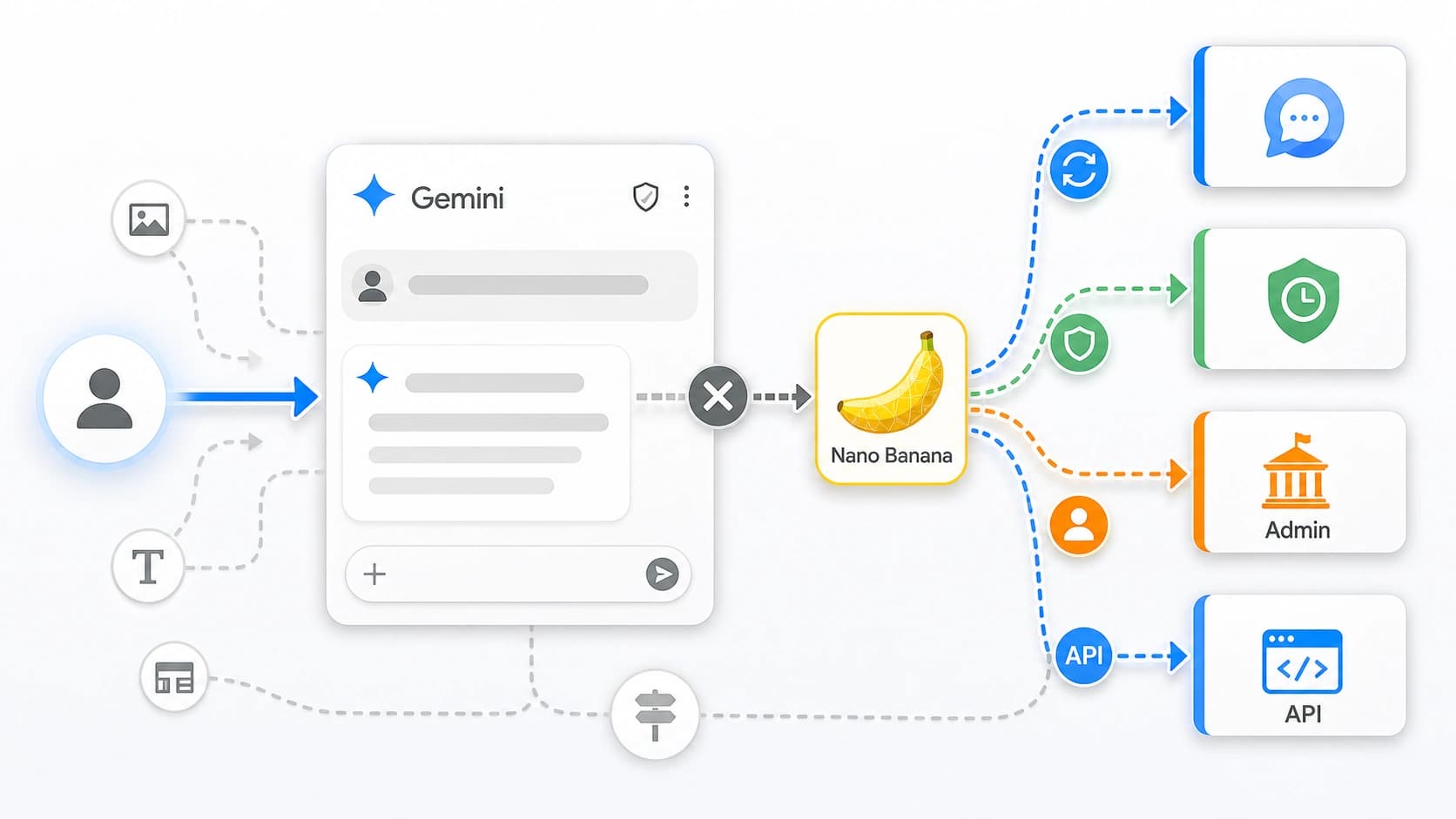
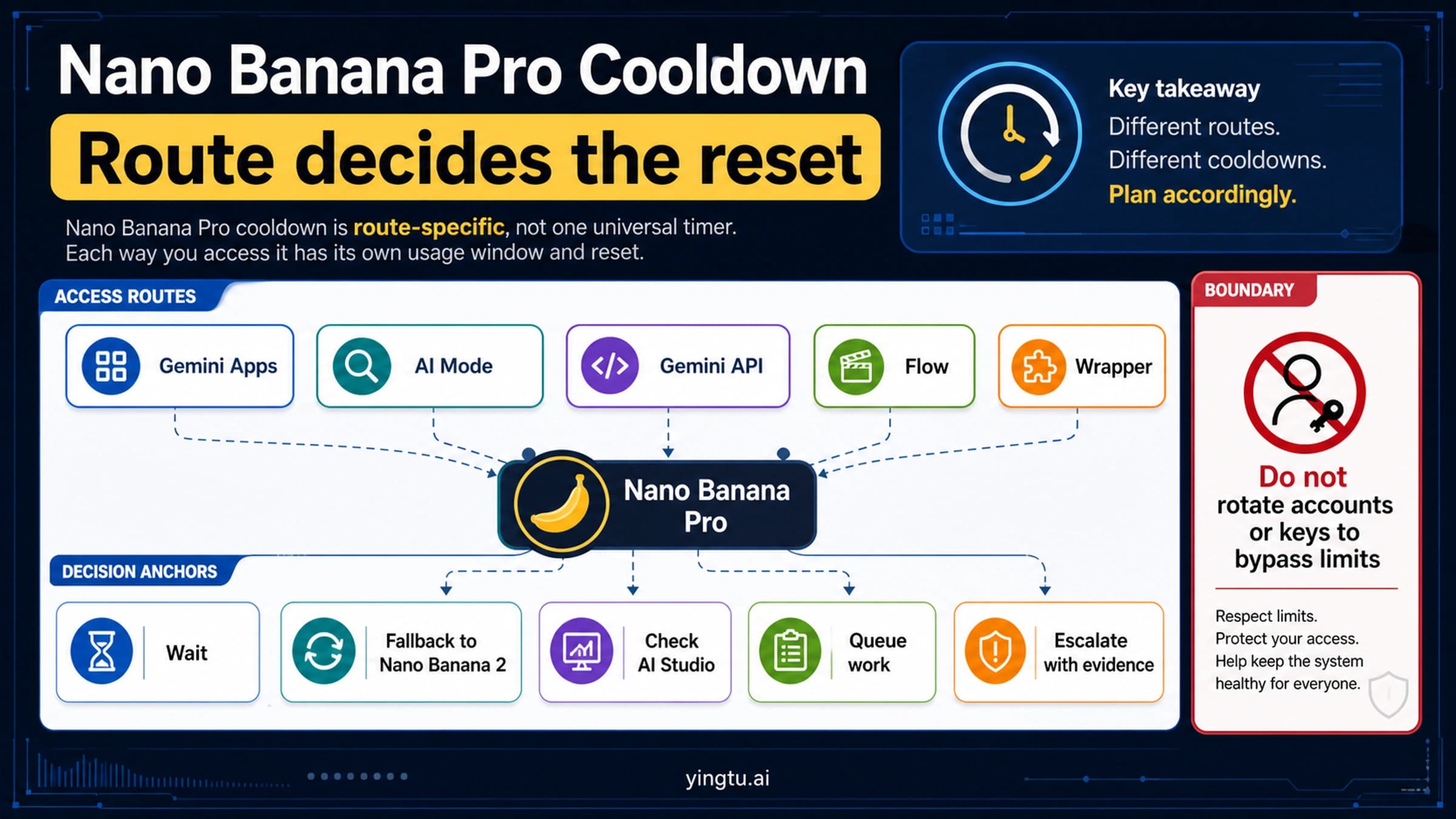
The visible message is useful because it tells you the surface: you are blocked in Google AI Studio while using Gemini. It does not, by itself, prove which quota bucket was exhausted. AI Studio, the Gemini API, Google Cloud project billing, and the Gemini consumer app are separate surfaces that can all use Gemini language while enforcing different limits.
Google's Gemini API rate-limit documentation describes API limits across dimensions such as requests per minute, tokens per minute, and requests per day. It also says limits apply per project, not per API key. That matters when the block is connected to API usage: creating another key inside the same project is not a safe quota workaround, and a dashboard check must use the project that actually owns the key.
AI Studio chat behavior is less reducible to one public number. The user-facing chat can be affected by session shape, long context, attached files, selected model, project state, and temporary capacity. Treat the message as a branch point, not as a fixed timer. If a short fresh prompt works while the current long chat fails, the useful fix is usually reducing context or splitting the task. If every tiny prompt fails on the same surface, status, project state, or account-level evidence becomes more important.
Community reports are useful for recognizing the exact symptom, especially when users say a paid key or dashboard does not explain the block. They are not policy. Use them as clues for what to check, then let official Google surfaces own the facts about API limits, billing, keys, and error responses.
First five minutes: preserve the chat before retrying
The first move is not retrying. Copy the prompt, the last useful answer, the exact message, the selected model, the project if shown, attached file names, and the local timestamp with timezone. If the blocked chat contains a long prompt chain, export or screenshot enough context to rebuild it. A refresh, model switch, or new chat can make the original state harder to recover.
Then run one tiny fresh test in the same surface. Use a short prompt such as "Reply with one sentence" and keep output short. If that succeeds, the block is probably tied to the current chat shape, model pressure, large context, or attached content. The next safe action is to reduce history, summarize the current context, remove files, lower output size, or split the job.
If the tiny fresh test fails with the same message, do not keep pressing send. Wait for a cooldown, check whether the model is under pressure, and look for status or project evidence. Immediate repeated retries can waste time and make the failure look noisier without changing the owner.
For urgent work, create a recovery copy of the task in smaller pieces. Ask for one section, one file, or one transformation at a time. If the original job is large, move the stable parts into a document and feed back only the relevant slice. The point is to reduce request shape before touching billing, keys, or account settings.
Which rate limit are you actually hitting?
The repair path changes once you name the owner. Four buckets cover most cases:
| Owner | Typical clue | What to check | Correct repair direction |
|---|---|---|---|
| AI Studio UI cooldown | Message appears in the browser chat, not in your API logs | Current chat length, model, files, same-surface tiny prompt | Wait, reduce context, split work, or try a lighter request shape |
| Gemini API 429 | Code receives HTTP 429 or RESOURCE_EXHAUSTED | Error body, project dashboard, RPM/TPM/RPD dimensions, reset behavior | Backoff, throttle, queue, reduce request size, or request quota |
| Google Cloud project quota or billing | Paid key exists but project still blocks usage | Project behind the key, tier, linked billing, prepay/credit state, quota page | Fix the project or billing owner before changing prompts |
| Gemini app or subscription | Message comes from gemini.google.com or mobile app plan UI | Plan, region, included app messages, consumer account state | Follow app-plan rules; do not assume API quota changed |
This split prevents the most common wrong fixes. A paid API key is not the same thing as a Gemini app subscription. A Gemini app plan is not a guarantee that AI Studio project quota changed. A new API key does not create a fresh project quota pool when it belongs to the same project. A browser chat cooldown is not always the same as API RESOURCE_EXHAUSTED.
If the block is happening in AI Studio but you are also developing with the API, keep the evidence separate. The browser message tells you about the studio workflow. The API response body tells you about the developer route. Mixing those two can make you overpay, rotate keys unnecessarily, or hide the real retry behavior.
If a paid API key did not fix it
Paying can change project eligibility and usage tiers, but it is not a magic reset button for every AI Studio message. Google ties Gemini API rate limits and billing state to projects and billing accounts. The key is a credential into a project context; it is not the quota owner by itself.
Start with the exact project behind the key. In AI Studio or Google Cloud, confirm that the key belongs to the project you are checking. Then inspect the rate-limit or quota view for that project, the linked billing account, and any prepay or credit state that applies. If the dashboard you are looking at belongs to another project, the numbers can look reassuring while the active key is still constrained.
Next, separate paid API from consumer subscriptions. Google AI Pro, Ultra, or app-side plan labels can affect the Gemini app experience, but they should not be assumed to grant higher Gemini API quota unless current official Google documentation or the product UI says that for your account. When the message appears in AI Studio, the safest language is project, model, tier, billing, and usage state, not "my subscription should cover it."
If billing looks correct and a small same-surface prompt still fails, collect evidence instead of opening more keys. The evidence packet should include project id or project name if safe to share, selected model, paid/free tier shown by Google, billing state, timestamp, exact message, screenshot of the rate-limit view if available, and whether a tiny prompt failed. That is the information Google forum helpers or support need to tell a project issue from a service issue.
For a broader free-tier and project-quota explanation, use the sibling reference on Gemini API free tier limits. This recovery page should stay focused on the exact AI Studio block and the first actions after it appears.
If the current chat is too heavy
Long AI Studio chats can fail differently from short tests because they carry more history, attachments, tool state, or output demand. A model that answers a small prompt may still reject a large multi-file instruction or a long rewrite request. The fix is not always waiting for a new day; sometimes it is reducing the shape of the request.
Use a controlled reduction ladder:
- Copy the original prompt and the last useful answer.
- Open a new chat with a short diagnostic prompt.
- If the short prompt works, paste only the minimum context needed for the next step.
- Replace full history with a compact summary.
- Remove attachments or provide only the relevant excerpt.
- Lower requested output length, image/video count, or number of simultaneous tasks.
- Split the job into smaller checkpoints.
That ladder preserves the diagnostic signal. If a smaller request works, you know the issue is closer to session load or request shape. If the smaller request fails in the same way, you have stronger evidence for cooldown, project, model capacity, or status.
Avoid one tempting shortcut: changing model, key, project, billing, and prompt all at once. It may make one attempt pass, but it erases which change mattered. For production work, that makes the next incident harder to prevent.
If the API returned 429 or RESOURCE_EXHAUSTED
When your code receives HTTP 429, switch from UI troubleshooting to API troubleshooting. Google's troubleshooting documentation maps 429 and RESOURCE_EXHAUSTED to rate-limit exhaustion. The repair is no longer "click send later"; it is to inspect the project quota, request dimensions, and retry policy.
A conservative API branch looks like this:
hljs tstype GeminiLimitBranch =
| "api_rate_limit"
| "project_or_billing"
| "service_or_capacity"
| "wrong_surface";
function classifyGeminiFailure(input: {
surface: "ai_studio" | "api" | "gemini_app";
status?: number;
code?: string;
message?: string;
}): GeminiLimitBranch {
if (input.surface === "api" && (input.status === 429 || input.code === "RESOURCE_EXHAUSTED")) {
return "api_rate_limit";
}
if (/billing|quota|project/i.test(input.message || "")) {
return "project_or_billing";
}
if (/try again later|temporarily|unavailable/i.test(input.message || "")) {
return "service_or_capacity";
}
return "wrong_surface";
}
For a true API rate-limit branch, reduce concurrency, cap output, cache repeated work, queue background jobs, and use exponential backoff with jitter. If the response includes a reset or retry signal, respect it. If it does not, avoid inventing a timer from old blog tables; use the current project dashboard and the official rate-limit documentation.
Also log the project, model, endpoint, request size, output cap, status, error code, and timestamp. A plain "429" in logs is not enough. Without the error body and project owner, a billing issue, a per-minute throttle, a daily cap, and a wrong-project key can all look identical.
If dashboard usage looks wrong
Dashboard mismatch is a real user pain point, but it is not proof of one root cause. The dashboard may show a different project, lag behind the UI, expose API quota while the browser chat is hitting a UI/session cap, or fail to reflect a model-specific capacity issue. Treat mismatch as a reason to tighten evidence, not as a reason to spam retries.
Check three things in order. First, confirm you are looking at the same Google project or AI Studio project that owns the blocked key or chat. Second, compare surfaces: did the message appear in AI Studio, the Gemini app, or an API response? Third, run the tiny fresh prompt test and record whether it fails on the same model.
If those checks do not explain the block, open the relevant Google status surface before escalating. Do not state that there is or is not an incident from memory. Status is a live fact. If status shows a relevant issue, wait and preserve your evidence. If status does not show a relevant issue and the small test still fails, send feedback or support evidence with the model, project, timestamp, exact message, and a brief reproduction path.
This is also where paid-key confusion should stop. If paid billing, project owner, and low-load prompt tests do not explain the failure, buying another plan or rotating more keys is not a clean diagnostic move. Escalation evidence is stronger.
How to keep the limit from blocking real work
If the block happens during exploration, waiting or reducing context may be enough. If it happens during production work, design around it.
For human-in-the-loop AI Studio work, keep a working note outside the chat. Store the prompt, constraints, accepted output, and next task in a document so a UI cooldown does not trap the whole project. Ask for smaller deliverables and keep long file transformations in chunks. When a prompt becomes valuable, save it before pressing send.
For developer workflows, move repeated or high-volume work to the Gemini API only when the API route is actually the right owner. Use a billed project if production reliability matters, then implement queues, backoff, caching, deduplication, smaller requests, usage alerts, and budget alerts. A stable API workflow is not a bypass; it is a more observable contract for repeated work.
Avoid unsafe workarounds. Do not share API keys, buy copied keys, create random extra keys inside the same project, or trust pages that promise unlimited Gemini access. Those moves can burn quota, expose billing risk, violate account rules, or make the next failure impossible to diagnose.
The durable rule is simple: UI exploration should be recoverable, API workloads should be observable, and billing/project state should be explicit.
FAQ
How long should I wait after Google AI Studio says I reached the rate limit?
There is no safe universal wait time for every AI Studio message. Save the chat, run one tiny fresh prompt, and check whether the block is tied to the current session. If every small prompt fails, wait for the UI cooldown and check status or project evidence before changing billing or keys.
Does a paid Gemini API key remove the AI Studio rate limit?
Not automatically. Gemini API quota belongs to a project and usage tier, and the visible AI Studio chat message may be a UI/session, model, project, billing, or service branch. Verify the project behind the key, the billing state, and the rate-limit dashboard before assuming payment should remove the block.
Is this the same as a Gemini API 429 error?
Only if your API call actually returned HTTP 429 or RESOURCE_EXHAUSTED. The AI Studio browser message can look similar to an API limit, but API troubleshooting depends on the error body, project quota, request dimensions, reset behavior, and retry policy.
Should I create more API keys?
No. Google documents Gemini API limits at the project level, not as independent buckets for every key. More keys inside the same project are useful for credential hygiene, not for creating more quota. Protect keys and check the project owner instead.
Why does the dashboard show low usage while AI Studio is blocked?
Possible reasons include the wrong project, dashboard lag, UI/session limits, model-specific capacity, billing state, or a service issue. Confirm the project, compare the surface where the message appeared, run a tiny fresh prompt, then check status or send feedback with evidence.
Does Gemini app Pro or Ultra increase AI Studio limits?
Do not assume that from the names alone. Gemini app subscriptions and Gemini API or AI Studio project limits are different surfaces unless Google explicitly links them for your account and route. Check the product surface where the block appears.
What should I send to support or a forum helper?
Send the exact message, timestamp with timezone, selected model, project or tier details that are safe to share, whether a tiny fresh prompt fails, relevant dashboard screenshots, API error body if there is one, and whether status showed an incident. Do not share private API keys or sensitive prompt content.
When should I move work from AI Studio to the API?
Move repeated or production work to the API when you need logging, queues, backoff, usage alerts, budget control, and predictable project ownership. Keep quick exploration in AI Studio, but do not use the browser UI as the only state holder for work that must survive a cooldown.