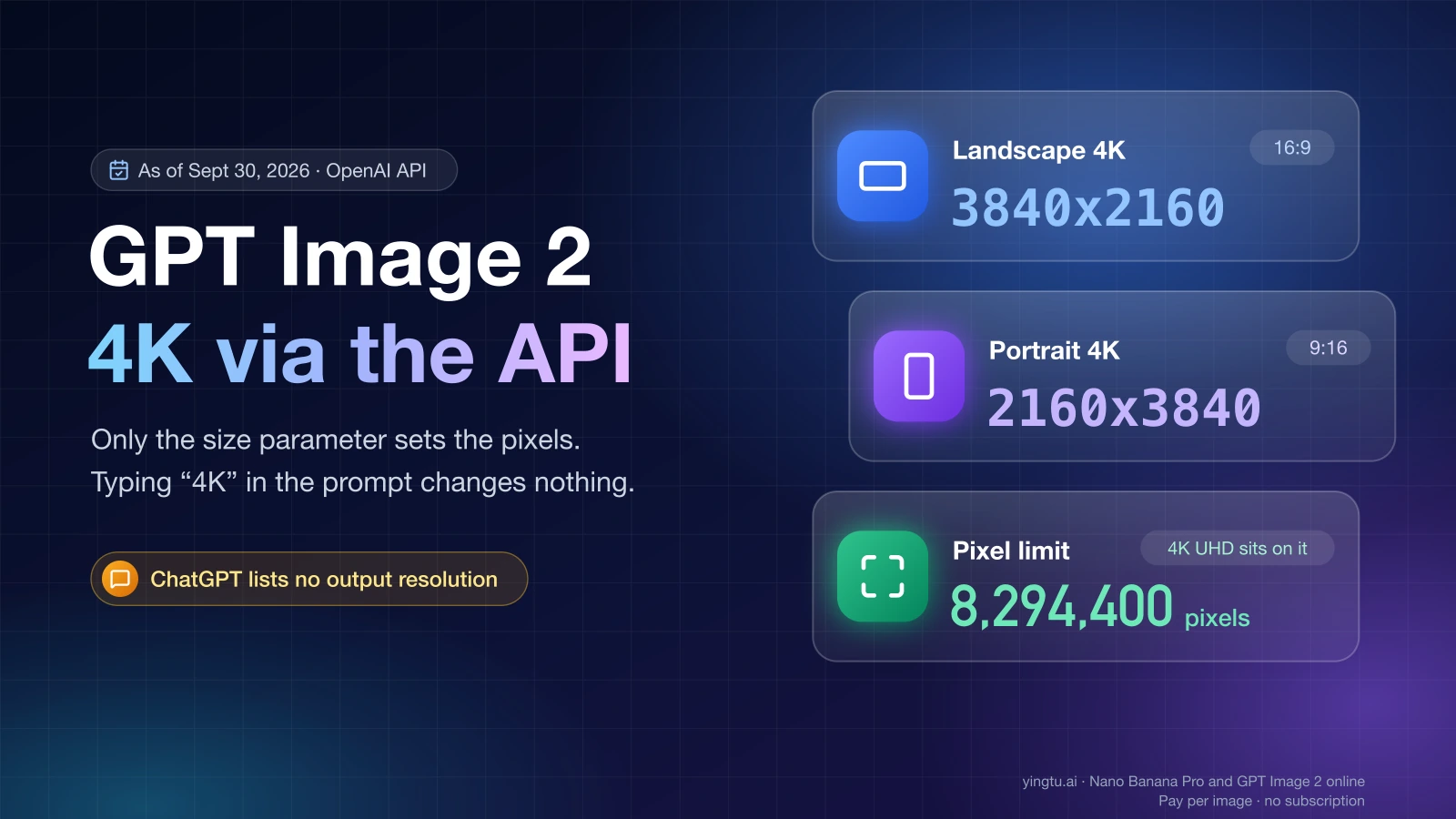
Yes. GPT Image 2 (and GPT Image 2.5) can return a 4K image through the OpenAI API when you set size to 3840x2160 for landscape or 2160x3840 for portrait. As of September 30, 2026, OpenAI's GPT Image 2 settings table lists both as supported sizes, while its GPT Image 2.5 size guidance calls anything above 2560x1440 experimental. ChatGPT is different: its help page lets you change the aspect ratio but does not document the output resolution.
GPT Image 2 (gpt-image-2) is OpenAI's image generation model for the API. You choose its output size in pixels with the size parameter, written as WIDTHxHEIGHT. Typing "4K" in the prompt does not change the pixel count. Only size does.
GPT Image 2 size rules and valid 4K sizes
A GPT Image 2 size is valid only if it passes all four rules in OpenAI's image generation guide (as of September 30, 2026):
- The longest edge is no more than 3,840 pixels.
- Width and height are both multiples of 16.
- The long edge is at most three times the short edge (3:1).
- The total pixel count is between 655,360 and 8,294,400.
4K UHD, the common "4K" screen size, is 3840x2160. That is 8,294,400 pixels, exactly the upper limit. So 4K UHD is the largest canvas GPT Image 2 accepts, and nothing bigger is possible in one request.
These are the sizes OpenAI lists for GPT Image 2 as of September 30, 2026. The default is auto, which lets the model pick.
| Size | Shape | Class | Total pixels |
|---|---|---|---|
1024x1024 | Square 1:1 | 1K | 1,048,576 |
1536x1024 | Landscape 3:2 | 1K | 1,572,864 |
1024x1536 | Portrait 2:3 | 1K | 1,572,864 |
2048x2048 | Square 1:1 | 2K | 4,194,304 |
2048x1152 | Landscape 16:9 | 2K | 2,359,296 |
3840x2160 | Landscape 16:9 | 4K | 8,294,400 |
2160x3840 | Portrait 9:16 | 4K | 8,294,400 |
The list is a set of common choices, not a closed menu. Any custom WIDTHxHEIGHT that passes the four rules works. Familiar screen and film sizes often fail, though, because they were never designed around multiples of 16:
| Size you might try | Result | Why | Valid alternative |
|---|---|---|---|
1920x1080 (1080p) | Rejected | 1080 ÷ 16 = 67.5 | 1920x1088 or 2048x1152 |
2048x1080 (DCI "2K") | Rejected | 1080 is not a multiple of 16 | 2048x1088 |
2560x1440 (QHD, often called "2K") | Valid | Both edges divide by 16 | — |
4096x2160 (DCI "4K") | Rejected | Long edge exceeds 3,840, and 8,847,360 pixels exceed 8,294,400 | 3840x2160 |
3840x3840 (4K square) | Rejected | 14,745,600 pixels is over the limit | 2880x2880 |
3840x1024 | Rejected | Ratio is 3.75:1 | 3840x1280 (3:1) |
800x800 | Rejected | 640,000 pixels is under the minimum | 1024x1024 |
"2K" has no single meaning. Film uses it for 2048x1080 and monitors often use it for 2560x1440. Neither label is an OpenAI term. The largest square GPT Image 2 can produce is 2880x2880, because 2,880 × 2,880 = 8,294,400, which sits exactly on the limit.
If users type their own dimensions into your app, check them before you spend an API call. This Python function returns every rule a size breaks:
hljs pythondef size_errors(width: int, height: int) -> list[str]:
errors = []
long_edge, short_edge = max(width, height), min(width, height)
if long_edge > 3840:
errors.append("longest edge is over 3840")
if width % 16 or height % 16:
errors.append("width and height must be multiples of 16")
if short_edge <= 0 or long_edge / short_edge > 3:
errors.append("ratio is wider than 3:1")
if not 655_360 <= width * height <= 8_294_400:
errors.append("total pixels must be 655,360 to 8,294,400")
return errors
print(size_errors(3840, 2160)) # []
print(size_errors(1920, 1080)) # ['width and height must be multiples of 16']
An empty list means the size is valid. It says nothing about whether the picture will look good.
Request a 4K image with the Image API
For a single generation or edit, call the Image API directly with model="gpt-image-2". The response holds the image as base64 data, and the default format is PNG. This Python example reads your key from the OPENAI_API_KEY environment variable, so the key never appears in the code:
hljs pythonimport base64
from openai import OpenAI
client = OpenAI() # reads OPENAI_API_KEY from the environment
result = client.images.generate(
model="gpt-image-2",
prompt="Wide product photo of a ceramic mug on a walnut desk, soft morning window light, no text",
size="3840x2160",
quality="high",
)
with open("mug-3840x2160.png", "wb") as f:
f.write(base64.b64decode(result.data[0].b64_json))
The same request for a 4K portrait with cURL, decoded straight into a file:
hljs bashcurl -s https://api.openai.com/v1/images/generations \
-H "Authorization: Bearer $OPENAI_API_KEY" \
-H "Content-Type: application/json" \
-d '{"model": "gpt-image-2", "prompt": "Vertical travel poster of a lighthouse at dusk, no text", "size": "2160x3840", "quality": "high"}' \
| jq -r '.data[0].b64_json' | base64 --decode > lighthouse-2160x3840.png
quality accepts low, medium, high, or auto (the default) for GPT Image 2. It controls rendering effort, not pixel count. A low image at 3840x2160 is still 3840x2160.
If you want a smaller file, add "output_format": "jpeg" or "webp" and an output_compression value from 0 to 100. PNG stays lossless.
Use the Responses API instead only when image generation is one step inside a larger conversation or agent workflow, for example when a text model plans the layout and then calls the image tool. For "make this image at this size," the Image API is simpler to log, retry, and cost out.
Save the file and check its real pixel size
A request for 4K is not proof of a 4K file. Check the saved image itself. With Pillow:
hljs pythonfrom PIL import Image
with Image.open("mug-3840x2160.png") as img:
print(img.format, img.size) # expected: PNG (3840, 2160)
Or from the command line with ImageMagick:
hljs bashmagick identify -format '%m %wx%h\n' mug-3840x2160.png
The expected output is PNG 3840x2160. If the file won't open at all, the usual cause is writing the base64 text to disk without decoding it first.
Then measure the copy people actually receive. A CMS, CDN, or responsive image setting can shrink an upload to 1920 pixels wide without any error. Download the public URL and run the same check:
hljs bashcurl -L 'https://example.com/images/mug-hero.webp' -o delivered.webp
magick identify -format '%m %wx%h\n' delivered.webp
Only call the asset 4K if both the original and the delivered copy measure 3840x2160 (or 2160x3840).
GPT Image 2.5 at 4K
GPT Image 2.5 comes as two models, gpt-image-2.5-flare and gpt-image-2.5-sunburst. As of September 30, 2026, OpenAI documents the same size rules for both: multiples of 16, a ratio between 1:3 and 3:1, no edge over 3,840 pixels, and 655,360 to 8,294,400 total pixels. So 3840x2160 and 2160x3840 are valid requests for them too.
Three details differ from GPT Image 2:
- OpenAI recommends
1024x1024,1536x1024, and1024x1536for GPT Image 2.5, and says resolutions above2560x1440are experimental. For a 16:9 image that stays inside the non-experimental range,2560x1440is the largest option. qualityaddsxhighandmaxon top oflow,medium, andhigh. The default is stillauto. Earlier GPT Image models stop athigh.- A transparent background is available with
background="transparent"andoutput_formatset topngorwebp.
A transparent 4K PNG request looks like this:
hljs pythonresult = client.images.generate(
model="gpt-image-2.5-flare",
prompt="Isolated red sneaker, side view, studio lighting",
size="3840x2160",
quality="xhigh",
background="transparent",
output_format="png",
)
The label "experimental" in the GPT Image 2.5 guidance is a reason to test your own prompts at 4K before you depend on it. It is not a statement that the size will be rejected.
Can ChatGPT give you 4K images?
Not in a way you can control. As of September 30, 2026, OpenAI's Images in ChatGPT help page lets you select an aspect ratio and regenerate, but it does not state the pixel size of the files ChatGPT produces. There is no setting for 3840x2160.
If you need an exact 4K file, use the API, where size sets the pixels. If you already have a ChatGPT image, measure it with the Pillow or ImageMagick check above instead of trusting a label. ChatGPT plans and API billing are also separate, so a ChatGPT subscription does not pay for API images.
What a 4K GPT Image 2 image costs
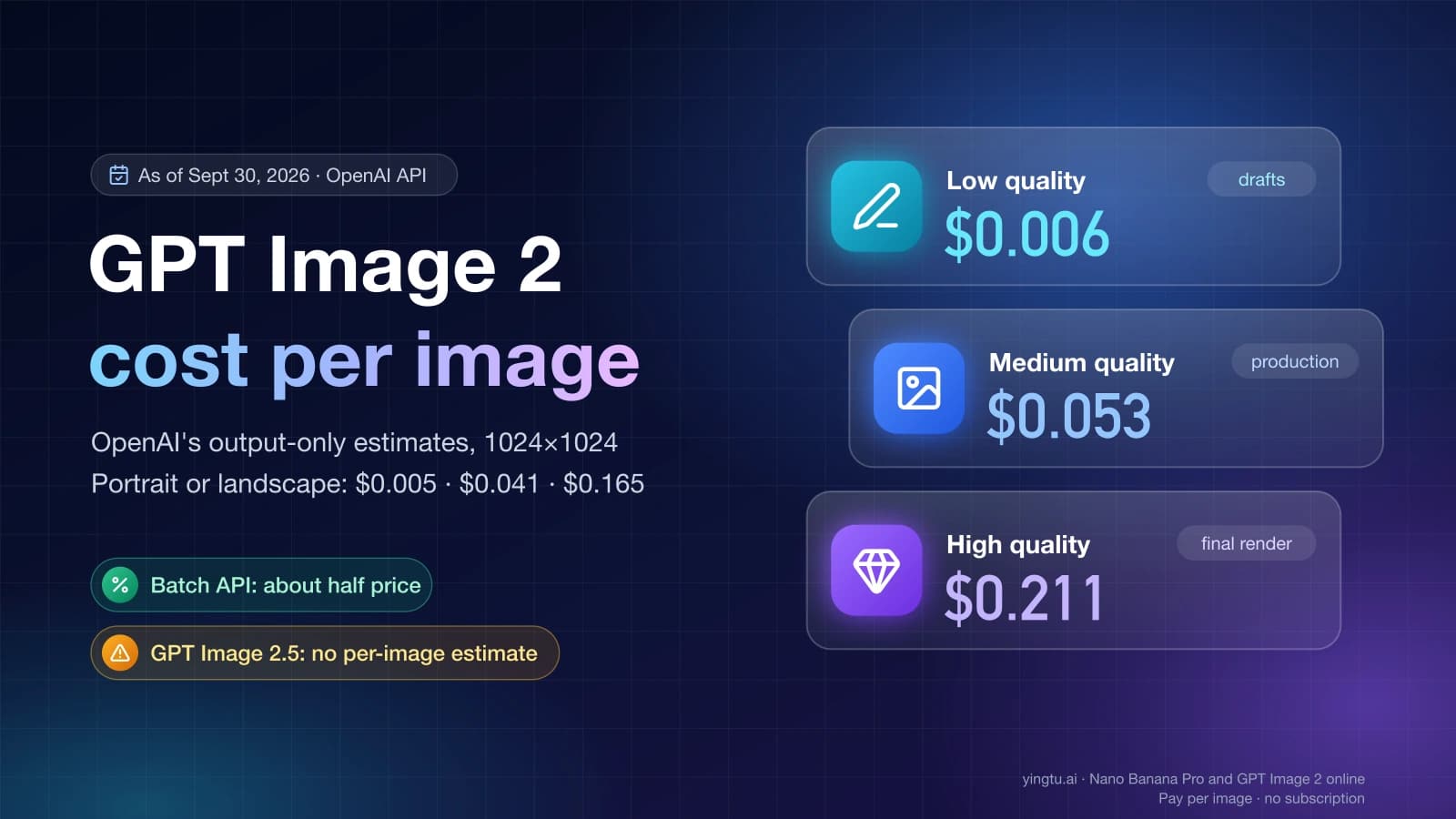
OpenAI bills GPT Image 2 by tokens, not per image. As of September 30, 2026, it publishes per-image estimates only for the 1K sizes:
| GPT Image 2, output only | Low | Medium | High |
|---|---|---|---|
1024x1024 | $0.006 | $0.053 | $0.211 |
1024x1536 or 1536x1024 | $0.005 | $0.041 | $0.165 |
There is no official per-image price for 3840x2160. Larger sizes produce more output tokens, so a 4K image costs more than the 1K figures above. To budget, generate one image at your exact size and quality, then multiply its billed output tokens by the current output token rate. The full formula and rates are in GPT Image 2 Price Per Image: Official API Costs and Formula.
Two account rules also apply as of September 30, 2026:
- The Batch API halves the token rates for
gpt-image-2, which suits large jobs where nobody is waiting on the result. - The API Free tier does not support image models. Tier 1 allows 5 images per minute, and the limit rises with higher tiers.
If you would rather pay a fixed price per image, GPT Image 2 Online on YingTu runs GPT Image 2 VIP and GPT Image 2.5 Flare and Sunburst at $0.03 per image as of September 30, 2026. It offers 30 exact sizes across 1K, 2K, and 4K with low, medium, or high quality. You paste your own LaoZhang API key, or sign in with Gmail for a small trial credit with conditions. Sizes are limited to those 30 presets.
Native 4K or 2K plus upscaling
Both paths can end in a 3840x2160 file. What differs is where the pixels came from and how much each attempt costs.
Request native 4K when all of these are true:
- the final canvas size is fixed, such as a 16:9 hero image or a 9:16 poster;
- the composition is already approved at a smaller size;
- you are generating a handful of finals and can inspect each one.
Work at 1K or 2K and upscale afterward when you are still exploring prompts, need many variants, or run large batches, since every 4K attempt costs more tokens. A practical sequence:
- Explore at
1024x1024,1536x1024, or1024x1536atlowquality. - Approve subject, layout, and any text placement.
- Render the approved prompt at
2048x1152or the final 4K size. - If you upscale, keep a note of the source size and the tool used, and label the result "upscaled to 4K."
- Measure the final file after every step.
Neither path guarantees sharper detail. Compare both on your own prompt before you choose one for production.
When the 4K image comes out wrong
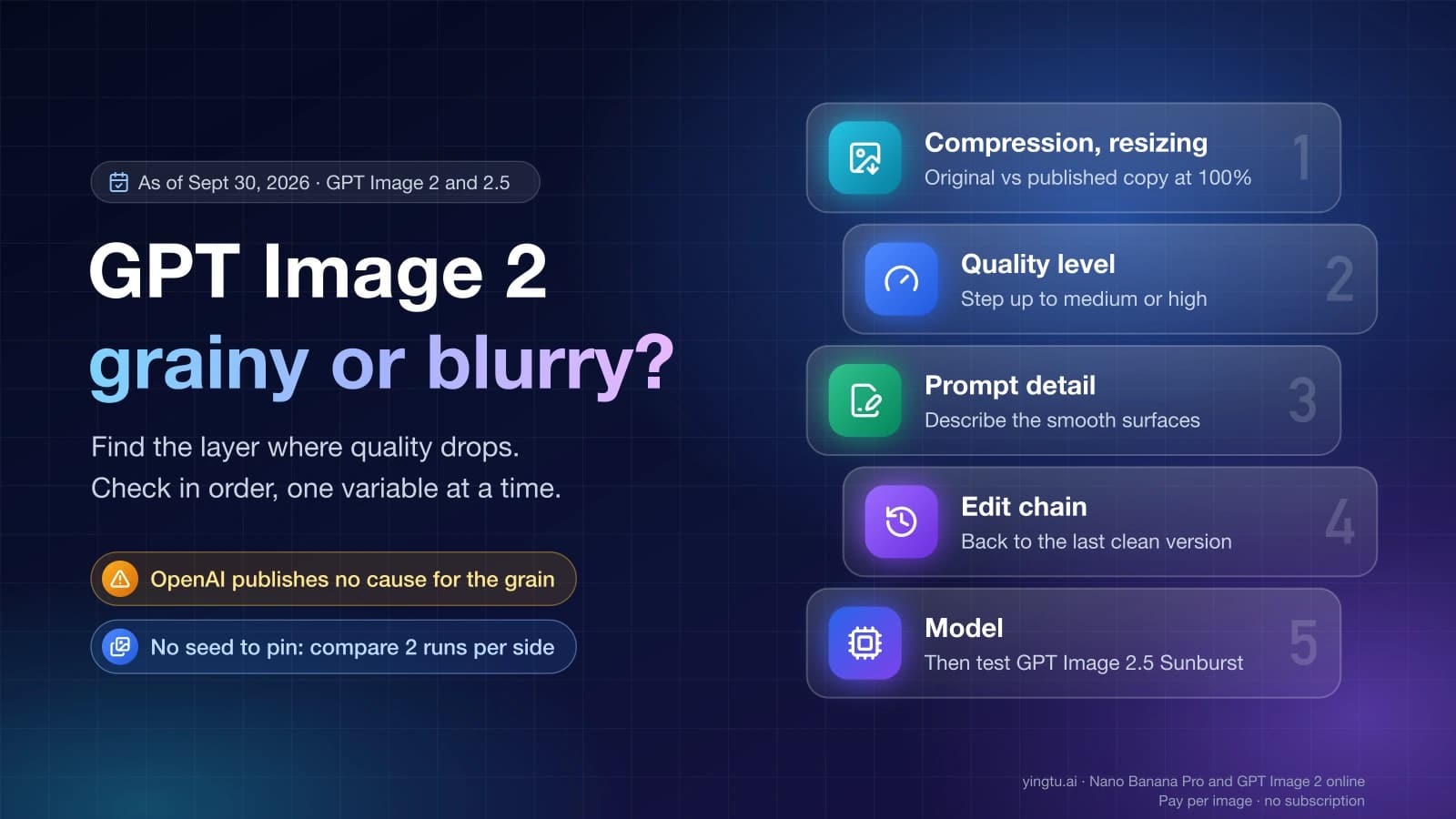
Find the layer where it broke, starting from the request:
- The request is rejected with an invalid size error. Run the four rules. The usual cause is a screen size like 1920x1080 or 4096x2160. Switch to a valid size from the tables above.
- The model is not available, or requests fail with 429. This is an account issue, not a size issue. The Free tier cannot use image models, and Tier 1 allows 5 images per minute.
- The saved file is broken or the wrong size. Confirm you decoded the base64 data before writing. Also check that no image library resized or re-encoded the file after saving.
- The website shows a smaller image. Your CMS or CDN made a resized copy. Measure the public URL, then change the upload or delivery settings.
- The pixels are right but the image looks soft or the text is wrong. That is a prompt or quality issue. Try a higher
quality, a clearer prompt, or a 2K render first. Changingsizeagain will not fix it.
FAQ
Can GPT Image 2 generate 4K images?
Yes, through the API. Set size to 3840x2160 (landscape) or 2160x3840 (portrait). As of September 30, 2026, both appear in OpenAI's list of supported GPT Image 2 sizes.
What sizes does GPT Image 2 support?
Any WIDTHxHEIGHT with both edges divisible by 16, no edge over 3,840 pixels, a ratio no wider than 3:1, and 655,360 to 8,294,400 total pixels. OpenAI's common presets run from 1024x1024 up to 3840x2160, plus auto.
Why is 1920x1080 rejected?
1080 is not a multiple of 16 (1080 ÷ 16 = 67.5). Use 1920x1088, or 2048x1152 if you want an exact 16:9 ratio.
Can I get 4K by writing "4K" in the prompt?
No. The prompt describes the content. Only the size parameter sets the pixel dimensions.
Is 4096x2160 supported?
No. Its long edge is 4,096 pixels, over the 3,840 limit, and its 8,847,360 pixels are over the 8,294,400 cap. Use 3840x2160.
What is the largest square image GPT Image 2 can make?
2880x2880, which is exactly 8,294,400 pixels. A 3840x3840 square would be well over the limit.
Does ChatGPT output 4K images?
OpenAI does not document ChatGPT's output resolution. You can pick an aspect ratio there, but not a pixel size. For a guaranteed 3840x2160 file, use the API and measure the result.
Is there a limit on how many 4K images I can generate?
On the API, the cap is your tier's rate limit (5 images per minute at Tier 1 as of September 30, 2026), and every image is billed by tokens. The Free tier cannot use image models at all.
How much does one 4K image cost?
OpenAI publishes no fixed 4K price. It estimates $0.006 to $0.211 for a 1024x1024 image depending on quality (as of September 30, 2026), and 4K uses more output tokens than that. Measure one request at your size to get a real number.