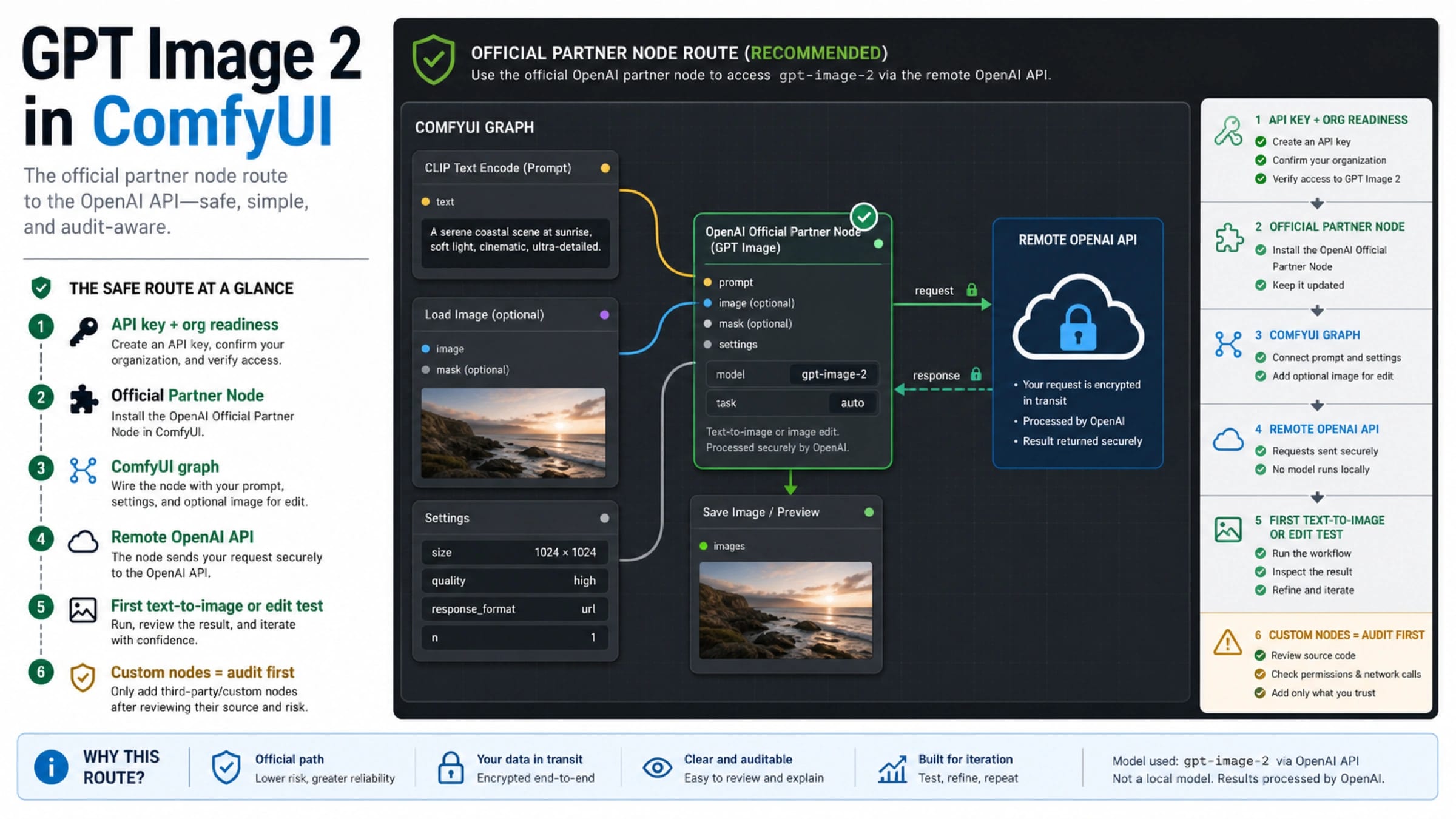
GPT Image 2 is available in ComfyUI through ComfyUI's official OpenAI Partner Node, but the model still runs through OpenAI's remote image API rather than as a local checkpoint. Treat the first decision as a route choice: use the Partner Node when the image task belongs inside a ComfyUI graph, use the direct OpenAI Image API or Responses API when you do not need graph orchestration, and treat GitHub or provider nodes as audit-first fallbacks.
| If you need... | Start with... | Why |
|---|---|---|
| GPT Image 2 inside a ComfyUI graph | Official OpenAI Partner Node | It keeps the workflow in ComfyUI while using OpenAI's hosted image model. |
| A simple app or script call | Direct OpenAI Image API or Responses API | It removes ComfyUI overhead when the graph adds no value. |
| A custom provider or GitHub node | Audit first, then test narrowly | The node owner, key handling, data path, and maintenance risk are different from the official route. |
Before you wire a full workflow, confirm that your ComfyUI build exposes the OpenAI Partner Node, set the node's model to gpt-image-2, and prove that the OpenAI account, API key, and organization access can make one simple text-to-image or image-edit call. If the node is missing, the account is not ready, or a custom node asks for a provider key you cannot audit, stop there and debug the route before adding more graph complexity.
What The Official ComfyUI Route Actually Means
ComfyUI's current official documentation presents GPT-Image-2 as an OpenAI Partner Node route. That wording matters. A Partner Node lets a ComfyUI workflow call an external model route from inside the graph, but it does not turn GPT Image 2 into a downloaded local model, a checkpoint file, or a GPU runtime that belongs to your machine.
The practical route is straightforward: update ComfyUI, use ComfyUI Cloud or a permitted self-hosted install, find the OpenAI GPT Image node, choose gpt-image-2 as the model option, and run a small test before adding loaders, masks, upscalers, batching, or downstream post-processing. ComfyUI's GPT-Image-2 docs say to use ComfyUI v0.19.4 or later or Comfy Cloud, and they show text-to-image and image-edit workflow templates for the OpenAI node route.
That creates a clean ownership split:
| Layer | Owner | What to check |
|---|---|---|
| ComfyUI graph | Your workflow and ComfyUI install | Node availability, template loading, graph wiring, input images, and downstream nodes. |
| OpenAI model route | OpenAI API access | API key, organization state, policy, supported options, latency, and billing/account limits. |
| Custom node route | Third-party node or provider | Code owner, endpoint, key handling, data terms, maintenance, and support. |
If the graph fails, do not assume the model is unavailable. First identify which layer failed. A missing node is a ComfyUI/version problem. An authentication or organization-verification error is an OpenAI account problem. A provider-key prompt inside a GitHub node is a third-party route problem.
Set Up The Official Partner Node First
Start with the smallest official path. Update ComfyUI or use ComfyUI Cloud, then search the node library for the OpenAI GPT Image node. In the current ComfyUI docs, GPT Image 2 is selected as the gpt-image-2 model option on the OpenAI GPT Image node family. If your install does not show that option, treat the install as stale or incomplete before you start hunting for custom nodes.
Use this setup order:
- Update ComfyUI to a current build or open ComfyUI Cloud.
- Confirm the OpenAI Partner Node system is available in your environment.
- Add the OpenAI GPT Image node to a new empty workflow.
- Set the model option to
gpt-image-2. - Add only the minimum prompt and output path needed for a first run.
- Run one text-to-image request.
- Save the workflow only after the first call proves the node and account route.
The order is intentionally conservative. A complex graph can fail for many reasons that have nothing to do with GPT Image 2: missing input image dimensions, broken custom nodes, invalid masks, disconnected outputs, incompatible downstream nodes, or stale workflow JSON. A one-node test isolates the official route.
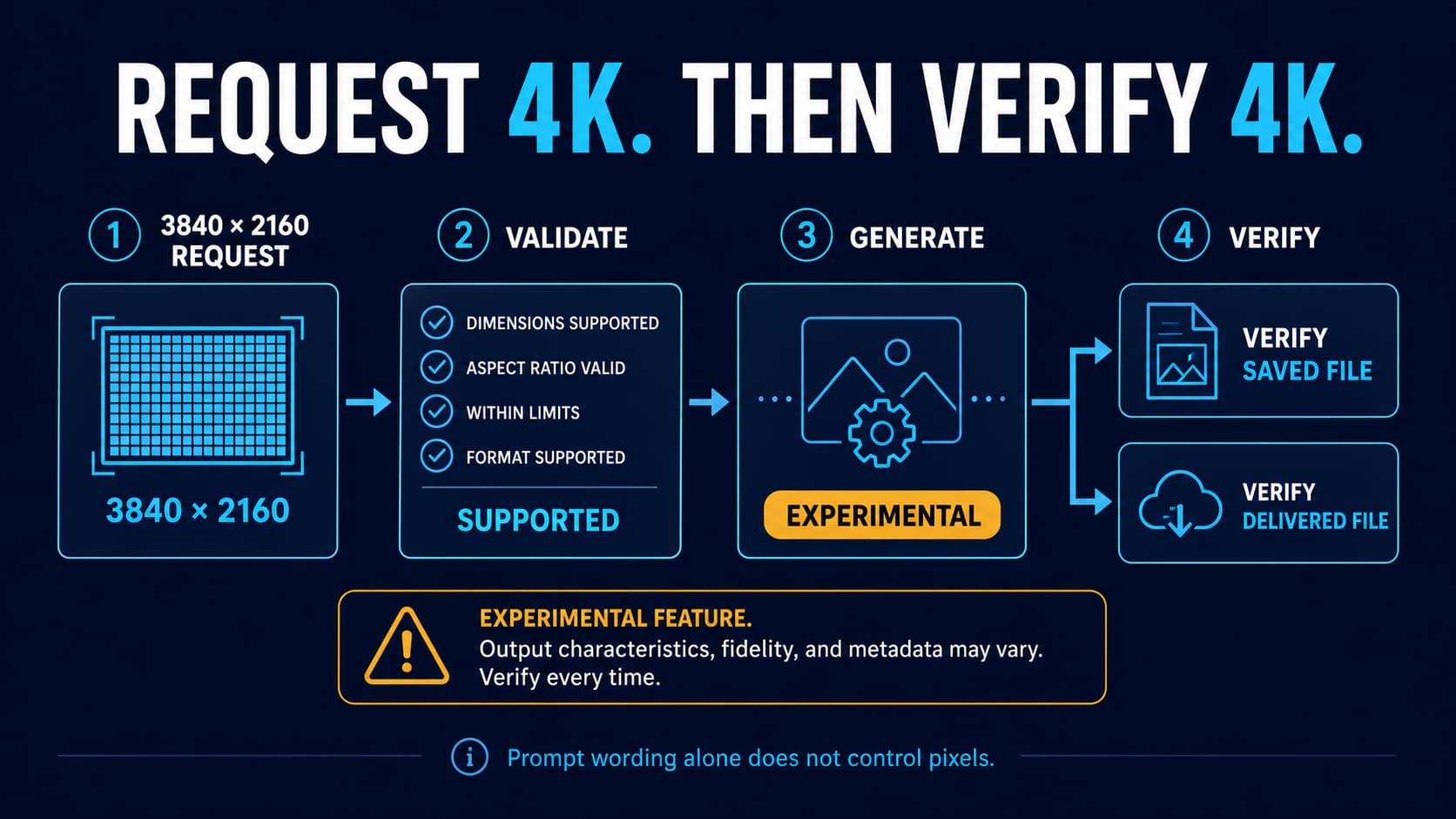
For image editing, use the official edit workflow as the second test, not the first. ComfyUI's GPT-Image-2 docs describe an image-edit workflow and note up to 2K resolution for that edit path. That is enough for a real edit test, but it is not a promise that every ComfyUI-node workflow exposes every API-level size or background option. If the next job is exact 4K output control, hand off to the focused GPT Image 2 4K workflow guide instead of guessing inside the ComfyUI node.
Prove Account Readiness Before Debugging The Graph
GPT Image 2 inside ComfyUI still depends on OpenAI API access. OpenAI's image-generation guide documents direct Image API generation and editing, plus image generation as a tool inside the Responses API. It also notes that GPT Image models may require API organization verification before use. That means a perfect ComfyUI graph can still fail if the account route is not ready.
Check these items before you blame the node:
| Check | Why it matters | What a failure usually means |
|---|---|---|
| API key present | The Partner Node needs a route to OpenAI. | Missing, expired, or mis-scoped key. |
| Organization access | GPT Image models may require organization verification. | The account can authenticate but cannot call the model yet. |
| Billing and usage state | Image generation is an API operation with account-level constraints. | The route is blocked by account limits, billing state, or policy. |
| Network access | The model call is remote. | Local firewall, proxy, container, or desktop environment blocks the call. |
| Supported options | Not every option belongs to every node route. | The graph asks for size, background, or edit behavior the node route does not expose. |
The fastest isolation test is to make a direct OpenAI image request outside ComfyUI with the same account. Keep that test outside the graph so the result identifies the failing layer. If direct API access fails, fixing the ComfyUI graph will not solve it. If direct API access works but ComfyUI fails, focus on the ComfyUI build, Partner Node import, workflow template, model selection, or graph wiring.
Do not turn this into a free-access page. The question here is whether the account can make the call, not whether GPT Image 2 API is free. If that is the reader's real next question, use the focused sibling on whether GPT Image 2 API is free or the broader free and unlimited route audit.
Run One Text-To-Image Test And One Edit Test
The first useful workflow is intentionally boring. Use a short prompt, one output, and no special downstream processing. You are testing route correctness, not final image quality.
For a text-to-image test, use a prompt with a visible but low-risk target:
hljs textA clean technical product board showing three labeled blocks: ComfyUI graph, OpenAI remote API, and saved output. Neutral background, no logo, no tiny text.
If that succeeds, inspect three things: did the node call the expected model, did the output save where you expected, and did the graph stay reproducible after reopening the workflow? Only after those are stable should you add reference images, masks, batching, upscalers, or post-processing.
For an edit test, use one input image and a small change. The goal is to prove that the image input path, edit node, and output path work together. Avoid dense text, multiple references, and complex masks for the first edit. If a simple edit fails, a complex production edit will only add noise to the diagnosis.
This is also where the local-versus-remote boundary becomes operational. Your ComfyUI graph can contain local nodes before and after the OpenAI Partner Node. The GPT Image 2 generation step itself is still remote. That affects privacy, latency, retry behavior, and failure handling. If your project cannot send images to a remote model route, GPT Image 2 through the Partner Node is the wrong path, even if the node works technically.
Choose The Right Route For The Job
The official Partner Node is the default when the image work belongs inside a ComfyUI graph. It is not automatically the best route for every GPT Image 2 task.
Use the Partner Node when the output needs to move through ComfyUI nodes: reference preparation, masks, compositing, upscaling, multi-step visual systems, or pipelines where ComfyUI is the shared canvas for an artist or operator. In that case, keeping GPT Image 2 in the graph reduces handoff friction.
Use the direct Image API when the job is a backend call: a web app generates one image, an internal tool edits a product photo, or a script tests a prompt set. Direct API calls are easier to log, retry, cost-control, and isolate. They also avoid a ComfyUI dependency when no graph orchestration is needed.
Use the Responses API when image generation is one tool inside a larger multi-step agent or assistant flow. For example, an app may reason about a brief, generate an image, inspect metadata, and explain revisions to the user. That is different from a ComfyUI graph. It belongs in application code, not necessarily in a node canvas.
Use a custom GitHub or provider node only after you know why the official route does not fit. A visible GitHub route can be useful for a provider-specific workflow, but it is not automatically safer or more official because it installs in ComfyUI. Check which API endpoint it calls, whose key it requires, whether it labels the model accurately, how it stores secrets, whether it is maintained, and what happens when the provider changes limits or billing.
| Route | Best for | Avoid when |
|---|---|---|
| Official ComfyUI OpenAI Partner Node | ComfyUI graph workflows that need GPT Image 2 inside the canvas. | You only need one backend image call. |
| Direct OpenAI Image API | Simple generation/editing in app code, scripts, or services. | The workflow depends on ComfyUI nodes before or after generation. |
| Responses API image tool | Multi-step assistant workflows where image generation is one tool call. | You want a visual node graph for human operators. |
| Third-party custom node | Provider-specific constraints after audit. | You cannot verify owner, endpoint, key handling, data path, limits, or support. |
Audit Custom Nodes Before Installing Them
Custom nodes are not bad by default. They are just different contracts. If a custom node routes through a third-party provider, the route owner, payer, data terms, failure handling, and model labeling are no longer the same as the official OpenAI Partner Node.
Before installing a GPT Image 2 custom node, read it as code and as an access route:
| Audit question | Pass signal | Stop signal |
|---|---|---|
| Who owns the node? | Maintainer, license, release history, and issues are visible. | Anonymous or stale repository with unclear support. |
| Which endpoint is called? | Endpoint and provider route are explicit. | The node hides routing or sends requests through an unclear service. |
| How are secrets handled? | API keys stay in expected config paths and are not logged. | Keys appear in workflow JSON, console logs, URLs, or shared examples. |
Is gpt-image-2 actually used? | Model ID or provider mapping is documented and testable. | The route says GPT Image 2 in UI copy but hides the actual model. |
| What happens on failure? | Errors preserve provider status, request reason, and retry boundary. | Failures collapse into a generic broken-node message. |
| Are limits and data terms clear? | Provider documents usage limits, retention, rights, and support. | The route promises easy access without owner, payer, or data terms. |
Install the custom node only when it solves a concrete problem the official Partner Node cannot solve, such as a provider-specific workflow, a team account route, or an integration constraint you are willing to own. Do not install it just because a video demo or repository looks convenient.
Troubleshoot Missing Nodes And Failed Runs
Most GPT Image 2 in ComfyUI failures fall into a small set of buckets. Classify the failure before changing the workflow.
| Symptom | Most likely layer | First fix |
|---|---|---|
| OpenAI GPT Image node is missing | ComfyUI install or Partner Node availability | Update ComfyUI, check Cloud/Desktop/stable timing, and reload node templates. |
Node exists but gpt-image-2 is not selectable | Node version or import state | Update again, check template documentation, and confirm the OpenAI Partner Node imported correctly. |
| Authentication or permission error | OpenAI account route | Verify API key, organization access, billing/account state, and model eligibility. |
| Simple text-to-image works but edit fails | Workflow/input route | Test a smaller input, simplify masks, remove downstream nodes, and use the official edit workflow. |
| Custom node works but official node does not | Route mismatch | Separate provider success from official OpenAI access; do not treat one as proof of the other. |
| 4K or transparent-background request fails | Option support boundary | Use API-level docs and the 4K sibling guide; do not assume the ComfyUI node exposes every option. |
| Slow or inconsistent output | Remote model route, account state, or graph load | Test direct API, reduce graph complexity, and compare with one-node ComfyUI workflow. |
If the node is missing, do not jump straight to a custom node. Missing official node often means the ComfyUI build, Cloud/Desktop release timing, workflow template, or node import is behind the documentation. If the account fails, do not keep changing graph nodes. If the custom node fails, do not assume GPT Image 2 itself is broken; the custom route may be the failing layer.
Where The Sibling Guides Take Over
Keep GPT Image 2 in ComfyUI separate from adjacent jobs. The right handoff depends on what the reader needs next.
Use the GPT Image 2 4K workflow guide when the question becomes exact size settings, custom dimension validation, saved-file verification, or native 4K versus upscale fallback. ComfyUI setup and API-level output control are related, but they are not the same job.
Use the GPT Image 2 API free-tier guide when the question is whether the official OpenAI API has a free entitlement. Use the free and unlimited route audit when the question is whether ChatGPT app access, browser tools, provider credits, or no-login wrappers are safe to rely on.
Use the ComfyUI Nano Banana Pro alternative guide when the problem is leaving a Google image route for local/open-weight, hosted, or API alternatives inside ComfyUI. Replacement selection is a different job from wiring GPT Image 2 through the official ComfyUI route.
The practical close is simple: if you want GPT Image 2 inside a ComfyUI graph, start with the official OpenAI Partner Node, prove account readiness, run one minimal generation and one minimal edit, then decide whether direct API code or a custom node is actually necessary.
FAQ
Is GPT Image 2 officially available in ComfyUI?
Yes. ComfyUI's official documentation and announcement present GPT Image 2 through the OpenAI Partner Node route. Use the official node path first when you need GPT Image 2 inside a ComfyUI graph.
Is GPT Image 2 a local ComfyUI model?
No. In the official ComfyUI route, GPT Image 2 is called through OpenAI's remote image API. ComfyUI owns the graph and orchestration; OpenAI owns the model execution.
Which ComfyUI node should I use for GPT Image 2?
Use the official OpenAI GPT Image Partner Node and set the model option to gpt-image-2. If the node or model option is missing, update ComfyUI or use ComfyUI Cloud before installing a custom node.
Do I need an OpenAI API key?
For the official Partner Node route, expect OpenAI API access to matter. Confirm API key availability, organization access, billing/account state, and model eligibility before debugging a complex graph.
Can I generate 4K GPT Image 2 images from ComfyUI?
Do not assume every API-level output option is exposed or stable through the ComfyUI node. If exact 4K dimensions are the goal, use the API-focused GPT Image 2 4K guide to validate size, save the file, and inspect dimensions.
Are GPT Image 2 custom nodes safe?
They can be useful, but they are not the official default. Audit owner, endpoint, key handling, model mapping, data terms, limits, maintenance, and failure behavior before using a GitHub or provider node.
Should I use ComfyUI or the direct OpenAI API?
Use ComfyUI when the image belongs inside a node graph. Use the direct Image API for a simple app or script call. Use the Responses API when image generation is one tool inside a larger assistant workflow.