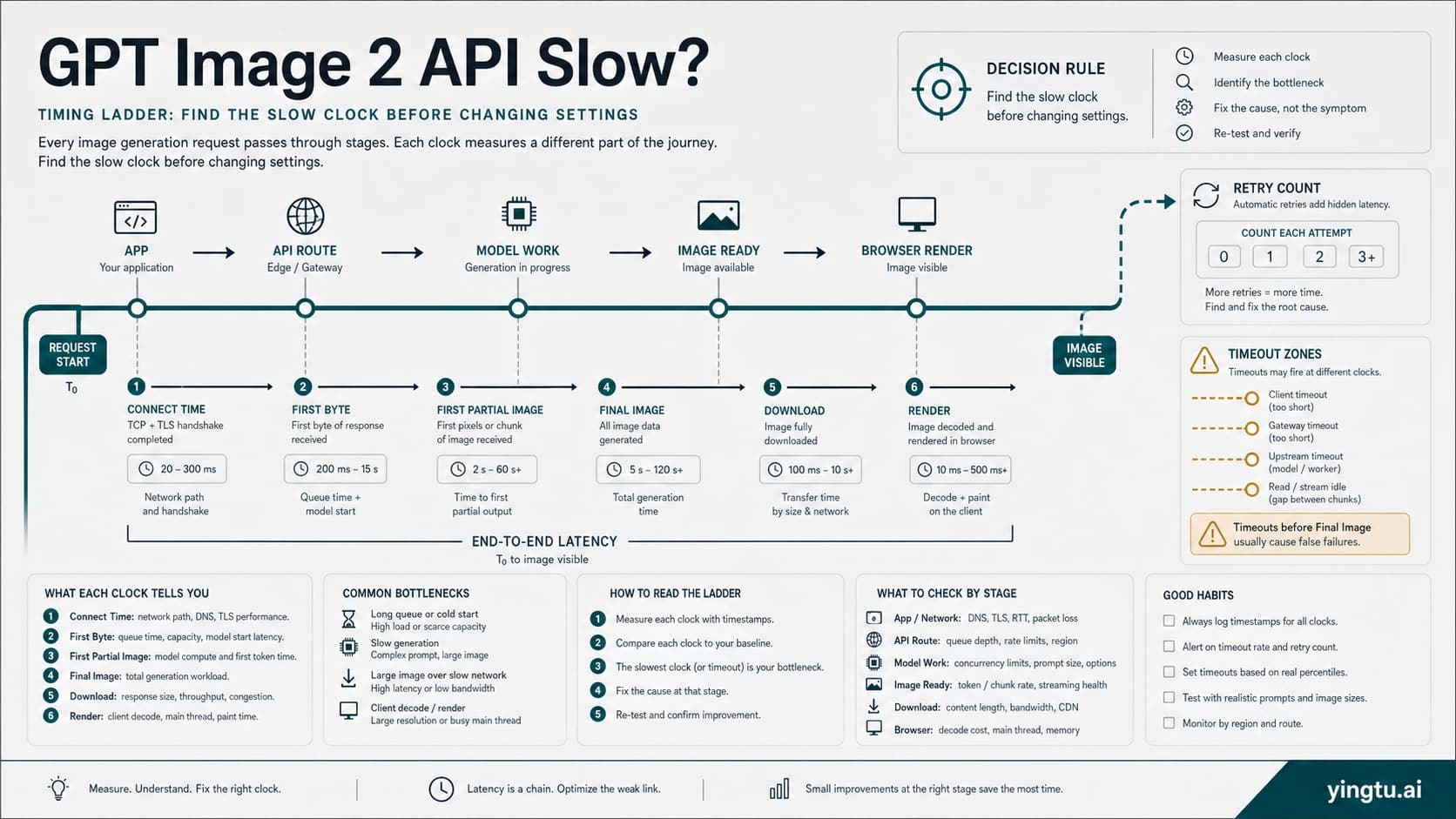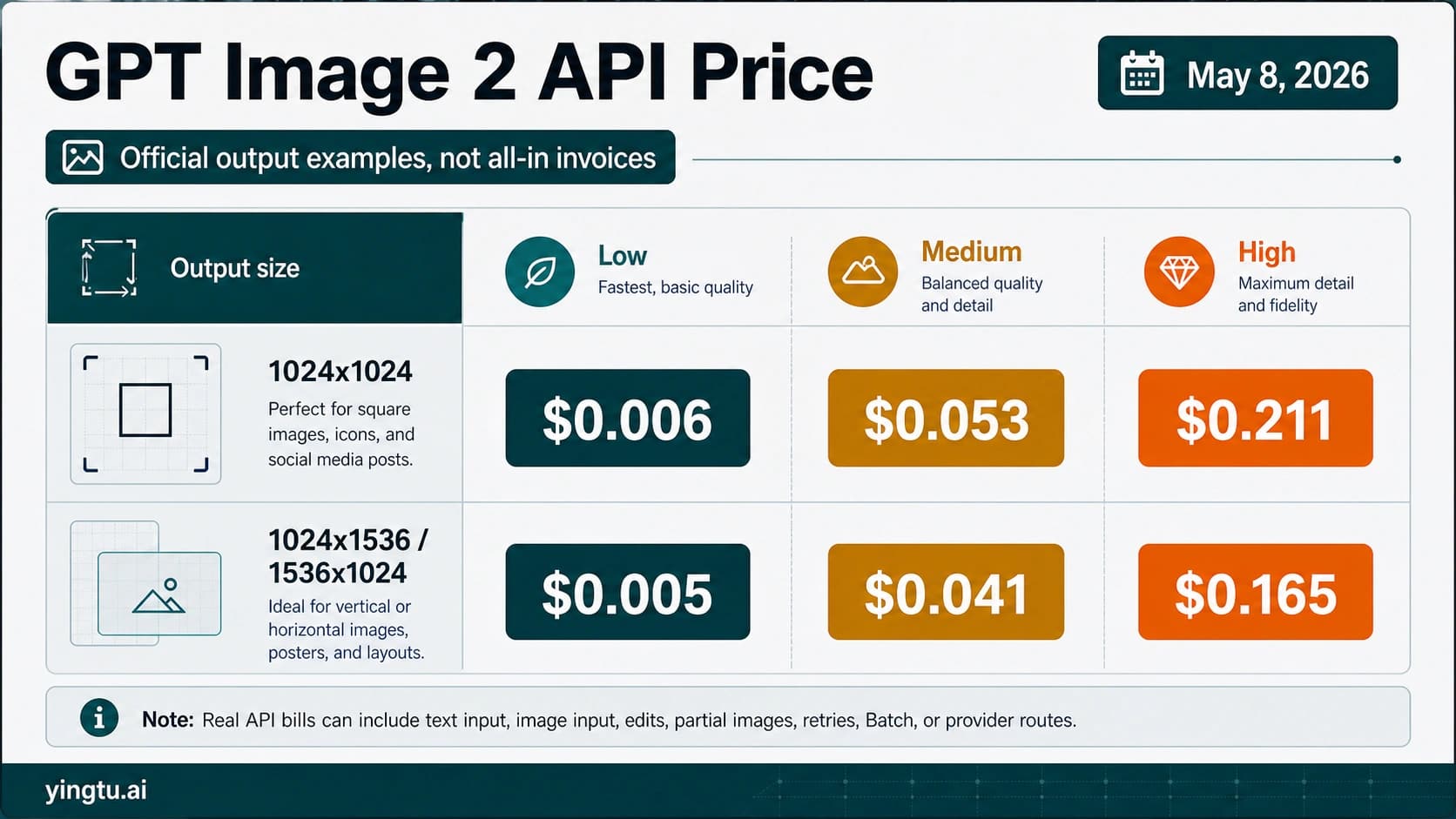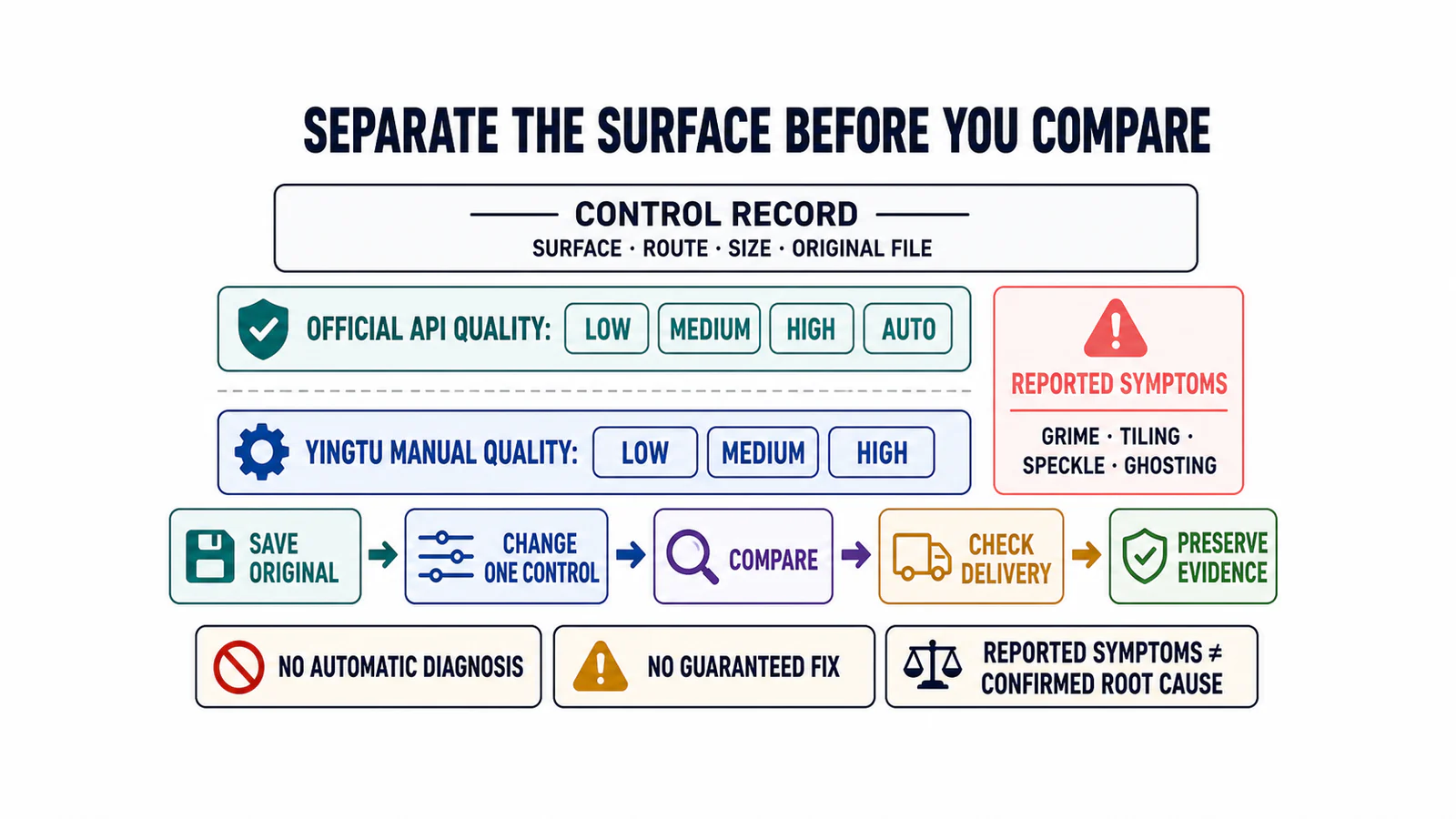
If a GPT Image 2 result has grime, repeating tiles, speckles, muddy detail, broken text, or an odd texture, do not begin by guessing the cause. First identify the exact surface and model route, save the original file, and run the same prompt twice while changing one documented control. A cleaner second image is useful evidence about that control; it is not proof of a universal cure.
The fastest safe split is simple: softness across the whole image may justify a quality or delivery check, while localized texture, carryover, text, consistency, or composition failures need their own reproducible comparison. OpenAI documents the controls. Community posts document symptoms. Neither source confirms one root cause for every strange artifact.
Start with a two-way diagnosis
Ask one question before changing anything: is this a setting mismatch, or a visible artifact that survives a controlled rerun?
- A setting mismatch is something you can verify in the request or saved file: draft quality, unintended dimensions, lossy output, or downstream compression.
- An artifact symptom is something visible that needs isolation: grime, tiled texture, speckle, ghosted elements, malformed lettering, character drift, or misplaced objects.
- A route difference means two surrounding products may not be sending, editing, or saving the image in the same way. It does not, by itself, identify the model as the cause.
OpenAI's current Image API guide lists low, medium, high, and auto for GPT Image 2 quality. The same guide documents flexible size constraints, PNG/JPEG/WebP output, and JPEG/WebP compression controls. Those are first-party controls, not promises that a higher value removes grime or tiling.
Use the 10-minute artifact triage card
Use this decision aid before rewriting the prompt. Keep the original output open at the intended display size, and choose the first matching row.
| Visible symptom | Check you can verify now | One-variable next test | Pass or branch condition |
|---|---|---|---|
| The entire image is soft or lacks small detail | Exact quality value, original pixel dimensions, and whether the saved copy was recompressed | Keep surface, route, prompt, input, and size fixed; change low to medium | If detail improves without a new defect, keep the better file and record the setting; otherwise classify the remaining symptom |
| Grime, honeycomb texture, dots, or tiles cover unrelated regions | Whether the symptom exists in the original file and whether a reference image was supplied | Run one clean request with the same prompt and no reference input | If it persists, save both originals and stop claiming the reference was the cause |
| A prior object, word, or texture appears in a later ChatGPT image | Whether the generation reused the same conversation and earlier images | Repeat once in a fresh conversation with the same text prompt | A difference implicates conversation context as a variable, not as a confirmed universal mechanism |
| Text, a logo, or a recurring character drifts | Exact wording, reference inputs, edit state, and the elements that must remain unchanged | Hold all settings fixed and simplify only the acceptance-critical instruction | Approve only if spelling, placement, and identity checks all pass |
| The generated original is clean but the published asset looks damaged | Export format, compression value, resize step, and delivery copy | Compare the original against one lossless or less-compressed delivery file | Fix the delivery path if the original passes and only the derived file fails |
| A defect appears only on one product surface | Surface name, model route label, size, quality, and file handling | Reproduce on the same surface first; compare another route only after that | Report a surface-bound difference; do not call it model-wide without broader evidence |
The card passes only when every comparison record names the surface, model route, size, quality, reference state, original filenames, and the single variable changed. It fails if several variables change together or if the only evidence is a resized screenshot.
Run a same-prompt one-variable comparison
What is the smallest useful test? Make two outputs on the same surface and model route, with the same prompt, input image state, size, and output handling. Change only one available quality setting. For the official API, auto is a documented option. It is not verified behavior of the YingTu interface.
Fill in this worksheet before judging the pair:
| Field | Output A | Output B |
|---|---|---|
| Surface | Name the app, API, or wrapper | Same as A |
| Model route | Exact visible or requested route label | Same as A |
| Prompt and input | Same text; same reference state | Same as A |
| Size and format | Exact dimensions and saved format | Same as A |
| Quality | One available value, such as low | One different available value, such as medium |
| Original file | Saved, not a preview screenshot | Saved, not a preview screenshot |
| Acceptance scan | Texture, text, edges, identity, composition | Same checklist as A |
Do not label B a winner because it is simply larger, sharper, or more expensive. Decide against the requirement that matters: readable text, clean flat areas, stable character features, correct object placement, or absence of the reported texture. If both fail differently, preserve both files and choose the next single variable instead of averaging the failures into “bad quality.”
Know what the official controls can establish
The current first-party documentation makes several useful facts checkable:
- GPT Image 2 accepts
low,medium,high, andautoquality in the Image API. OpenAI describes low quality as useful for drafts, thumbnails, and rapid iteration before medium or high final work. - Custom sizes must keep each edge at or below 3840 pixels, use edge lengths divisible by 16, stay within a 3:1 aspect ratio, and contain between 655,360 and 8,294,400 total pixels.
- Outputs above 3,686,400 pixels are described as experimental. “More pixels” is therefore not a documented guarantee of a cleaner image.
- PNG is the default output; JPEG and WebP support compression controls. A clean original can still be damaged later by conversion, resizing, or delivery.
- OpenAI lists text rendering, recurring-character or brand consistency, and precise composition among current limitations.
If the controlled pair passes and your next task is choosing production dimensions, continue with the GPT Image 2 4K generation guide instead of treating a larger canvas as an artifact fix.
The Responses API image tool guide describes a different surrounding workflow: a text-capable model invokes an image-generation tool, and the tool exposes size, quality, format, compression, background, and action options. It can also revise a prompt and work across turns. An observation from that flow should not be silently generalized to a direct Image API request or the ChatGPT consumer app.
Treat grime and tiling as reported symptoms
Recent community threads describe dirty overlays, checkerboard or honeycomb texture, white sparkles, blocky micro-detail, repeated patterns, and traces of earlier images. A Reddit discussion contains both “start a new chat” advice and reports that the symptom appeared in a brand-new chat. An OpenAI Developer Community thread collects similar observations and workaround ideas.
That disagreement is valuable: it tells you not to write “fresh chat fixes it” as a rule. A fresh conversation is a bounded test for ChatGPT context. If it changes the output, context was one variable in that pair. If it does not, move on without inventing a hidden mechanism.
Commercial guides can add vocabulary and experiment ideas. For example, a current APIPass artifact guide groups reports around fine repeating detail, references, same-chat carryover, and conflicting style instructions. Its mechanism and route-superiority statements remain third-party inference. Use them to design a test, not to declare a universal cause or guaranteed repair.
Choose the next branch from the evidence
After one controlled pair, choose the narrowest branch that matches what you observed:
- Only the low-quality output is inadequate: continue with the better documented quality value, then inspect cost and latency separately.
- Only the delivered copy is damaged: repair compression, resize, or export handling; do not rewrite the generation prompt.
- Only a reference-based run fails: inspect the reference, mask, and requested edit boundary. A no-reference pass shows correlation with that input, not a universal reference bug.
- Only the later ChatGPT turn fails: preserve the conversation evidence and try a fresh conversation once. Do not promise that the reset will always work.
- The same artifact survives the clean pair: stop approving the asset. Save a reproducible evidence set and either change one more variable or escalate.
Do not switch routes halfway through the first pair. Route switching changes too much at once: product surface, context handling, default parameters, file processing, and possibly provider mapping. It can be a later comparison, but its result belongs to that exact route pair.
If you are already using YingTu
YingTu publicly exposes gpt-image-2-vip with manual low, medium, and high quality choices. That route is not the official gpt-image-2 API surface, and its visible controls do not establish upstream acceptance for every combination.
There is no verified automatic artifact diagnosis or artifact-removal workflow in YingTu. If you already use the workspace, you can apply the same worksheet to a manual low-versus-medium or medium-versus-high pair. Label the route gpt-image-2-vip, keep prompt, input, and size fixed, and treat the result only as evidence for that pair. auto belongs to the documented OpenAI API options; it should not be presented as a verified YingTu UI setting.
Save a useful escalation bundle
When a clean pair still fails, save enough information for someone else to reproduce the exact problem:
- original output files rather than screenshots;
- surface and visible model route;
- prompt, input images, and edit mask if used;
- exact quality, size, format, and compression settings you controlled;
- timestamp and request ID when the surface exposes one;
- a short acceptance note naming the failed region and observable defect;
- the comparison variable and what stayed fixed.
Escalate the narrow statement you can support: “This tiled texture appeared in both medium and high outputs on this route with the same prompt and size.” Do not escalate “GPT Image 2 is broken everywhere” from one surface, and do not call an unconfirmed workaround a fix.
Final approval rule
Approve the image only when the original file passes at the intended display size and the acceptance-critical elements are correct. If grime, tiling, speckle, malformed text, identity drift, or composition error survives a clean controlled comparison, keep the asset out of final delivery.
A higher setting, new conversation, revised prompt, different size, or alternate route may improve a particular output. None is a guaranteed cure. The reliable result of this workflow is a smaller, better-labeled problem and a defensible next action.