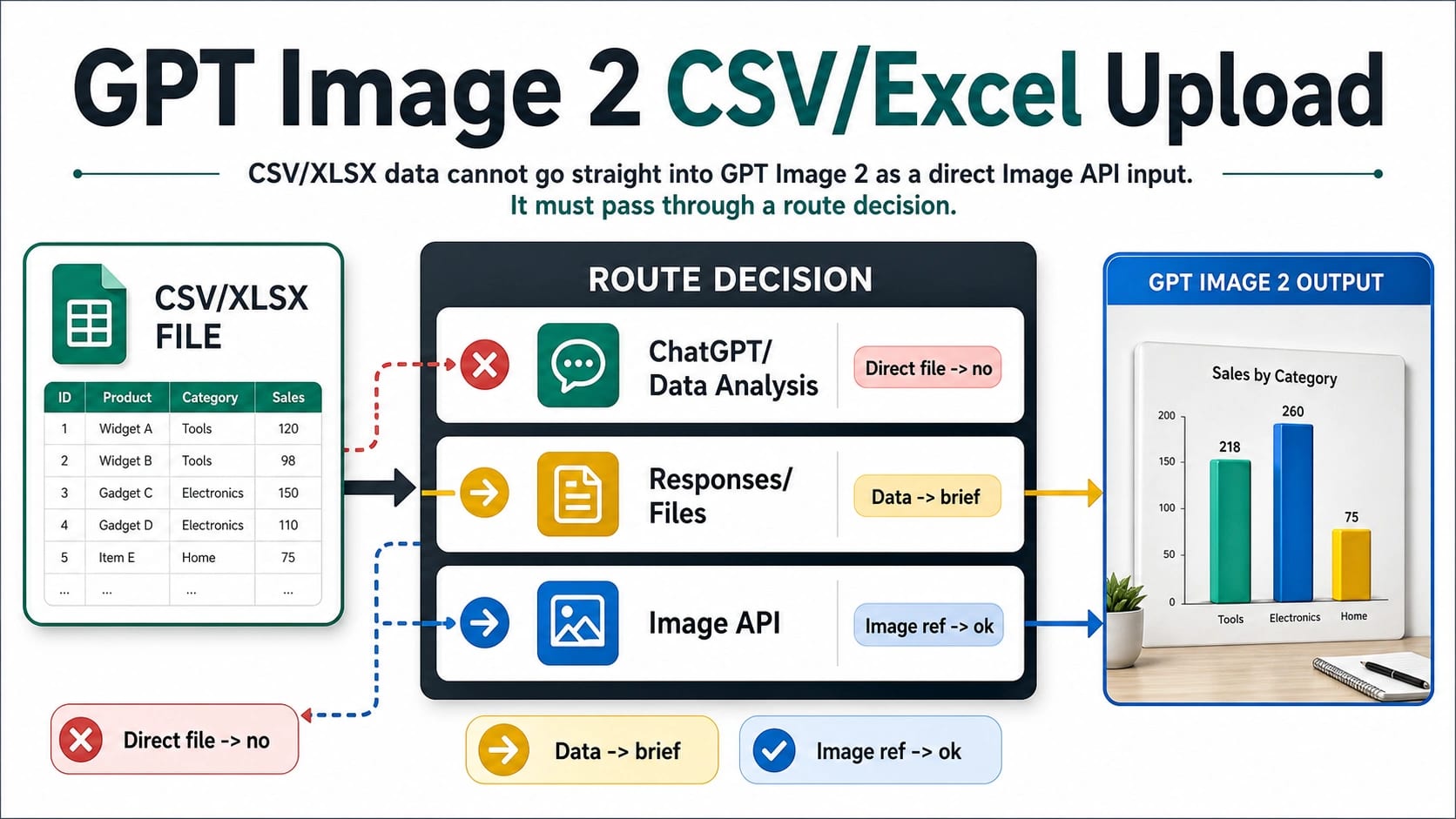
GPT Image 2 does not take a CSV or Excel workbook as a direct Image API input. Treat the spreadsheet as data first: inspect it in ChatGPT/Data Analysis or parse it in your own code, reduce it to the rows and message the image should express, then send GPT Image 2 a prompt, visual brief, chart screenshot, or image reference.
The working split is simple: ChatGPT/Data Analysis is the easiest manual file-inspection route, Responses and Files can help a larger API workflow carry file context, and the Image API is where the final prompt or image reference becomes an image.
| Reader job | Wrong direct path | Use this surface instead | Stop rule |
|---|---|---|---|
| Turn spreadsheet rows into an infographic | Upload .csv or .xlsx straight to Image API generation | Analyze the data first, then pass a compact visual brief to GPT Image 2 | Do not send raw workbooks as if they were images |
| Convert a chart or table layout into a styled image | Attach the workbook as an image reference | Export or screenshot the chart/table, then use that image as a reference | A spreadsheet file is not the same as an image reference |
| Automate a batch of product, finance, or report visuals | Ask the Image API to read the workbook | Parse CSV/XLSX in code, validate columns, aggregate rows, then call image generation per visual | Keep calculation and privacy controls outside the image call |
| Produce PPTX, PDF, or XLSX output | Expect GPT Image 2 to export office files | Generate image assets, then build the document in a separate export layer | Image generation output is image data, not a native workbook or deck |
What works, what fails, and what to use instead
The reader problem is not "Can OpenAI handle files?" OpenAI has file-aware surfaces. The useful question is which surface owns which part of a spreadsheet-to-image job. GPT Image 2 is the image-generation model. A spreadsheet is tabular data. The bridge between them is the work that decides what visual message the data should carry.
| Input or output | Direct GPT Image 2 Image API input? | Better route | Why |
|---|---|---|---|
| CSV rows | No | Parse or inspect, then write a visual brief | Rows need calculation, filtering, grouping, and narrative selection before rendering. |
| Excel workbook | No | Use ChatGPT/Data Analysis for manual inspection or code for production parsing | The workbook can contain sheets, formulas, hidden columns, merged cells, and formatting that need interpretation. |
| Chart screenshot | Yes, as an image reference when the route accepts image input | Export a clean PNG/JPG and describe the target transformation | A screenshot is an image; the model can use it as visual context. |
| Table screenshot | Yes, with caution | Export only the visible table you want transformed | Tiny cells and dense numeric text still need manual review after generation. |
| Existing product or brand image | Yes, as an image input or image reference | Use the edit/reference route with rights and privacy checks | This is image editing, not spreadsheet ingestion. |
| PPTX/PDF/XLSX output | No, not as native output from GPT Image 2 | Generate image assets, then assemble the file in another tool or code layer | Image generation returns image data; document export is a separate step. |
For a one-off visual, the fastest route is usually manual: upload the workbook to a file-aware ChatGPT session, ask it to summarize the relevant rows, then ask for a compact visual brief you can use with image generation. For a production app, parse the file yourself, because the app needs deterministic validation, privacy controls, repeatable transforms, logs, and error handling before the image step starts.
The mistake to avoid is treating "file upload" as one feature. File upload for analysis, file upload for retrieval, file upload for image editing, and file upload for final document export are different contracts.
Choose the right OpenAI surface
OpenAI's image documentation checked on May 12, 2026 separates direct image generation, image edits or references, and Responses workflows. The Image Generation guide is the first place to understand GPT Image model behavior, while the exact endpoint shape decides what your request may send.
| Surface | Best job | Spreadsheet role | GPT Image 2 role | Common mistake |
|---|---|---|---|---|
| ChatGPT/Data Analysis | Human-in-the-loop file inspection | User uploads and asks for summaries, charts, or a visual brief | ChatGPT can help turn the analysis into an image prompt or image task | Assuming the same UI behavior is the Image API contract |
| Responses plus Files | App workflow with file context and tool orchestration | The app can include file context, retrieval, or preprocessing in a broader response | Image generation can be one tool inside the workflow | Treating file input as proof that the image model directly reads XLSX |
| Image API generation | Direct prompt-to-image call | Spreadsheet content must already be reduced to text instructions | gpt-image-2 renders the image from the prompt and settings | Sending a workbook where the endpoint expects JSON prompt data |
| Image API edits or references | Transform an existing image | A chart/table must be exported as an image first | The model edits or follows the image reference plus prompt | Calling a raw workbook an image reference |
| Files API | Store files for supported API purposes | Useful only when the downstream endpoint/tool supports that purpose | Not a magic bridge into the Image API | Uploading a CSV to Files and expecting gpt-image-2 to read it directly |
The direct generation route is the cleanest when your application already knows what to draw. It should send a prompt such as "Create a 16:9 executive infographic showing Q4 revenue by region, with North America as the largest segment, Europe as flat, APAC as the fastest-growing segment, and a caution note that refunds increased in December." That is image-ready information. A raw workbook is not.
The Responses route is useful when the user interaction, file context, and image output belong in the same product flow. Even there, keep the contract precise: a mainline model or tool flow can reason over context and call image generation; that does not mean the image model itself has become a spreadsheet parser.
Why direct spreadsheet upload fails
The Image API generation endpoint creates an image from a prompt. That is the decisive boundary. A prompt can contain facts derived from a spreadsheet, but the endpoint is not a workbook parser. If you want the image to reflect rows, calculations, or chart comparisons, those must be decided before the final image request.
The edit route has a different shape: it works from image inputs or image references plus a prompt. This is where chart screenshots, table screenshots, sketches, or previous generated images can be useful. A .xlsx file is not an image reference just because it is a file. If you need the model to preserve a table layout, first export the relevant sheet area as a clean image, crop it, remove unrelated rows, and then ask for the design transformation.
The Files API creates another source of confusion. Uploading a file to OpenAI can be legitimate for supported API purposes, but a stored file does not automatically become a valid input for every endpoint. A file_id means different things depending on the route. In an image-reference context, it should point to an image asset the image route can use. In a retrieval or file-search context, it belongs to a text/document workflow. In a batch or fine-tuning context, the file format and purpose are different again.
That is why a spreadsheet-to-image workflow has two stages:
- Data stage: read, validate, filter, calculate, summarize, and decide the message.
- Image stage: render the message as a visual asset through GPT Image 2.
When those stages are collapsed, the output tends to fail in predictable ways: wrong columns, copied noise, tiny unreadable labels, inconsistent totals, invented numbers, or a polished image that does not answer the business question.
Manual workflow: ChatGPT to visual brief to GPT Image 2
Use the manual route when a person can inspect the file and approve the visual idea before generation. It is good for internal reports, quick marketing concepts, sales summaries, campaign ideas, and first-pass chart-to-infographic work. It is not the route for unattended customer workflows or sensitive spreadsheets that need strict logging.
Start by uploading the CSV or workbook to a file-aware ChatGPT session. Ask for a narrow analysis first, not an image. A useful request looks like this:
hljs textRead this workbook and focus only on the Revenue and Refunds sheets. Find the three strongest visual messages for a one-slide executive summary. For each message, list the required rows/columns, the calculation used, and any caveat that should appear in the visual.
Then choose one message and ask for an image-ready brief:
hljs textTurn option 2 into a GPT Image 2 visual brief. Use no more than 6 labels, include the exact numbers that must appear, name the chart type, layout, color emphasis, and the sentence the reader should remember after 3 seconds. Do not generate the image yet.
Only after the brief is right should you generate. This prevents the model from trying to solve analysis, copywriting, chart design, and image rendering in one step. It also gives you a checkable artifact: if the brief uses the wrong metric, the image will be wrong no matter how good the pixels look.
For a visual-heavy article or presentation, repeat that process per figure. One workbook may produce a route map, a trend chart, a before/after comparison, and a risk checklist. Each visual deserves its own brief because each one has a different reader job.
Developer workflow: parse data before image generation
Use the developer route when the workflow must be repeatable. Product catalogs, dashboard snapshots, customer reports, weekly finance visuals, ad variants, and localized infographics all need a deterministic data layer before the image request.
The safest implementation has five steps:
- Parse the source file with normal spreadsheet tooling.
- Validate required columns, types, units, dates, and row counts.
- Reduce the data into a small visual payload.
- Generate an image brief from that payload.
- Call GPT Image 2 and store the returned image with the source payload and prompt.
A compact payload is better than a giant pasted table. The image call should receive something like:
hljs json{
"visual_type": "executive infographic",
"title": "Q4 revenue grew, but refund pressure moved to December",
"must_show": [
"Q4 revenue: $4.8M",
"North America: 44% of revenue",
"APAC: fastest growth at +18%",
"December refunds: 2.3x October"
],
"layout": "16:9 board with one bar chart, one callout, and one caution strip",
"tone": "clean finance report, high contrast, readable labels",
"do_not_invent": [
"Do not add regions not present in the payload",
"Do not change the numbers",
"Do not create a forecast"
]
}
Then turn that payload into the final image prompt. Keep the source data, generated prompt, response ID, selected image file, and review result together. If a stakeholder challenges a number, you can trace the visual back to the exact rows and transform. Without that trace, the image is only a polished guess.
For batches, do not send an entire workbook for every image. Build one payload per output: one product comparison, one region summary, one renewal-risk board, one inventory warning, or one customer-ready chart. Smaller payloads reduce ambiguity and make review faster.
Screenshot/reference workflow for tables and charts
Sometimes the reader does not need the model to understand the whole workbook. They need a specific chart or table transformed into a better-looking image. In that case, create an image reference.
Export the chart or table as PNG/JPG, crop it to the relevant content, and remove unrelated tabs, menus, row numbers, and notes. Then use an image edit or reference route with a prompt such as:
hljs textUse the attached chart as the data and layout reference. Redesign it as a clean 16:9 executive slide graphic. Preserve the region names, relative ordering, and visible numbers. Make labels large enough for a presentation screen. Do not add new numbers or forecast values.
This route works best when the visual structure already exists and you want style, hierarchy, or readability improved. It works poorly when the spreadsheet is too dense, the screenshot has tiny text, or the final image needs calculations that are not visible in the screenshot. In those cases, go back to the data stage and write a proper payload.
The screenshot route also changes the review task. You must compare the generated image against the screenshot: labels, numbers, order, colors, units, and any omitted rows. If the generated image is used in a report, the reviewer should approve it like a chart, not like decorative art.
File privacy and operational boundaries
Spreadsheet images often involve customer names, sales figures, employee data, medical data, legal material, or unreleased financial results. Do not decide the route only by convenience. Decide by data control.
For manual work, ask whether the user is allowed to upload the workbook into a consumer chat surface. For application work, ask where the file is stored, who can access it, whether logs retain row content, and how long generated prompts and images remain available. For provider or gateway work, verify the owner, retention policy, support path, and deletion behavior before moving sensitive material.
The safer pattern is to minimize before generation. Remove unused columns. Aggregate rows. Replace names with categories when identities are not needed. Send totals, rankings, and labels instead of raw rows. If an image only needs "APAC grew fastest at +18%," the image model does not need every APAC transaction.
Also separate document export from image generation. If the final deliverable is a PDF, PPTX, or XLSX file, generate image assets first and then assemble the document with a document or slide tool. GPT Image 2 can create the visual asset; it should not be treated as the office-file exporter.
Common failure modes
The most common failure is the file_id shortcut. A developer uploads a workbook, gets a file ID, and assumes the Image API can use it as an image reference. That only works when the route accepts that kind of file for that purpose. For image references, the file should be an image. For file search, retrieval, or analysis, the file belongs to a different workflow.
The second failure is overloading the prompt with raw rows. Long pasted tables make the image step brittle. They increase the chance that the model chooses the wrong rows, omits caveats, invents labels, or renders unreadable microtext. A short visual payload usually beats a long data dump.
The third failure is expecting native document output. GPT Image 2 returns images. If the business user asks for "a PowerPoint from this Excel," the workflow is not one image call. It is data analysis, visual asset generation, slide assembly, export, and review.
The fourth failure is skipping numeric review. Image models can produce convincing layouts with wrong text. Any image that contains numbers, labels, dates, or product claims should be checked against the source payload before it is published.
The fifth failure is choosing a sibling route too early. If the blocker is cost, use a GPT Image 2 cost or provider comparison guide. If the blocker is quota, use the GPT Image 2 usage limits guide. If the blocker is broad product route selection, start with ChatGPT Images 2.0. The spreadsheet job is narrower: spreadsheet data must become an image-ready payload before generation.
FAQ
Can GPT Image 2 upload CSV files directly?
No, not as a direct Image API generation input. Parse or inspect the CSV first, reduce it to the message and numbers the image should show, then send GPT Image 2 a prompt or visual brief.
Can GPT Image 2 upload Excel workbooks directly?
No, do not treat .xlsx as a native image-model input. Use ChatGPT/Data Analysis for a manual workflow or parse the workbook in code for a production workflow, then pass the reduced visual payload into image generation.
Can ChatGPT read my spreadsheet and then make an image?
For manual work, a file-aware ChatGPT session can inspect a spreadsheet and help create a visual brief or image task. That is a product workflow, not the same contract as sending a workbook directly to the Image API.
Can Responses API use files and generate images in one workflow?
Yes, Responses can support broader workflows with file context and image generation tools. Keep the boundary clear: file context can help the surrounding workflow, while the final image step still needs a prompt, image input, or image-ready instruction.
Does the Files API make a CSV usable by GPT Image 2?
Not by itself. The Files API stores files for supported purposes. A stored spreadsheet file is not automatically a valid image reference or Image API generation input.
What is the right way to use file_id with image generation?
Use file_id only in the route and file type that the image workflow supports. An image file ID can act as an image reference where the API supports image references. A spreadsheet file ID belongs to file-aware analysis or retrieval workflows, not to direct image editing as if it were a PNG.
Can GPT Image 2 output PPTX, PDF, or XLSX?
GPT Image 2 outputs image data. If the final deliverable must be PPTX, PDF, or XLSX, generate the image asset first and assemble or export the document in a separate tool or code layer.
What should I do with a large spreadsheet?
Do not pass the whole spreadsheet into the image step. Filter it, aggregate it, select the message, and build a compact visual payload. For very large or sensitive files, use your own parsing and privacy controls before any image-generation call.
Is a chart screenshot better than raw spreadsheet data?
It is better when the visible chart already contains the right data and you want visual redesign. It is worse when the model needs hidden rows, calculations, filters, or exact workbook logic. Use screenshots for visual references and parsed data for reasoning.
Where should I go next if my real blocker is not spreadsheet upload?
Use the ChatGPT Images 2.0 route map for broad product/API selection, the GPT Image 2 usage limits guide for quota or 429 recovery, the cheap GPT Image 2 API guide for paid route comparison, and the GPT Image 2 Skill guide when the question is whether to install a third-party workflow helper.