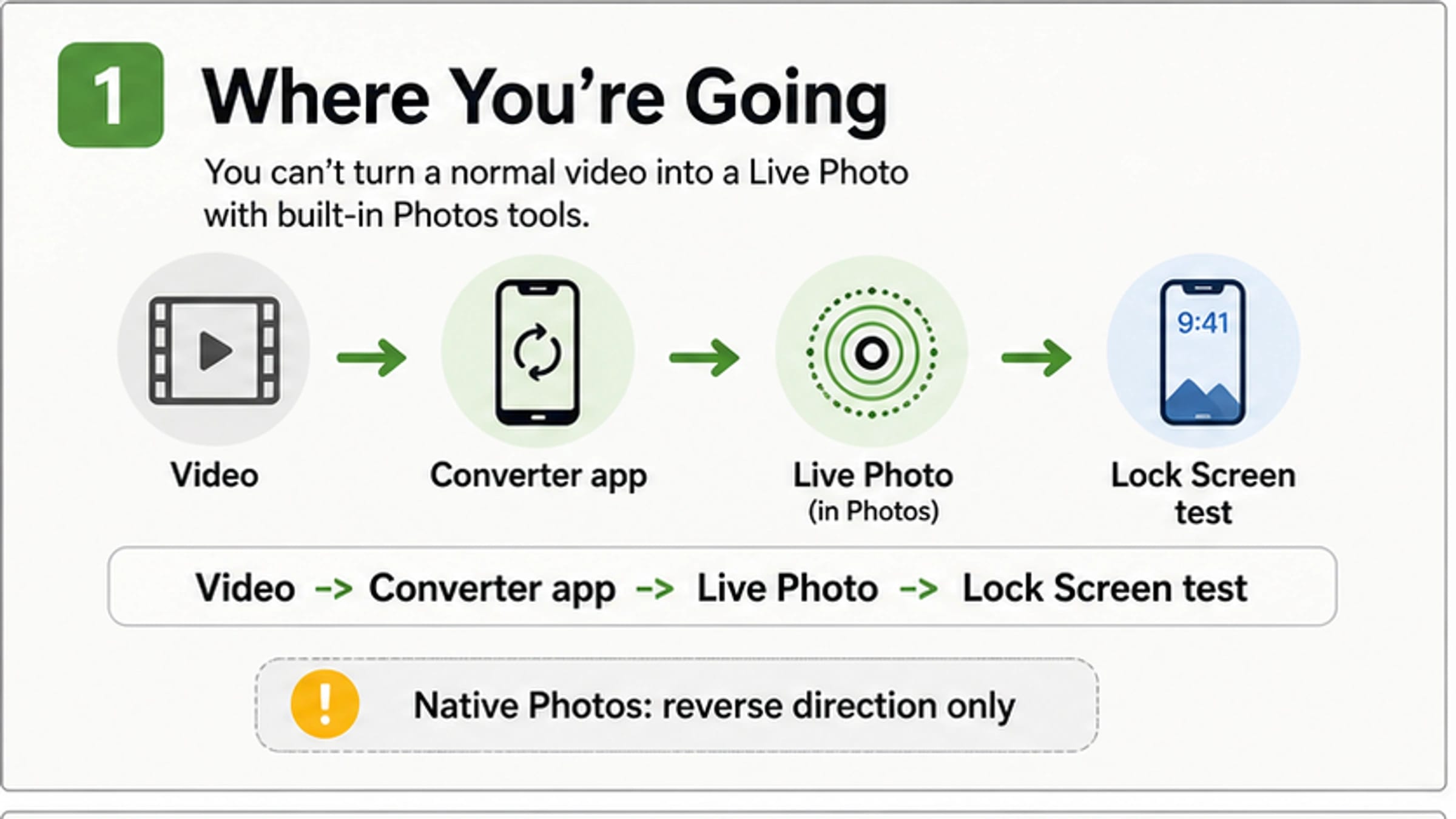
The iPhone Photos app can edit a Live Photo and save a Live Photo as a video, but it does not turn any normal video into a Live Photo. For the video-to-Live-Photo direction, use a reputable App Store converter as the default route, treat TikTok, CapCut, and online converters as conditional workarounds, and save the result back to Photos before you judge it.
A conversion is only useful if it passes the job you need it for. First confirm that the saved item behaves like a Live Photo in Photos; then, if your goal is a moving Lock Screen wallpaper, test it in the Lock Screen picker before deleting the original video. If a tool asks you to upload a private clip, hides the export behind a watermark or in-app purchase, or produces a file where motion is unavailable, stop and try a shorter, simpler clip or a different local converter instead.
Quick Answer: Pick The Route Before You Tap Convert
Most iPhone users mean one of two things when they ask for a video to become a Live Photo. Some want a Live Photo saved in Photos so it can be pressed, shared, or kept with the rest of their camera roll. Others specifically want a moving Lock Screen wallpaper. Those are related, but they are not the same finish line.
| Goal | Best starting route | Success check | Stop rule |
|---|---|---|---|
| Save a short video as a Live Photo in Photos | App Store converter app | The saved item appears in Photos and behaves like a Live Photo | Stop if the app cannot save to Photos or hides export behind terms you do not accept |
| Use a clip as a moving Lock Screen wallpaper | Converter app, then iOS wallpaper picker | The Lock Screen preview shows motion with the play control enabled | Stop if the picker says motion is unavailable or the movement looks broken |
| Use a social clip or creator edit | TikTok or CapCut workaround only when the source and export terms fit | The output imports back into Photos as a Live Photo-like asset | Stop for private clips, watermark surprises, or missing export options |
| Convert in a browser | Online converter only for low-risk files | Download imports correctly on the iPhone you will use | Stop before uploading private, client, child, ID, medical, or financial footage |
The safest everyday path is: trim the clip short, run it through a converter app, save it to Photos, test Live behavior, then test wallpaper behavior if wallpaper is the point. The shorter and simpler the motion, the less likely the iPhone wallpaper step is to reject it.
What iPhone Can And Cannot Do Natively
Apple's own iPhone guide documents editing Live Photos in Photos: you can trim the Live Photo, change the key photo, mute it, apply effects, and use Save as Video for the reverse direction. That official feature matters because it explains the common confusion. Photos can turn a Live Photo into a normal video, but that does not imply a matching built-in button for turning every normal video into a Live Photo.
For the ordinary-video-to-Live-Photo direction, the conversion has to create the still image plus motion data in a way iOS recognizes as a Live Photo. That is why converter apps exist. App Store listings such as Video to Live, intoLive, and VideoToLive describe video-to-Live-Photo or live wallpaper workflows, but those claims belong to the individual app listings, not to the iPhone Photos app itself.
Keep that boundary in mind when you follow any tutorial. If a guide says "use Photos," it may be describing the opposite job: saving an existing Live Photo as a video. If it says "use a converter," the next question is not whether conversion is theoretically possible; it is whether the app saves an output that works for your exact purpose.
Use An App Store Converter For The Main iPhone Workflow
An App Store converter is the best first route for most people because it keeps the workflow on the iPhone and usually saves the result back to Photos. You do not need the highest-rated app in a roundup; you need a route you can audit before you give it a private clip.
Use this workflow:
- Open the video in Photos and decide which few seconds actually need motion.
- Trim the clip before importing it into the converter if the app allows it.
- In the converter, choose a Live Photo or live wallpaper export, not GIF or still image.
- Save the result back to Photos.
- Open the saved result in Photos and confirm it behaves like a Live Photo.
- If wallpaper is the goal, test it again in the Lock Screen picker.
Before installing or paying, read the current App Store listing and the in-app export screen. Free labels, in-app purchase behavior, watermark rules, duration limits, audio behavior, and wallpaper support can change. Treat every app claim as something to test on a disposable clip first, not as a guarantee that your real clip will animate correctly.
There are also practical limits that no app can erase. A Live Photo is built around a short motion moment, not a long video. If your source is ten seconds of fast cuts, a screen recording with tiny text, or a clip where the important movement happens at the edges, the converted output may technically save while still feeling wrong. Start with a short, centered, simple motion segment.
Test The Converted Live Photo Before You Set It As Wallpaper
Apple documents that on iOS 17 or later, you can choose a Live Photo as a Lock Screen wallpaper and use the play control so it moves when the phone wakes. That wallpaper support is separate from the conversion step. A converted file can appear in Photos, yet still fail the wallpaper job because the motion is too long, too complex, not recognized cleanly, or not supported by the current wallpaper picker behavior.
Run the test in two passes:
| Checkpoint | What to do | What it tells you |
|---|---|---|
| Photos check | Open the saved item in Photos and press/hold or play it as a Live Photo | The converter produced an asset Photos can treat as Live |
| Lock Screen check | Go to wallpaper customization and select the saved Live Photo | The specific iOS wallpaper flow accepts the motion |
| Motion check | Wake the iPhone and use the play control if available | The wallpaper use case actually works, not just the gallery preview |
If the Lock Screen step fails, do not keep changing apps randomly. First make the clip shorter, crop or center the main movement, remove fast cuts, and retry. If it still fails, try a different converter with the same short test clip. That keeps one variable stable and tells you whether the problem was the source clip or the app's export.
When TikTok, CapCut, Or Online Tools Make Sense
Social and web-tool routes can work, but they are not the default for every iPhone clip. They are best for public or low-risk edits where you already accept the platform's export behavior.
TikTok-style workarounds are popular because the app has historically exposed Live Photo or live wallpaper save options for some videos, but that option can depend on region, app version, video privacy, creator settings, and watermark behavior. Use it only when the clip is already meant for that social route and you are comfortable with the visible platform footprint.
CapCut and other editor pages are useful when you are already editing the clip there. The key is export reality. If the route gives you a template video, a normal MP4, or a social share output, you may still need a separate Live Photo conversion step before iPhone wallpaper behavior works.
Online converters such as LivePhoto.video can be convenient for non-sensitive clips, especially when you are testing formats across devices. The privacy rule is stricter for browser uploads: do not send private faces, client files, IDs, unreleased work, medical footage, school footage, or financial material to a random converter just because it promises quick output.
Troubleshooting: The Output Exists But It Still Does Not Work
The hardest failures are the ones where the converter appears to finish. Use the symptom, not the app name, to choose the next move.
| Symptom | Likely cause | Fix |
|---|---|---|
| The file saves as a normal video | Wrong export option or the app did not create a Live Photo package | Re-export using Live Photo / live wallpaper output, not GIF, MP4, or still frame |
| Photos shows a Live Photo but the Lock Screen does not move | Wallpaper picker rejects the motion or clip shape | Retry with a shorter, simpler, centered clip |
| The app asks for payment only at export | Volatile in-app purchase behavior | Test with a disposable clip before committing; switch app if the terms are not acceptable |
| A watermark appears | The export route adds branding | Choose a route where the watermark policy is acceptable before converting your real clip |
| Audio disappears | Live Photo behavior is not the same as a normal video playback promise | Decide whether you need silent motion or a normal video instead |
| The online download will not import correctly | Browser output is not recognized cleanly by Photos | Try an on-device converter or move the file through Files/Photos again |
| Shortcuts cannot do it cleanly | iOS Shortcuts does not provide a simple native converter for the full Live Photo package | Use a converter app unless you are comfortable building and testing a custom workflow |
Do not diagnose every failure as "the app is bad." A long or complex video can break multiple tools. A privacy-sensitive clip can make an online tool the wrong route even if the output works. A wallpaper failure can be an iOS wallpaper constraint rather than a failed gallery conversion.
What This Is Not
The task here is specifically turning an ordinary iPhone video into a Live Photo-like output. It is not the reverse job of exporting an existing Live Photo as a video; Apple already documents that native Photos route. It is also not the same as extracting a still frame, making a GIF, creating a looping MP4, or converting an Android/Samsung Motion Photo.
Those formats can look similar in a social feed, but iOS treats them differently. A GIF will not become a Live Photo just because it moves. A normal video will not become a Lock Screen Live Photo just because it has the right aspect ratio. A Samsung Motion Photo belongs to a different ecosystem and needs its own conversion path.
The practical rule is simple: name the output you actually need before choosing a tool. If you need a short moving memory in Photos, choose a Live Photo converter. If you need Lock Screen motion, test in wallpaper settings. If you need sound, long playback, or cross-platform sharing, a normal video may be the better output.
FAQ
Can the iPhone Photos app turn a video into a Live Photo?
No. Photos can edit Live Photos and save a Live Photo as a video, but the ordinary-video-to-Live-Photo direction needs a converter app or another workaround.
Can I do it without an app?
There is no simple built-in iPhone button for this direction. A social-app workaround or online converter may avoid installing a dedicated converter app, but that still means using a third-party route.
Is intoLive or Video to Live the best app?
Treat them as examples of App Store converter routes, not universal winners. Check the current listing, in-app purchase behavior, watermark policy, privacy fit, and whether your own test clip saves and animates before using a real clip.
Why does my Live Photo not move on the Lock Screen?
The converted asset may be too long, too complex, incorrectly exported, or not accepted by the wallpaper picker. Retry with a shorter, simpler clip, then test the same clip in a different converter if needed.
Does sound carry over?
Do not assume it. Many Live Photo and wallpaper workflows prioritize short motion, not full video playback with reliable audio. If audio matters, keep a normal video copy.
Can TikTok turn a video into a Live Photo?
Sometimes a TikTok route can work for public or social clips, but export options can depend on app version, region, video settings, and watermark behavior. Do not use it as the default for private footage.
Are online video-to-Live-Photo converters safe?
Use them only for low-risk clips unless you have read and accepted the tool's current privacy and storage terms. For private videos, an on-device converter is usually the safer first route.
What about Android or Samsung Motion Photos?
Android Motion Photo and Samsung Motion Photo are different formats. If you need an iPhone Live Photo, convert and test on the iPhone that will store or use the result.