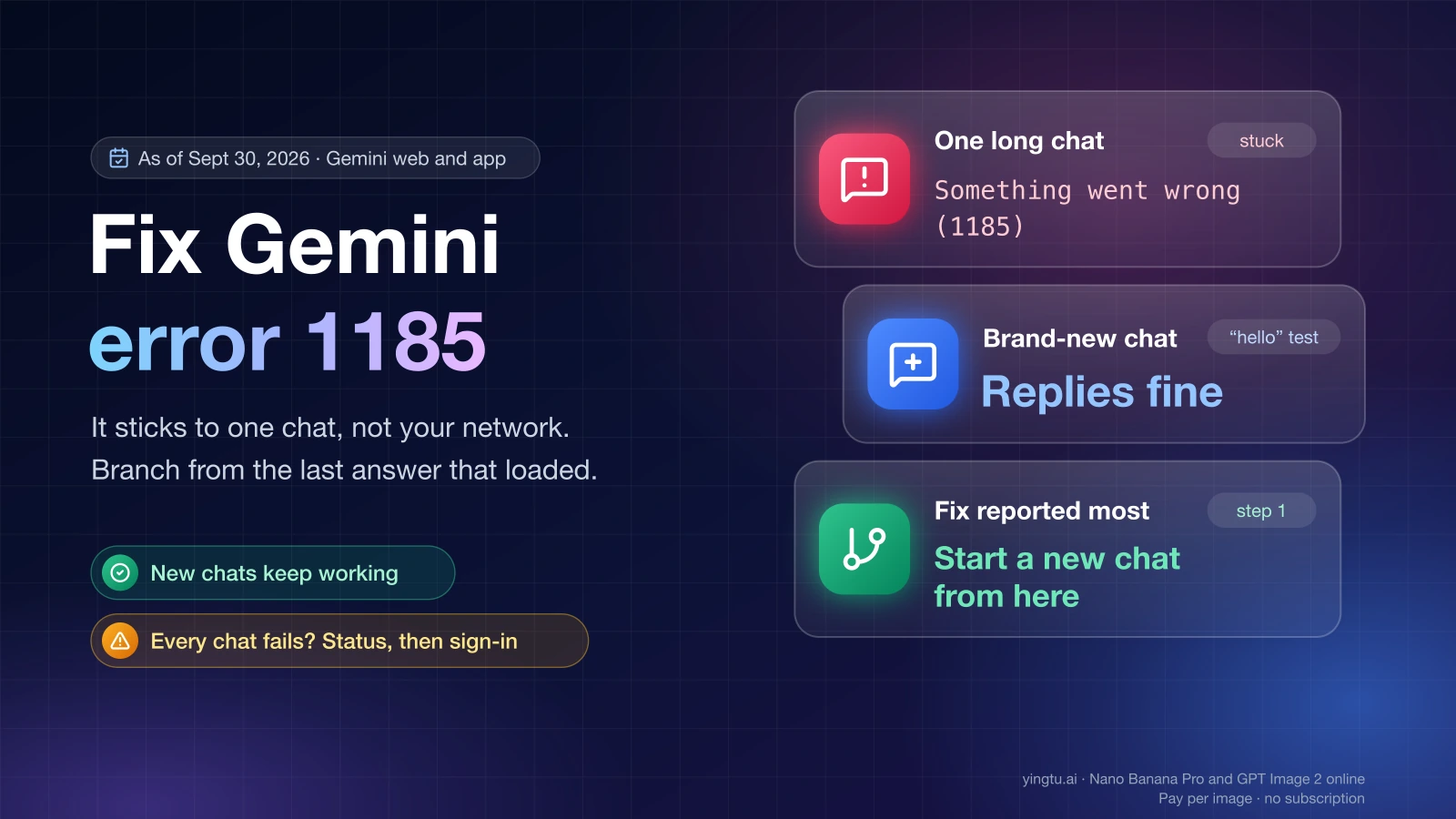
"Something went wrong (1185)" is a numbered error that the Gemini web app and mobile app show inside a conversation when a reply fails, and as of September 30, 2026 Google has not published what the number means. It is not a sign that your internet connection, browser cache or account is broken, and nothing Google has published ties it to content filters. Since reports began in late August 2026, the pattern in Google's Gemini Apps Community has been that the error sticks to one conversation, usually a long one, while new chats keep working. The fix that has worked most often is to branch the conversation from the last answer that still loaded, using "Start a new chat from here", and carry on in the copy.
Which fix applies depends on one question: does the error follow one conversation, or every conversation on every device?
| What you see (as of September 30, 2026) | What it most likely is | First thing to do |
|---|---|---|
| "Something went wrong (1185)" or (1184) in one chat; other chats reply normally | A stuck conversation | Branch from the last good answer |
| The same numbered error in every chat, including a brand-new one | Account session or a Gemini-side problem | Check the Google Workspace Status Dashboard, then sign out and back in |
Chrome shows an ERR_ code page instead of Gemini | The browser could not reach the site | Follow the Chrome code table below |
| "Can't access this service" or a sign-in refusal | Account type, age or country eligibility | Check Google's requirements; nothing on your device changes the answer |
| Your code receives an HTTP status such as 429 or 503 | The Gemini API, not the Gemini app | Follow the API rules at the end |
"Something went wrong (1185)": what is known as of September 30, 2026
Error 1185 is one of several numbers Gemini appends to the same message; users have also reported 1184, 1152, 1100, 1099, 1097, 1096, 1095, 1076, 13 and 11 in the Gemini Apps Community as of September 30, 2026. No Gemini Help article defines any of them. The explanations in circulation come from Product Experts, who are community volunteers rather than Google staff, and from users who found something that worked.
The timeline so far:
- August 25, 2026: the first community thread appears, in Japanese.
- August 28–29, 2026: the first English threads appear. On one of them, "im getting error 1185", 763 people had clicked "I have the same question" as of September 30, 2026. That is a count of clicks, not of affected users.
- August 29, 2026: a Gold Product Expert on that thread wrote that 1185 "usually pops up on specific long threads when a temporary server-side glitch hits that specific chat history, or when the thread context gets so heavy/large that the model times out trying to load or process it."
- August 29, 2026: on a second thread, "what's 1185 mean?", a Silver Product Expert wrote that codes like "Something went wrong (1152)" on desktop and "(11)" on mobile "usually point to an issue with the backend communication between your account and the Gemini servers, rather than a problem with your local device."
- September 4, 2026: the Gold Product Expert added that "the team at Google is aware of the issue and is actively working on a resolution."
- September 16 and September 22, 2026: new reports keep arriving on the same thread.
Put together, the evidence points to conversation state on Google's side. The reported triggers are about the chat itself: very long threads, heavy Canvas sessions, answers stopped mid-generation several times so the prompt could be edited, and, in one report, a video attached to the conversation. None of them involves your Wi-Fi, your cache or the wording of your prompt, which is why clearing your cache or turning off a VPN rarely fixes a single stuck chat.
One chat or every chat: the test that picks your fix
Run this two-minute test before changing any settings:
- Open a new chat and send a short message such as "hello".
- Open the failing chat on a second surface: the web app at gemini.google.com if you were on the phone, or the phone app if you were on the web.
- Read the result against these rules.
- If the new chat answers and the old one still fails, the problem is that conversation. Go to the recovery steps in the next section and leave your browser, app and network alone.
- If the old chat works on the other surface, keep using it there. The Gold Product Expert's first suggestion on the 1185 thread was to open the chat on the web.
- If the new chat fails too, on every device, the problem is your session or Gemini itself. Skip to "When every chat fails".
- If Gemini does not load at all and you see a browser error page, go to the Chrome code table.
Recover a conversation stuck on 1185 or 1184
Work down this list and stop at the first step that works. The steps come from the Gemini Apps Community threads above and from r/GeminiAI, as of September 30, 2026; Google has not published an official procedure.
- Branch from the last good answer. Scroll to the last answer that loaded correctly, open its menu and choose "Start a new chat from here" (menu wording as reported by the user who posted the fix). The new chat copies the history and files up to that point, so you can continue without the failing turn. This was the Recommended Answer on the 1185 thread, marked by a Platinum Product Expert on August 31, 2026. The answering style in the copy may differ slightly from the original.
- Edit your last message on the web. In a browser, edit the prompt you sent just before the error and resend it. Users reported on August 31, 2026 that this cleared the error; according to the same reports, the mobile app does not let you edit that message.
- Delete the stuck turn from Gemini Apps Activity. Open Gemini Apps Activity, delete the prompt that triggered the error, then go back to the chat and regenerate the previous answer. This fix was shared on r/GeminiAI on August 29, 2026. Deleting activity is permanent for that turn, so copy anything you need from it first.
- Export the chat if it will not open. If the conversation no longer loads anywhere, request an export of Gemini Apps data through Google Takeout to recover the text, then start a new chat and paste in the context you need.
- Wait. The Gold Product Expert wrote that these errors "typically resolve automatically within 24 to 48 hours" (as of August 29, 2026). If the chat is not urgent, waiting costs nothing.
Renaming the chat did not help the user who posted the Recommended Answer. If you tend to stop answers mid-generation to rewrite the prompt, that same user traced the error to exactly that habit; letting a reply finish, then editing, avoids one known trigger.
Error 1184 and attached videos
"Something went wrong (1184)" appears in one r/GeminiAI report from around August 2026 about conversations with a video attached: after Gemini replies to such a conversation, "Trying to send any prompt after such a reply will result in a 'Something went wrong (1184)' error message that can't go away." There is no confirmed fix specific to video as of September 30, 2026. The same recovery applies: branch from the last good answer, or start a new chat and attach the video only when you need it.
When every chat fails: service, session and browser checks
When a brand-new chat also returns a numbered error, the conversation is no longer the suspect. Check these in order:
- The Google Workspace Status Dashboard. Open the dashboard and look at the Gemini rows. It does record Gemini problems: on September 11, 2026, from 06:00 to 13:22 PDT (7 hours 22 minutes), Google listed "Mitigated intermittent elevated error rates with Gemini 3.1 Pro models", noting that "Customers may have encountered intermittent errors when using Gemini 3.1 Pro models on Gemini Web and Gemini App." On June 10, 2026, starting at 03:26 PDT and lasting about 7 hours 10 minutes, the Gemini App in Workspace and the side panel showed "Something Went Wrong" errors. No incident was listed between August 27 and September 5, 2026, the first week of the 1185 reports, so a clean dashboard does not prove that nothing is wrong on Google's side.
- Sign out and back in. The Silver Product Expert linked numbered errors to the session between your account and Gemini's servers and listed a fresh sign-in among his suggested steps.
- Turn off Canvas if you were working in a large Canvas session, then retry in a new chat.
- Try one other supported browser. As of September 30, 2026, Google's sign-in requirements list Chrome, Safari, Firefox, Opera and Chromium-based Edge. If Gemini works in the second browser, the first browser's profile or extensions are the problem.
- Clear the app's cache (Android) or the site data for gemini.google.com (browser) only after the steps above. Clearing site data signs you out of the web app, and neither step changes a conversation that is stuck on Google's side.
If all of these fail and the dashboard is clean, note the error number and the time, wait, and check the dashboard again later. Nothing on your side will change a server-side fault.
Gemini won't load at all: what Chrome's error codes mean
A Chrome error page means the browser never reached Gemini, which is a different problem from a numbered error inside a chat. Google's Chrome error help describes the common codes this way (as of September 30, 2026):
| Chrome code | Google's description | What to try |
|---|---|---|
ERR_CONNECTION_TIMED_OUT | "The page took too long to connect" | Load another site; if it also stalls, restart the router or switch to cellular data |
ERR_CONNECTION_RESET | "Something interrupted your connection to the page, like an unstable internet connection, an outdated browser, a VPN issue, or security software that blocks the page." | Update Chrome, pause security software or a VPN you added yourself, then retry |
ERR_NAME_NOT_RESOLVED | "The hostname … doesn't exist or now has a different IP address." | Check the address is gemini.google.com, then restart the network connection |
ERR_NETWORK_CHANGED | "…disconnected from the network or connected to a new network while it loads the page." | Stay on one network and reload |
ERR_CONNECTION_REFUSED | "The page didn't let Chrome connect or the page is blocked." | On a work or school network, ask the administrator whether Gemini is blocked |
ERR_CONNECTION_CLOSED is not described on that Chrome help page as of September 30, 2026; treat it as a network interruption and test the same way, with another site and another network. On a work network, report any of these codes to IT instead of changing proxy or certificate settings.
"Check your internet connection and try again" inside the Gemini app is a failed request, not a diagnosis. Load another site and another Google service first; if they work, the one-chat-or-every-chat test above tells you where to go next.
Access refused: account, age and country rules
If Gemini refuses you before any chat opens, the cause is eligibility, and no reinstall or network change affects it. As of September 30, 2026, Google's requirements are:
- Personal Google Account: you must be "13 (or the applicable age in your country) or over."
- Work account: you must be 18 or over and on "a qualifying Workspace edition."
- School account: the administrator must have enabled Gemini.
- Country: the United States is on the Gemini web app country list. Mainland China appears only as "Workspace only", and Russia is not on the list.
- Android app: per Google's mobile app page, the app needs Android 9 or later and at least 2 GB of RAM, does not run on Android Go, and cannot be used inside an Android Work Profile. A work or school account needs a plan or license that includes Gemini Apps. That page does not state iOS requirements.
If your account or country is not covered, the answer is no until Google changes the list. Changing your account's age or country, or searching for VPN routes, does not make you eligible and is not a fix. A work account that is refused needs the Workspace administrator, who controls whether Gemini is turned on.
Developer API errors are HTTP statuses, not these numbers
The Gemini API does not return 1185 or 1184. It returns HTTP statuses, and Google's troubleshooting guide, last updated September 20, 2026, splits them into two groups:
- Retry with exponential backoff: 429 (rate limit or quota exhausted), 408, 503 and other 5xx errors.
- Fix the request instead of retrying: 400, 402 and 403. A 403
permission_deniedreads "Your API key does not have permission for this resource."
What not to do
- Do not reinstall the app, clear all browser data or reset your router for an error that only affects one chat. None of these touch the conversation stored on Google's servers.
- Do not delete entries in Gemini Apps Activity without copying what you need; the deletion is permanent.
- Do not change your account's country or age, or hunt for VPN routes, to get past an eligibility refusal.
- Do not keep resending the same long prompt into a failing chat; branching preserves your work and stops the loop.
- Do not treat a rephrased prompt as the fix for 1185. Nothing Google has published links the number to a content filter.
FAQ
How do I fix Gemini error 1185?
Branch the conversation from the last answer that loaded, using "Start a new chat from here", and continue in the copy; as of September 30, 2026 that is the fix most users reported working. If that fails, edit your last message on the web, delete the stuck turn from Gemini Apps Activity, or export the chat through Google Takeout and start over.
What is error 1184 in Gemini?
It is another undocumented number on the same "Something went wrong" message. In one report from around August 2026 it appeared in conversations with an attached video and blocked every later prompt. Recover it the same way as 1185.
Is error 1185 a ban or a content block?
No evidence says so as of September 30, 2026. Product Experts describe it as a server-side or conversation-size problem, and new chats on the same account keep working, which points away from an account-level block.
Will clearing the cache or turning off a VPN fix 1185?
Rarely, when the error is limited to one chat. Those steps change your device, while 1185 follows a conversation stored on Google's servers. Clear the cache only if every chat fails and signing out has not helped.
Does Gemini fix 1185 by itself?
Sometimes. A Gold Product Expert wrote on August 29, 2026 that these errors typically clear within 24 to 48 hours, and reported that Google was working on it on September 4, 2026. Branching the chat gets you working again without waiting.