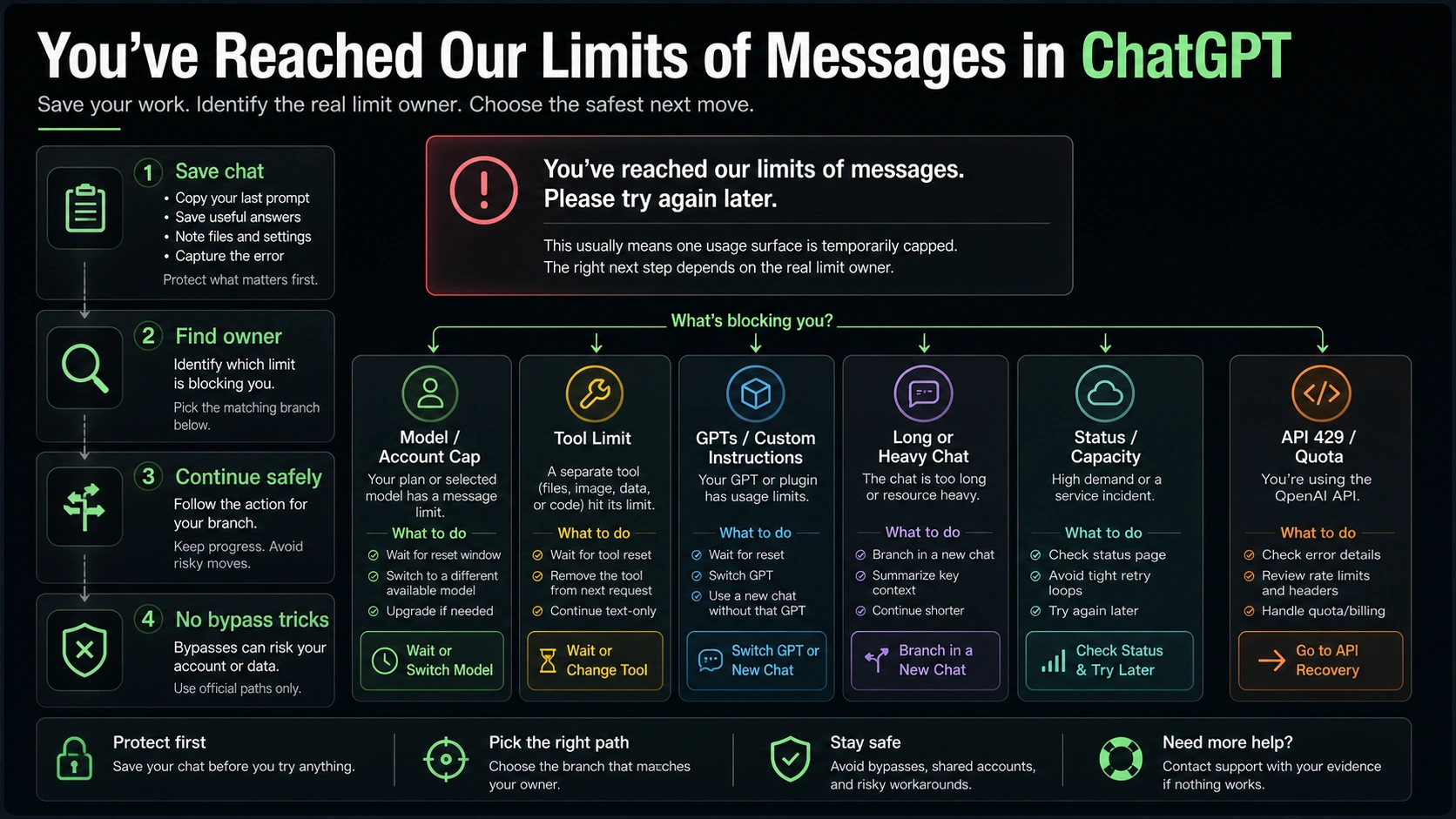
If ChatGPT stops with "You've reached our limits of messages. Please try again later," save the current work before you click around. Copy the last prompt, the useful answer, uploaded file names, and the next thing you wanted ChatGPT to do. The warning usually means one ChatGPT usage surface is temporarily capped, but the right move depends on which owner is blocking you.
| What seems capped | Fast check | Safe next move |
|---|---|---|
| Selected model or account | The warning follows you across a fresh chat or the same model | Wait for the reset window, use an available fallback model, or upgrade only if the plan is the owner |
| Tool use, file upload, image creation, data analysis, or a GPT | Text-only prompts still work, or the stop appears only with that tool or GPT | Remove the tool from the next attempt, wait for that tool, or switch to a simpler text continuation |
| A long or overloaded conversation | The chat is large, slow, or full of files and instructions | Branch from the last useful answer or summarize the state into a new chat |
| Service status or capacity | Many users report failures, or status components show trouble | Check OpenAI Status, avoid tight retry loops, and try again after the incident moves |
| Workspace, policy, or account-specific restriction | The issue appears only in one workspace or account state | Capture account tier, model, time, screenshot, and steps before contacting an admin or support |
| OpenAI Platform API 429 or quota | The error comes from an API request, headers, or billing/quota body | Stop using ChatGPT UI fixes and follow API rate-limit or quota recovery |
A new chat can help when the current thread is heavy or hard to continue, but it is not a universal reset button for account-level or model-level caps. Treat any "bypass" advice, shared-account route, or refresh loop as risky until the owner of the limit is clear.
Find The Owner Before You Try Fixes
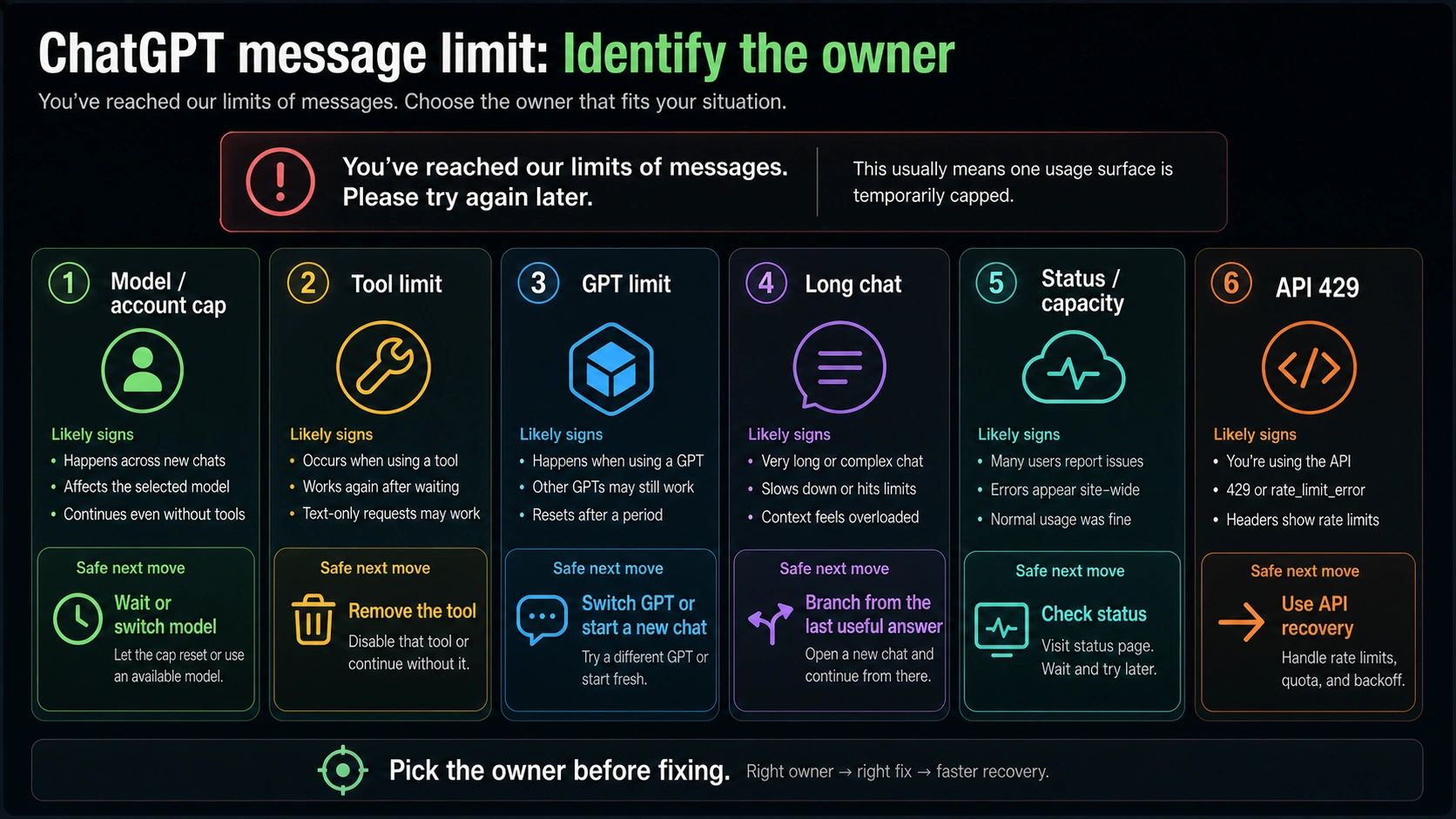
The message is useful, but it is not complete diagnosis. ChatGPT can stop because the selected model reached a plan window, because a tool such as file upload or data analysis hit its own limit, because a custom GPT or workspace policy narrowed what you can do, because one old conversation is too heavy, or because a service incident is affecting the session.
Preserving context first is what keeps the recovery path reversible. If the answer matters, copy three things into a note before reloading: the exact prompt you sent, the best partial answer or prior response, and the next instruction you wanted to give. If files were involved, record the file names and what ChatGPT had already done with them. If the chat was performing a multi-step task, write one sentence that captures the current state.
Then run one small same-path test. If the stop appeared while using a selected model, try a short text-only prompt in that same model or an available fallback model. If the stop appeared during file upload, image creation, data analysis, browsing, or a GPT, remove that tool from the next attempt and test plain text. If a fresh chat works but the old thread fails, the conversation branch is stronger than the account branch.
Do not change five variables at once. Switching browsers, refreshing repeatedly, starting a new chat, changing models, upgrading, and clearing data in one burst can hide the owner. A good recovery path changes one variable, notes the result, and keeps the previous work intact.
What The Warning Means In ChatGPT
"You've reached our limits of messages" means ChatGPT is refusing more work on at least one usage surface for now. It does not automatically mean the account is banned, the subscription failed, the API quota is empty, or every model and tool is blocked.
In the ChatGPT app, limits can be attached to different layers:
| Layer | What can happen | What to test |
|---|---|---|
| Model and plan | A selected model reaches its message window | Same prompt on an available fallback model |
| Manual reasoning mode | A manually chosen thinking mode reaches a separate cap | Normal auto mode or another available model |
| Tools | File upload, image creation, data analysis, GPTs, or other tools stop first | Plain text in the same chat |
| Conversation state | A long or file-heavy thread becomes hard to continue | A short fresh chat with a state summary |
| Workspace or account | Work, school, Business, or Enterprise controls affect access | Another workspace or personal account only if allowed |
| Service status | A broad incident causes failures beyond one account | OpenAI Status plus a later retry |
| Developer API | Code receives 429, quota, headers, or billing errors | API logs, project, billing, limits, and request IDs |
The important difference is ownership. A model-window cap may resolve by waiting or using an available fallback model. A tool cap may require removing the tool from the next request. A broken thread may require a branch or summary. An API quota error will not be fixed by opening a new ChatGPT chat.
If you only remember one rule, use this one: preserve the work, identify the owner, then choose the smallest fix that belongs to that owner.
Current ChatGPT Limits To Treat As Dated Facts
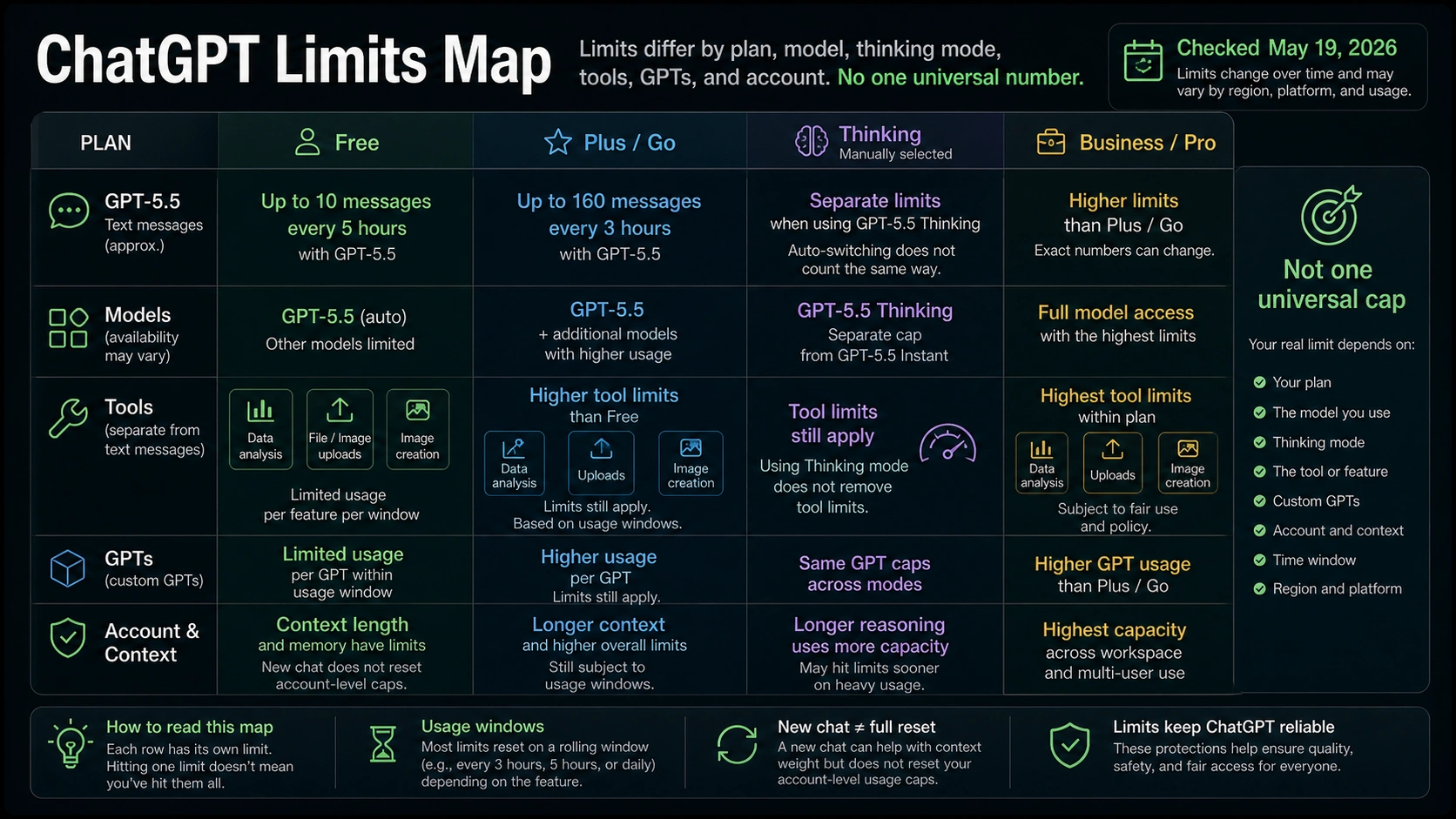
OpenAI changes plan limits, model access, and tool availability over time, so numbers should always carry a check date. As of May 19, 2026, OpenAI's GPT-5.5 in ChatGPT Help article says GPT-5.5 is available to all ChatGPT tiers, but not with identical limits across tiers.
The same Help article says Free users can send up to 10 GPT-5.5 messages every 5 hours. It says Plus and Go users can send up to 160 GPT-5.5 messages every 3 hours. It also says manually selected GPT-5.5 Thinking has a separate weekly cap for some paid tiers, while automatic switching into thinking behavior is not counted the same way.
Those facts explain why two users can see different behavior on the same day. One user may be blocked by the Free message window. Another may still have text messages available but hit a tool limit. A paid user may hit a manual Thinking cap while ordinary GPT-5.5 remains available. A workspace user may have admin-controlled access that differs from a personal account.
OpenAI's ChatGPT Free Tier FAQ also separates text-message limits from tool limits. Data analysis, file and image uploads, image creation, and GPTs can have their own caps. That is why a text-only prompt can work while an upload or GPT action still stops, and why a message-limit warning should not immediately be treated as one universal counter.
Business and Pro descriptions need the same caution. OpenAI Help uses higher-access or unlimited-style wording for some higher tiers, but also keeps abuse guardrails, temporary restrictions, model availability, and feature-specific limits in the contract. For recovery, the practical lesson is not "pay once and every stop disappears." It is "upgrade only helps if the owner is plan-related and the plan you choose actually changes that surface."
The Safe Recovery Flow
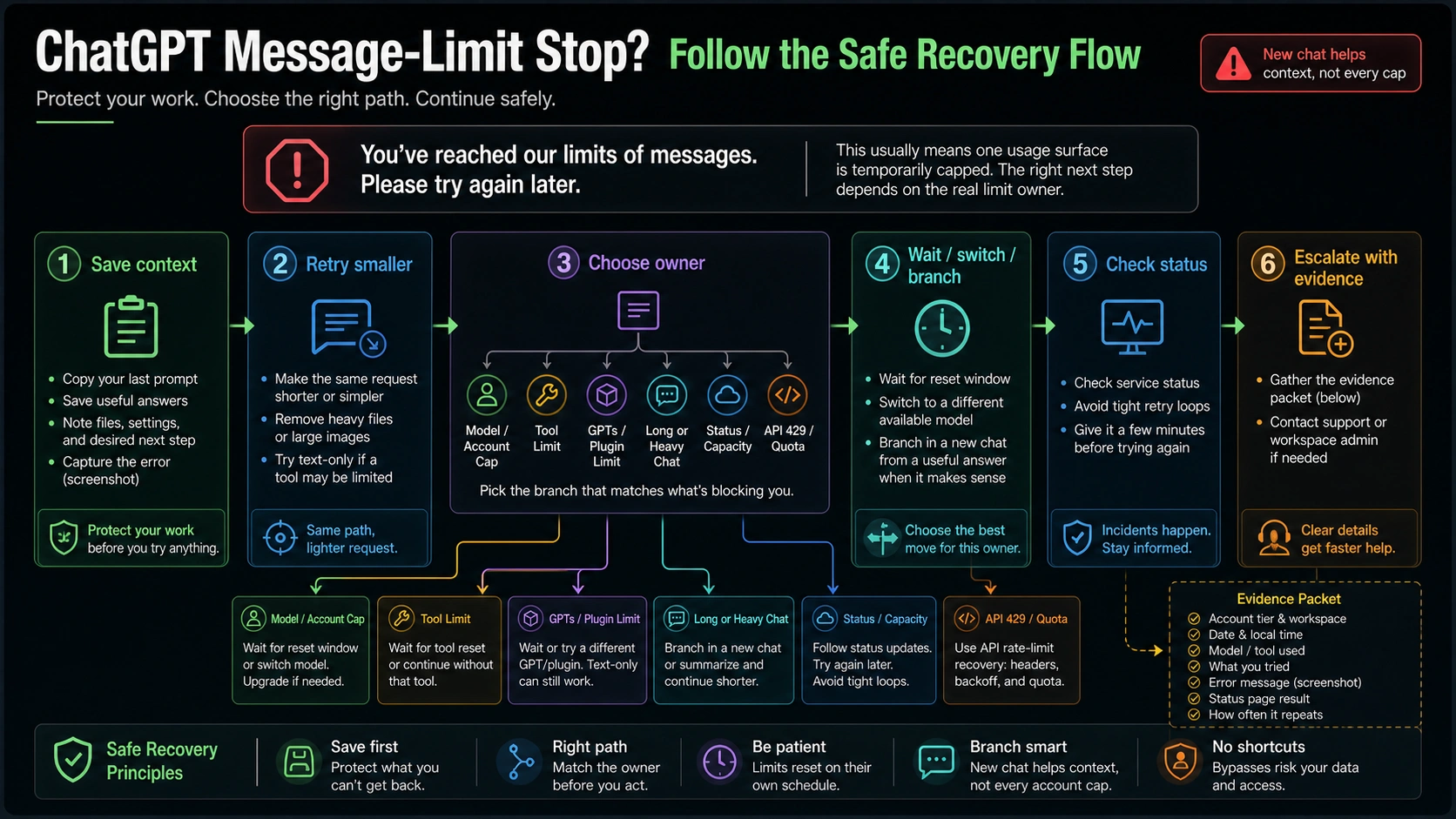
Use a fixed sequence when the stop interrupts live work:
| Step | Action | Why it matters |
|---|---|---|
| 1 | Copy the prompt, useful answer, file names, and intended next step | You can move, wait, or ask support without losing state |
| 2 | Try one smaller same-path request | A small retry can distinguish a temporary hiccup from a real cap |
| 3 | Remove tools and test plain text | Tool limits can be separate from message limits |
| 4 | Try an available fallback model if the task allows it | Model-window caps do not always block every model |
| 5 | Branch or summarize into a new chat only when the thread itself is suspect | A fresh thread helps conversation state, not account budgets |
| 6 | Check status when failures spread beyond one chat or account | A broad incident changes the best next action |
| 7 | Collect evidence before support | Good evidence avoids vague back-and-forth |
The smaller same-path request should be genuinely small. Ask ChatGPT to answer one short question, summarize one paragraph, or continue with the next single step. If that succeeds, the original request may have been too large, too tool-heavy, or stuck in the current conversation state. If the same warning appears on a tiny text request, the owner is more likely model, account, workspace, status, or plan.
When you test a fallback model, keep the job honest. A weaker or faster model may be enough for a short continuation, outline, or extraction task, but it may not preserve the same reasoning quality for a complex analysis. Use the fallback to keep moving, then return to the preferred model after the window resets if the task needs it.
When you check status, treat it as one branch, not a full answer. A green status page does not prove that one account, workspace, model, tool, or conversation is healthy. A red or degraded component, however, is a strong reason to stop retrying aggressively, preserve evidence, and return after the incident moves.
When A New Chat Helps And When It Does Not
A new chat helps when the old conversation is the problem. That can happen when the thread is very long, when many files or tool calls are attached, when instructions conflict, when the chat is slow, or when ChatGPT keeps failing in that one thread while fresh conversations still work.
The safest new-chat move is a state summary, not a full transcript dump. Copy the goal, constraints, key facts, last useful output, and the next requested action. Then ask for one compact next step. For example:
hljs textContinue this task from a new chat. Goal: [what I am trying to finish] Known facts: [short list] Last useful result: [paste only the relevant part] Next step: [one action] Constraints: [model/tool/output constraints]
That format helps ChatGPT continue without carrying the entire old thread. It also gives you a clean checkpoint if you later need to return to the original conversation.
A new chat does not reset an account-level message window, a selected-model cap, a file-upload cap, a GPT cap, a workspace restriction, or an API quota. If the same warning follows you into a fresh chat with a tiny prompt, stop treating the old conversation as the owner. Move to plan window, model choice, status, workspace, or support evidence instead.
When Waiting, Switching, Or Upgrading Makes Sense
Waiting is the right move when the owner is a timed message window, a temporary tool cap, or a service incident. The wait does not need to be passive. Save the work, write the state summary, prepare a smaller continuation prompt, and check whether another model or tool-free path can handle an interim step.
Switching models makes sense when the task can tolerate the change and the fallback model is available in your account. Use it for drafting a short continuation, extracting a list, outlining, or preserving momentum. Avoid using a fallback model for a high-stakes final answer if the original model was chosen for stronger reasoning or a specific capability.
Upgrading makes sense only after the branch points to plan ownership. If the stop appears because a Free account reached the GPT-5.5 window, a paid plan may change the message budget. If the stop appears because a file upload cap, image creation cap, custom GPT, workspace rule, service incident, or broken conversation is the owner, payment may not solve the immediate problem.
Before upgrading, write down the blocked surface in plain language:
| Blocked surface | Upgrade likely to help? | Better first check |
|---|---|---|
| Free GPT-5.5 message window | Possibly | Current plan limits and reset window |
| Manual Thinking cap | Possibly, but mode-specific | Whether normal mode still works |
| File upload or data analysis cap | Maybe, but not identical to text messages | Free Tier FAQ and tool-specific behavior |
| Long broken conversation | No | Branch or summarize into a fresh chat |
| Workspace or admin restriction | Not usually | Workspace admin or account owner |
| OpenAI API quota | No ChatGPT subscription fix | API billing, limits, and project quota |
The point is not to avoid paid plans. The point is to make sure the payment changes the actual blocked surface.
When The Problem Is Really API 429 Or Quota
OpenAI Platform API errors live in a different recovery contract from ChatGPT app message limits. If you are making code calls and receiving HTTP 429, insufficient_quota, quota-exceeded wording, rate-limit headers, project limits, billing problems, or request IDs, do not use ChatGPT UI fixes as evidence.
API recovery starts with the error body, headers, endpoint, model, project, organization, billing state, usage, and status. A ChatGPT Plus, Pro, Business, or Free subscription does not automatically grant Platform API quota. Conversely, an API quota issue does not prove the ChatGPT app message window is exhausted.
Use the API branch when any of these are true:
| Signal | Surface |
|---|---|
| The failure appears in code, SDK logs, server logs, curl, Postman, or an app backend | OpenAI Platform API |
| The response includes HTTP status, request ID, error type, error code, or rate-limit headers | OpenAI Platform API |
| The wording mentions quota, billing, project, organization, tokens, requests per minute, or requests per day | OpenAI Platform API |
| ChatGPT app works, but your app fails | API route, key, project, model, or billing |
For that branch, follow the OpenAI API quota exceeded and 429 recovery path. Stay on the ChatGPT app recovery path only when the warning is shown inside a ChatGPT web or mobile conversation.
What Evidence To Collect Before Support
Support evidence should be small, exact, and owner-specific. Do not send a long story first. Send enough information for the support or admin route to reproduce the branch without guessing.
Collect:
| Evidence | Example |
|---|---|
| Exact visible message | "You've reached our limits of messages. Please try again later." |
| Local time and timezone | May 19, 2026, 10:35 PM Asia/Shanghai |
| Account tier and workspace | Free, Plus, Go, Pro, Business, Enterprise, Edu, personal, work, or school |
| Model and mode | GPT-5.5, GPT-5.5 Thinking, fallback model, custom GPT, tool state |
| Surface | plain text, file upload, image creation, data analysis, GPT, mobile app, web app |
| Small test result | tiny text prompt works or fails; fresh chat works or fails |
| Status check | OpenAI Status state at the time |
| Screenshot | full warning plus visible model/tool context, with private data removed |
| API evidence if relevant | status code, error body, request ID, endpoint, project, organization |
If a workspace admin is involved, include whether the same action works in a personal account or another workspace only if you are allowed to test that. Do not move private company files into a personal account just to diagnose a cap. Use a harmless text prompt or dummy file for cross-surface testing.
The strongest support packet is usually a short statement like this:
hljs textAt [time + timezone], ChatGPT showed "You've reached our limits of messages. Please try again later" on [account tier/workspace] while using [model/mode/tool]. A fresh chat with a tiny text prompt [worked/failed]. Plain text without tools [worked/failed]. OpenAI Status showed [state]. Screenshot attached.
That evidence gives support or an admin a real branch: model/window, tool, thread, workspace, status, or API.
FAQ
What does "You've reached our limits of messages" mean in ChatGPT?
It means ChatGPT is temporarily refusing more work on at least one usage surface. The owner may be the selected model, account plan, tool, GPT, conversation state, workspace rule, service status, or API path. Save the current chat before testing fixes.
How long do I have to wait?
There is no single universal wait time. As of May 19, 2026, OpenAI Help lists GPT-5.5 windows such as up to 10 messages every 5 hours for Free and up to 160 messages every 3 hours for Plus and Go, but tools, manual Thinking mode, workspaces, account state, and future product changes can differ.
Can I bypass the ChatGPT message limit?
Do not treat bypass tricks, shared accounts, refresh loops, or unofficial wrappers as safe recovery. They can lose context, violate account or workspace rules, or hide the real owner. Use waiting, available fallback models, tool-free continuation, branching, status checks, or support evidence instead.
Does a new chat reset the limit?
Usually no. A new chat can help when the old thread is overloaded, slow, or damaged. It does not reset an account-level window, a selected-model cap, a file or tool cap, a workspace rule, or an API quota.
Does ChatGPT Plus or Pro fix it?
Only when the owner is plan-related and the new plan changes that exact surface. Upgrading can help with some message windows, but it is not a fix for a broken thread, a broad service incident, a workspace policy, an API quota error, or every separate tool cap.
Why did it happen after only a few messages?
A few visible messages can still be expensive if they use a high-demand model, manual reasoning mode, large context, files, images, data analysis, or a GPT. You may also be near the end of a rolling window from earlier activity, or the blocked surface may be a tool rather than text messages.
Is this the same as OpenAI API 429?
No. ChatGPT app message limits and OpenAI Platform API 429 or quota errors are separate surfaces. API errors should be diagnosed through the response body, headers, billing, project, organization, model, and request ID.
Are file, image, and data-analysis limits separate?
Yes. OpenAI Help separates text-message limits from tool limits such as file upload, data analysis, image creation, and GPTs. If text works but the tool fails, continue without the tool or wait for that specific tool surface rather than assuming all ChatGPT messages are blocked.