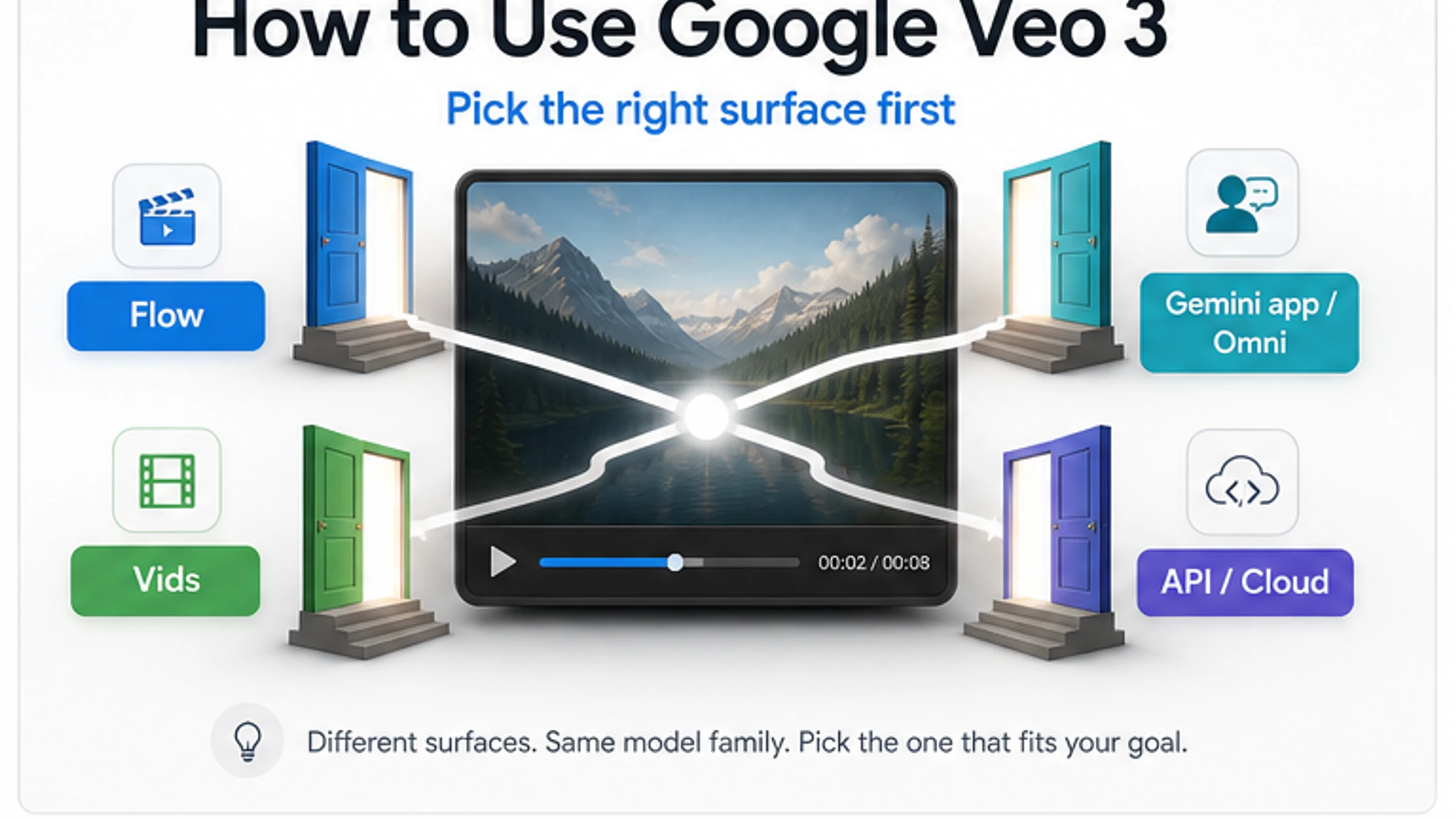
Before you copy a Veo prompt, choose the Google video surface that matches the job: Flow for creative clips, Vids for Workspace clips, Gemini app or Gemini Omni for app-based creation and editing, and Gemini API or Google Cloud when you need code.
| Your job | Start here | Why |
|---|---|---|
| Creative video workflow | Google Flow | Flow owns the creator-studio path for prompts, ingredients, frames, and iteration. |
| Clip inside a Workspace video | Google Vids | Vids owns the in-editor clip path for decks, explainers, and team videos. |
| App-based Gemini video creation | Gemini app or Gemini Omni | The Gemini app route may use Omni wording even when the reader thinks of Veo. |
| Programmatic video generation | Gemini API or Google Cloud Veo docs | Code needs current model IDs, billing, quota, and status/content handling. |
| Wrapper or partner service | Verify owner, terms, upload policy, and payment before using it | A service is not a Google route just because it says Veo. |
Stop rule: do not transfer limits, credits, prices, or API model names from one route to another. As of June 11, 2026, Google's own docs split those facts across product help pages, Gemini API pricing, Google Cloud model docs, and DeepMind model guidance.
The naming is awkward, but the workflow is simple: use Flow when you want a creator studio, Vids when the clip belongs inside a Workspace video, Gemini app or Omni when the app exposes the video surface, and Gemini API or Google Cloud only after you have checked the current model ID, pricing row, quota, and status/content endpoint.
Quick Route Answer
The fastest safe answer is not a universal "open Veo" instruction. Google now exposes video generation through several product surfaces, and each surface owns its own controls, account rules, output handling, and billing language.
For a creator who wants to make a short cinematic clip, start in Google Flow. Google's Flow help describes Flow as a desktop-first experience for supported regions and eligible Google AI or Workspace plans, and the creation help covers prompts, ingredients, frames, model choice, aspect ratio, output count, and generation length. That is the route where a "scene, camera, motion, audio" prompt naturally belongs.
For a team video, explainer, sales deck, or internal training clip, start in Google Vids. Vids is not the same product as Flow. Its help page describes a right-panel or start-menu flow where you choose Veo 3.1, create from scratch or animate an image, generate, and insert the result into the Vid. Vids-specific limits, format defaults, and monthly generation language should stay attached to Vids.
For a consumer app session, use the Gemini app surface that your account actually shows. Google's Gemini video generation page says Gemini Omni replaces Veo in the Gemini app context. That matters because a reader searching for "Veo 3" may open Gemini and see Omni wording instead. It does not prove that every developer Veo model ID has disappeared.
For code, use the Gemini API video documentation or Google Cloud Veo model documentation, not a consumer app label. Google's API docs describe Veo 3.1 as the programmatic video route, and the pricing page lists Veo 3.1 rows on the paid tier. Google Cloud documentation separately lists production model IDs and enterprise capabilities.
What The Current Names Mean
The confusing part is that "Google Veo 3" is a reader phrase, not a single button. It can point to a model family, a creator product, a Workspace feature, an app experience, or an API route.
| Name you may see | What it usually means | Use it for |
|---|---|---|
| Veo 3 | Market-visible shorthand for Google's video generation model family | General reader language and capability discussion |
| Veo 3.1 | Current official video-generation label in many Google developer and product docs | Model-specific features, API docs, Cloud docs, Vids and Flow model selection |
| Google Flow | Creator studio surface for prompt, ingredient, frame, and edit workflows | Creative clip iteration |
| Google Vids | Workspace video editor surface | Team videos, presentations, explainers, internal comms |
| Gemini app / Gemini Omni | App-facing video creation and editing surface where Google now uses Omni language | Consumer app creation and editing |
| Gemini API | Developer route through Google's developer docs | Programmatic generation, billing, polling, output handling |
| Google Cloud / Vertex-style enterprise docs | Enterprise and governance route | Model IDs, regions, IAM, logs, managed deployment |
This split is also why older tutorials can disagree with current screens. A video made before Omni appeared in the Gemini app may still say "Veo." A developer article may still be correct when it uses documented Veo model IDs. A Vids help article may talk about Vids-specific monthly limits. None of those facts automatically apply to the other routes.
Use a simple owner rule: the surface you are using owns the instruction. Flow help owns Flow steps. Vids help owns Vids steps. Gemini app pages own app wording. Gemini API and Google Cloud docs own developer model strings, request lifecycle, pricing rows, and quota expectations.
How To Use Google Flow For A First Creative Clip
Use Flow when your goal is a standalone creative video or a short scene that you will refine. The current Flow help points readers toward desktop Chrome or Edge for the best experience and separates prompt-only generation from frames, ingredients, and video-to-video workflows.
Start with the smallest controlled test:
- Open Flow on a supported account and region.
- Create a new project.
- Choose the video path and model option that your account exposes.
- Set the output shape you actually need, such as landscape or portrait.
- Write one scene prompt with subject, setting, action, camera, light, and audio.
- Generate a short clip.
- Change only one variable before the next attempt.
A useful first prompt is specific but not overloaded:
hljs textA close-up product demo of a matte black wireless microphone on a walnut desk, slow push-in camera movement, warm morning window light, a hand taps the mute button, soft click sound, quiet room tone, realistic reflections, 16:9.
If Flow offers ingredients, frames, or reference-based controls, use them after the first prompt test, not before. The first generation should tell you whether the route, account, and prompt style work. Then add a product image, a starting frame, a final frame, or a tighter audio cue.
Credits and failed-generation behavior are route-specific. Google's Flow help and credits pages are the owner for current credit costs, free daily credits, failed-generation handling, watermark language, and model availability. Check those pages and the account UI before planning a batch; do not borrow credit numbers from Vids, Gemini app, or API pricing.
How To Use Google Vids When The Clip Belongs In A Workspace Video
Use Vids when the output is meant to live inside a team video, deck-like explainer, training asset, or Workspace story. The Vids path is narrower than Flow, and that is the point: the generated clip is part of an editor workflow rather than a standalone creative studio.
The Google Vids Help page describes two main starting points: create from scratch with a prompt, or animate an image. A practical sequence is:
- Open the Vid where the clip should live.
- Use the start menu or side panel to generate video.
- Select Veo 3.1 if the option appears for your account.
- Choose create-from-scratch or animate-image.
- Write the prompt for the scene the Vid needs, not a generic cinematic test.
- Generate, review, and insert the clip.
Vids prompts should be more functional than Flow prompts. Instead of trying to make a standalone trailer, describe the clip's job in the video: "an eight-second product handoff shot for a sales training intro" or "a portrait orientation background clip for a team update about logistics." Vids is strongest when the generated asset supports the surrounding script, slide rhythm, and narration.
Keep Vids limits inside Vids. Google's help page currently describes generated clip specs and monthly generation language for Vids users, but those numbers do not answer Flow credits, Gemini app access, or API billing. If your use case is "how many clips can my team generate this month?", verify it in the Vids help and your Workspace admin context.
What To Do If Gemini Shows Omni Instead Of Veo
If the Gemini app shows Omni language, do not assume you are in the wrong place. Google's Gemini video generation page says Gemini Omni is replacing Veo in the Gemini app, and it frames Omni as an app-based video creation and editing experience. For an app user, that can be the correct route even if the search query or older tutorial says "Veo 3."
The practical reading is:
| If you are using... | Treat Omni/Veo wording as... | Next move |
|---|---|---|
| Gemini app | App route wording | Follow the app's current video creation controls |
| Flow | Creator workflow model selection | Use Flow help for credits, models, and project steps |
| Vids | Workspace editor route | Use Vids help for insertion and monthly limits |
| Gemini API | Developer contract | Use documented Veo model IDs until Google publishes a different API contract |
| Google Cloud | Enterprise contract | Use Cloud docs for model ID, region, and governance details |
For a deeper route split between app-facing Omni and developer-facing Veo, use the separate Gemini Omni vs Veo guide. The narrower job here is how to start using Google's video generation surfaces without applying the wrong route's rules.
How To Use Veo Through Gemini API Or Google Cloud
Use the developer route when you need repeatable code, billing control, status handling, generated-content retrieval, quota planning, or enterprise governance. The developer question is not "where is the prettiest UI?" It is "what model string, request shape, output lifecycle, pricing row, and quota owner can my application rely on?"
Before you write code, verify these five items in Google's current docs:
| Proof point | Why it matters |
|---|---|
| Model ID | A marketing name is not a callable identifier. |
| Pricing row | Video generation can be paid-only even when other Gemini API features have a free tier. |
| Request sample | Input types, safety controls, duration, aspect ratio, and output format differ by route. |
| Status or content endpoint | Video generation is often asynchronous; you need polling and retrieval logic. |
| Quota and region docs | Throughput, billing setup, project tier, and availability can block production even when the sample works. |
Google's Gemini API video docs describe Veo 3.1 for programmatic generation. The Gemini API pricing page is the pricing owner and currently shows Veo video rows on the paid tier, not the free tier. Google's Cloud model page currently lists Veo 3.1 model IDs such as veo-3.1-generate-001 and veo-3.1-fast-generate-001 for the Cloud route. Recheck those docs before shipping, because model IDs, preview/GA status, and prices are volatile.
Do not copy an unofficial gemini-omni or veo-3 model string from a forum, wrapper page, or old video. If the docs, pricing page, AI Studio or Cloud UI, and status/content lifecycle do not agree, keep the integration in a test branch. For rate and throughput planning after the route is confirmed, use the sibling Veo 3.1 API rate-limit guide.
Prompt After Route Choice, Not Before
Prompt quality matters, but it should not be the first decision. A strong prompt cannot fix the wrong product surface. Once you have chosen Flow, Vids, Gemini app, API, or Cloud, use a compact prompt structure:
| Prompt part | What to write | Example |
|---|---|---|
| Subject | Who or what is in the shot | "a product designer holding a translucent prototype" |
| Setting | Where the scene happens | "inside a bright workshop with tools in the background" |
| Action | What changes during the clip | "the designer rotates the prototype toward the camera" |
| Camera | How the viewer sees it | "slow dolly-in, shallow depth of field" |
| Light/style | Visual treatment | "soft window light, realistic reflections" |
| Audio/dialogue | Sound effects, ambience, or spoken line | "quiet room tone, one short line: 'this is the final fit'" |
| Format cue | Aspect ratio or duration if the surface exposes it | "portrait for mobile story" |
Google DeepMind's Veo prompt guide supports the same idea: describe scene, action, and dialogue clearly. For Veo-style video, audio is not an afterthought. If you need footsteps, room tone, a spoken sentence, or ambient sound, put that in the prompt, then make the next retry about one variable at a time.
Use one-change retries. If the camera is good but the hand motion fails, keep the camera phrase and change the action phrase. If the motion works but the clip feels too artificial, change lighting or style. If the model ignores dialogue, shorten the line and remove competing audio instructions. The goal is not a longer prompt; it is a prompt where each change teaches you something.
For deeper sound-specific work, use the sibling Veo 3.1 audio quality guide. In this workflow, audio stays at the first-use checklist level.
Limits, Watermarks, Credits, And Rights
The most common mistake is treating "Veo 3 limits" as one universal table. There is no single portable table.
Flow credits belong to Flow. Vids monthly generation language belongs to Vids. Gemini app plan and geography language belongs to Gemini app help. Gemini API pricing belongs to the API pricing page. Google Cloud region, model ID, and governance details belong to Cloud documentation. Wrapper credits belong to the wrapper.
Use this audit before spending credits, uploading sensitive material, or promising delivery:
| Claim | Verify where | Do not assume |
|---|---|---|
| "Free" | Current route help page and account UI | That free Flow credits equal free API calls |
| "Monthly limit" | Vids or account-specific admin surface | That a Vids number applies to Flow |
| "No watermark" | Flow/Vids/Gemini route help and local regulations | That every paid route removes every watermark |
| "Failed generation not charged" | The specific product help page | That every failure and every provider refunds credits |
| "Commercial use" | Product terms, Workspace policy, or provider terms | That model capability equals usage rights |
| "API available" | Official developer docs, pricing, and console visibility | That app availability proves a callable model |
| "Wrapper supports Veo" | Provider terms, model ID proof, logs, privacy, and refund policy | That the wrapper is Google-owned |
Google's Flow help discusses SynthID and watermark behavior, including visible watermark differences by plan and regulation. That is useful, but it is not a legal opinion and it is not portable across every route. Treat sensitive uploads, client likenesses, brand assets, minors, medical material, and private documents as stop-and-review cases.
If your real question is free access, credits, alternatives, or low-cost testing, use the separate Veo 3.1 free guide, but recheck its numbers against current Google help before relying on them. Free and credit pages are among the fastest-moving facts in this cluster.
A Practical First-Video Plan
If you are starting from zero, run one small test before committing to a route:
- Choose the route by job, not by model name.
- Use a low-sensitive prompt with no private assets.
- Generate one short clip.
- Save the route, model label, account type, output format, watermark state, and any credit cost shown by the UI.
- Retry once with one prompt variable changed.
- Only then add reference images, brand assets, client material, or code automation.
For a creator, this first test tells you whether Flow has the control loop you need. For a Workspace user, it tells you whether Vids produces a clip that fits the surrounding video. For an app user, it tells you whether Gemini/Omni is enough or whether you need Flow. For a developer, it tells you whether the official docs, pricing, and status/content flow are mature enough for your integration.
The best first clip is not the most ambitious one. It is the clip that proves the route, account, prompt style, and output handling before you spend serious time or credits.
FAQ
Is Google Veo 3 the same as Google Flow?
No. Veo is the video model family people usually mean; Flow is one Google product surface where you can create and iterate videos. Flow has its own access rules, credits, model choices, and workflow controls.
Why does Gemini show Omni instead of Veo?
Google's Gemini video page says Gemini Omni replaces Veo in the Gemini app context. For app-based creation or editing, Omni wording can be the current route. For API work, use the current Gemini API and Google Cloud docs rather than assuming app wording changes model IDs.
Can I use Google Veo 3 for free?
It depends on the route. Flow, Vids, Gemini app, API, Cloud, and wrapper services each have their own account and billing rules. Do not treat a free consumer test, a Workspace allocation, and a paid API row as the same contract. Check the current route owner before generating.
Should I use Flow or Vids?
Use Flow when you want a creative video studio and iteration loop. Use Vids when the generated clip belongs inside a Workspace video. If you need code, neither Flow nor Vids is the right contract; use Gemini API or Google Cloud docs.
Can I use Veo 3 from AI Studio or the Gemini API?
Use the official developer docs and the current console surface for your account. Google's Gemini API video docs and pricing page are the safer owners for developer claims than search snippets or old tutorials. If the model ID, pricing row, sample request, and output lifecycle are not visible, do not ship the integration.
What is the safest first prompt?
Use a low-sensitive scene that proves motion, camera, and audio without private uploads: subject, setting, action, camera, light, and one short audio or dialogue cue. Keep the first clip short, then change one prompt variable per retry.
Are third-party Veo tools safe?
Some may be useful, but they are separate service contracts. Before uploading media or paying, verify the provider's model owner, terms, privacy handling, refund or failed-generation rules, watermark behavior, and whether it can prove the upstream model route. Do not treat wrapper marketing as Google documentation.
Where should I go next?
Use Gemini Omni vs Veo if the app/API replacement boundary is your real question. Use Veo 3.1 API rate limits for throughput and 429 planning. Use Veo 3.1 audio quality for dialogue and sound prompts. Use the Gemini model lineup guide when the broader Google model family is the decision.
Before you act on any route, do one last owner check: the product surface that gives you the control should also be the source for the limit, price, watermark, quota, and export rule you rely on.