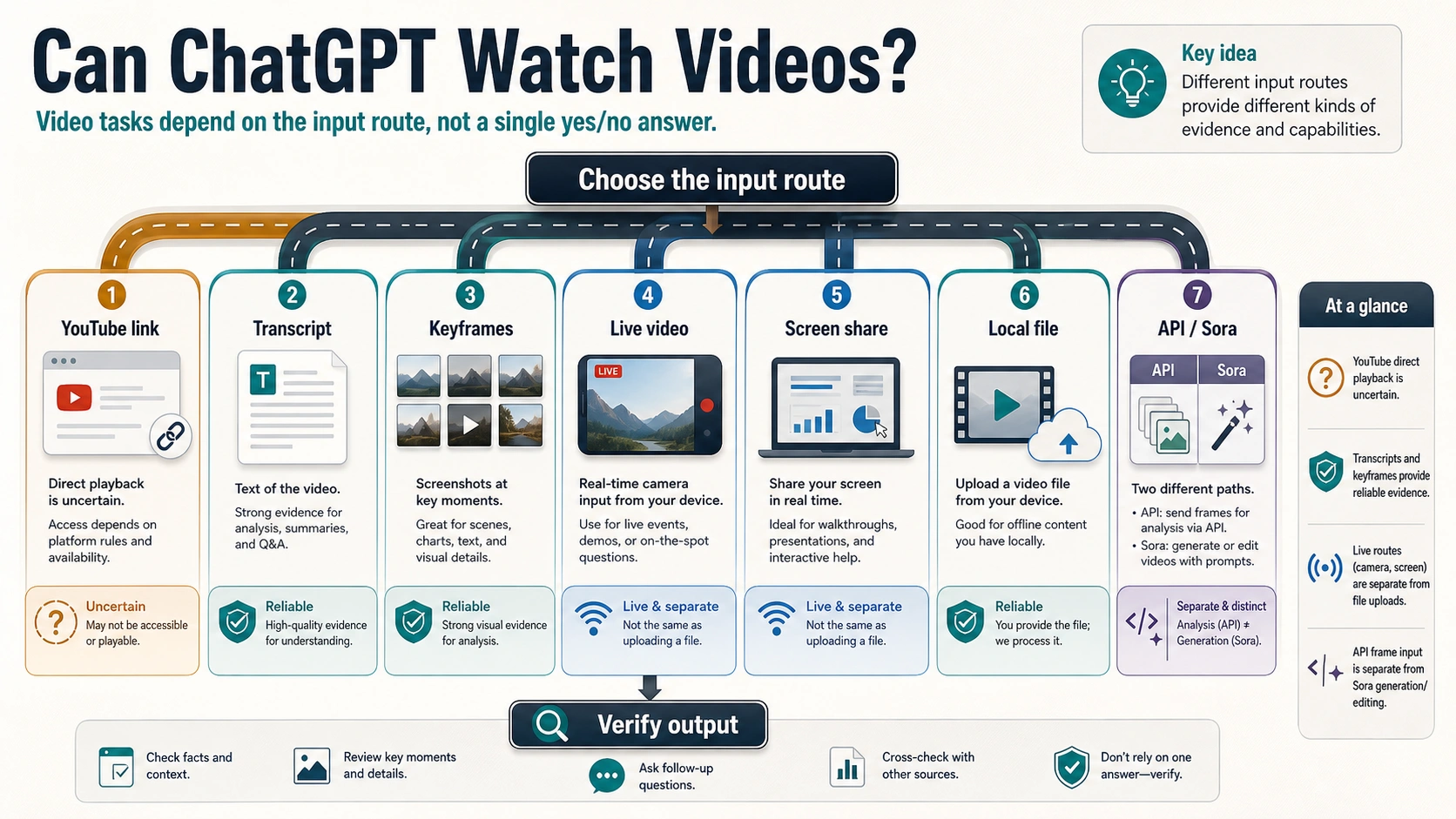
ChatGPT can help with video tasks, but the route controls what it can actually use. A YouTube link, a transcript, a few screenshots, a live camera view, a local attachment, an API frame input, and a Sora generation request are not the same input.
As of July 5, 2026, the safest answer is route-specific: do not assume ChatGPT can directly play and inspect any video link like a human viewer. Use transcript or captions for speech, screenshots or keyframes for visuals, mobile voice video or screen share when that route is available, a local file only when your current file picker accepts it, API image inputs for frame-based developer work, and Sora for video creation or editing.
| Video job | Best route | What ChatGPT actually gets | Stop rule |
|---|---|---|---|
| Summarize a YouTube lecture, interview, podcast, or meeting | Transcript or captions with timestamps | Text of the spoken content plus any context you paste | Do not rely on the URL alone for the full video |
| Review a demo, tutorial, UI recording, chart, sports clip, or bug video | Transcript plus screenshots or keyframes | Selected still frames and notes for the moments that matter | Do not trust a transcript-only answer when visuals carry the point |
| Get help with something happening now | Mobile voice video or screen share if it is available in your ChatGPT app | Live camera or screen context during the conversation | Do not treat live input as the same thing as uploading a saved video |
| Analyze a local clip | Use the visible file picker only if it accepts the file, then verify the answer | Whatever your current ChatGPT surface can accept and process | Do not assume every account supports video-file analysis |
| Build a developer or creation workflow | API image/frame inputs for analysis; Sora for generation or editing | Frames, images, or a generation/editing request | Do not call Sora a general video-understanding route |
Start with the row that matches the video in front of you. If ChatGPT only has text, ask text questions; if the answer depends on what happens on screen, add frames and timestamps; if the feature is not visible in your product surface, convert the video into transcript plus keyframes instead of forcing an unsupported route.
Start With What ChatGPT Actually Receives
The useful question is not only whether ChatGPT can watch, see, view, or process videos. The useful question is what evidence reaches the model. A transcript gives speech. A screenshot gives one visual moment. A sequence of keyframes gives selected visual states. Live mobile video or screen share gives current context during a conversation. A local attachment gives whatever the current ChatGPT surface can accept and process. API image inputs give developer-controlled images or frames. Sora creates or edits video; it is not a shortcut for asking ChatGPT to understand any arbitrary YouTube link.
That distinction matters because the same video can have different evidence owners. A podcast episode may need only a transcript. A software tutorial may need the transcript plus screenshots of menus and error states. A sports clip may need several frames because the decisive event is visual. A support call may need screen sharing because the problem is happening now. A developer workflow may need extracted frames, not a consumer chat window.
OpenAI's current Help pages split these routes across separate surfaces. The ChatGPT Image Inputs FAQ says image inputs are for static images and do not support videos. The Voice Mode FAQ describes mobile video and screen sharing during voice conversations for eligible users. The File Uploads FAQ and supported file types page explain file-upload context, but they should not be stretched into a universal promise that every account can attach and analyze every saved video file.
If your task starts with a static image or upload-button failure rather than a video route, use the adjacent ChatGPT image upload troubleshooting guide. If your task is image creation or editing inside ChatGPT Images, the broader ChatGPT Images route guide is the better owner.
How To Use ChatGPT With YouTube Videos
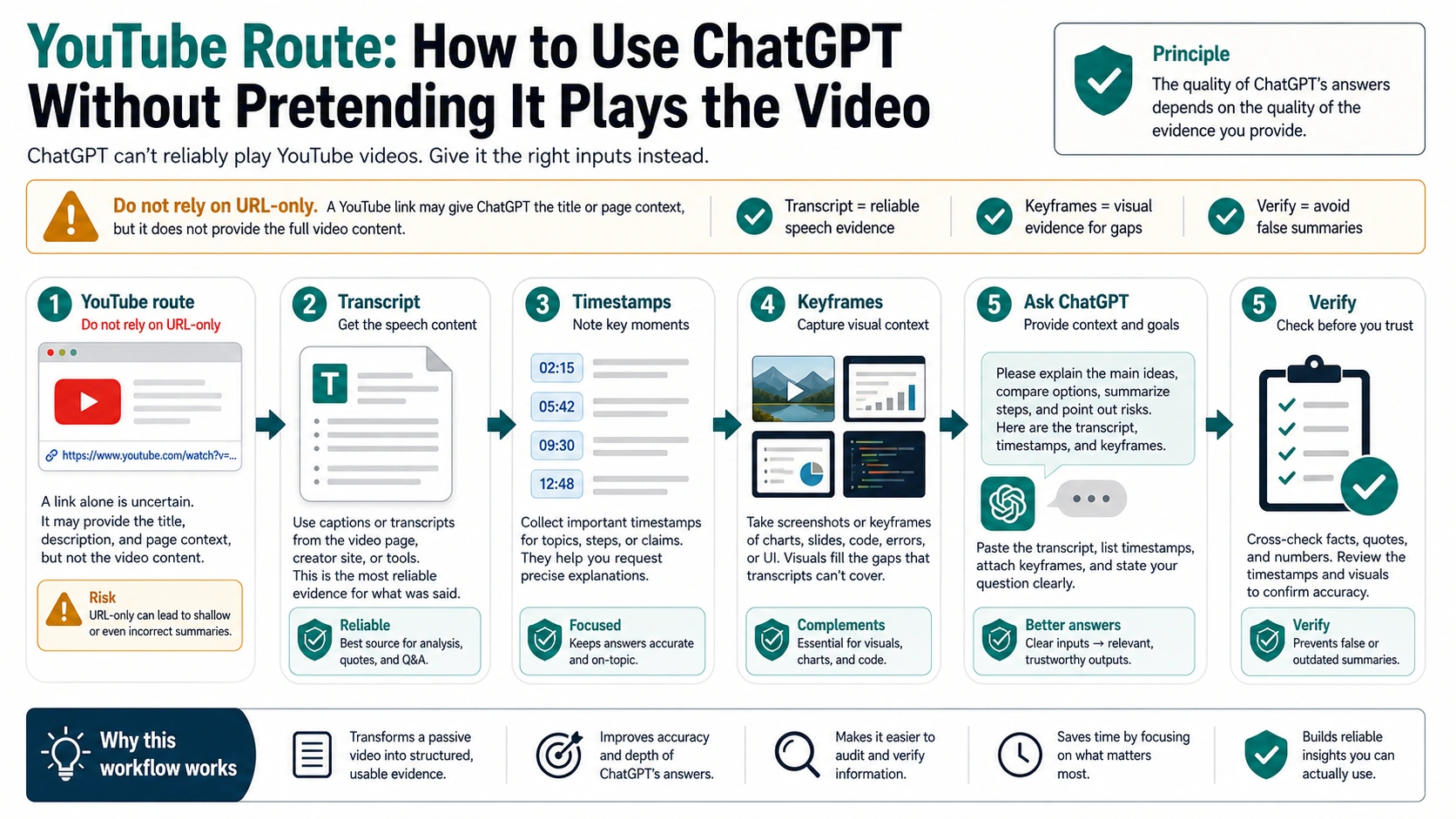
For YouTube, the reliable first move is usually transcript-first. A pasted URL may give ChatGPT the title, page context, or whatever browsing surface is available in your session, but it is not a guarantee that the model has watched the full audio and visuals. If the content is mostly spoken, collect captions or a transcript, keep the timestamps, and ask about the part you actually need.
A strong YouTube packet looks like this:
| Packet item | Why it helps |
|---|---|
| Video title and source context | lets ChatGPT understand the topic without pretending it saw everything |
| Transcript or captions | gives the spoken claims, quotes, and sequence |
| Timestamps | lets you ask about exact moments and verify the answer |
| Screenshots or keyframes | fills visual gaps in demos, charts, UI walkthroughs, or slides |
| Task question | keeps the answer focused on summary, critique, extraction, comparison, or action items |
For a lecture, ask ChatGPT to summarize the transcript by timestamp, extract claims, compare arguments, or turn it into notes. For a tutorial, paste the steps and include keyframes of screens that matter. For a product demo, include frames showing the interface, settings, chart, or output state. For an interview, ask for speaker claims and possible follow-up questions.
The stop rule is simple: if the answer depends on what appears on screen, a transcript alone is not enough. Ask ChatGPT to say which timestamps or frames it used. If it cannot anchor a claim to your transcript or frame packet, treat the answer as a draft, not as verified video understanding.
When The Video Is Visual, Build A Frame Packet
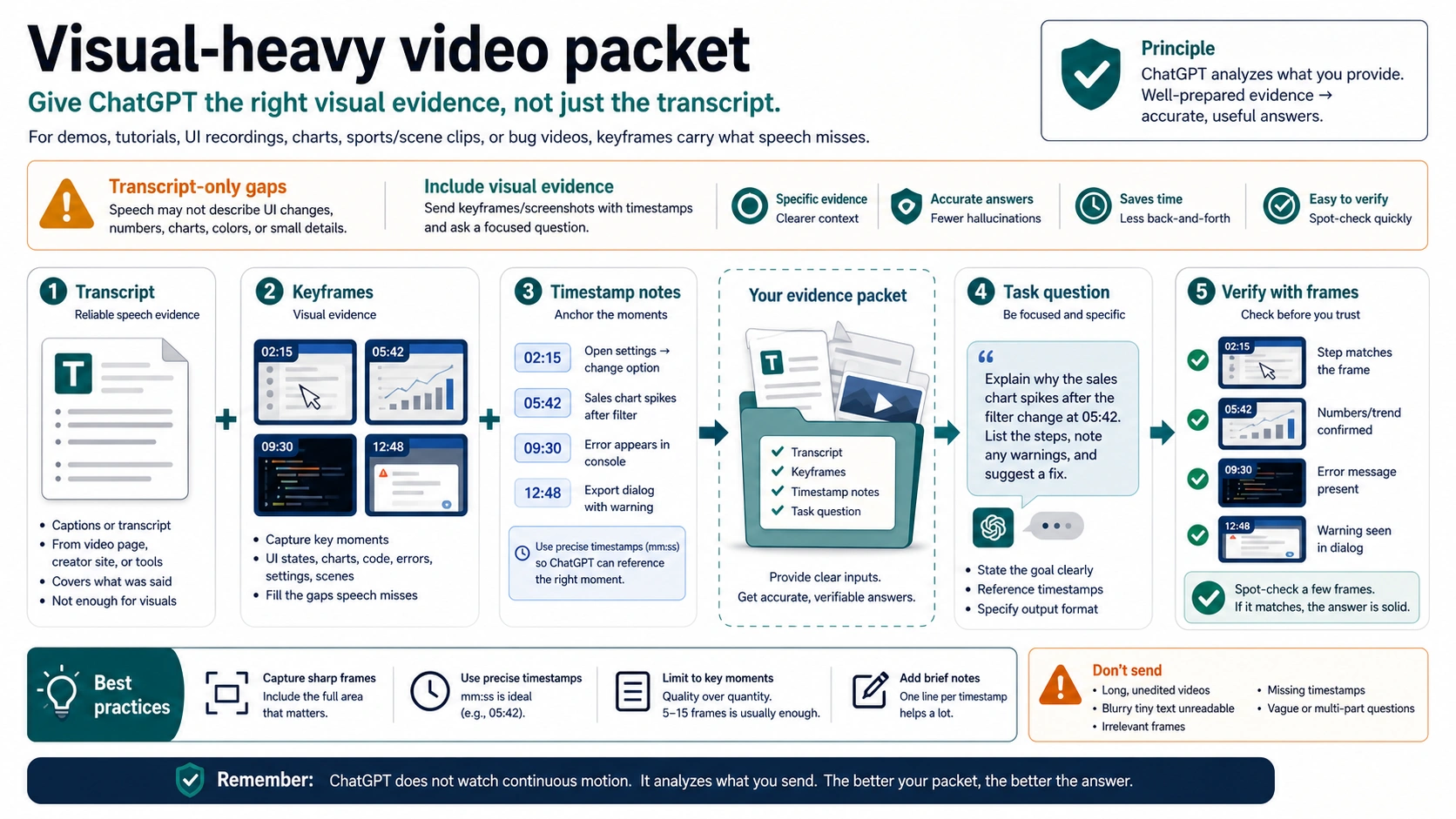
Visual-heavy videos need a different packet. A transcript can miss UI states, chart numbers, slide text, object movement, a warning dialog, a scoreboard, a gesture, or a before-and-after result. If the value of the video is on screen, send the screen evidence directly.
Use keyframes when the clip is a demo, tutorial, UI recording, chart review, bug report, gameplay clip, sports play, camera walkthrough, or visual comparison. You do not need every frame. You need the few frames that carry the decision:
| Video type | Frames to capture | Prompt focus |
|---|---|---|
| Software tutorial | menus, settings, final output, error states | explain steps and missing prerequisites |
| UI bug recording | before state, click moment, error message, after state | identify likely cause and next diagnostic |
| Chart or slide talk | chart frames and claim timestamps | compare spoken claim to visible numbers |
| Product demo | feature state, input, output, limitation | summarize what is demonstrated and what is not shown |
| Scene or sports clip | key positions before, during, after the event | describe visible sequence and uncertainty |
Give each frame a timestamp and a short note. For example: "02:15 settings panel before change", "05:42 sales chart after filter", "09:30 error dialog", "12:48 export result". Then ask a focused question: "Based on the transcript and frames, explain why the chart changes after the filter, list the evidence, and flag anything you cannot verify."
This workflow also reduces hallucination. When ChatGPT has frames and notes, you can ask it to quote the transcript and point to frame timestamps. If it invents a visual detail that is not in the packet, you can catch the error quickly.
Live Video And Screen Share Are A Separate Route
Live mobile video and screen share are real product routes when they are available in your app, but they solve a different problem from YouTube links and saved local clips. The Voice Mode FAQ describes video in iOS and Android mobile voice conversations for subscribers, plus screen sharing and image upload behavior on mobile. Historical ChatGPT release notes also describe real-time video and screen share rollout in advanced voice.
Use live input when the task is happening now:
- you want ChatGPT to look at an object, screen, worksheet, device, or room during the conversation;
- you need help navigating an app or page while you are using it;
- the problem changes as you interact with it;
- the route is visible and available in your current ChatGPT app.
Do not use that fact to claim that ChatGPT can automatically watch any saved YouTube video or local MP4. Live camera context, live screen share, and saved-video analysis have different privacy risks, availability rules, and evidence shapes.
If the clip contains private people, customer data, medical records, financial information, private messages, copyrighted media, or workplace material, pause before uploading or streaming it. Reduce the input to only what the task needs: a transcript excerpt, cropped screenshot, anonymized frame, or short live view of the relevant area.
Local Video Files: Trust The Picker, Then Verify
Local video-file advice is where many answers become too confident. The practical rule is to trust the product surface in front of you, not a social clip or an old tutorial. If your current ChatGPT file picker accepts a local video file, keep the clip short, ask a narrow question, and verify the answer against timestamps or frames. If the picker does not accept the file, or official supported-file pages do not list the route you need, convert the clip into transcript plus keyframes instead.
OpenAI's file-upload help covers file-upload limits and common document, spreadsheet, presentation, text, and image contexts. That is useful background for attachment behavior, but it is not the same as a stable promise that every ChatGPT account can upload and analyze every video extension. Availability can depend on product surface, account, region, plan, workspace policy, rollout state, and current limits.
Use this local-file checklist:
| Check | Why it matters |
|---|---|
| Does the picker show the file as selectable? | the current product surface is the first availability signal |
| Does ChatGPT describe the clip with timestamps or only generic metadata? | the answer reveals how much evidence reached the model |
| Can it answer a question about a specific moment? | spot checks expose shallow processing |
| Does a transcript/keyframe packet give a better answer? | fallback route may be more reliable |
| Is the clip safe to upload? | privacy and rights risks are part of the route choice |
When the file route works, still ask for uncertainty. A useful prompt is: "Use only the uploaded clip. If you cannot inspect a moment directly, say so. Give timestamped evidence for each claim." If ChatGPT gives broad commentary without timestamps, follow up with a frame packet or transcript.
API Frames And Sora Are Different Jobs
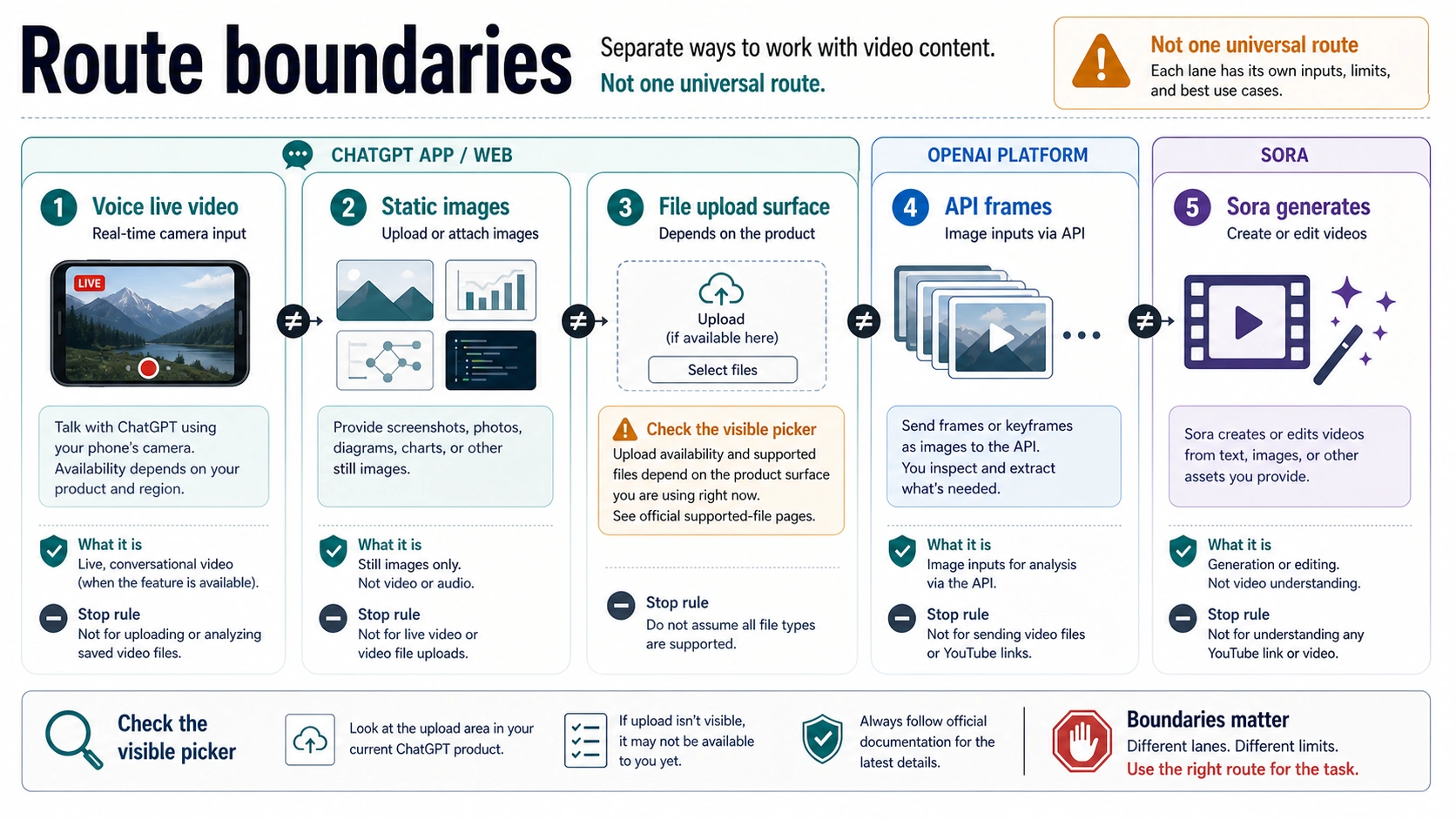
Developer workflows need their own boundary. The OpenAI API image and vision docs describe image inputs by URL, base64 data URL, or file ID. That route is useful when you extract selected frames from a video and send them as images for analysis. It is not the same as asking ChatGPT in the consumer app to play a YouTube link.
For developer analysis, design the pipeline around frames and metadata:
- Extract frames at meaningful timestamps.
- Keep the transcript or audio transcript beside the frames.
- Send only the frames needed for the task.
- Ask for timestamped, frame-grounded output.
- Store the source frame IDs or file names so the result can be audited.
Sora and video API routes belong to generation, editing, extension, or transformation jobs. Use them when the desired output is a video or video edit. Do not describe Sora as the way to make ChatGPT understand any arbitrary saved clip or YouTube link. If the job is "tell me what happened in this video," you need transcript, frames, live input, or a dedicated video-understanding route, not a generation prompt.
When Another Tool Is Better
ChatGPT is a strong reasoning layer once you provide the right evidence, but it is not always the best first processor. Use a dedicated transcript tool when the video is long and speech-heavy. Use a video editor or frame extraction tool when you need exact scene cuts. Use a meeting platform export when the source is a meeting recording with speaker labels. Use a specialist vision or media model when you need dense motion analysis, object tracking, or long-video indexing.
The best workflow often combines tools:
- transcript tool for speech extraction;
- screenshot or frame extraction for visuals;
- ChatGPT for summarizing, comparing, turning evidence into notes, drafting questions, or checking logic;
- original video for final verification.
Do not measure success by whether ChatGPT "watched" the video. Measure success by whether the answer is grounded in the evidence you supplied and whether you can verify the important claims.
Prompt Packets You Can Reuse
For a speech-heavy YouTube video:
hljs textI am giving you a transcript with timestamps from a video. Summarize the main argument, list the strongest claims with timestamps, identify any assumptions, and give me 5 follow-up questions. Do not infer visual details unless I provide screenshots.
For a visual-heavy demo:
hljs textUse the transcript, timestamp notes, and screenshots together. For each major step, explain what is visible, what the speaker claims, and where the evidence is incomplete. If a visual detail is not in the screenshots, say that it is not shown.
For a local file that your ChatGPT app accepts:
hljs textUse only the uploaded clip and tell me what you can verify. Give timestamped evidence for each claim. If you cannot inspect the video directly or cannot access a moment, say so and tell me what input would make the answer reliable.
For a developer frame workflow:
hljs textThese images are frames extracted from a video at the listed timestamps. Analyze only the visible frames and the transcript excerpt. Return a table with timestamp, visible evidence, transcript evidence, conclusion, and uncertainty.
FAQ
Can ChatGPT see videos?
It can use video-related evidence through specific routes, such as transcripts, screenshots/keyframes, live mobile video or screen share when available, accepted local attachments, or API image/frame inputs. It should not be treated as automatically seeing every video link or file.
Can ChatGPT view YouTube videos?
Do not rely on a YouTube URL alone. Use the transcript or captions, keep timestamps, and add screenshots/keyframes when visuals matter. Ask ChatGPT to anchor claims to the transcript and frames you provide.
Can ChatGPT accept video files?
Only trust the file picker and official supported-file behavior visible in your current product surface. If the route is unavailable or unclear, convert the video into transcript plus screenshots/keyframes. Avoid universal claims that every account supports saved video-file analysis.
Can ChatGPT process GIFs or moving images?
For ChatGPT image input, OpenAI Help describes static image input and non-animated GIF support. If motion matters, extract frames or use a video-specific route rather than assuming the animation is understood.
Is live video the same as uploading a video?
No. Live mobile video or screen share is a conversation route for current camera or screen context when available. Uploading or attaching a saved clip is a different route with different availability, privacy, and verification concerns.
Can the OpenAI API analyze a full video directly?
For most developer workflows, treat the API route as image/frame analysis plus transcript or metadata unless current official docs for your endpoint say otherwise. Send selected frames, keep timestamps, and audit the result against the source video.
Does Sora help ChatGPT understand videos?
Sora is for creating or editing video. It is not the same job as understanding an arbitrary YouTube link or uploaded clip. Use Sora when the output you want is a generated or edited video.
What is the safest workflow for a private video?
Minimize the input. Use a harmless test first, remove private data, crop screenshots, share only necessary frames, and avoid uploading private people, customer data, medical records, financial records, workplace secrets, or copyrighted material unless you have the right and a clear reason.