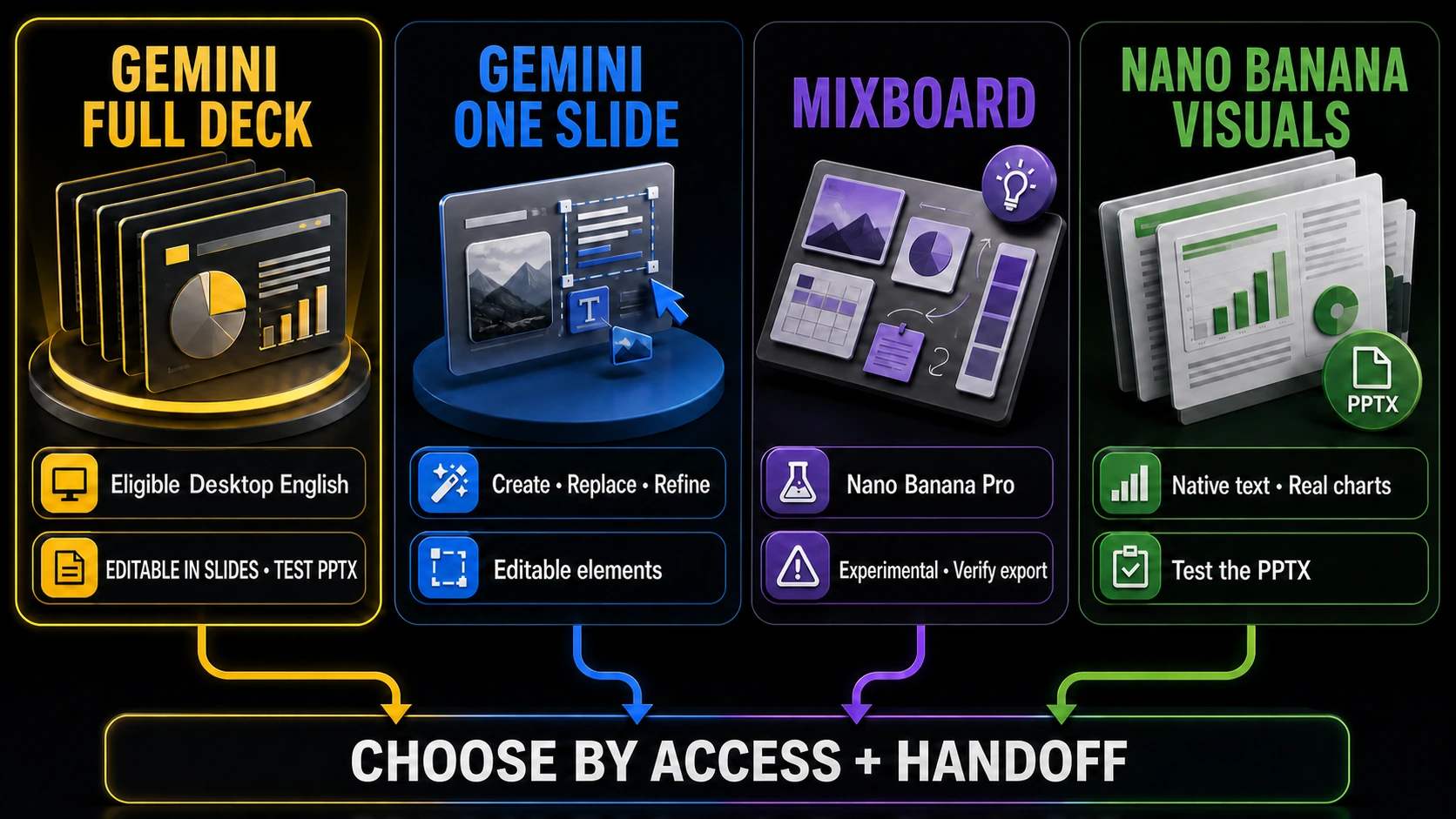
Google Slides can now generate a complete, fully editable presentation with Gemini, which is the most direct official route when the feature appears on an eligible desktop account and the presentation is in English. Nano Banana remains the image-generation family used for presentation visuals; the Nano Banana image endpoint by itself does not return a native PowerPoint deck. In Slides, you can add Drive sources, match another deck's style, edit the proposed outline, approve the build, and then manually edit the generated deck elements. If that route is unavailable—or if PowerPoint handoff is the hard requirement—use one of the other workflows below and test the downloaded PPTX in the target PowerPoint version before delivery.
Choose the Workflow by the File You Need to Deliver
Start with the output contract, not the prompt. “Make a presentation” can mean a visual concept, a deck that another person can rewrite, or a finished file that must survive PowerPoint handoff. Those jobs need different layers.
| Workflow | Best for | Who creates what | Working output | Editability and main risk |
|---|---|---|---|---|
| Generate a full presentation in Google Slides | A new English deck on an eligible desktop account | Gemini in Slides plans and builds editable slides; Nano Banana-family image tools can create or edit visual assets | A native Google Slides presentation | Google documents editable deck elements; PowerPoint download still needs a target-app fidelity test |
| Generate or improve one slide in Google Slides | An existing deck that needs a new slide, layout, copy, or visual | Gemini creates an editable slide; image generation produces pixels inside it | One editable Google Slides deck | Generated slide elements can be edited, but a generated image or infographic remains pixels |
| Turn a Mixboard into a presentation | Early ideation when the story and references already live on a board | Mixboard assembles the presentation; Nano Banana Pro improves its visuals and text | A presentation inside the current Mixboard flow | Experimental availability, limits, export, and object-level behavior must be checked in the live product |
| Generate assets, then assemble in PowerPoint or Slides | A deck that needs controlled PowerPoint handoff or a non-English workflow | Nano Banana creates replaceable backgrounds, illustrations, and diagrams; the editor owns text, charts, and assembly | Native PowerPoint or Google Slides deck, plus optional PDF | Highest control, but assembly and QA are explicit work |
Google's current Gemini image-generation documentation describes Nano Banana as a family of image-generation and editing models. It does not turn the image endpoint into a PowerPoint exporter. A separate Google Slides help page documents complete, fully editable presentation generation; at this check, Google limits that route to eligible plans or Workspace Experiments, desktop, and English. Another Slides help page owns single-slide generation and editing, while image help owns pixel output. Google Labs separately describes turning Mixboard content into presentations and notes that experimental limits can fluctuate. Keep all four product contracts separate.
If full-deck generation appears in your eligible English Google Slides account, start there because the presentation surface owns editable slide objects. Use image-first assembly when that feature is unavailable, the deck is not in English, exact PowerPoint handoff matters more than speed, or you need tighter control over the source, chart, and visual layers.
Keep Critical Information Out of a Flattened Slide Image
Generating an entire slide as one image can look impressive in a preview. It becomes a problem when a reviewer asks to change one number, translate one sentence, update the chart, apply a new font, or make the deck accessible.
Follow one layer rule: information that may change or must be read precisely belongs in the presentation layer. Decorative or illustrative material can be flattened into an image.
| Keep editable by default | Usually safe to flatten when appropriate |
|---|---|
| Slide titles and body copy | Backgrounds and textures |
| Numbers, prices, dates, and units | Decorative illustrations |
| Charts built from real data | Noncritical scene images |
| Citations, footnotes, and links | Mood boards and style frames |
| Speaker notes | Decorative diagrams whose labels are rebuilt natively |
| Alt text and accessibility labels | Dividers, patterns, and visual accents |
| Logos and legal copy when exact placement matters | A replaceable hero visual with no critical baked-in copy |
This is not a ban on text inside generated images. A visual may need a short label or sign. It is a rejection rule for critical copy: if a misspelling, number change, translation, or accessibility requirement would force you to regenerate the entire slide, the content belongs in a native text box or chart.
For a deeper prompt structure that protects exact details, use the Nano Banana prompt templates. For a related office-file boundary, the spreadsheet-to-image workflow explains why data analysis, image generation, and document export should remain separate stages.
Plan the Deck Before You Generate an Image
An image model cannot fix an unclear presentation argument. Before opening any image tool, write five lines:
- Audience: Who will see the deck, and what do they already know?
- Decision: What should they approve, understand, or do afterward?
- Core message: What one sentence should survive if they forget the details?
- Evidence: Which source notes, numbers, quotes, or product facts support the message?
- Delivery contract: Must the result be editable in PowerPoint, shared in Google Slides, or only viewed as a PDF?
Then give every slide one job. A slide job is more useful than a decorative theme because it tells you whether the slide needs a native chart, a generated illustration, or no image at all.
Worked example: a six-slide product launch update
Suppose a team needs a short internal launch deck. The following facts are hypothetical so the workflow can be copied without implying a real product result.
| Slide | One job | Keep native | Generate as a visual asset |
|---|---|---|---|
| 1. Launch decision | Name the product and the approval requested | Product name, date, decision line | Hero illustration with an empty title zone |
| 2. Customer problem | Make the current friction concrete | Three verified problem statements | A simple scene showing the workflow pain |
| 3. Proposed experience | Show how the new flow works | Step labels and callouts | UI-neutral process illustration |
| 4. Evidence | Support the recommendation | Source-built chart, units, footnote | Optional subtle background only |
| 5. Launch plan | Assign phases and owners | Timeline, owner names, dates | Small decorative milestone icons |
| 6. Decision and next step | Make the ask unmissable | Decision options, owner, deadline | Reuse or crop the cover visual if useful |
The visual workload is now bounded. Slides 1, 2, and 3 need meaningful image work. Slide 4 needs an accurate native chart, not an invented infographic. Slides 5 and 6 may need only light decoration. That prevents six expensive generations from replacing six different editorial decisions.
Write Prompts for Visual Jobs, Not Finished Copy Blocks
Use a prompt that describes the visual's job and reserves space for the native slide layer:
hljs textCreate a presentation visual for [slide purpose]. Audience and context: [who will see it and what they need to understand]. Subject: [specific scene, object, process, or relationship]. Composition: [foreground, focal point, supporting elements, and reading direction]. Canvas: 16:9 presentation layout with [left/right/top] reserved as clean negative space. Visual hierarchy: [what should read first, second, and third]. Palette and style: [brand colors, lighting, texture, and level of realism]. References: [what each attached image controls, or none]. Do not add: paragraphs, tiny labels, invented data, unsupported logos, watermarks, or decorative UI controls. Pass if: [observable visual acceptance test].
Choose the supported aspect ratio and output controls in the product or request settings when available. Writing “16:9” in prose cannot override a route that does not support the needed dimensions.
Prompt 1: launch-deck cover visual
hljs textCreate a 16:9 presentation cover visual for an internal product-launch decision. Show a clear path from scattered customer requests on the left to one calm, organized workflow on the right. Use abstract cards and connectors rather than readable application UI. Reserve the upper-left 38% as clean, low-detail space for a native title and decision line. Use deep blue, warm coral, and off-white, with crisp editorial lighting and strong separation at presentation distance. Do not render a title, body copy, numbers, logos, watermarks, or tiny labels. Pass if the before-to-after story reads in three seconds and the title zone stays clean.
Prompt 2: process illustration
hljs textCreate a 16:9 process illustration for a presentation slide. Show three connected stages: collect source notes, organize a slide job map, and assemble verified visual assets into an editable deck. Use three large visual stations flowing left to right, with an empty strip beneath each station where native labels will be added later. Keep the forms geometric and UI-neutral. Use the same blue, coral, and off-white palette as the cover. Do not add text, chart values, product logos, extra stages, or interface chrome. Pass if each stage is visually distinct and all three label zones remain unobstructed.
Correction prompt: repair one failed field
hljs textEdit the previous image. Keep the three-stage composition, palette, lighting, and object positions unchanged. Remove every accidental letter or pseudo-text. Increase the empty strip beneath each station to 18% of the canvas height. Do not redesign the stations or add new objects. Pass if all three label zones are clean and the original visual sequence is preserved.
Change one failed field at a time. If the second controlled attempt breaks the same protected detail, stop adding adjectives. Simplify the visual, strengthen the reference, or place that element natively in the deck.
Workflow 1: Generate a Full Editable Presentation in Google Slides
Use this route first when the deck is in English, the feature appears in an eligible desktop account, and a Google Slides working file is acceptable. Google's current help says Gemini in Slides can build a fully editable presentation with text and images. That is a Google Slides capability; it is not evidence that the Nano Banana image API returns a deck file.
- Open the Google Slides start screen and choose Presentation, or open a blank presentation with no existing slides and select Ask Gemini.
- Describe the topic, audience, goal, approximate slide count, and desired style.
- Add approved Drive sources. Allow broader web, Drive, Chat, or Gmail sources only when their use is appropriate for the material.
- Optionally attach an existing deck as the style reference. Treat it as visual direction, not as permission to copy protected content.
- Answer the refinement questions about tone, audience, content, and design.
- Inspect the generated plan: overview, source list, and one content step per slide. Edit titles and descriptions, add or remove slides, then update the plan.
- Approve the plan and keep the Slides tab and Gemini side panel open while the deck is generated.
- Manually edit representative text, shapes, charts, and images in the generated deck. Verify every claim against the approved sources.
- If the deliverable is PowerPoint, download a PPTX and run the file QA described below; Google Slides editability is not a promise of perfect cross-application fidelity.
As of July 18, 2026, Google says the full-presentation feature requires an eligible Google Workspace or Google AI plan or Workspace Experiments, works on desktop, and is English-only. Its June 30 rollout notice also describes temporarily higher promotional limits through at least August 1, 2026. Treat visibility and limits as current account state, not a permanent entitlement.
Workflow 2: Generate or Improve One Editable Slide in Google Slides
Use this route when a deck already exists and you need a new editable slide, a better layout, revised copy, or a supporting image.
- Duplicate the deck or create a version checkpoint.
- Open Ask Gemini in Slides and describe the one slide's job, required evidence, and intended audience.
- Add a Drive file or style reference when it materially controls content or design.
- Preview the generated slide, then insert it as a new slide or replace the selected slide.
- Edit the generated slide elements manually. Google documents editable generated slides, but any image or infographic inserted into the slide remains pixel content.
- Use image generation only for a defined visual slot. Reserve native space for titles, numbers, charts, citations, and accessibility information.
- Check hierarchy, contrast, reading order, source accuracy, and alt text before repeating the method across the deck.
This route is different from Insert → Help me visualize → Image. One creates or edits slide objects; the other creates image output. Choosing the correct action prevents a slide-looking image from being mistaken for an editable slide.
Workflow 3: Turn a Mixboard into a Presentation
Use Mixboard when the team already has a visual board of references, notes, and ideas and wants a coherent presentation draft. Google's current Labs description says Mixboard can transform board content and input into presentations and use Nano Banana Pro for stronger visuals and text, with doodle-based edits.
Treat it as an experimental presentation surface, not as a permanent export guarantee:
- Remove irrelevant references and private material from the board.
- Add a short audience, decision, and message brief.
- Group the board into the slide jobs you actually want.
- Generate the presentation and inspect the story before polishing visuals.
- Verify how the current product exposes editing, sharing, download, or export.
- If a PowerPoint handoff is mandatory, test the real file path and representative edits before building the final deck around it.
Do not promise native PPTX export or object-level editability unless the current session and owner documentation prove them. If the required output cannot be verified, switch to the image-first assembly workflow and use the Mixboard result only as a visual outline.
Workflow 4: Generate Assets, Then Assemble in PowerPoint or Slides
This is the dependable default when the deck must remain editable after handoff.
- Create the native deck first. Set the theme, 16:9 slide size, masters, fonts, margins, and recurring layouts.
- Write native copy. Add titles, body text, labels, citations, and speaker notes before visual generation.
- Build real charts from real data. Use PowerPoint, Sheets, Excel, or another data tool; never ask the image model to invent chart values.
- Generate one visual job at a time. Name the intended slide and placement in the prompt record.
- Insert assets as replaceable files. Keep source images and prompts outside the deck so another editor can regenerate or swap them.
- Rebuild required labels natively. Generated diagrams can supply visual structure, but exact labels belong in editable text boxes.
- Run a consistency pass. Check palette, lighting, line weight, image treatment, margins, and title placement across the whole deck.
- Test the handoff. Open the PPTX on the target machine, edit representative objects, and confirm that fonts, links, media, and notes survived.
This workflow takes more deliberate assembly, but it separates three sources of error: the factual source, the generated pixels, and the editable presentation layer.
When an End-to-End Presentation Builder Is Worth Testing
A third-party builder may save time when it can take a brief or document, assemble slides, and export the format you need. The builder—not Nano Banana alone—owns that promise.
Before uploading real material, ask:
- Does the current plan export PPTX, Google Slides, PDF, or only a hosted link?
- Are titles, body copy, charts, and shapes editable after export, or are slides flattened?
- Which model and resolution does the selected workflow actually use?
- What happens to source documents, images, and generated files?
- Are limits, credits, and failed-generation charges visible for this exact mode?
- Can the exported deck be opened and edited in the target PowerPoint environment?
Use a disposable six-slide brief for the test. Change a title, body paragraph, chart, and visual after export. If those edits fail, you have learned the output contract before placing the real deck at risk.
Run Four QA Passes Before You Deliver
Downloading a file is not completion. Review the content, pixels, accessibility, and file behavior separately.
1. Content QA
- Match every factual claim, number, unit, date, quote, and citation to the approved source.
- Rebuild charts from real data and compare the visible values.
- Check spelling, product names, names, and legal copy outside the generated image.
- Remove unsupported statements that appeared during visual ideation.
2. Visual QA
- View every slide at presentation size, not only zoomed in.
- Check hierarchy, contrast, cropping, consistency, and unintended pseudo-text.
- Look for distorted hands, objects, logos, UI, or diagrams.
- Confirm that generated assets are licensed and appropriate for the intended use.
3. Accessibility QA
- Set a logical reading order.
- Add meaningful alt text to informative images and mark decorative assets appropriately.
- Do not rely on color alone to communicate status.
- Keep critical information in selectable text whenever possible.
4. File and handoff QA
- Open the final PPTX in the target PowerPoint version.
- Edit one title, one body paragraph, one chart value, and one generated visual.
- Verify fonts, links, video or audio, speaker notes, aspect ratio, and slide masters.
- Save, close, and reopen the file.
- Approve the editable master before exporting the final PDF.
Stop and Switch Workflows When the Contract Breaks
Stop the current workflow when any of these conditions appears:
- Critical text, data, citations, or accessibility content is trapped in pixels.
- The required file format cannot be produced or opened in the target app.
- Representative objects cannot be edited after export.
- A generated chart, number, or factual statement cannot be verified.
- Two controlled corrections fail the same protected detail.
- A provider cannot explain model identity, limits, upload handling, or output rights for the intended job.
- The workflow requires uploading confidential, regulated, client-owned, licensed, or unreleased material to an unapproved service.
Switching is not failure. It is how you preserve the deck's real requirement. A beautiful flattened PDF may be correct for a keynote that will never be edited. It is the wrong result for a sales deck that changes every week.
FAQ
Can Nano Banana create a PowerPoint file directly?
The Nano Banana image models do not directly return a native PowerPoint deck. Gemini in Google Slides can now generate a complete, fully editable presentation on eligible English desktop accounts, but Google Slides—not the image endpoint—owns the deck objects. If you download that deck as PPTX, test representative objects in the target PowerPoint version before delivery.
How do I use Nano Banana in Google Slides?
Choose the action that matches the job. To build a new English deck on an eligible desktop account, start from a blank presentation, open Ask Gemini, add the topic and approved sources, edit the proposed outline, approve it, and then refine the generated editable deck. To create one slide, prompt Gemini in an existing presentation and insert or replace the preview. Use Insert → Help me visualize → Image only when you need image output inside a slide.
Should I generate the whole slide as one image?
Only when a flattened slide is acceptable. For an editable deck, generate backgrounds, illustrations, or diagrams and add titles, numbers, charts, citations, and notes in the presentation layer.
How do I keep Nano Banana slides editable?
Decide the layers before prompting. Keep changing or precise information in native text, shapes, and charts; use generated images as replaceable assets. Then open the exported PPTX and edit representative objects before delivery.
Which workflow is best for an existing deck?
Start inside the existing presentation. Use Gemini in Slides to generate or replace one editable slide, rewrite content, or add images when the eligible feature is available. Use image-first assets when the account lacks the feature or when the PowerPoint handoff needs tighter layer control. Preserve the deck's native structure instead of regenerating every slide as pixels.