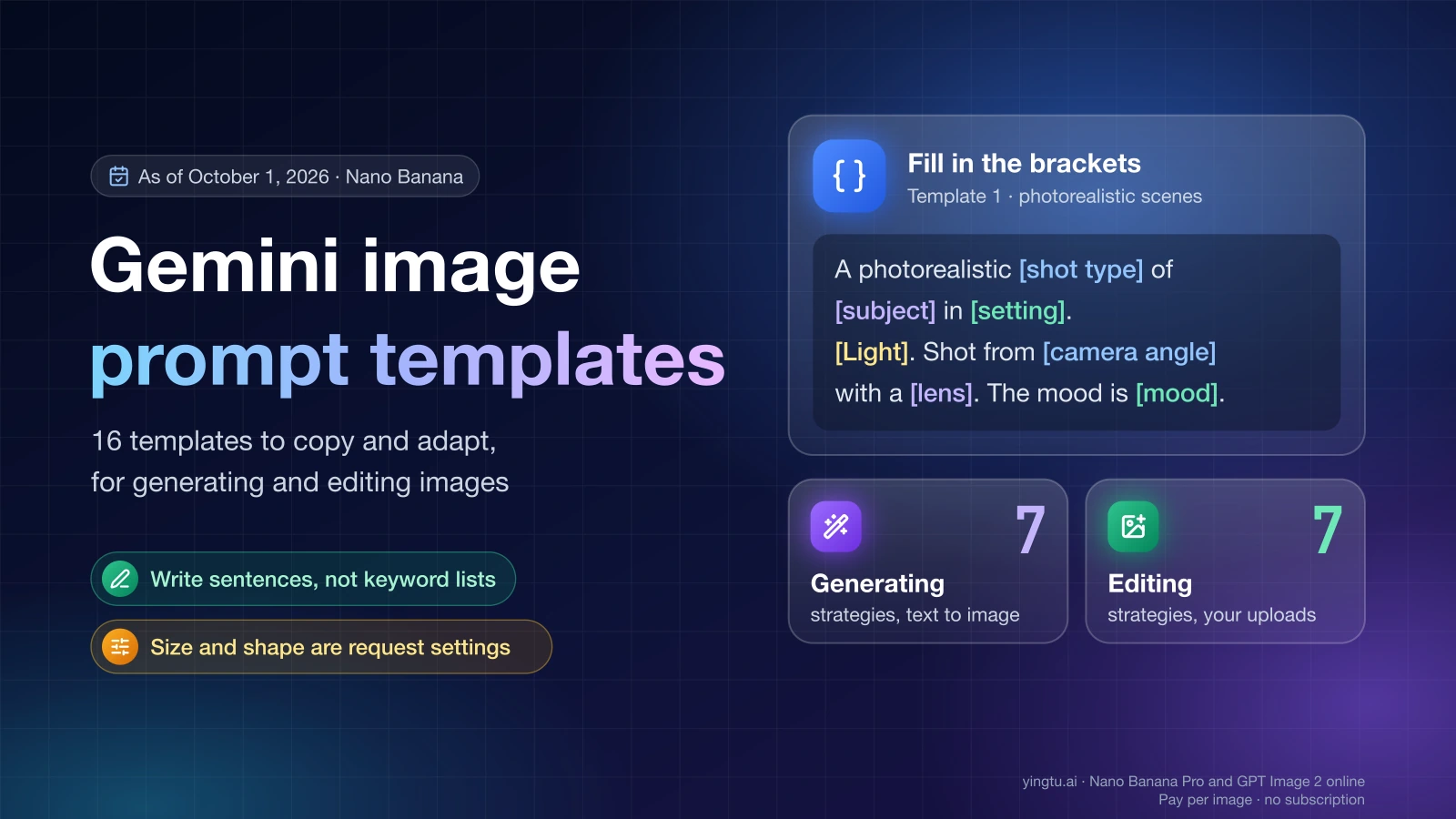
A Gemini image prompt is a short description, written in sentences, of the picture you want from Nano Banana, the image model family built into Gemini. It works when it names the subject, the setting, the light, and the camera position, and says what the image is for. A list of keywords gives the model much less to work with than one clear paragraph.
The 16 templates below follow the 14 strategies in Google's image generation documentation: seven for generating an image from text and seven for editing an image you provide. They keep Google's template structure and are rewritten with different slots and examples. Replace everything in square brackets, delete the brackets, and send.
English is on Google's list of languages that give the best performance, so there is no need to translate your prompt. The full list, as of October 1, 2026, is EN, ar-EG, de-DE, es-MX, fr-FR, hi-IN, id-ID, it-IT, ja-JP, ko-KR, pt-BR, ru-RU, ua-UA, vi-VN, and zh-CN.
Prompts for generating images
Each template covers one of Google's seven generation strategies. Google Cloud's documentation notes that opening with a phrase like "Create an image of…" or "Generate an image of…" states your intent, because a multimodal model may otherwise answer with text.
1. Photorealistic scenes
Name the shot type, the subject, the place, the light, the angle, and the lens. Each one removes a decision the model would otherwise make for you.
hljs textA photorealistic [shot type: close-up / medium shot / wide shot] of [subject, with two or three concrete details] in [setting]. [Light: source, direction, time of day]. Shot from [camera angle] with a [lens: wide-angle / 50mm / macro]. The mood is [mood].
Filled in:
hljs textA photorealistic medium shot of a woodworker in a canvas apron planing a walnut board in a small garage workshop. Late-afternoon sun comes through a side window and lights the wood shavings in the air. Shot from a low angle with a 50mm lens. The mood is calm and focused.
2. Stylized illustrations and stickers
State the style, what the subject is doing, the line and shading qualities, and the background. Say the background color outright if you plan to cut the sticker out later.
hljs textA [style: kawaii / flat vector / watercolor] sticker of [subject, with accessories] [doing an activity]. The design features [line quality], [shading], and a [color palette]. The background must be [color].
Filled in:
hljs textA flat vector sticker of a corgi wearing a yellow raincoat, jumping into a puddle. The design features thick, clean outlines, simple two-tone shading, and a bright primary color palette. The background must be white.
3. Accurate text in images
Put the exact words in quotation marks, describe the lettering style instead of naming a font file, and describe the layout. Google's guidance for this strategy is to be clear about the text, the font style, and the overall design, and to use Nano Banana Pro for professional asset production.
hljs textCreate a [image type: logo / poster / menu / label] for [brand or concept] with the text "[exact text]" in a [lettering style: bold sans-serif / hand-painted script]. The design should be [style], with a [color scheme]. Place the text [position].
Filled in:
hljs textCreate a poster for a neighborhood farmers market with the text "Saturday Market" in a bold, hand-painted serif style. The design should be warm and rustic, with a cream and tomato-red color scheme. Place the text across the top third, above an illustration of a crate of vegetables.
Google's limitations list adds a two-step method: Gemini works best when you first generate the text and then ask for an image with that text. In a conversation, that is two messages:
hljs textStep 1: Write [number] short headline options for [what the image promotes], each under [number] words. Text only, no image yet. Step 2: Create a [image type] using this exact headline: "[the option you chose]". Set it in a [lettering style], [position], on [background description].
4. Product mockups and commercial photography
A product shot needs the surface, the lighting setup and what the lighting is for, the angle, and the one detail that must stay sharp.
hljs textA high-resolution, studio-lit product photograph of [product, with material and color] on [surface or background]. The lighting is [setup, such as a three-point softbox setup] to [purpose, such as soft highlights without harsh shadows]. The camera angle is [angle] to show [feature]. Ultra-realistic, with sharp focus on [key detail]. [Shape: square image / wide 16:9 image].
Filled in:
hljs textA high-resolution, studio-lit product photograph of a stainless steel water bottle with a bamboo cap on a pale gray stone slab. The lighting is a two-light softbox setup to create one long, soft highlight down the bottle. The camera angle is straight-on at label height to show the brushed finish. Ultra-realistic, with sharp focus on the water droplets on the cap. Square image.
5. Minimalist and negative space design
Use this for backgrounds where a headline will be added later. Say where the subject sits and where the empty area is.
hljs textA minimalist composition featuring a single [subject] positioned in the [bottom-right / top-left / center-left] of the frame. The background is a vast, empty [color] canvas, leaving negative space for text [where]. Soft, diffused light from [direction]. [Shape].
Filled in:
hljs textA minimalist composition featuring a single sprig of eucalyptus positioned in the bottom-left of the frame. The background is a vast, empty pale sage canvas, leaving negative space for text on the right two-thirds. Soft, diffused light from the top right. Wide 16:9 image.
6. Sequential art: comic panels and storyboards
Describe the character once, then give each panel one action. Google's documentation says these prompts work best with Nano Banana Pro and Nano Banana 2.
hljs textMake a [number]-panel comic in a [art style]. The main character is [character description]. Panel 1: [action]. Panel 2: [action]. Panel 3: [action]. Speech bubble in panel [number]: "[exact text]".
Filled in:
hljs textMake a 3-panel comic in a clean, flat-color webcomic style. The main character is a small orange robot barista with one round eye. Panel 1: the robot carefully pours milk into a cup. Panel 2: the latte art comes out as a wobbly blob. Panel 3: the robot proudly holds up the cup. Speech bubble in panel 3: "Abstract."
7. Grounding with Google Search
This strategy is for images that depend on current information such as weather or recent events. The prompt alone is not enough: in the API, Google Search has to be enabled as a tool ("tools": [{"type": "google_search"}]). Google's limitations list notes that Nano Banana 2's search grounding does not use real-world images of people from web search.
hljs textMake a simple, stylish graphic of [current topic: this week's weather / yesterday's result / today's schedule] for [place or event]. Show [the data points you want] in a [layout]. Use a [style and color scheme].
Filled in:
hljs textMake a simple, stylish graphic of the five-day weather forecast for Seattle. Show the day name, an icon, and the high and low temperature for each day in a single horizontal row. Use a flat, modern style with a navy and white color scheme.
Prompts for editing images
Editing prompts go with one or more images you upload. Make sure you have the rights to those images; Google's Prohibited Use Policy applies to what you generate.
1. Adding and removing elements
Name what is in the photo, the change, and how the change should sit in the scene. Google's docs say the model matches the original style, lighting, and perspective.
hljs textUsing the provided image of [subject], add [element] [where]. Make sure it matches [the lighting / the perspective / the texture] of the original photo.
Filled in:
hljs textUsing the provided image of my cat on the windowsill, add a small knitted red scarf around its neck. Make sure it matches the soft window light of the original photo and sits naturally on the fur.
For removal, describe what the area should look like afterward. That is the positive description Google recommends in place of "no X".
hljs textUsing the provided image of [subject], remove [element]. Fill that area with [what should be there instead], continuing the [surface / pattern / background] around it.
2. Changing one part only (inpainting)
You define the "mask" in words: one element changes, and everything else is explicitly protected.
hljs textUsing the provided image, change only the [specific element] to [new element, with material and color]. Keep everything else in the image exactly the same, preserving the original style, lighting, and composition.
Filled in:
hljs textUsing the provided image of a kitchen, change only the white cabinet doors to matte forest-green shaker doors with brass handles. Keep everything else in the image exactly the same, including the countertop, the window, and the lighting.
3. Style transfer
Name the style, then say what must survive the change: usually the composition.
hljs textTransform the provided photograph of [subject] into the style of [art style or medium]. Preserve the original composition, but render it with [stylistic elements: brushwork, line, palette].
Filled in:
hljs textTransform the provided photograph of a lighthouse on a rocky coast into the style of a mid-century travel poster. Preserve the original composition, but render it with flat color blocks, a limited teal and orange palette, and a subtle paper grain.
4. Combining multiple images
Refer to each upload by its order and say which element comes from which image.
hljs textCreate a new image by combining the elements from the provided images. Take the [element from image 1] and place it [on / in / beside] the [element from image 2]. The final image should be [description of the final scene, with lighting].
Filled in:
hljs textCreate a new image by combining the elements from the provided images. Take the desk lamp from the first image and place it on the left side of the wooden desk in the second image. The final image should be a realistic home-office photo, with the lamp switched on and its light and shadow matching the evening light in the room.
5. Keeping a face or logo intact
Describe the thing that must not change in detail, in the same prompt as the edit.
hljs textUsing the provided images, place [element from image 2] onto [element from image 1]. Here is what must stay the same: [detailed description of the features to keep]. Ensure those features remain completely unchanged. The added element should [how it integrates: follow folds, match lighting].
Filled in:
hljs textTake the first image of the golden retriever with a white patch on its chest and a red collar. Add the logo from the second image onto a blue bandana around its neck. Ensure the dog's face, fur markings, and expression remain completely unchanged. The logo should look printed on the fabric and follow the folds of the bandana.
6. Turning a sketch into a finished image
Say what to keep from the drawing and what to add.
hljs textTurn this rough [medium: pencil / marker / whiteboard] sketch of [subject] into a [style description] image. Keep the [specific features] from the sketch, but add [materials, colors, setting].
Filled in:
hljs textTurn this rough pencil sketch of a reading chair into a polished product photo in a bright living room. Keep the curved armrests and the tapered legs from the sketch, but add oatmeal boucle upholstery and oak legs.
7. Character consistency across angles
Ask for one angle at a time, and include the images you already generated in the next request. For a complex pose, Google's docs suggest adding a reference image of that pose.
hljs textA studio shot of this character against [background], [facing forward / in profile facing right / seen from behind]. Keep the same [outfit, colors, proportions] as in the provided image.
Filled in:
hljs textA studio shot of this mascot against a plain white background, in profile facing right. Keep the same green hoodie, round glasses, and body proportions as in the provided image.
If you would rather see what a prompt produces before adapting it, YingTu's prompt library pairs copy-ready prompts with real sample outputs and the price per image.
What a prompt cannot set
Some results are decided by request settings or model limits, and extra words do not move them. The fields below belong to response_format in the Gemini API; limits are from Google's image generation documentation as of October 1, 2026.
| What you want | What the prompt does | What sets it |
|---|---|---|
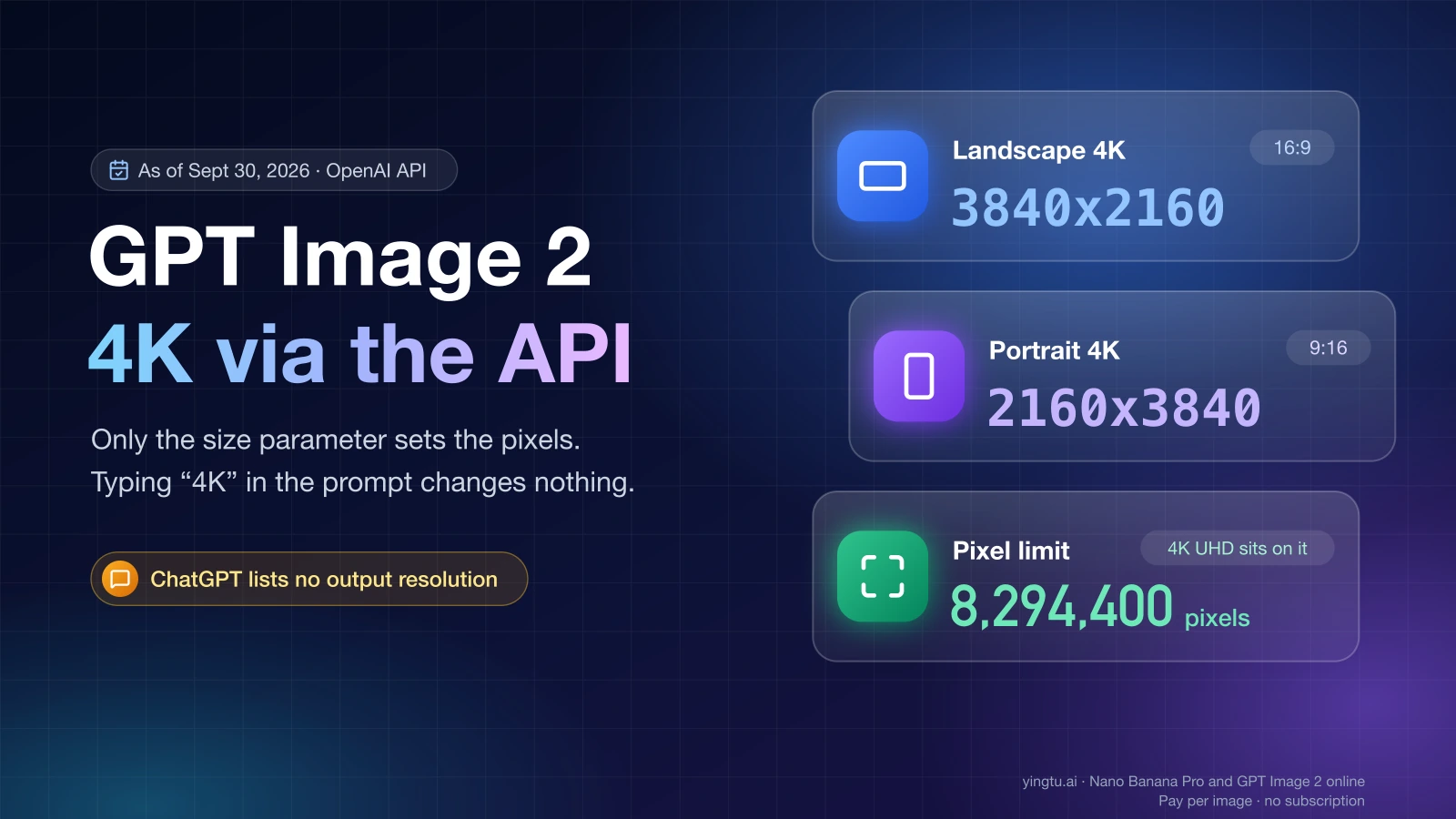
| A 2K or 4K file | Words like "4K" or "ultra-detailed" describe a look. Output stays at the 1K default. | image_size: "1K", "2K", or "4K" with an uppercase K. Lowercase values such as 1k are rejected. Nano Banana 2 Lite is 1K only; Nano Banana 2 offers 512px, 1K, 2K, and 4K; Nano Banana Pro offers 1K, 2K, and 4K. |
| A specific shape | A phrase like "wide 16:9 image" is a request. Without a setting, output matches the size of your input image, or is a 1:1 square. | aspect_ratio, for example "16:9". On Nano Banana 2, a 16:9 image is 1376x768 at 1K, 2752x1536 at 2K, and 5504x3072 at 4K. |
| An exact number of images | Google states the model "won't always follow the exact number of image outputs" you ask for. | No setting guarantees it. Send one request per image you need. |
| More reference images | Uploading more does not raise the limit. | The model: Nano Banana 2 keeps up to 10 objects and up to 4 characters consistent; Nano Banana Pro takes up to 6 objects, 5 characters, and 3 style references. Either way the total is at most 14. Nano Banana 2 Lite accepts up to 14 object images but is not optimized for multiple references. |
| No watermark | Nothing. | All generated images include a SynthID watermark. |
When you type into a chat window instead of calling the API, wording is the lever you have, so state the shape plainly, as in the templates above.
What to change first when the image comes out wrong
Google's documentation lists six best practices. Each one answers a specific kind of failure, so start with the row that matches what you see.
| What you got | Change this first |
|---|---|
| A generic, stock-looking image | Be hyper-specific. Replace "a backpack" with the material, color, wear, and setting. |
| The right subject, wrong feel | Give context and intent. Google's example: "Create a logo for a high-end, minimalist skincare brand" beats "Create a logo." |
| Something you asked to exclude still appears | Describe the scene positively. Instead of "no cars," write "an empty, deserted street with no signs of traffic." |
| Framing or perspective is off | Control the camera with terms like wide-angle shot, macro shot, or low-angle perspective. |
| A busy scene with missing or misplaced elements | Use step-by-step instructions: "First, create a background of… Then, in the foreground, add… Finally, place…" |
| Close, but one thing is wrong | Iterate in the same conversation with a small change: "Keep everything the same, but make the lighting a bit warmer." |
| Misspelled or garbled text | Generate the text first, then request the image with that exact text in quotation marks. |
| An edit changed more than you asked | Write "change only the…" and "keep everything else in the image exactly the same." |
| A text reply and no image | Open with "Create an image of…" |
Rewriting the whole prompt after every miss throws away what was already working. Change one thing, look at the result, then change the next.
Which Nano Banana model to send the prompt to
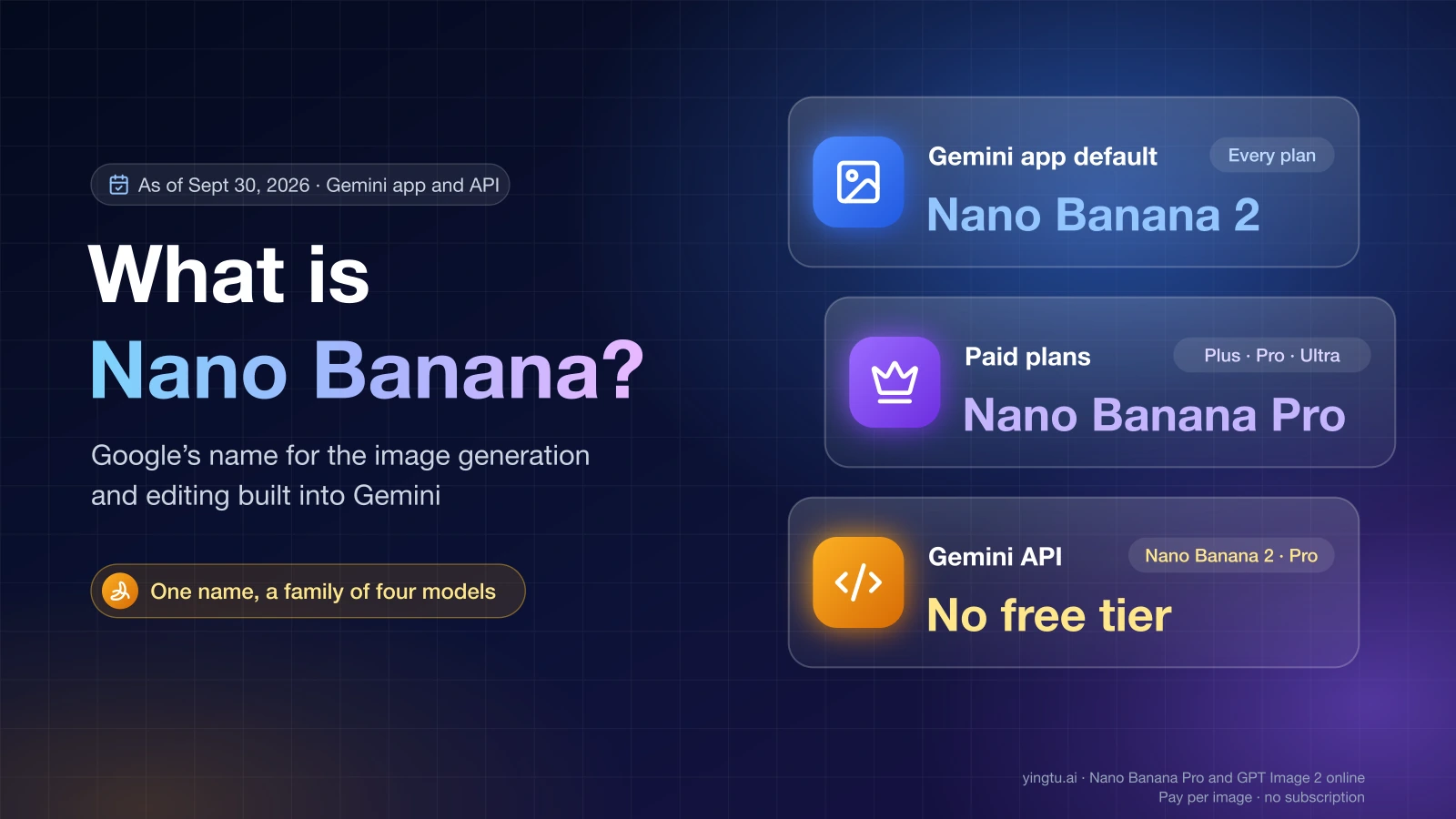
Nano Banana is Google's name for Gemini's native image generation, and Google calls Nano Banana 2 "your go-to image generation model." Per-image prices below are from Google's Gemini API pricing page as of October 1, 2026. Batch results arrive within up to 24 hours.
| Model | Use it for | Standard price per image | Batch price per image |
|---|---|---|---|
| Nano Banana 2 Lite | Fast, cheap 1K images; single-shot prompts | $0.0336 (1K) | $0.0168 (1K) |
| Nano Banana 2 | Most prompts; reference images; text in images; up to 4K | $0.045 (512px), $0.067 (1K), $0.101 (2K), $0.151 (4K) | $0.022 (512px), $0.034 (1K), $0.050 (2K), $0.076 (4K) |
| Nano Banana Pro | Professional assets and complex instructions | $0.134 (1K or 2K), $0.24 (4K) | $0.067 (1K or 2K), $0.12 (4K) |
None of the three has a free tier in the Gemini API; Gemini API Free Tier Limits: Free Models, Quotas, and 429 Fixes lists what is free. For the Gemini app side, including which plan gets which model, see What Is Nano Banana? Gemini's Image Model and How to Use It.
If you want to run these prompts without setting up a Google Cloud project, YingTu's studio runs Nano Banana 2 at $0.055 per image and Nano Banana Pro at $0.09 per image with your own LaoZhang API key, as of September 26, 2026. It goes through LaoZhang's API and is separate from Google's Gemini app.
Sending a prompt through the Gemini API
The example below is the Interactions API form from Google's documentation, with the output size and shape set where they belong. It reproduces the documented request shape with a different prompt.
hljs pythonfrom google import genai
import base64
client = genai.Client()
prompt = (
"A high-resolution, studio-lit product photograph of a stainless steel "
"water bottle with a bamboo cap on a pale gray stone slab. "
"Sharp focus on the water droplets on the cap."
)
interaction = client.interactions.create(
model="gemini-3.1-flash-image",
input=prompt,
response_format={
"type": "image",
"aspect_ratio": "16:9",
"image_size": "2K",
},
)
with open("bottle.png", "wb") as f:
f.write(base64.b64decode(interaction.output_image.data))
To edit, pass input as a list: one {"type": "text", "text": ...} item with the prompt and one {"type": "image", "data": <base64>, "mime_type": "image/png"} item per uploaded image. To refine a result, send the follow-up prompt with previous_interaction_id set to the earlier interaction's ID. Google describes multi-turn conversation as the recommended way to iterate on images.
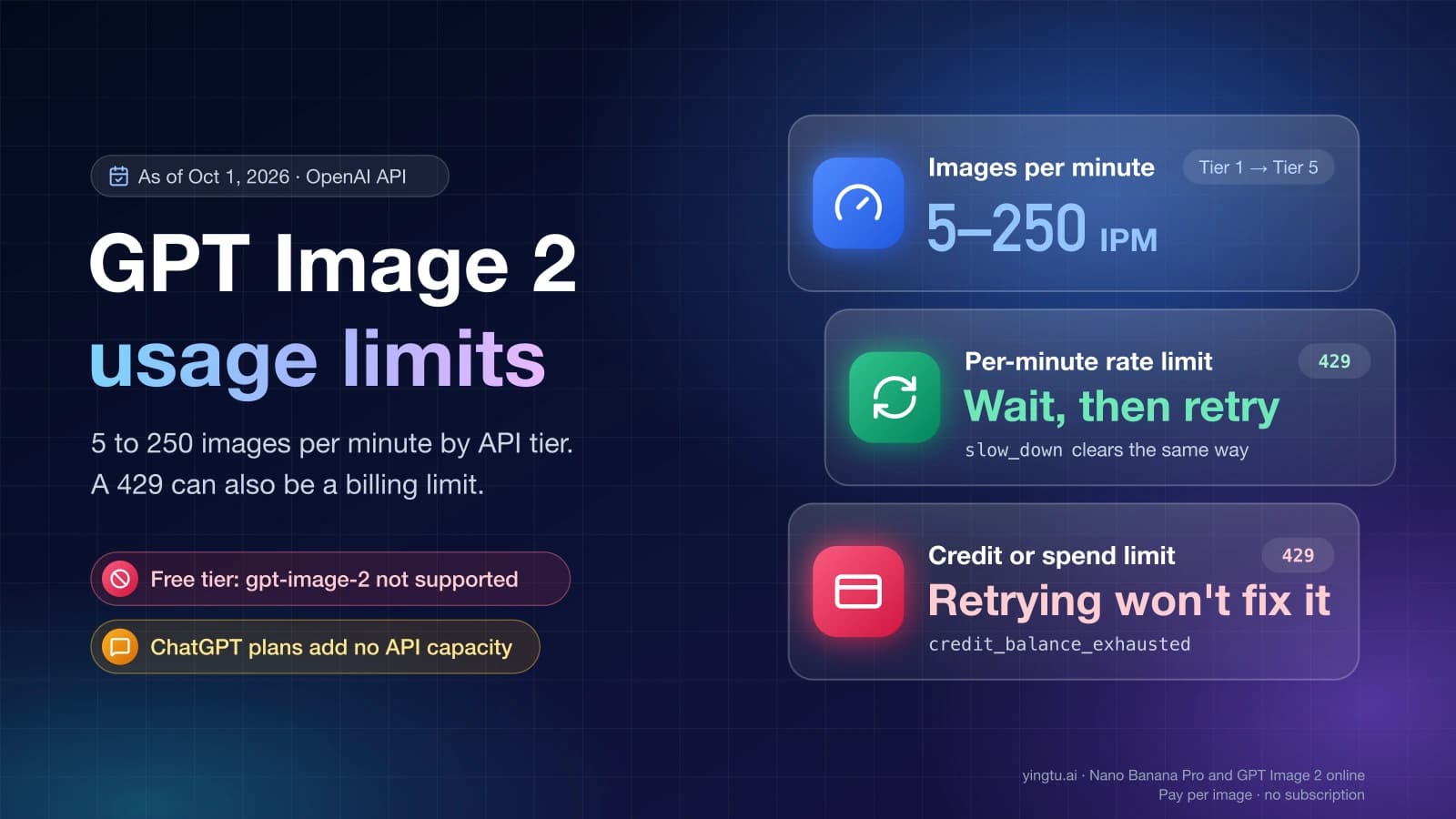
Two things to check in older code. Google's pricing page lists gemini-2.5-flash-image, the original Nano Banana, as deprecated with a shutdown date of October 2, 2026, so requests that still name it need a current model ID: gemini-3.1-flash-lite-image, gemini-3.1-flash-image, or gemini-3-pro-image. And if a batch of prompts starts returning 429 errors, the limit is per project; Gemini API 429 RESOURCE_EXHAUSTED: RPM, TPM, RPD and How to Fix explains which quota you hit.
FAQ
Do Gemini image prompts have to be in English?
No. English is one of 15 languages Google lists for best performance as of October 1, 2026, alongside Spanish (es-MX), Japanese, Korean, Russian, Simplified Chinese, and others. Write the prompt in whichever listed language you think in, and keep any text that should appear in the image inside quotation marks in the language you want rendered.
Why isn't my image 4K when the prompt says 4K?
Because output size is a request setting. Gemini's image models return 1K images by default, and a larger file requires image_size set to "2K" or "4K" in response_format, with an uppercase K. Nano Banana 2 Lite produces 1K only.
How many reference images can I give Gemini?
Up to 14 in one request on Gemini 3 image models, as of October 1, 2026. How many stay faithful depends on the model: Nano Banana 2 handles up to 10 objects and 4 characters, and Nano Banana Pro handles up to 6 objects, 5 characters, and 3 style references.
How do I keep the same character across several images?
Generate one clear image of the character first, then include that image in every later request and ask for one new angle or scene at a time. Repeat the fixed details (outfit, colors, proportions) in each prompt. Nano Banana 2 or Pro suits this better than Nano Banana 2 Lite, which Google says is not optimized for multiple reference inputs or multi-turn editing.